
December 22, 2025
A smooth Call for Abstracts is the backbone of any academic conference—a subset of events hosted on Whova. Once papers, posters, and talks are accepted, organizers face a familiar challenge: turning hundreds or even thousands of submissions into a polished, accurate agenda without spending days copy-pasting or wrestling with spreadsheets.
Whova already helps academic organizers streamline this workflow with our built-in Abstract Management Software to optimize each step: effortlessly organize submissions with custom tags tailored to your workflow, confirm speaker commitment with a quick form, and streamline accepted submissions straight to your Agenda Center and the Poster Center—no exporting, manual copy-pasting, or spreadsheet work needed. You can also embed your agenda into your own event website with our popular, customizable agenda widget, saving organizers days of time.
Some academic conferences need specialized peer-review systems with multi-round reviews, committee discussions, author rebuttals, and area chairs, but still want Whova for agenda building, mobile apps, event webpages, and event management. These events can import their full agenda directly, or use our new upload a session list feature to start scheduling right away.
Today, we’re excited to introduce Whova’s first integration with an external academic abstract system—HotCRP.
Organizers using HotCRP can now import accepted submissions directly into Whova in just a few clicks. No custom templates, no manual reformatting, no tedious cleanup.
This new import flow empowers organizers to:
- Start scheduling immediately. Export straight from HotCRP and import into Whova with no templates or extra steps required.
- Focus on agenda-building, not data entry. No more spreadsheet shuffling means all your energy goes toward creating a seamless schedule.
- Reduce manual mistakes. Fewer steps mean less risk of human error. Simply export, upload, and you’re done.
- Leverage Whova’s scheduling features. Visualize your layout in the Agenda Center and optimize your schedule all in one platform.
And this is just the beginning.
If your conference uses another academic submission system, we want to hear from you. When selecting a submission source, simply click “Let us know”—your feedback will help us decide which platform to integrate with next.
How to Import Submissions From HotCRP
When you’re ready to start building your agenda, head to the Session Manager under the Agenda Center.
Select “Import from academic submission systems.”
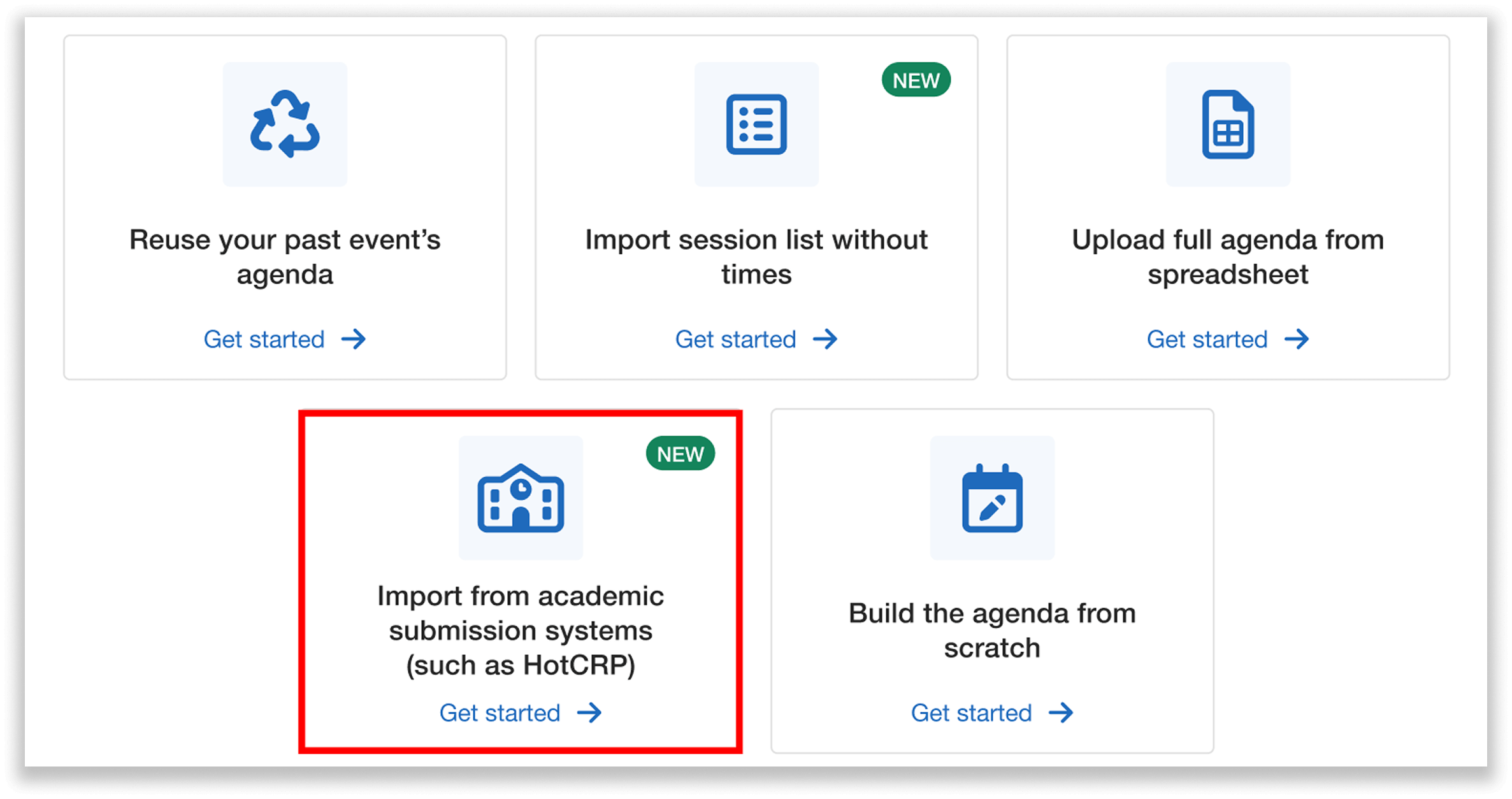
Import from academic submission systems to build your agenda in Whova.
If you’ve already started building your agenda, you can find the Import dropdown in the Session Manager and select “Method 3: Import from other platforms.”
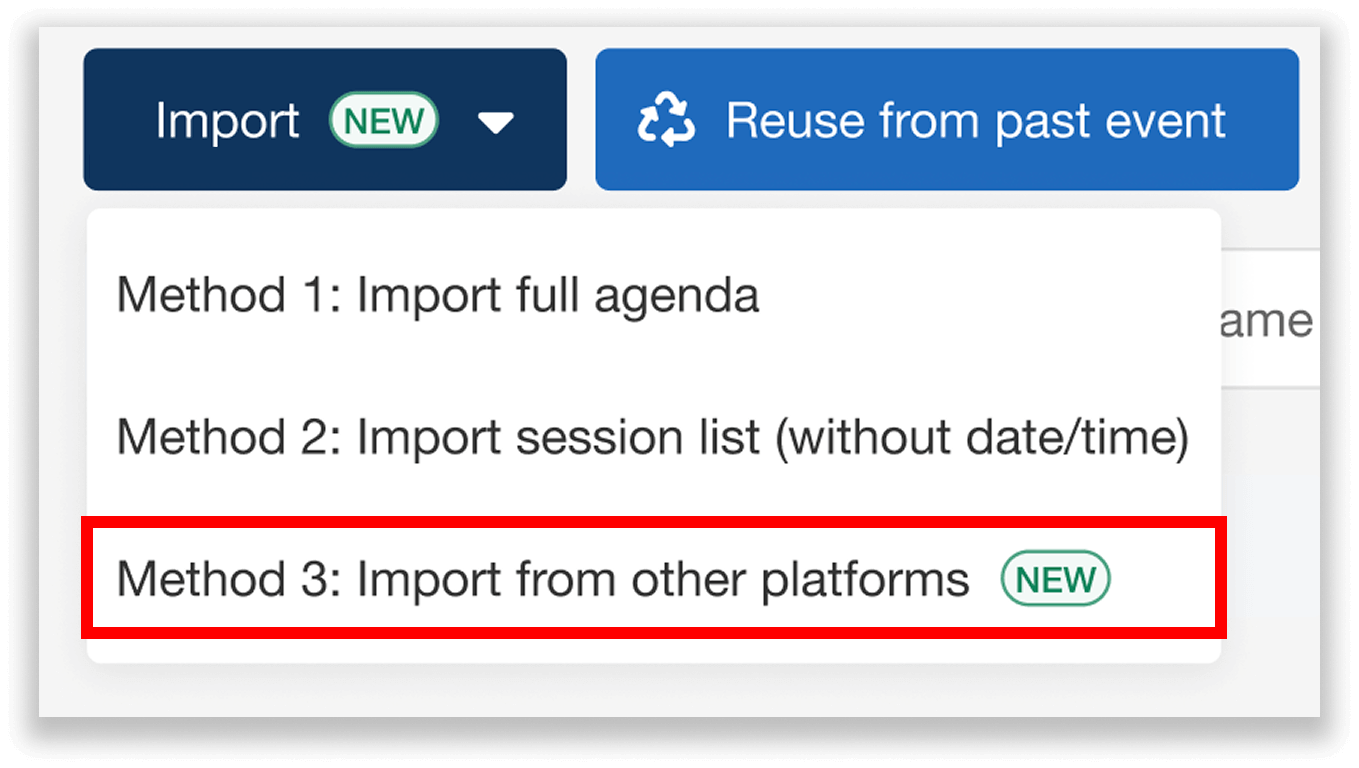
Choose “Import from other platforms” in the Import dropdown.
Then, select your academic review system—choose HotCRP.
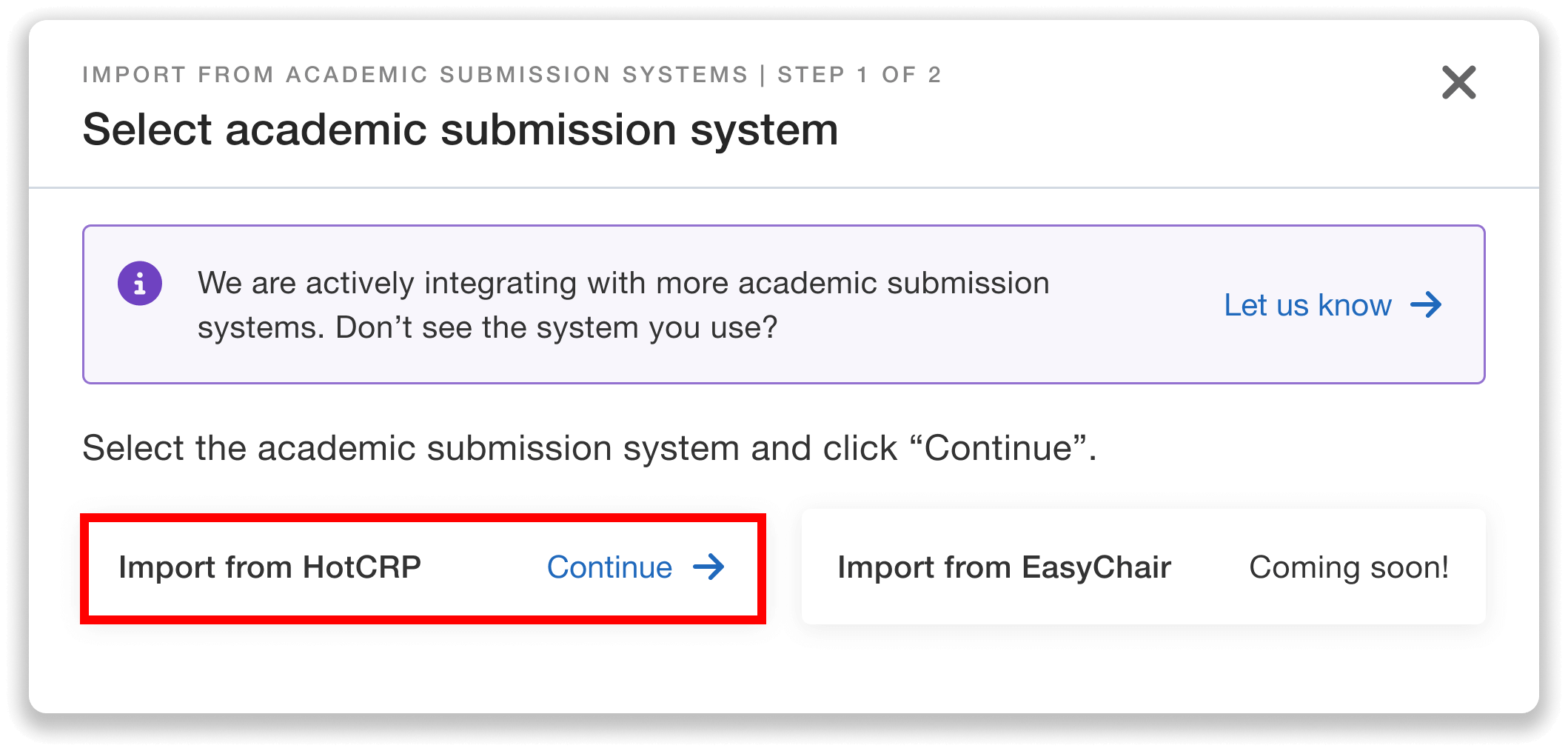
Select your academic review system—or let us know which platform to integrate with in the future.
You can now simply export your submissions from HotCRP and upload them into Whova.
First, export from HotCRP:
- In HotCRP, search for accepted submissions. We recommend using the search criteria dec:Accepted.
- Select all submissions and click Download.
- Choose either JSON or USENIX CSV from the dropdown.
For step-by-step instructions, you can also view the guide directly within Whova during the import process.
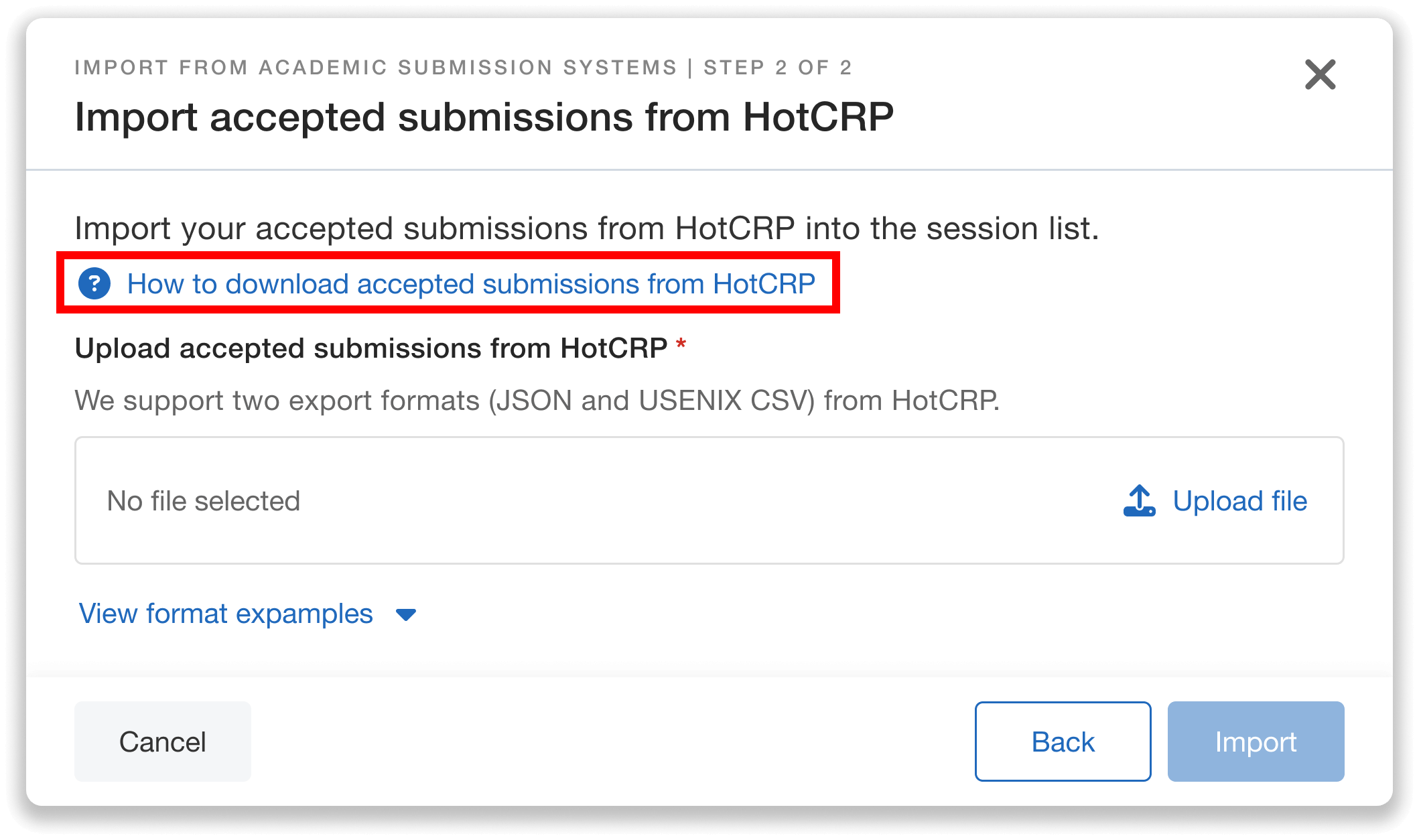
Easily upload your accepted submissions into Whova—view our guide on how to download from HotCRP.
Whova supports both JSON and USENIX CSV file formats, so make your selection based on the level of detail you need. JSON exports include more information (such as author emails and affiliations), while USENIX CSV exports are simpler (e.g., author info will include names only). Both formats import key session details like title, ID, and abstract.
Note: If your conference is associated with ACM or IEEE (rather than USENIX), you may need to ask your HotCRP provider to enable USENIX CSV format.
Finally, upload your file into Whova and click Import. You can view how many sessions will be imported into the session list before proceeding.
Easily Schedule From Your Session List
Once you’ve uploaded your sessions, scheduling them is simple. Whova offers two options.
Option 1: Schedule Directly in the Agenda
In the Session Manager, click Add session on a time slot and select “From imported session list.”
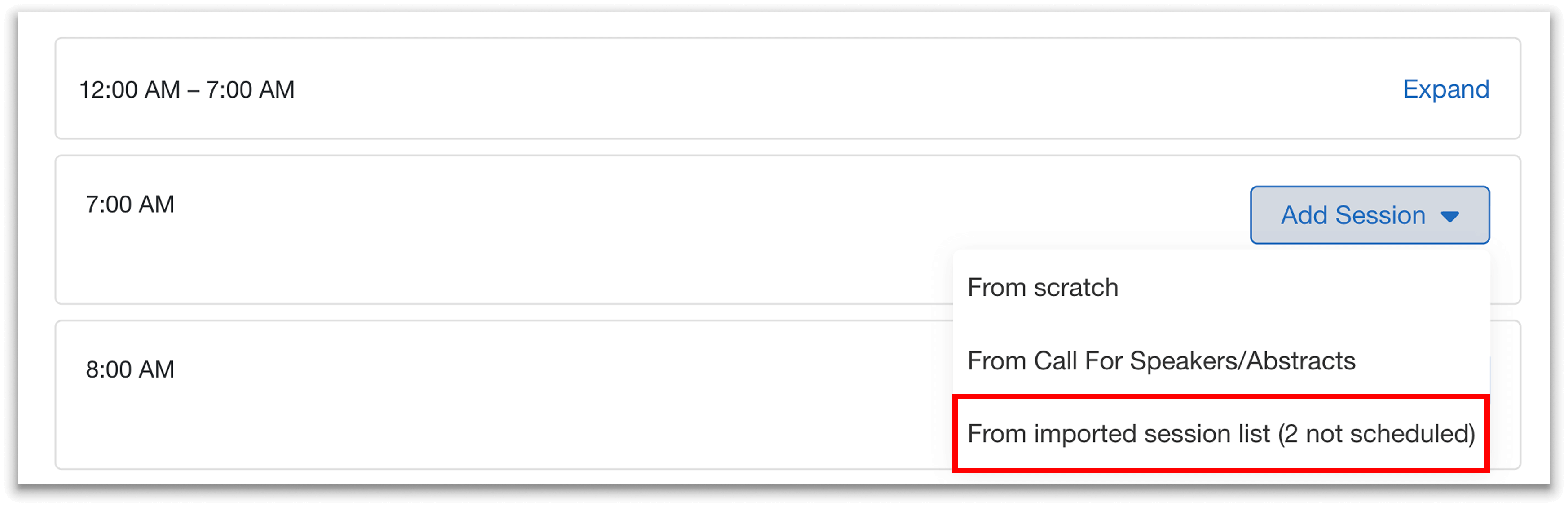
Add sessions from your imported list directly into time slots in the Session Manager.
You can then view your uploaded sessions. Search by title or ID, or filter by topic (if your import included them) to find your desired session.
When you select a session, Whova will prefill the title, abstract (labeled as description), and authors based on your import. You can edit the session information however you’d like without affecting the original session uploaded in your list.
Option 2: Schedule From the Session List
Prefer to work from the session list itself? Click the See imported session list button in the Session Manager.
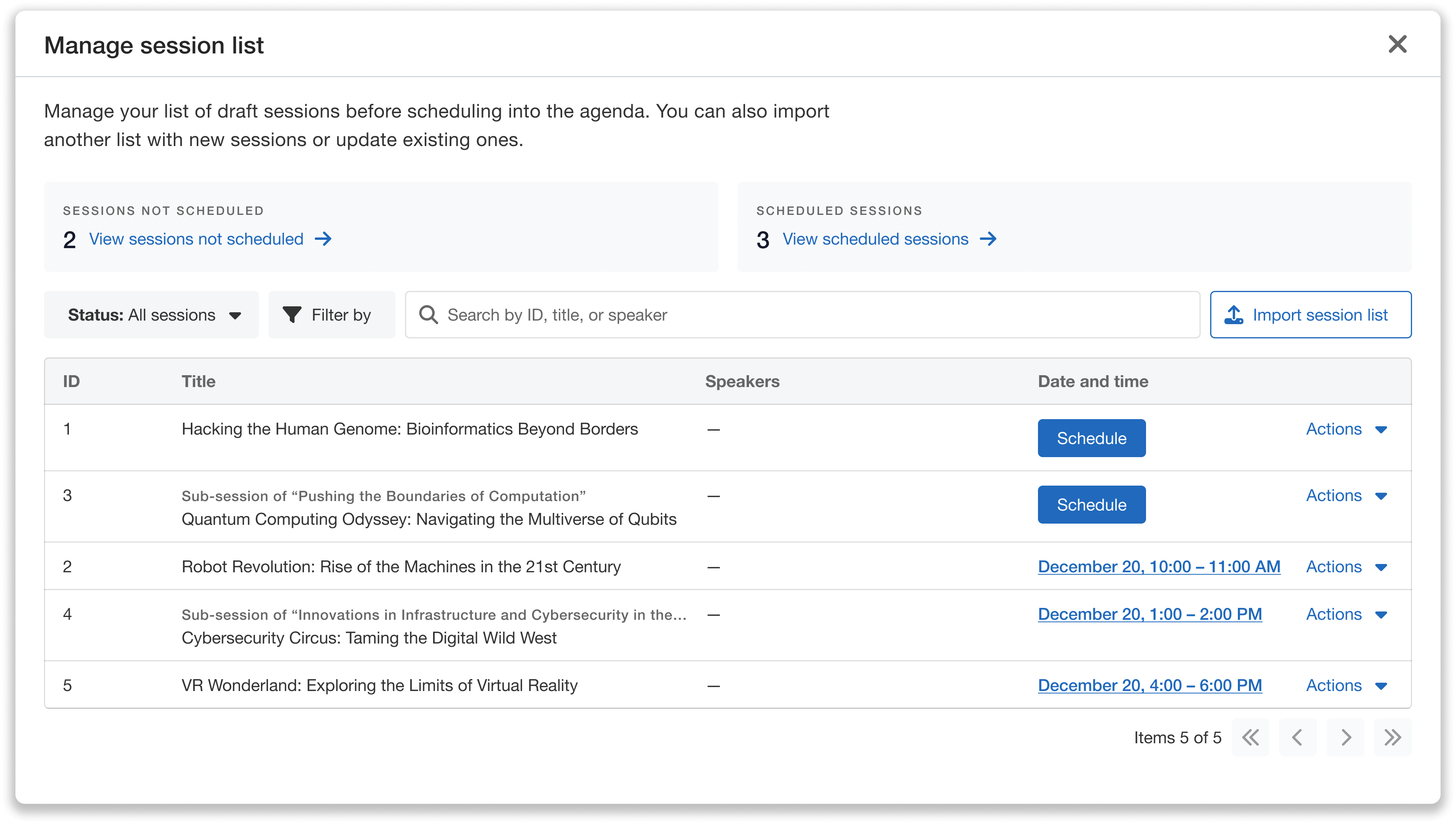
View and manage all your imported sessions in one place.
Here you’ll see each session’s ID (assigned by HotCRP), title, and date/time if it’s been scheduled. You can filter, search, and view both your scheduled and unscheduled sessions separately to get a clear picture of what still needs to be done.
For unscheduled sessions, click the Schedule button to assign them to a time slot. Whova will create a session in the agenda with the title, abstract, and authors prefilled. You can edit any of the session’s details without affecting the synced session in your list.
Update Your Session List with More Imports
You can add more sessions at any time by uploading another file. New uploaded submissions from HotCRP will then appear in your session list automatically.
It’s important to note that if your file includes sessions you’ve already uploaded, Whova will match them by their HotCRP ID and update your session list with any changed details. New IDs will be treated as entirely new sessions and added to your list.
Already scheduled those sessions in your agenda? No worries—the information will seamlessly update there too.
Get Started With HotCRP Import Today
Whova’s HotCRP integration lets you skip the spreadsheet wrangling and get straight to scheduling. Export your accepted papers, import them into Whova, and watch your agenda take shape in no time—with session details and authors already in place.
Ready to import sessions from your academic submission system? Go to your Agenda Center to get started, or request a demo to learn more.