
January 16, 2026
By the time you’re ready to build your agenda, you’ve already done the heavy lifting: collected sessions, sorted through proposals or topic ideas, coordinated with speakers, and finalized your program content.
Whova makes this process smoother from the start. You might gather sessions through Whova’s Call for Speakers/Abstracts, receive proposals through another system, or maintain your own list. Either way, you can bring everything into Whova with ease—upload a session list or a full agenda spreadsheet, import accepted presentations from academic review systems like HotCRP, or enter sessions manually. Whatever your workflow, it all flows into the Agenda Center. From there, your agenda appears automatically in Whova’s award-winning event app. If you use our popular Agenda Web Widget, it also publishes directly to your own event website.
But before you can publish a polished agenda, there’s still one big hurdle…assigning them to the right timeslots. Manually setting times, spacing out sessions, and avoiding errors takes hours.
Now there’s a better way.
Introducing Batch Scheduling for Back-to-Back Sessions—a faster, smarter tool for placing multiple sessions at once. With Back-to-Back Scheduling, it’s easy to schedule multiple sessions simultaneously with logical groupings and consistent breaks, and be confident everything lines up perfectly.
You can use this enhancement to build your agenda with maximum efficiency:
- Schedule sessions in the same track one after the other, in minutes. Filtering by your desired track is easy!
- Schedule multiple sub-sessions under the same parent session all at once.
- Add consistent breaks between your back-to-back sessions, such as a 10-minute interval between each one.
- Leverage search and filtering capabilities to quickly find and schedule exactly the sessions you’re looking for.
Build a polished agenda and give your attendees an intuitive, well-structured experience, with more time left for the rest of your event planning.
Keep reading to see how you can create your agenda faster, with less mistakes and more confidence.
Schedule Back-to-Back Sessions from Whova’s Call For Speakers/Abstracts
Scheduling back-to-back sessions from your accepted submissions is simple. The workflow is the same as scheduling a session from Whova’s Call for Speakers/Abstracts.
In the Session Manager (under the Agenda Center in the Content tab), select “Add session” in one of the time slots for your schedule, then choose “From Call for Speakers/Abstracts.” From there, you can select from your accepted submissions.
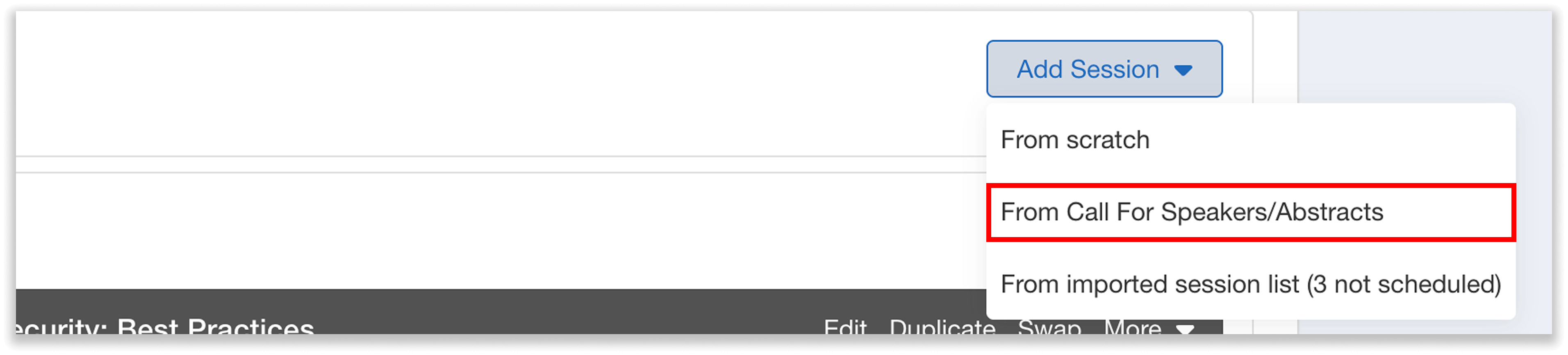
Select “From Call for Speakers/Abstracts” to schedule your accepted submissions.
You will be asked “How would you like to schedule sessions?” Switch from the default individual session scheduling to “Schedule multiple sessions back-to-back.”
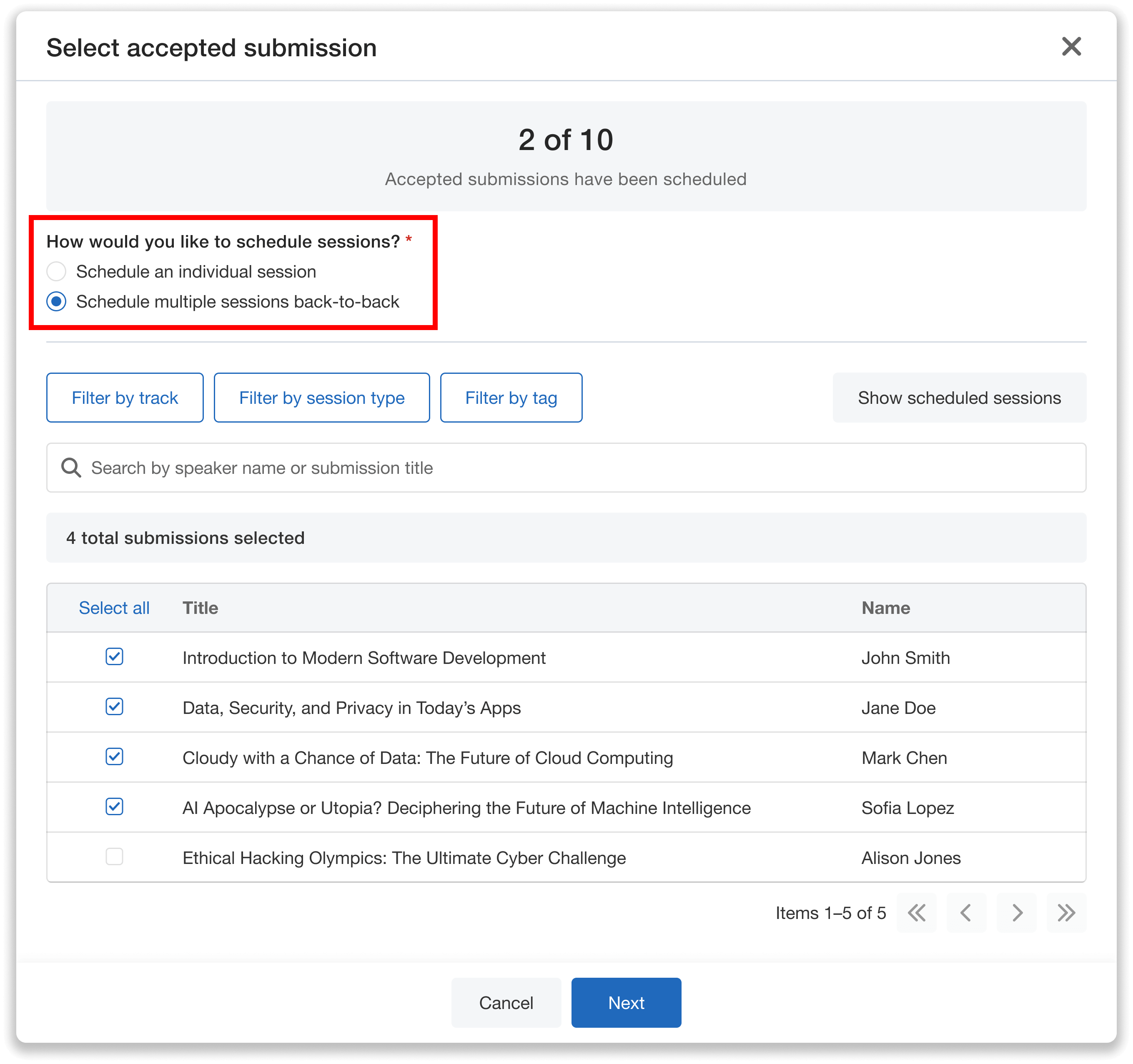
Select “Schedule multiple sessions back-to-back” to choose multiple submissions at once.
Now, you can schedule multiple submissions from your list.
Step 1: Select Your Sessions
You can filter by track, tag, or session type, and search by speaker name or submission title to find exactly what you’re looking for. For example, if you want to schedule all the sessions in your Digital Marketing track consecutively, filter by that track to find all of those sessions. You can then easily select which ones you want to schedule.
Step 2: Configure Session Settings
Now, it’s time to set the date and start time of the first session, the duration of each session, and add a break if desired. Break options include 5, 10, 15, or 20 minutes. You can also assign a room to the sessions.
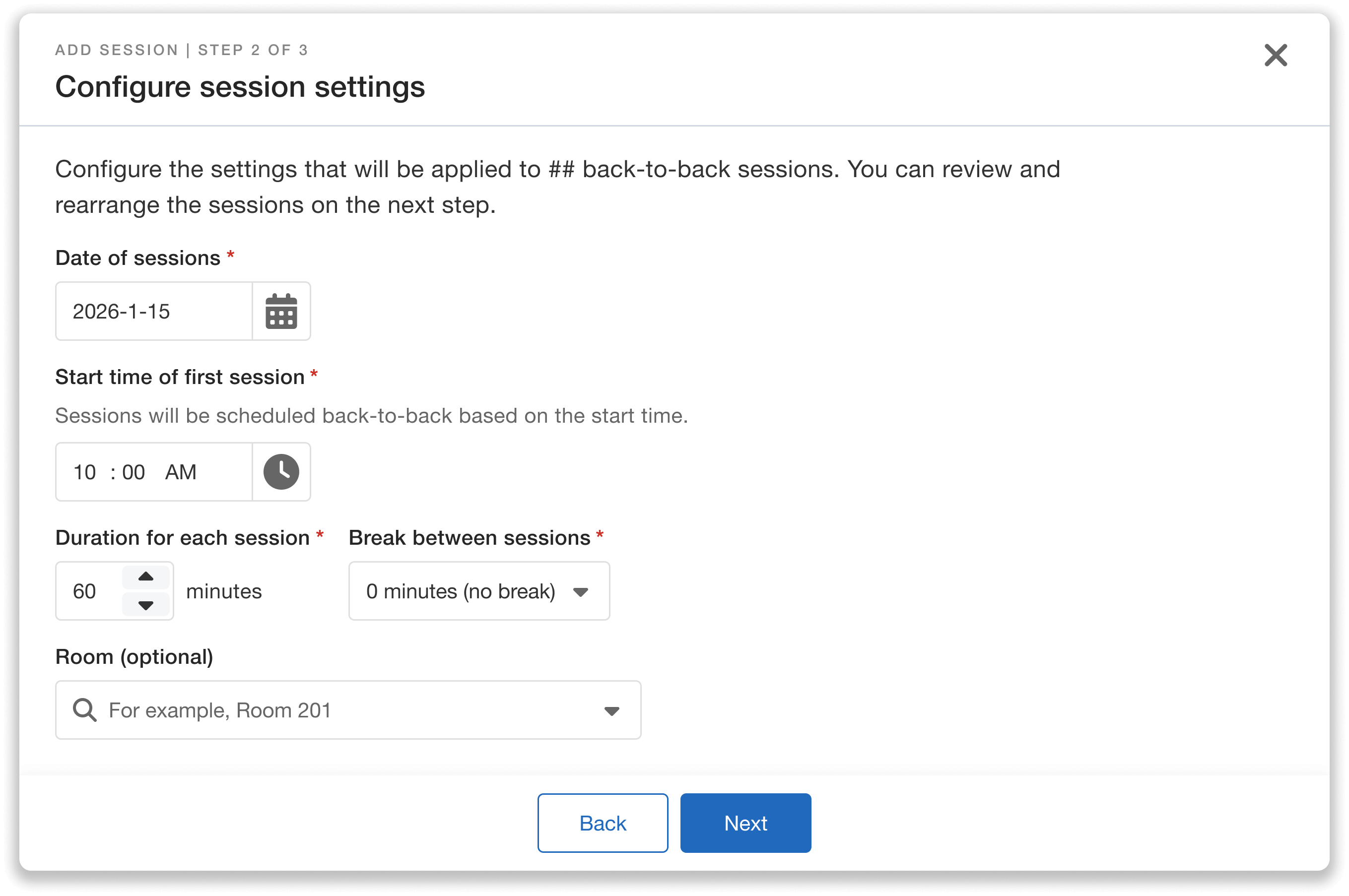
Configure the date, time, duration, breaks, and room for your sessions.
Step 3: Review and Schedule
Finally, review your settings and rearrange the order of sessions if needed—move each one up or down until they’re structured to your liking. Once done, you can schedule all the sessions into your agenda with a single click. You can view and edit them anytime in the Session Manager.
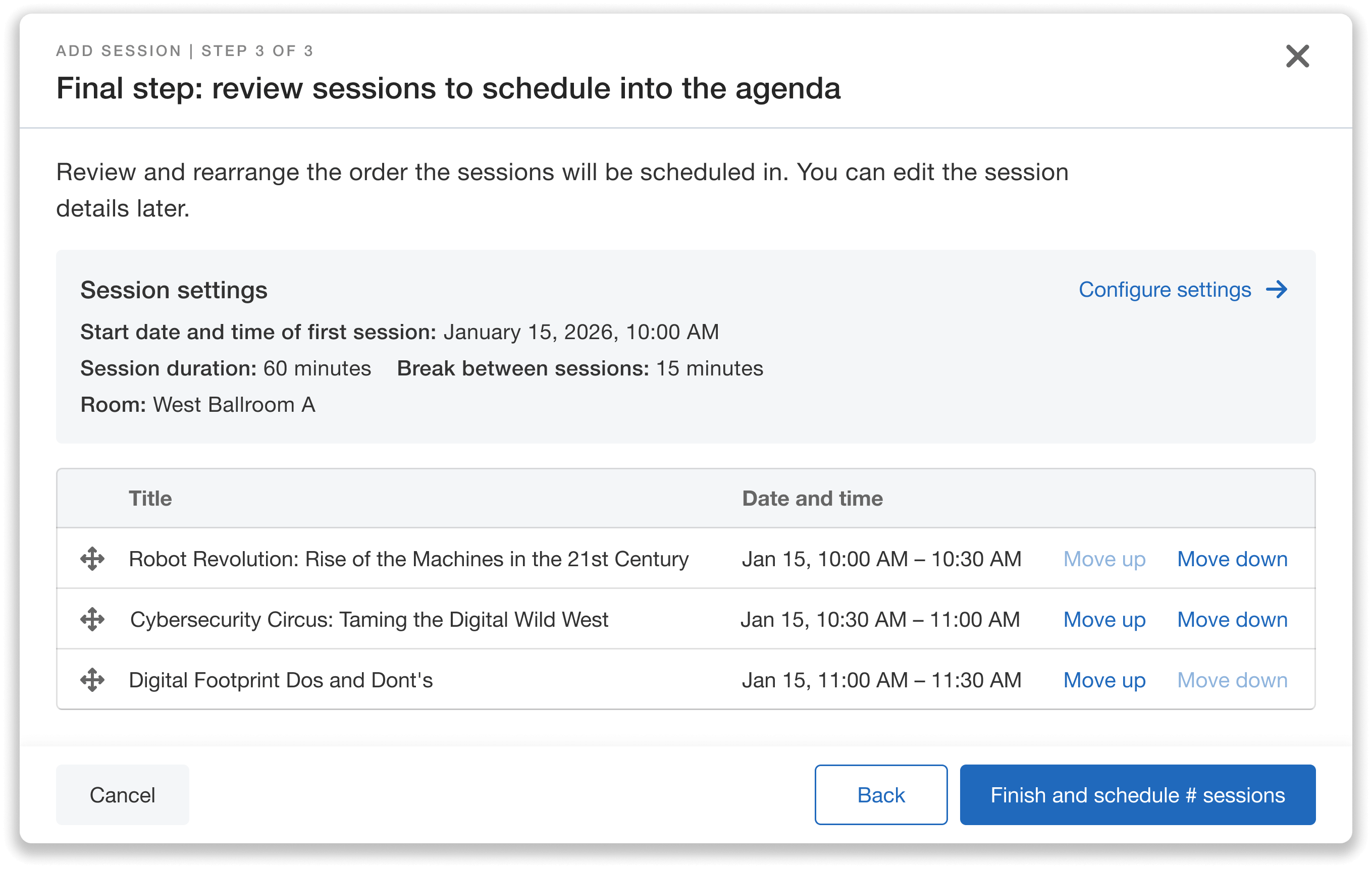
Review settings and rearrange the session order before scheduling.
Schedule Back-to-Back Sessions From Your Imported Session List
You can also batch schedule consecutive sessions from a Session List imported via Excel Template or from an academic review system with the same simple workflow.
Once you’ve uploaded your sessions, select “From imported session list” in the Session Manager when adding a new session in one of the timeslots. You will then be able to select from your imported sessions.
First, choose the option to “Schedule multiple sessions back-to-back.” Then, follow these simple steps:
1. Select your Sessions
You can filter by track, keyword or topic, or session type, and search by title or speaker (depending on which fields you filled out in the template). For example, if you have several “Lightning talk” sessions and want to schedule them one after the other, filter by that session type to find and select them all.
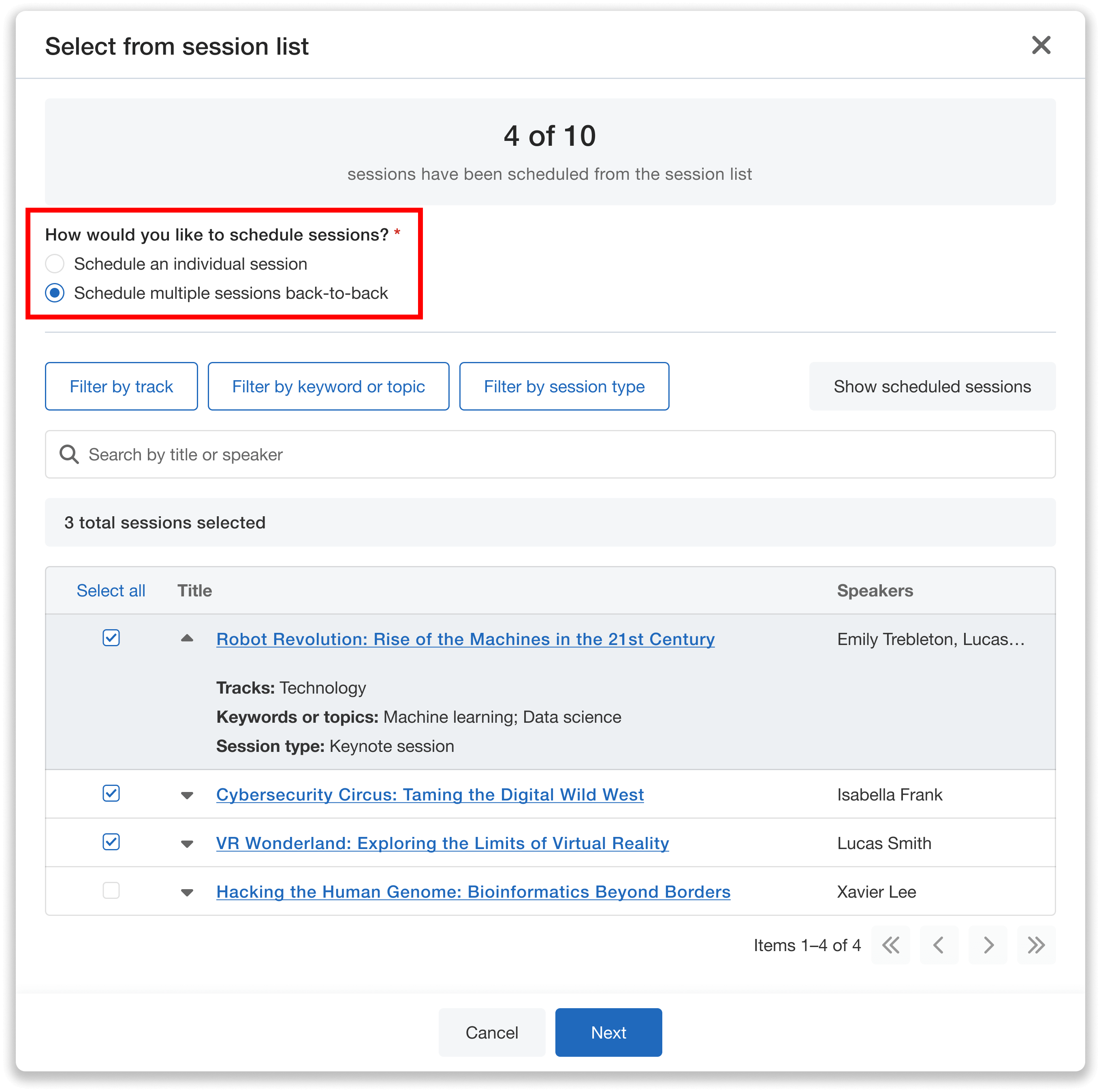
Filter by track, keyword/topic, or session type to find and select the sessions you need.
2. Configure Session Settings
Similar to above, you can edit the date and start time of the first session, the duration of each session, and add a break between sessions if needed. Break options include 5, 10, 15, or 20 minutes. You can also assign a room.
3. Review and Schedule
Move each session up or down to set the order, and review the details you selected. Once you’re ready, click schedule and your sessions will be added to the agenda. You can then view and edit them in the Session Manager.
Back-to-Back Sub-Sessions Can Also Be Scheduled in Bulk
You can also use Back-to-Back Scheduling to schedule sub-sessions. For example, if you have a parent session on “Advancements in Data Science” and you want it to include several consecutive sub-sessions, you can schedule them all at once with this enhancement.
In the Session Manager, simply click “Add Sub-session” for the session you want to add sub-sessions to. You can then choose to schedule from Call for Speakers/Abstracts or from your imported session list.
From there, follow the same process as above. Choose “Schedule multiple sessions back-to-back,” select your sessions, and then configure the settings. You can edit the start time of the first sub-session, the duration of each sub-session, the breaks in between, and the room if needed.
Note: sub-sessions must fall within the parent session’s timeframe.
Once you’ve reviewed the details and arranged the session order to your liking, you’re all set. Schedule your sessions into the agenda in one click, where you can edit each one individually at any time.
Get Started with Back-to-Back Scheduling
You’ve already done the work of curating great content and lining up your speakers—now, your agenda can come together just as smoothly. Less time spent configuring session time slots means more time for everything else on your list.
Head to your Agenda Center to try Back-to-Back Scheduling today, or request a demo to learn more.