
July 30, 2026
Planning an event takes a village.
Months before attendees arrive, your team is already juggling hundreds of moving pieces. Someone is confirming speakers. Someone else is recruiting sponsors. Another teammate is managing registration, updating the website, coordinating volunteers, preparing exhibitor logistics, or configuring the event app.
Yet despite all the sophisticated tools available for running events, many teams still rely on spreadsheets, email threads, and recurring check-in meetings to manage the actual work of planning.
During one of our Event Insider panels, polls revealed that 71% of respondents use spreadsheets to manage event planning tasks. While spreadsheets may work at the beginning, they quickly become difficult to maintain as plans evolve. Deadlines shift, responsibilities change, and people miss updates. Organizers become the unofficial “project manager,” spending valuable time chasing status updates instead of moving the event forward.
At Whova, we’ve been helping organizers simplify event execution from every angle. Whether it’s registration, sponsor and exhibitor management, abstract management (call for speakers), agenda building, volunteer coordination, or creating professional event webpages, Whova provides the tools teams need to deliver exceptional events.
But there has always been one missing piece: coordinating the people behind all that work.
Today, we’re excited to introduce Whova’s Project Management Portal—a dedicated Team Portal built specifically for event organizers.
Instead of switching between spreadsheets, email chains, and separate project management tools, your entire planning team can work from one shared hub to organize tasks, monitor progress, communicate updates, and keep projects moving forward.
Even better, the Project Management Portal operates independently from the organizer dashboard. You don’t need to give everyone full Whova admin access just to collaborate. Simply invite colleagues, contractors, volunteers, board members, or external partners into the Team Portal so they can contribute to the work that’s relevant to them.
With Whova’s Project Management Portal, your team can:
- Collaborate directly within tasks. Leave comments directly on tasks and checklist items to share updates, flag dependencies, ask questions, and document decisions. Conversations stay connected to the work itself, making it easy for everyone to stay informed without digging through email threads.
- Keep deadlines on track through automated reminders. Automated reminders notify team members when deadlines are approaching, while dynamic Weekly Digest emails provide a clear snapshot of upcoming priorities and outstanding tasks, helping everyone stay accountable without constant follow-up from organizers.
- Start with ready-made checklists. Not sure where to begin? Answer a few questions about your event, and Whova generates a customized project roadmap tailored to your needs. From venue selection and speaker management to exhibitor logistics and sponsorship fulfillment, you’ll get editable task lists and checklists designed specifically for your event.
- See progress at a glance. Know exactly who owns what, what’s been completed, what’s in progress, and what’s at risk. Team members can focus on their own assignments while organizers maintain a bird’s-eye view of overall progress through a centralized planning board.
By bringing your entire planning roadmap into Whova, the Project Management Portal eliminates the need to piece together updates from multiple tools. Your team can instantly see what’s done, what’s next, and where attention is needed, without spreadsheets, endless meetings, or constant status chasing.
Because successful events aren’t just about managing registrations, sponsors, speakers, and attendees. They’re about helping the people behind the scenes work together more effectively.
Ready to help your team stay aligned, move faster, and plan with confidence? Read on to see how Whova’s Project Management Portal works.
Use Event Checklists to Ensure Nothing Falls Through the Cracks
Getting started with Whova’s Project Management Portal is simple. Open the Content tab in the organizer dashboard, and then click on Project Management. You’ll then answer a few quick questions about your event to help us generate a tailored, customizable set of task lists.
One type of task lists we’ll create are checklists. Checklists are ideal for shared responsibilities that involve multiple team members working toward a single deadline, such as event day setup, pre-event marketing, or post-event follow-up.
Each checklist contains individual items that your team can complete, such as conducting a venue walkthrough, testing A/V equipment, or confirming volunteer assignments. Since checklists are designed for collaborative work, any team member you’ve added to the Project Management Portal can mark an item as complete.
The entire checklist shares one due date, making it easy to track progress toward a common milestone.
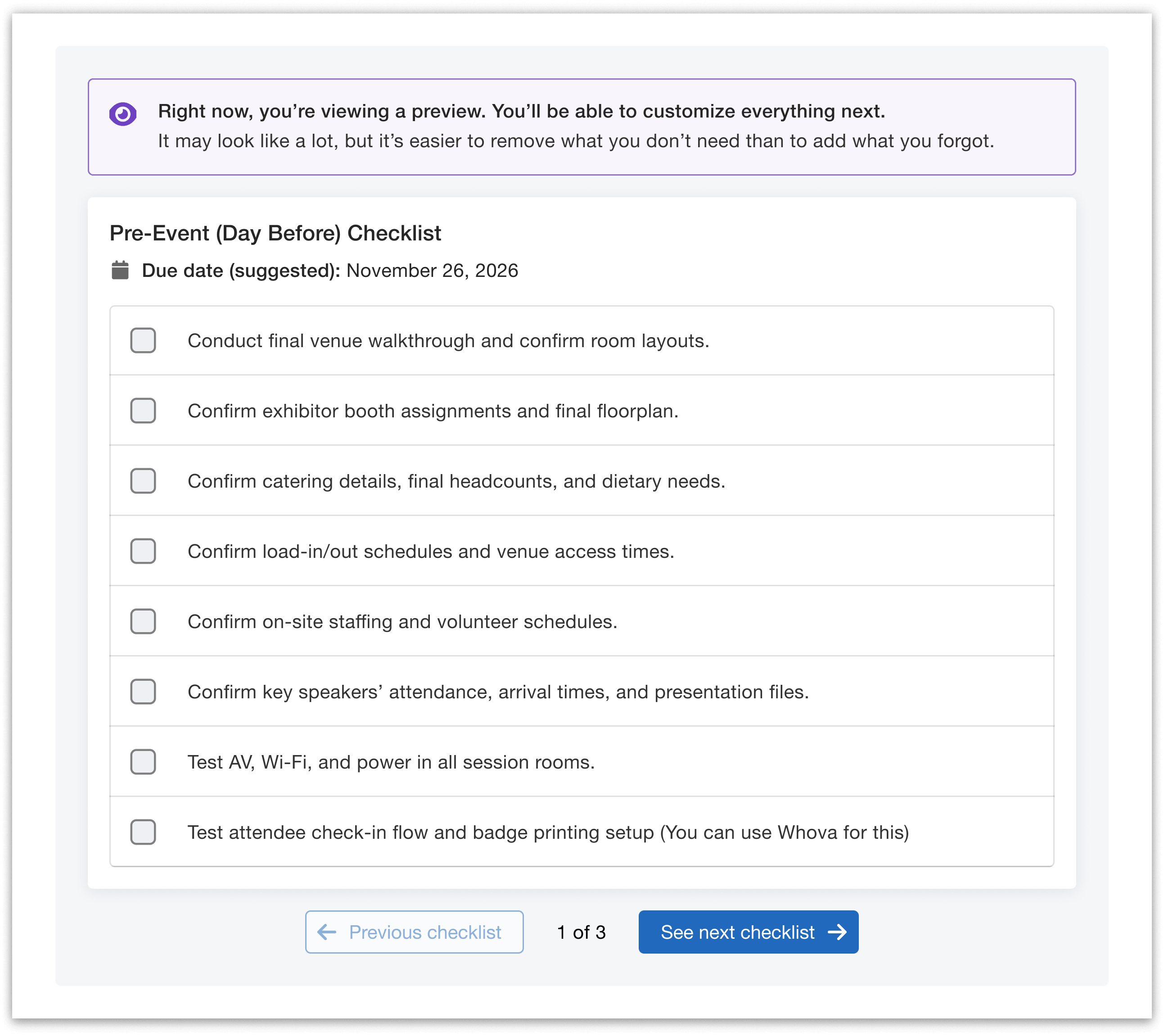
Generate customized checklists based on a few quick questions, then edit them anytime to fit your team’s needs.
Every checklist is fully customizable. You can edit the due date, rearrange existing items, remove tasks you don’t need, and add your own to match your team’s workflow. If you want to build your own checklist from scratch, you can either start from one of Whova’s templates or create a completely custom checklist—just give it a name, due date, and checklist items.
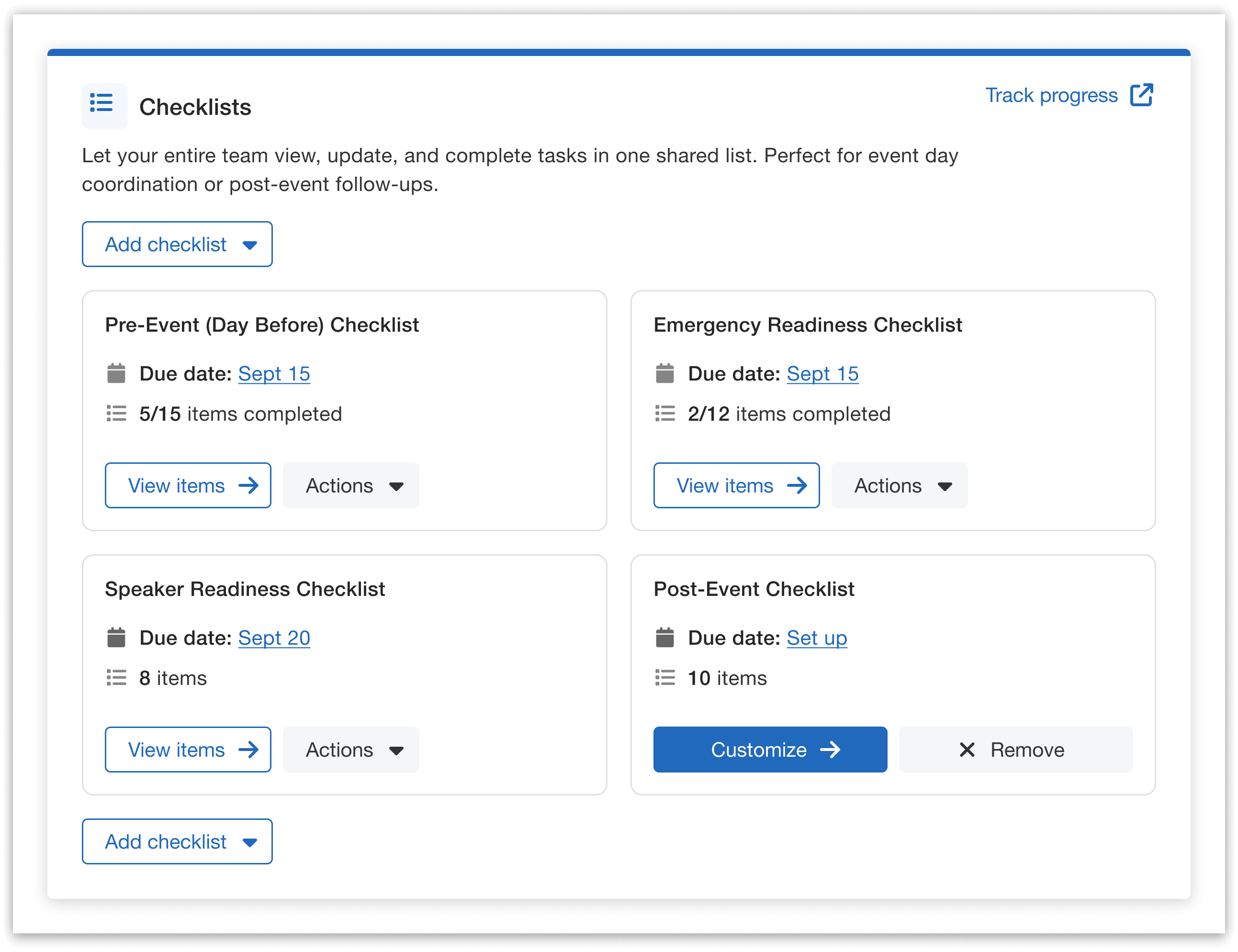
Edit existing checklists or create your own.
As your event plans evolve, your checklists can evolve too. You can return at any time to update due dates, modify items, or add new items, ensuring your team always has an up-to-date plan to work from.
Use Projects to Manage Long-Term Work
While checklists are designed for shared milestones, projects help you manage larger initiatives that span weeks or months and have a dedicated owner.
After answering the same quick onboarding questions in the organizer dashboard explained above, Whova will also generate customizable projects tailored to your event. These are ideal for managing ongoing efforts like venue and catering coordination, program and speaker planning, or sponsor and exhibitor management.
Each project is made up of individual tasks, such as shortlisting venue options, collecting speaker bios, or sending booth setup instructions to exhibitors. Every task within a project can have its own due date, making it easier to manage complex workflows with multiple deadlines.
Projects are assigned to a single team member, who is responsible for updating task statuses and keeping the project moving forward. Admin maintain full visibility and control—they can also update task statuses and manage any project, regardless of who it’s assigned to.
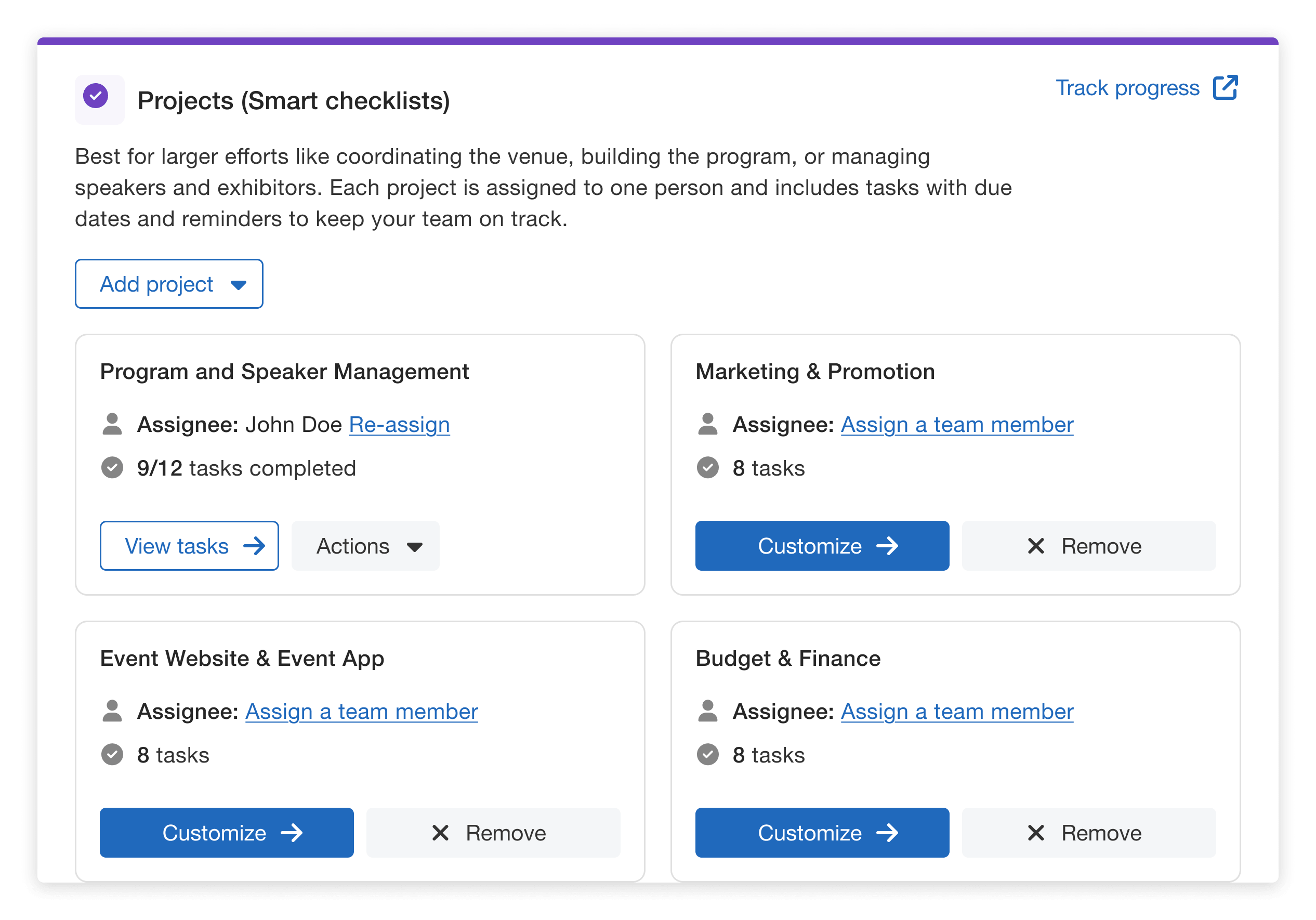
View and customize projects from the same dashboard as your checklists.
Just like with checklists, every project is fully customizable. You can edit tasks, remove those you don’t need, and add new ones to match your workflow. You can also create entirely new projects by starting from one of Whova’s templates or building your own from scratch. Just provide a project name, add tasks, assign due dates for each one, and include optional task descriptions for additional context.
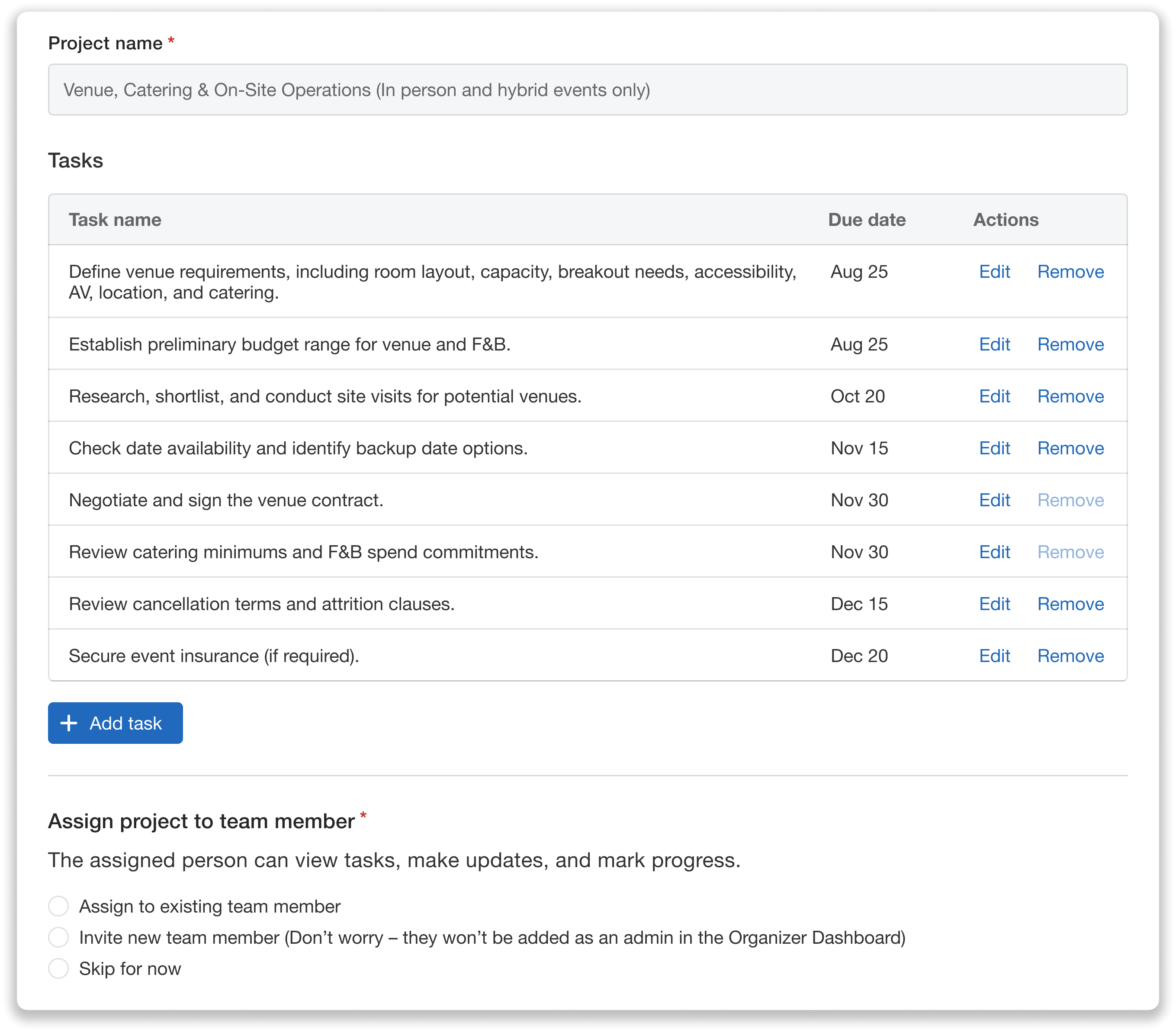
Customize projects: edit, remove, or add new tasks, set deadlines, and assign project ownership.
Projects remain fully editable, so you can update tasks, adjust timelines, and reorganize work as priorities change—keeping your planning roadmap aligned with your latest priorities.
Manage Team Members Without Granting Admin Access
Whova’s Project Management makes it easy to collaborate with your entire team without giving everyone access to your event’s backend.
The Project Management Portal is a dedicated workspace where external team members can view assignments, update progress, and collaborate on tasks without needing to access the organizer dashboard. Team members just invited to the portal—and not added as admins in the dashboard—won’t see backend settings such as Call for Speakers, registration setup, or attendee management.
Within the portal, team members can:
- View their assigned projects and the rest of the team’s work
- Update the tasks they’re responsible for
- Collaborate with teammates from one centralized workspace
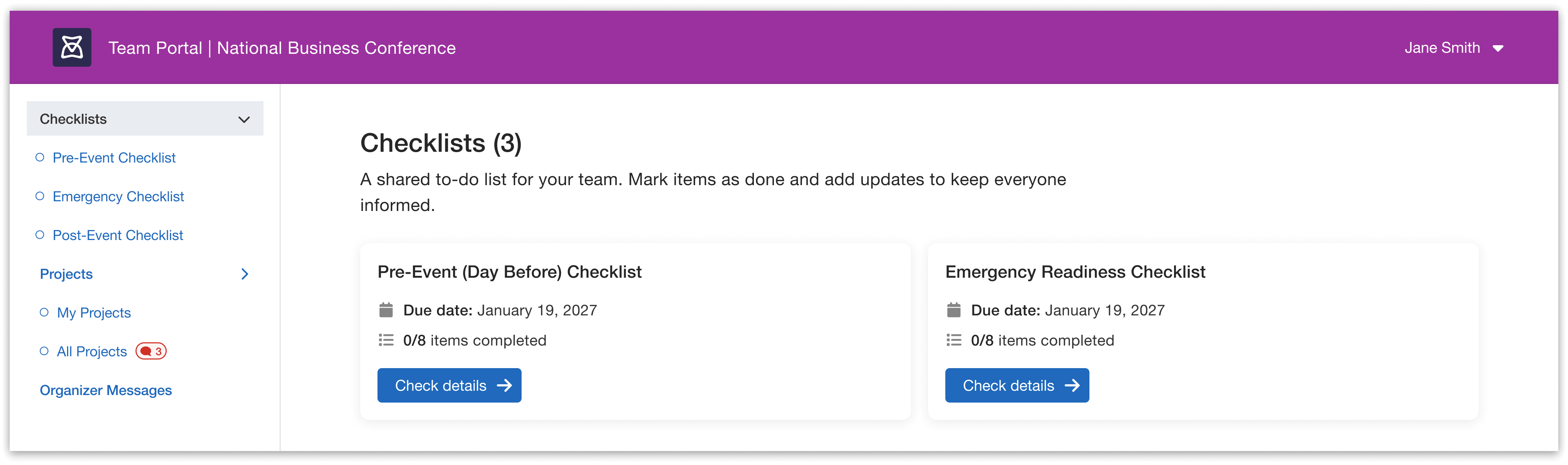
Team members view and complete work in the Team Portal.
Adding collaborators to the portal only takes a few seconds. From the Project Management page in the organizer dashboard, select Add team members, and then click Add external team member. You’ll then provide their name, email address, and optionally their role.
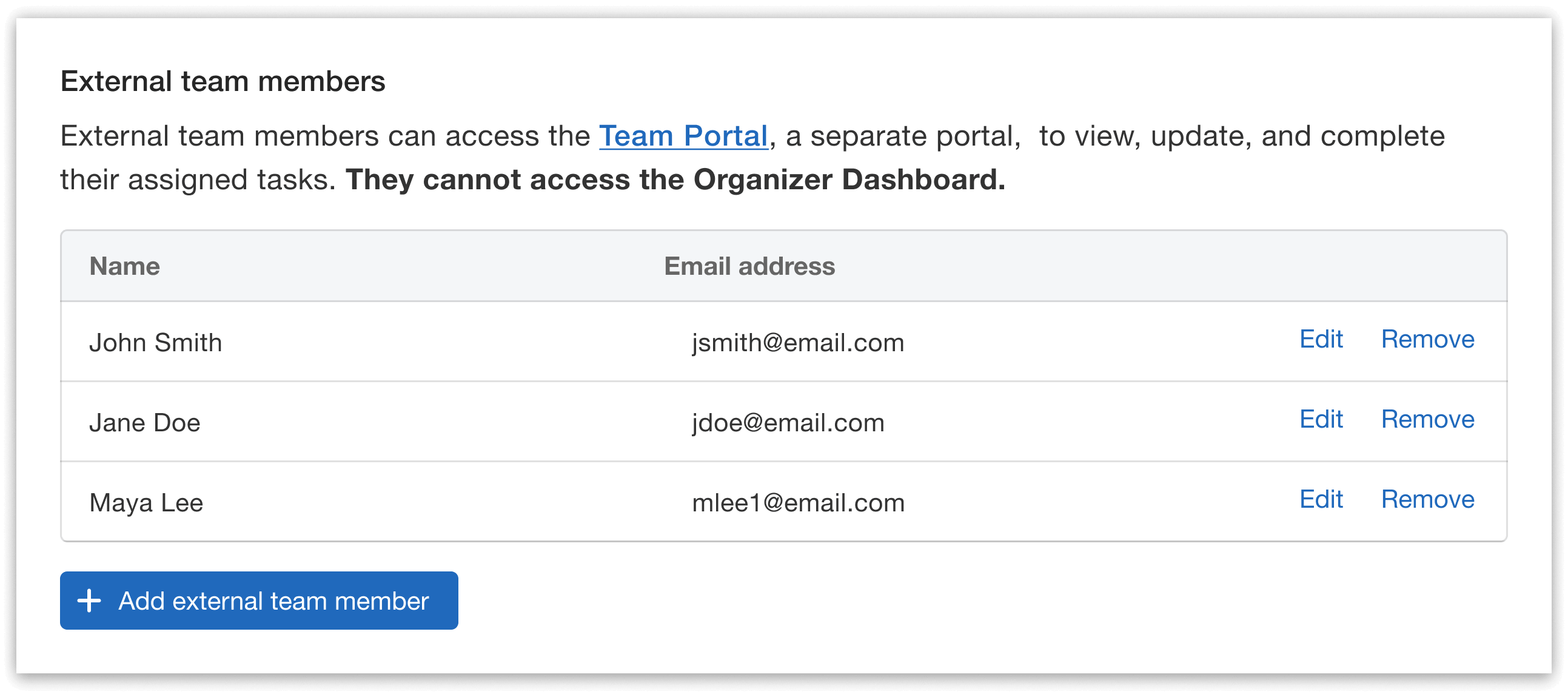
Invite team members to collaborate in the portal—without granting access to the organizer dashboard.
Team members will receive an invitation email with a link to the Project Management Portal, while admins can access the portal directly from the dashboard. Users can quickly create a Whova account or sign in to an existing one to get started.
Keep Conversations Organized with Built-In Comments
Planning an event often means chasing updates across emails, chats, and meetings. But with Whova’s Project Management, teams can keep conversations about tasks organized and easy to find.
Team members can leave comments on any checklist item or project task to ask questions, share progress, document dependencies, or provide important context. Every comment is stored alongside the task, making it easy to review the full conversation, and see who contributed each update and when.
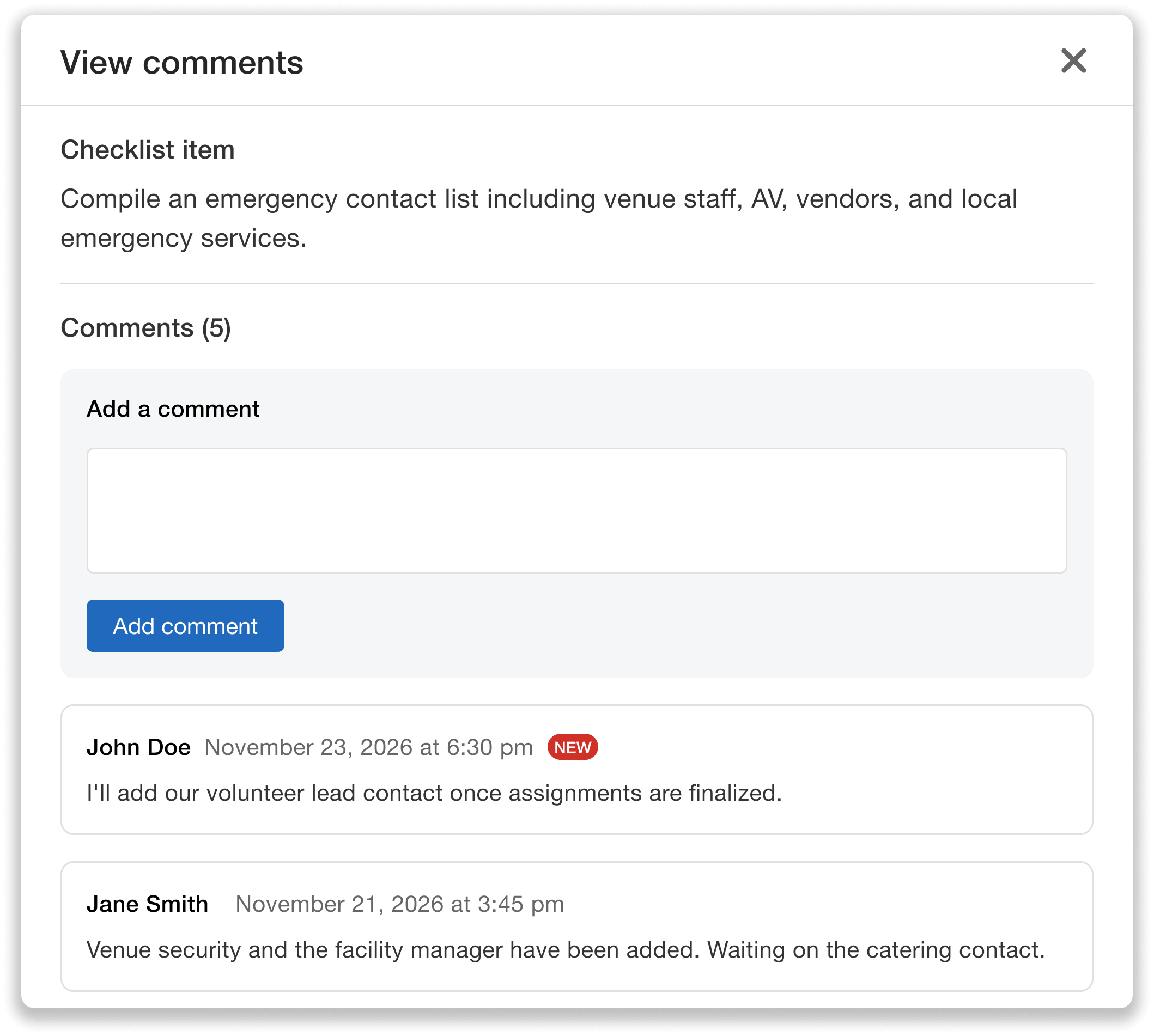
Keep communication centralized and intuitive—comment directly on checklist items and project tasks.
Whenever someone marks a checklist item or project task as complete, they’ll be prompted to leave a comment with an update, added context, or any other important details. For example, a teammate completing a post-event follow-up item could share that the attendee survey has been scheduled and an announcement has already been prepared. Or, someone completing a venue walkthrough might note that Ballroom B needs additional chairs before event day. These updates help the entire team stay informed without relying on separate email threads.
Organizers can also send messages directly to team members from the organizer dashboard. Whether you’re reminding everyone to log into the portal or asking project owners to review upcoming deadlines, each message is delivered by email with a direct link back to the Project Management Portal.
Inside the portal, team members can view all organizer communication in the Organizer Messages tab, along with each message’s read status, subject, sender, and delivery date.
Track Every Project from Start to Finish
The Project Management Portal gives both organizers and external team members a real-time view of progress across every checklist and project.
For Checklists, team members can open any checklist to view its details, mark work as complete, and see who completed each item and when. If something needs to be revisited, completed items can be re-marked as incomplete at any time, ensuring your team always has an accurate view of what’s left to do.
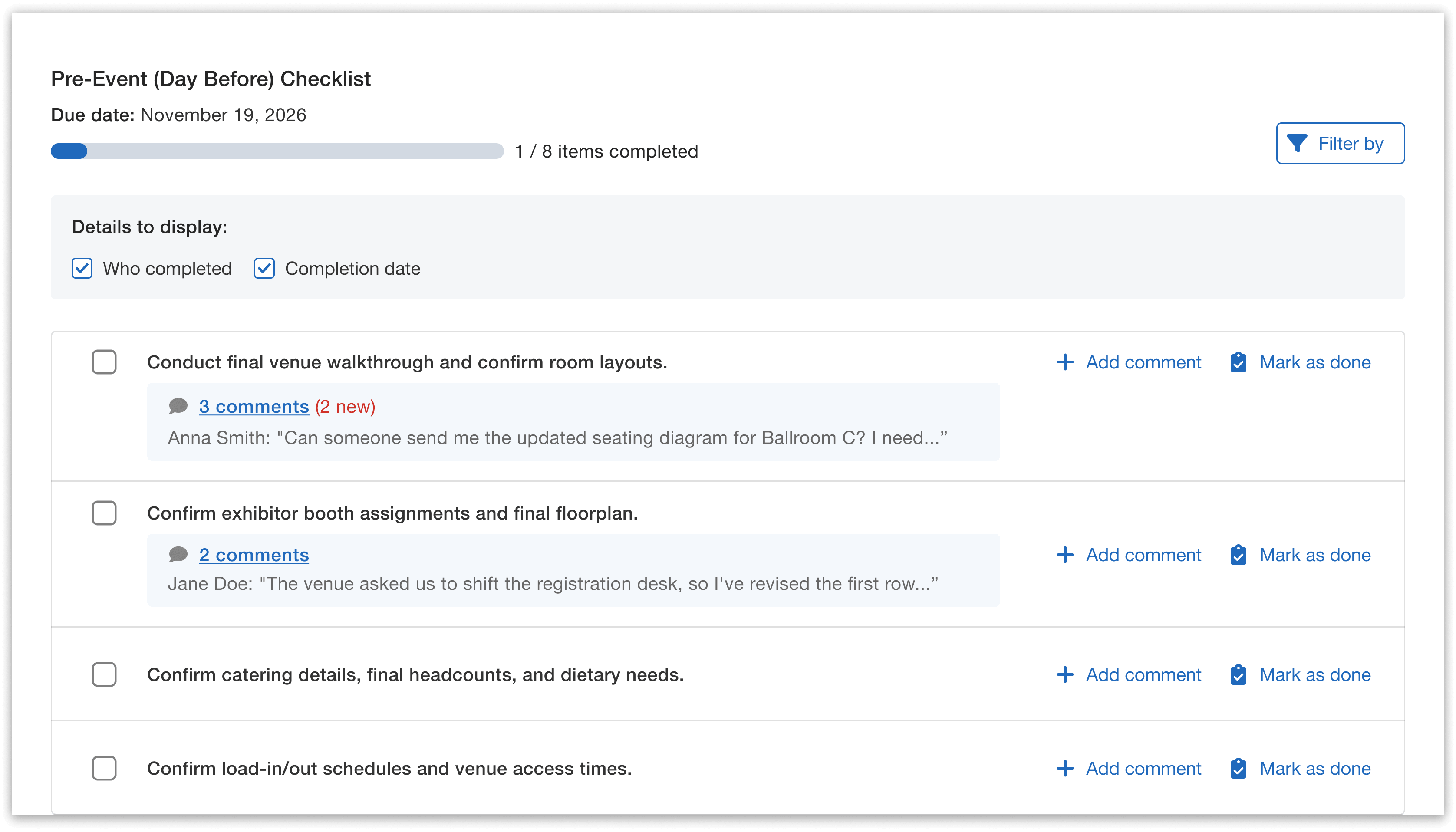
Track checklist progress from one collaborative space.
For Projects, the portal includes two views: My Projects and All Projects.
My Projects displays every project assigned to that team member. Opening a project reveals a task board with three status columns: Not Started, In Progress, and Completed. Project owners and admins can move tasks between columns as work progresses, edit task details such as names, due dates, and descriptions, and add new tasks whenever needed. Admins can also remove tasks if project priorities change (project owners cannot remove their own tasks, unless they’re added as an admin).
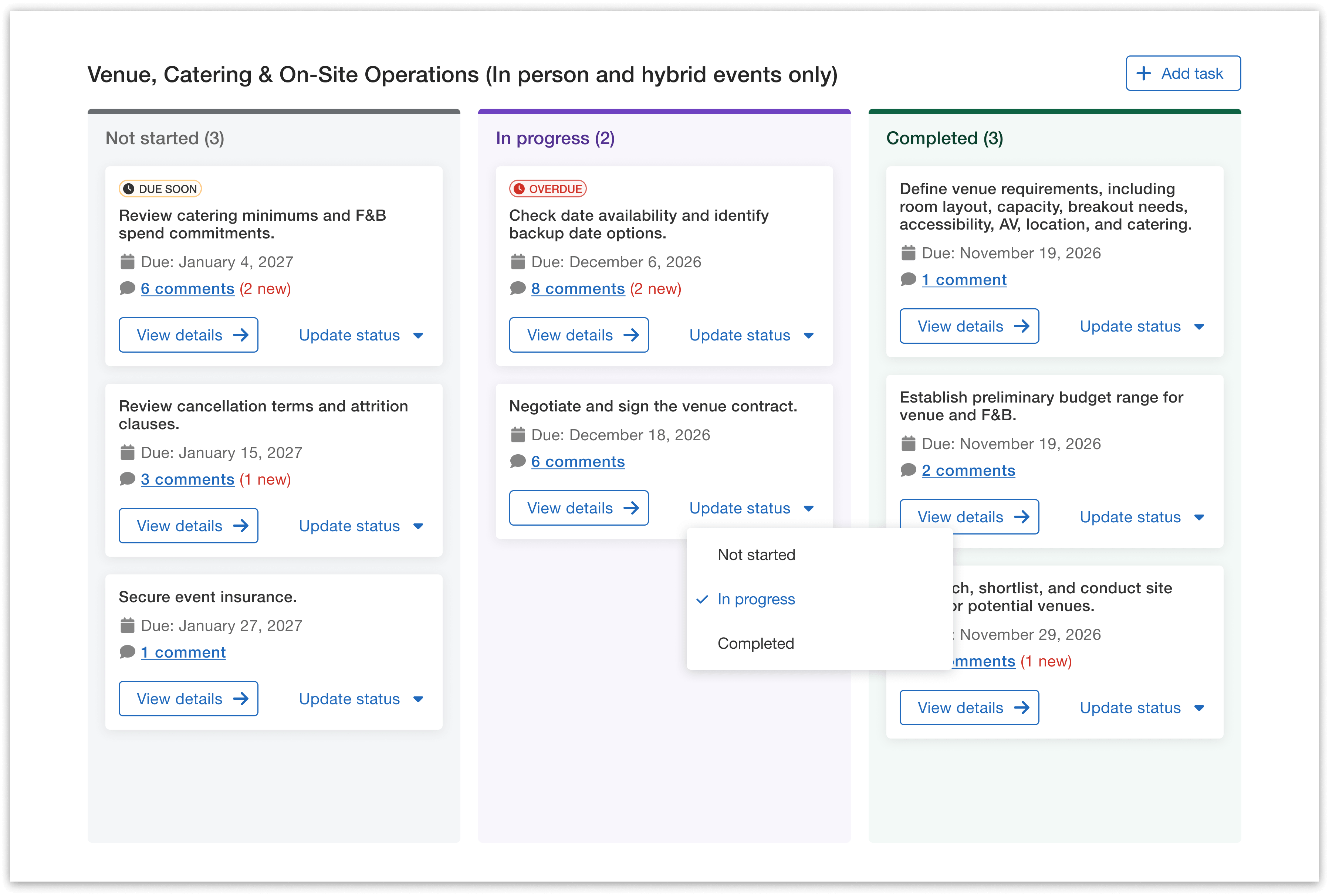
Monitor project progress, update task statuses, and quickly identify upcoming or overdue work.
The All Projects view provides visibility into the entire team’s work. Team members can see each project’s owner along with task details and completion status, giving everyone a clear picture of how the event is coming together and what still needs attention. While everyone can view project progress and leave comments, only the assigned project owner and admins can move tasks forward or edit their details.
Together, these views give organizers a bird’s-eye view of every project while helping team members clearly see how their work fits into the overall planning effort.
Stay on Schedule with Automated Reminders and Weekly Progress Reports
Keeping everyone on track shouldn’t require constant follow-up. With Project Management, Whova automatically sends personalized reminders and progress updates so your team always knows what needs attention next.
Automated notifications include:
- Reminders before upcoming project and checklist deadlines
- Notifications for overdue work
- Updates when teammates complete work or leave comments
- Weekly digest emails summarizing individual and team progress
While all team members will receive notifications to stay informed, organizers can choose which admins receive Project Management updates by adjusting preferences from the Add Team Members page in the dashboard.
Bring Your Entire Planning Team Together in One Workspace
Successful events depend on more than just great ideas. They require clear ownership, consistent communication, and staying on top of dozens of moving pieces.
With Whova’s new Project Management tools, organizers can replace scattered spreadsheets, lengthy email chains, and manual status updates with one centralized workspace built specifically for event planning. From collaborative checklists and smart project templates to automated reminders and a dedicated Team Portal, everyone can stay aligned throughout the planning process and beyond event day.
To learn more about Project Management or see how it fits into your event workflow, reach out to your Whova account representative or schedule a demo with our team.