
September 29, 2026
One event doesn’t mean one form fits all. Events rarely have just one set of compliance requirements, and staying organized can feel like an uphill battle.
Your speakers may need to sign a specialized media release granting permission for recording and distributing their sessions, while onsite volunteers sign a dedicated liability waiver that covers physical setup tasks and equipment handling. General attendees must review and acknowledge the event code of conduct, but those joining special offsite excursions often need to sign activity-specific waivers before participating.
For organizers, collecting all these signatures can quickly become another complicated part of event planning. You need to make sure the right people receive the right forms, follow up with those who haven’t signed, and keep every completed form organized and easy to find later.
At Whova, we’ve been steadily adding tools to make these tasks easier. Organizers can already collect exhibitor compliance documents, such as Certificates of Insurance, and add quick consent clauses during kiosk check-in. For more detailed agreements requiring signatures, our Release and Consent Forms feature lets organizers distribute a form, track completion, send reminders, and securely keep signed forms together in Whova.
But many events need more than one form.
That’s why we’re expanding Release & Consent Forms to support different audiences. You can now create two separate forms for different attendee groups and manage both from the same centralized dashboard.
With this update, you can:
- Manage multiple forms for different audiences: Target two groups with differing needs simultaneously—no separate spreadsheets needed.
- Save time with more templates: Get started quickly with an expanded template gallery. Create media releases, photo and video consent agreements, event codes of conduct, volunteer liability waivers, activity waivers, and more!
- Spend less time chasing signatures: Schedule notifications and send targeted email or in-app reminders to incomplete participants.
- Manage everything in one place: Distribute both forms, track submission status, and collect signatures for both forms on one centralized dashboard. Instantly view each attendee’s signed form in one secure platform.
With more options for different audiences and everything managed in one place, Whova’s updated Release and Consent Forms gives organizers a flexible way to collect and keep track of required compliance forms before, during, and after every event.
Ready to simplify your event’s form management? Read on to see how it works.
Create Unique Forms For Unique Audiences
With Whova’s Release and Consent Forms add-on, you can create up to two separate forms for different attendee groups within the same event. Each form can be tailored to its own audience, helping you manage distinct compliance requirements without juggling separate tools.
To get started, navigate to the Attendees tab in your Whova Organizer Dashboard and select Release and Consent Forms. After enabling the add-on, click Get started to create your first form. You can build a form from scratch, customize an existing template, or reuse the settings from a past form.
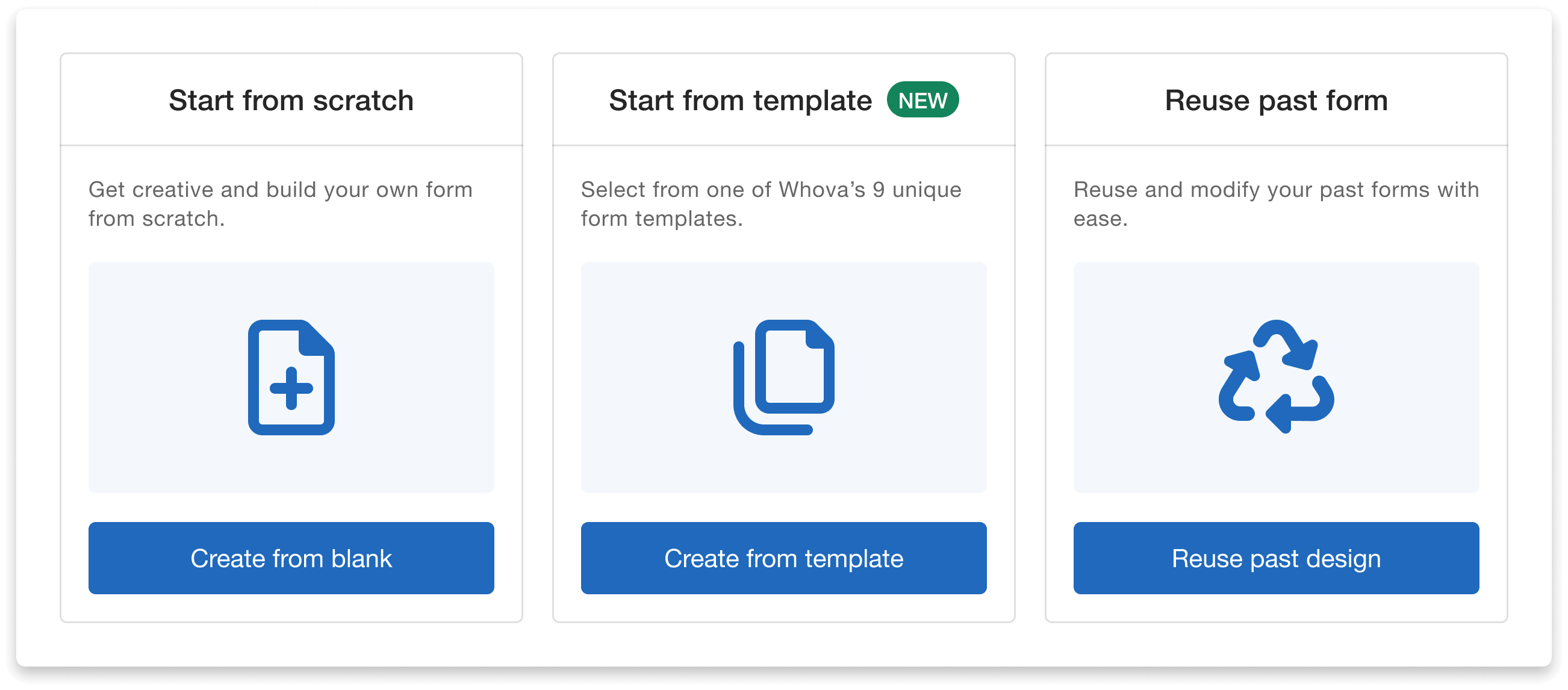 Our expanded template selection gives you a quick starting point when creating a consent form.
Once you’ve decided how to start, choose who needs to complete the form. You can assign it to all attendees or target specific attendee categories, ticket types, or registration segments. This allows you to tailor each form to the people who actually need to sign it. For example, you could assign a liability waiver to attendees who purchased an excursion add-on.
Next, customize your form’s title, questions, and fields to fit your event’s needs. You can include descriptions, acknowledgments, disclaimers, checklists, radio selections, PDFs, and more for attendees to review. Each form requires at least one signature, and you can add additional signature requirements wherever needed.
After building your form, configure its notification and reminder settings. Whova provides a ready-to-use form notification email that you can customize with your preferred subject line, sender name, reply-to email, and message. Choose the date and time you’d like the notification to be sent, which is when your form will officially open and begin accepting signatures.
Keep in mind: Once the form notification email has been sent, you can no longer change the assigned participants, as attendees may begin submitting signatures at any time. Be sure to review your form details before the form opens.
You can also schedule a reminder email for attendees who haven’t completed their forms. When setting up your form, choose to send it one week, three days, or one day before your event—or select no reminder. You can always create these later in the Release and Consent Form dashboard. Since reminders are only sent to attendees who haven’t completed the form, you can follow up with the right audience without sending unnecessary emails.
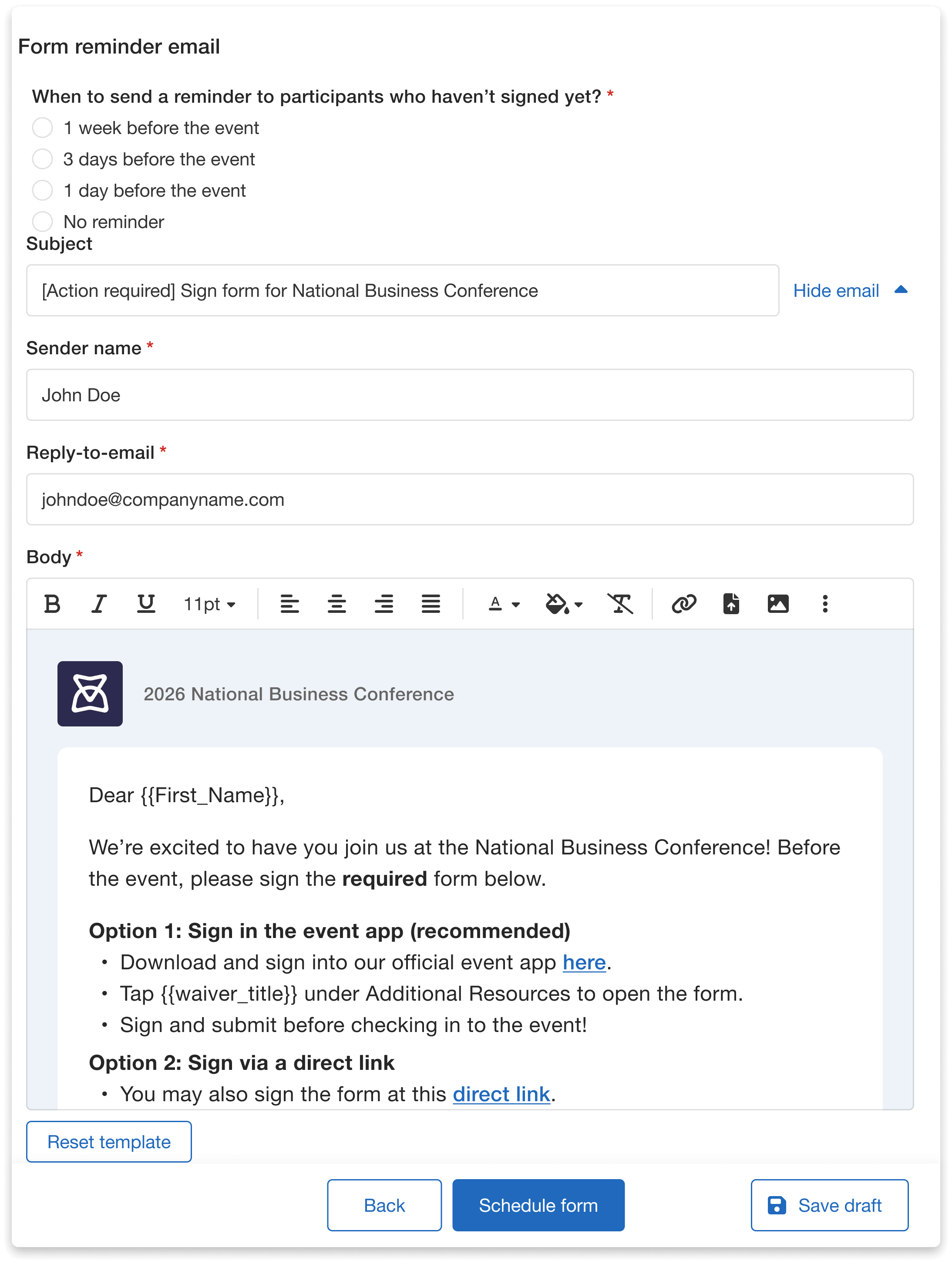 Customize your reminder email and choose when it should be sent to attendees.
When you’re finished, click Schedule form to confirm your notification and reminder settings, or select Save draft if you’d like to finish setting up your form later.
To create your second form, return to the Release and Consent Forms dashboard and click Start from template, Start from scratch, or Reuse past form. Repeat the setup process to customize your second form, select its intended audience, and configure its notification settings. Once both forms are set up, you can manage them together from the same dashboard.
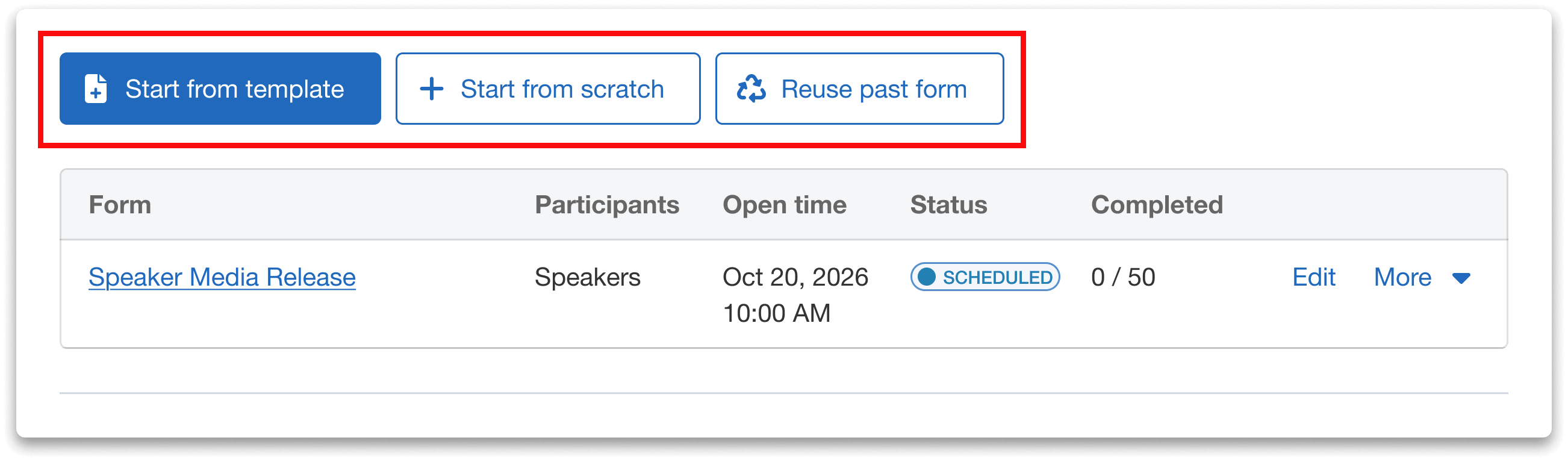 Create your second form directly from the Release and Consent forms dashboard.
Manage Both Forms From One Central Dashboard
The Release and Consent Forms dashboard gives you an overview of each form, including its name, recipient type (e.g., all attendees, volunteers, or speakers), open time, status, and number of submissions.
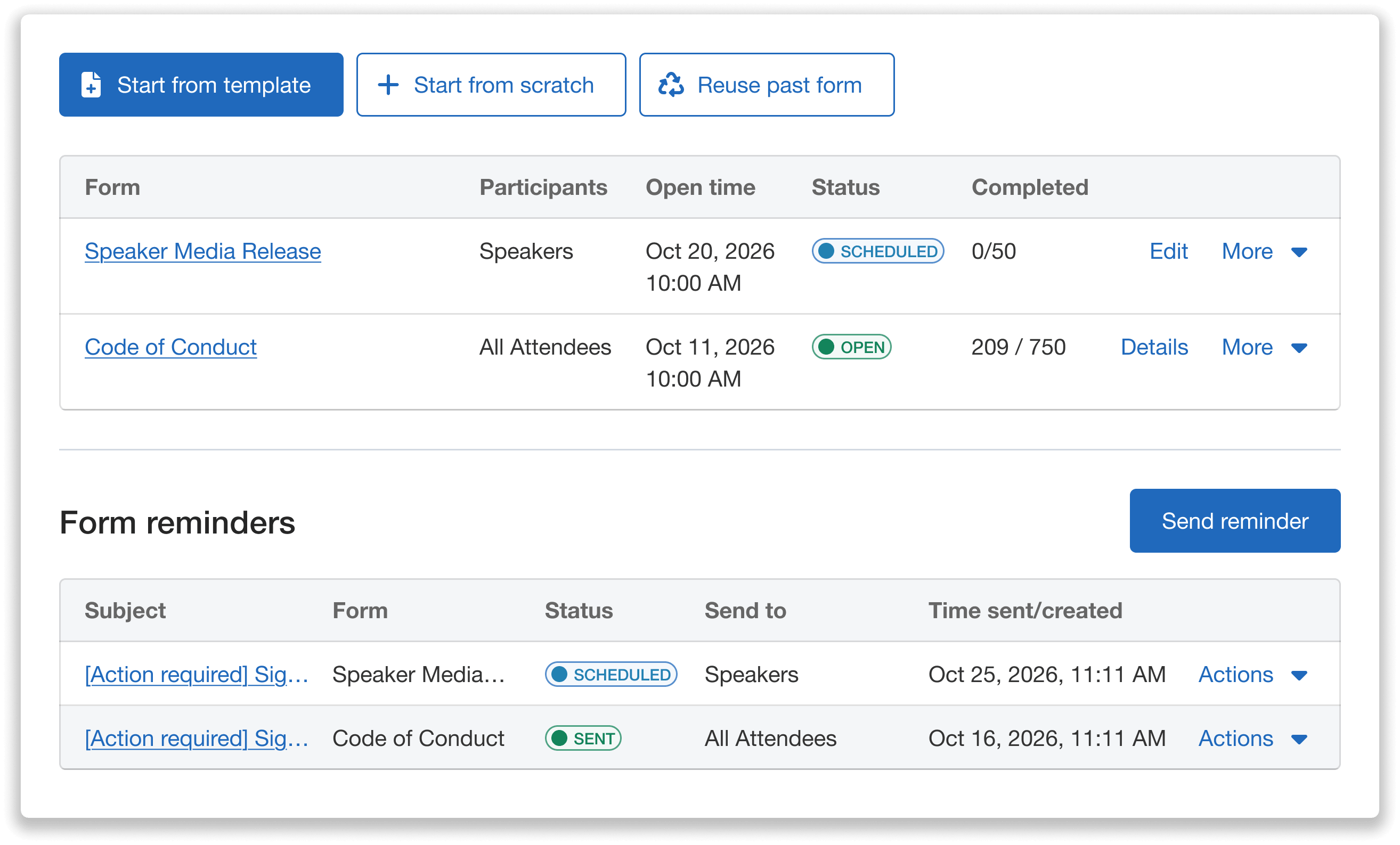 Manage your forms and reminders in one place!
For any open form, click Details to view the status of each individual attendee’s form. You can use the search bar and filters to find attendees by name, email, or submission status. Your form is officially open once your notification email is sent out, but form content can be updated until the first signature is collected. Completion reminders can be sent at any time.
For scheduled forms (that are not yet sent), click Edit to make any last-minute changes, such as updating the form recipients.
You can also create and manage reminder emails directly from the same dashboard. In the Form reminders section, click Send reminder and select the form you want to send a reminder for. You can choose to remind all attendees who have not completed the form or only newly added attendees who still need to submit.
Whova provides a pre-filled reminder email that you can customize with your preferred subject line, sender name, reply-to email, and message. Choose when to send the reminder by selecting Send now or Schedule send date.
The dashboard also helps you keep track of your reminder emails, including their subject line, associated form, status, recipients, and send or creation time. Click Actions next to any reminder to preview, edit, or delete a scheduled reminder before it is sent.
Choose From Even More Ready-to-Use Templates
When you open the Release and Consent Forms page, you’ll find several templates you can use to get started, including Speaker Media Release Form, Volunteer Injury Liability Waiver, among many more.
Need something different? Click Get started at the top of the page to browse even more templates, organized into General, Speaker, and Volunteer categories.
- General: General Form, Media Release, Release of Liability, Event Code of Conduct
- Speaker: Speaker Media Release, Agreement to Speak
- Volunteer: Volunteer Liability Waiver, Agreement to Volunteer, Volunteer Media Release
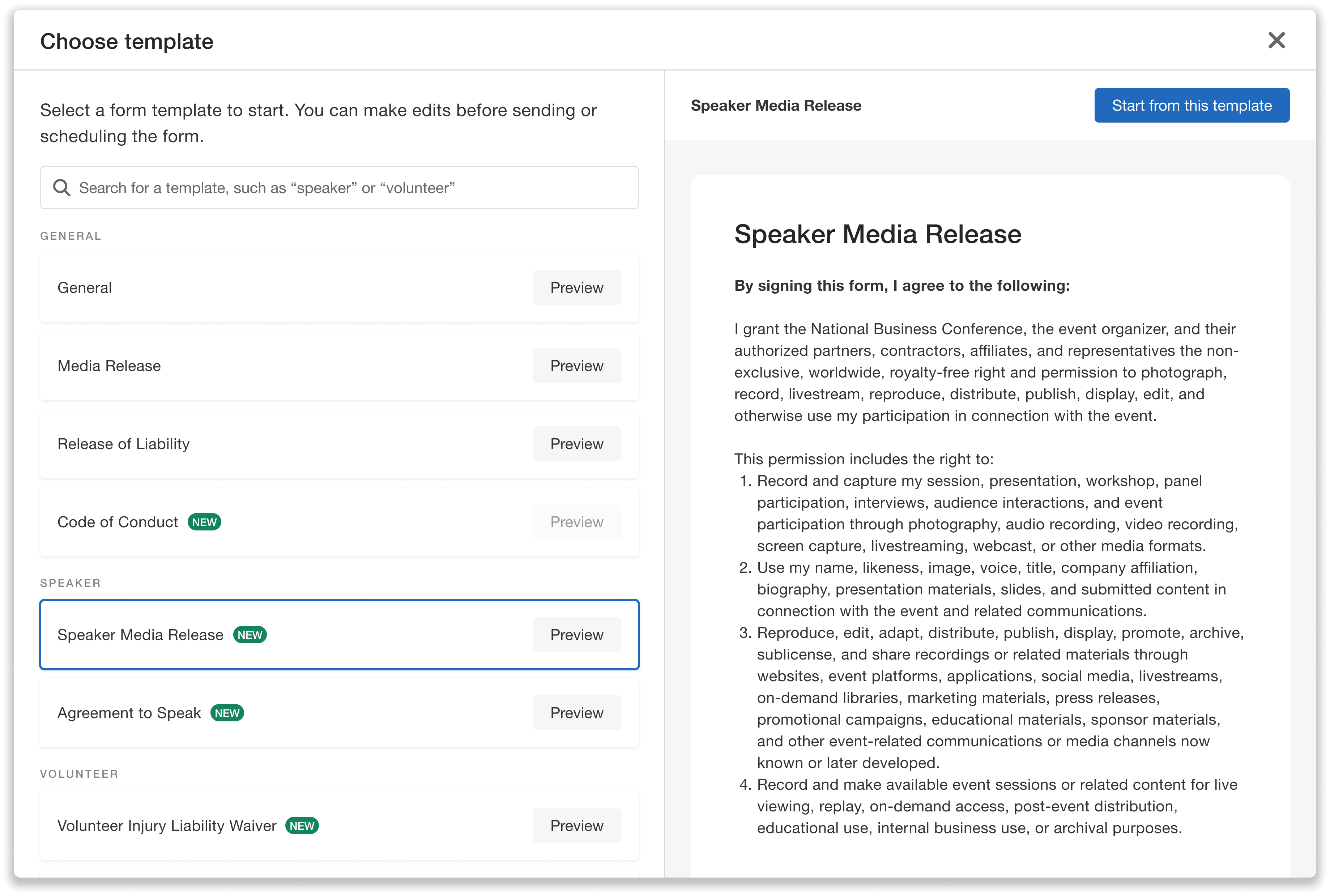 Browse available templates by category and select one that best fits your event needs.
Preview any template before selecting it to see what participants will see. Once you’ve chosen a template, customize its questions and fields to fit your event.
You can also create a custom form instead if you’d prefer to build your own.
Each form requires at least one signature, with the option to add additional signature requirements as needed.
Please note: Whova’s templates are provided as a starting point—we are not legal experts. Organizers are responsible for reviewing and adapting each template to ensure it meets their event’s needs.
Easily Require Attendees to Re-Submit Forms
When an attendee needs to update and resubmit a form, you can manage the request directly in Whova without relying on email chains or manual follow-ups.
Just open the form you’d like the attendee to resubmit. This will take you to the form details dashboard. Next to the attendee’s name, click More and select Require attendee to resubmit.
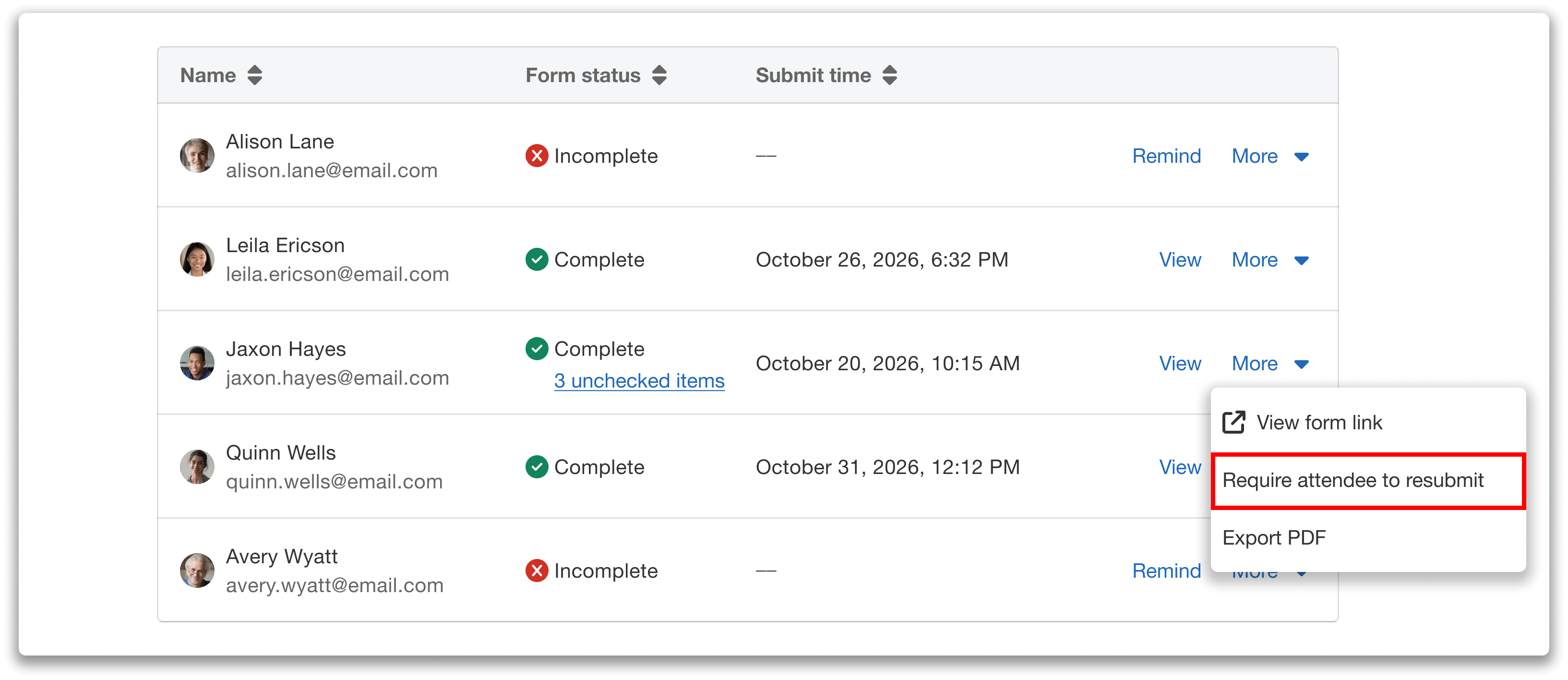 Require a new submission directly from the attendee’s form details.
After confirming the request, click Send notification to open a pre-filled resubmission email. You can customize the email before sending it, including the subject line, sender name, reply-to email, message, and send date and time.
Optionally Require Signatures Before Check-In
When configuring your form settings, you can choose whether attendees must sign the form before checking in. This setting works with Whova’s Attendee Check-In to help ensure required forms are completed before attendees enter your event.
When enabled, check-in staff can view each attendee’s form status in real time through both the Organizer Dashboard and the Whova app. If an attendee attempts to check in without completing a required form, a notification will alert the check-in team. Staff can then either collect the required signature or bypass the warning and proceed with check-in if needed.
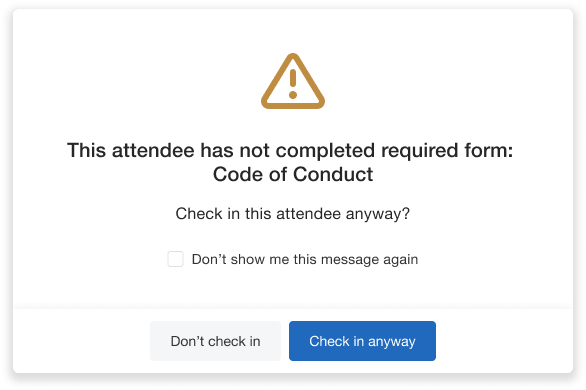 When forms are required before check-in, staff will receive an alert when checking in an attendee with missing signatures.
Attendees can find and sign forms directly in the Whova mobile and web app, helping keep the check-in process moving smoothly.
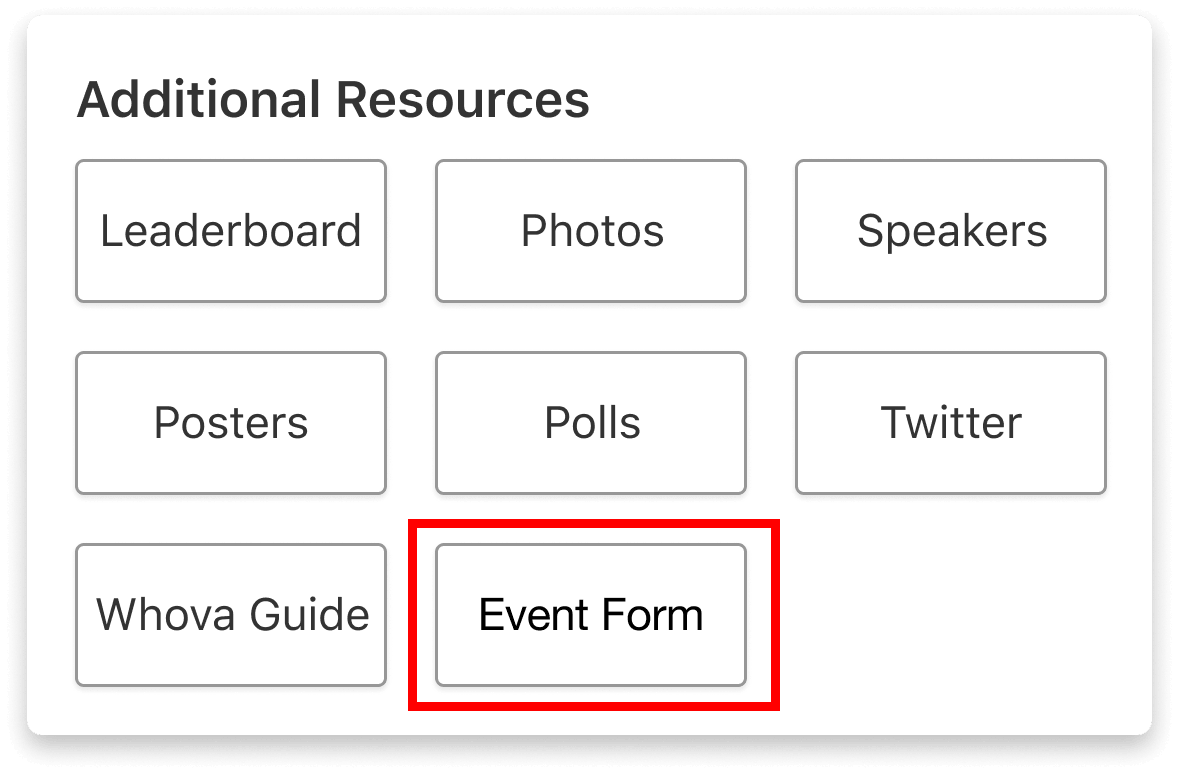 Attendees can easily complete forms from the mobile app.
A Simpler Way to Manage Event Forms
From creating audience-specific forms to tracking signatures, sending reminders, and managing resubmissions, Whova gives organizers the tools to manage Release and Consent Forms throughout an event’s lifecycle. With multiple forms, expanded templates, and a direct connection to check-in, you can collect the signatures you need while keeping the process simple for both organizers and attendees. All completed forms are organized and securely stored in one central platform for easy, reliable access.
Want to learn more about Release and Consent Forms or see how they can work for your event? Reach out to your Whova representative to learn more.