
By: Whova Team | Last Updated: September 30, 2026
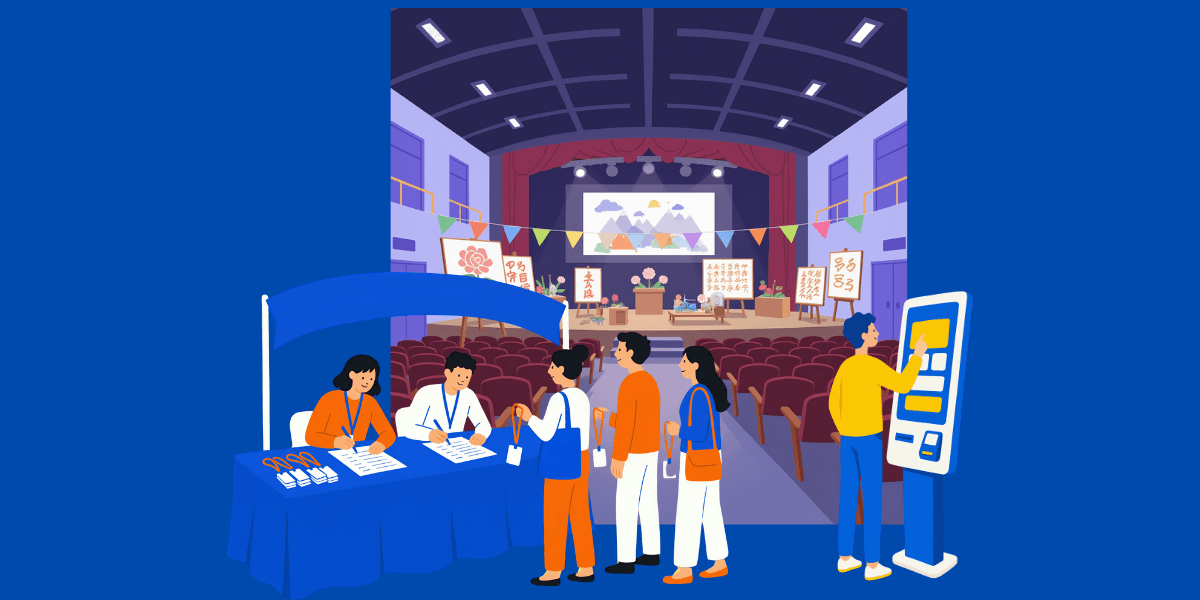
Onsite event technology solutions are the software and hardware tools planners use at the venue on event day — covering registration, check-in, the event app, real-time engagement, floor maps, and surveys. If these tools all run on one event management platform, they share the same data, so event day is much easier to run.
First impressions start at the registration desk. An attendee who waits in a crawling line or finds their name misspelled on a badge has already made up their mind about your event before the keynote even begins.
This guide walks you through the onsite tools that do the work at each stage of event day, from registration and check-in to keeping attendees informed and engaged once sessions are underway. It also covers what to look for when choosing onsite event software, and how organizers run a full event day with Whova.
Key Takeaways
Short on time? These three points sum up what this guide covers.
- Onsite event technology solutions are the tools your team uses at the venue on event day. They work best on one platform, where check-in, the event app and your reports share the same attendee data.
- Self-service check-in and on-demand badges cut registration wait times. Once attendees are inside, live agenda updates, polls, Q&A and session feedback keep them informed and involved.
- Software that works best for event day is easy for non-technical staff to learn and runs on standard hardware. An event app like Whova also makes the agenda and floor map available offline if the venue Wi-Fi struggles.
Onsite Operational Challenge & Solution Summary Table
What Are Onsite Event Technology Solutions and Why Do You Need Them in 2026?
Onsite event technology refers to the hardware and software your team uses at the venue once the doors open. At the front desk, that covers check-in kiosks and wireless badge printers; across the venue, it extends to the software on staff devices, venue screens and the event app on attendees’ phones.
For years, event technology stopped at registration. Planners built a polished registration page and a neat run of reminder emails, and then event morning arrived and everyone went back to clipboards and printed schedules.
And let’s be honest, event day is a lot. Attendees arrive in waves as speakers run late and rooms change, and a team working from paper lists and tools that don’t talk to each other can’t see what’s happening across the venue.
So one delay at registration spreads through the whole morning. A stalled check-in holds up the line behind it and pushes the keynote back, and before long your staff have left their posts to help at the desk.
Attendees want technology that takes this friction away. In Freeman’s trends research, 44% of attendees ranked technology that makes an event easier to enjoy among the most important parts of their experience. Mobile apps and matchmaking platforms are now a core part of the attendee experience at large exhibitions.
Modern onsite event technology solutions bring your check-in hardware and attendee communication onto one connected platform, and real-time attendance syncing means every scan at the door updates the records your team uses to send announcements and track sessions.
How Do You Eliminate Onsite Check-In Bottlenecks and Badge Printing Chaos?
Every planner knows the registration-table shuffle. A staff member scans a printed list for a name, then digs through a box of pre-sorted badges while the line behind grows longer, and that’s before anyone starts chasing signatures on paper waivers. Thanks to onsite technology solutions, none of this paper admin needs to happen anymore.
Self-Service Kiosk Check-in
Self-service check-in stations put attendees in control from the moment they walk in. Attendees might scan a QR code from the event app or pull one up from their confirmation email, and either way the queue clears in seconds. With several kiosks running side by side, the morning rush spreads across them naturally, and your staff are free to facilitate the floor, greeting arrivals and stepping in where someone needs help.
On-Demand Badge Printing Set-up
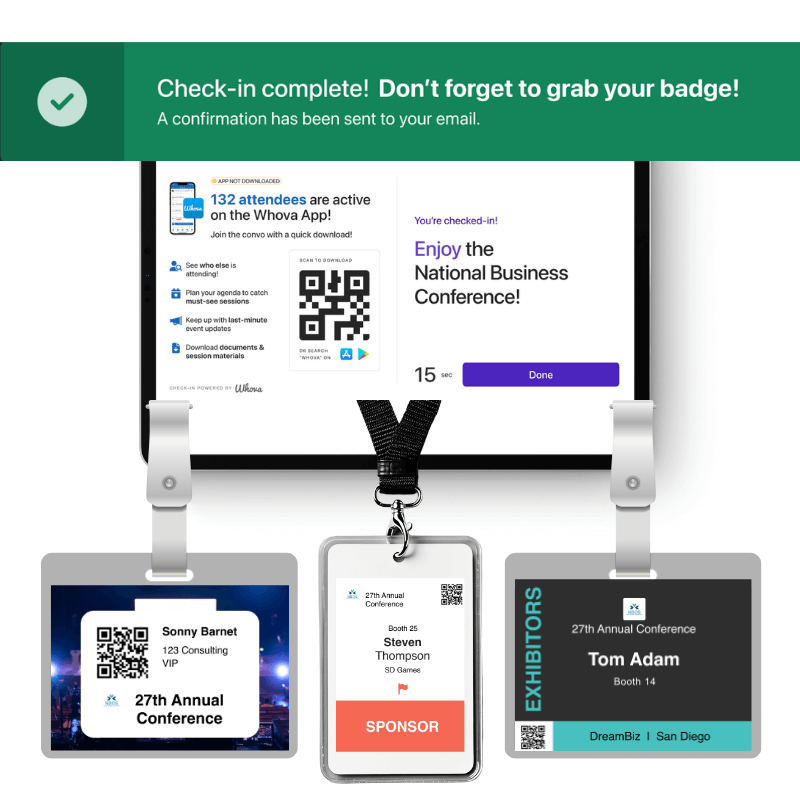
Badge printing happens at the check-in desk. Each station uses wireless printing, so you can place the printer wherever the line flows best. The moment an attendee checks in, their badge prints automatically with their current name and company. If they spot a typo or have switched jobs since registering, you can edit the badge at the kiosk before printing a new one again.
Digital Release and Consent Forms
Digital waivers, consent documents and electronic release forms let attendees sign ahead of the event or at the door, and every signature lands straight in your event dashboard. If you make completion a check-in requirement, the badge won’t print until those are done. Attendees who haven’t finished can take care of it on the spot in the event app, so the paperwork gets handled in the same line as check-in.
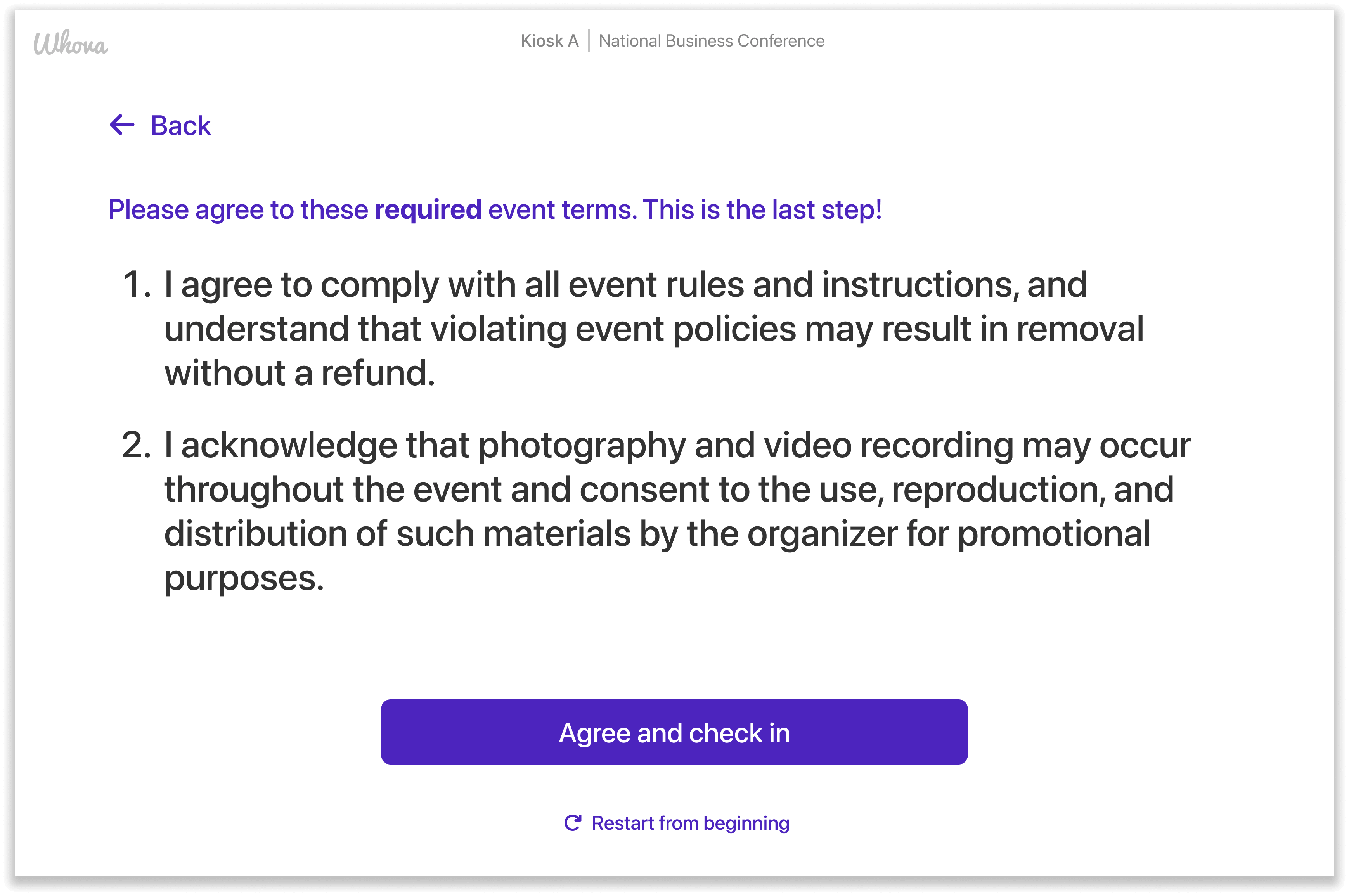
Add agreements into your check-in process
How Do You Keep Attendees Informed With Real-Time Onsite Communication?
What happens to your printed schedule when a speaker’s flight is late or rain moves the outdoor reception indoors? It’s out of date before lunch, and attendees follow it straight to an empty room. Real-time communication tools fix that by updating the agenda and alerting the right people the moment plans change.
Live Updated Agenda
A live updated agenda gives you one version of the schedule, controlled from your event dashboard. Push a start time back or move a session to a new room, and the change shows up in the attendee app right away.
Attendees can turn on agenda alerts to get notified about time and location changes the moment they happen. And if you have a digital announcement wall, those same updates rotate across the big screens around your venue.
Targeted Announcements
Some updates only matter to part of your audience. A room change for an afternoon workshop track means nothing to the exhibitors setting up on the expo floor. Sending it to everyone is a waste.
With targeted announcements, you choose the attendee category or ticket type and send the message only to those people. Attendees with the event app receive an instant push notification, and anyone who hasn’t downloaded it still gets the message by email.
You can also write announcements in advance and schedule them to go out on time, like a reminder that the keynote starts in 15 minutes, keeping your team free from typing messages in the middle of a rush.
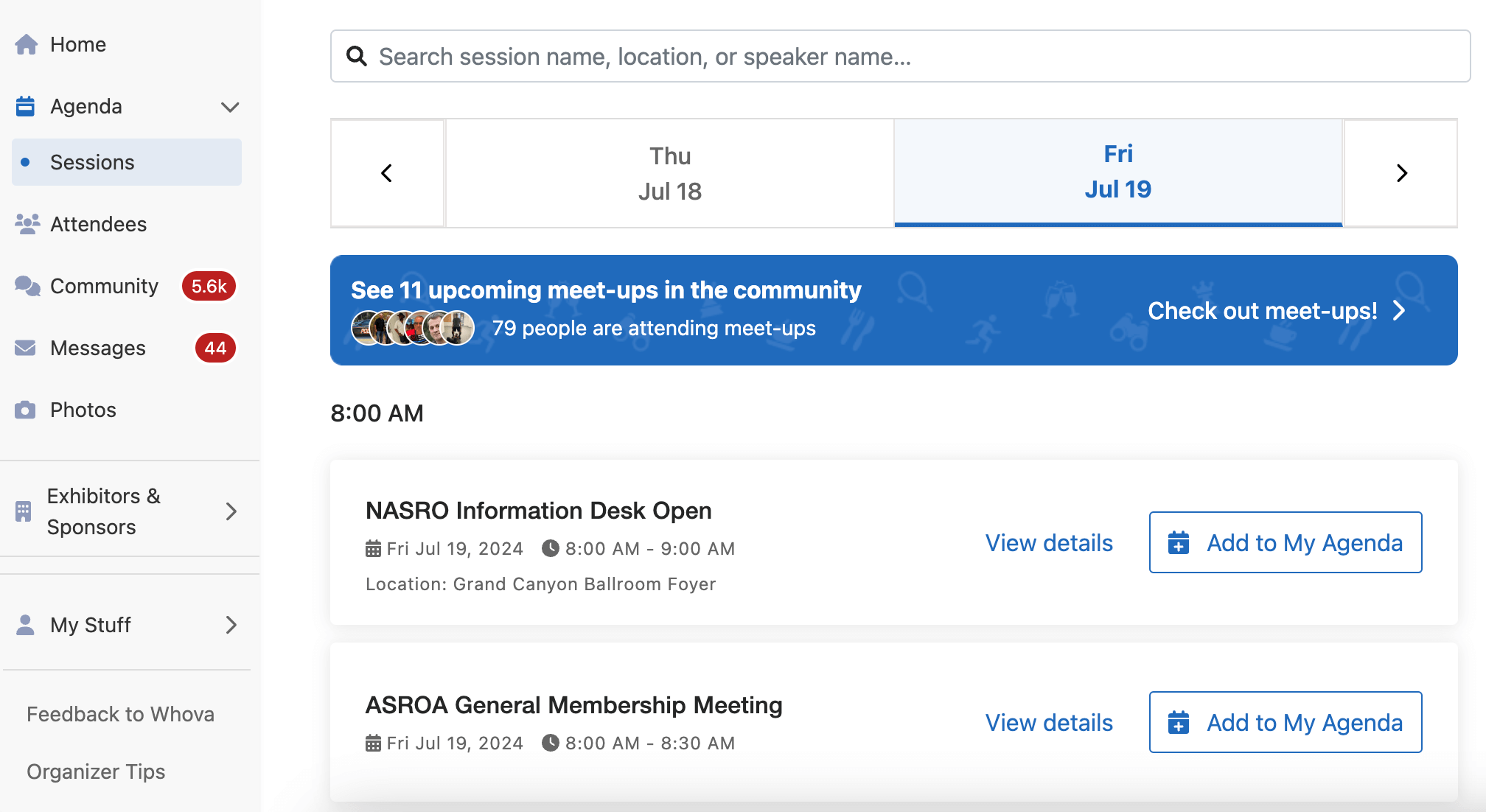
Keep attendees informed and updated with latest changes through an online portal
How Do You Streamline Event Navigation With Digital Floormaps?
No attendee wants to be circling the hallway five minutes after a session starts. A digital floor map in your event app shows them where each room and booth is, so they can find their way around on their own.
Pin Every Room and Booth
Upload your floor plan and pin the spots attendees will need: session rooms, exhibitor booths, the registration desk. When they open the map, it’s all marked and they can head straight there.
Update the Map as Plans Change
Floor plans rarely stay fixed right up to event day, and uploading a new version is faster than reprinting anything. When a session moves rooms, pair the map update with a push notification and attendees get the new location before they’ve even started walking the wrong way.
How Can Live Engagement Tools Boost Onsite Attendee Participation?
A great speaker will hold a room, but a full day of back-to-back presentations can still leave attendees sitting back and scrolling their phones. Live engagement tools give them a reason to use those phones for the session instead.
Get The Room Talking With Live Polls and Q&A
Speakers can use live polling software to prompt attendees to answer in the event app at the right moment. It’s a simple way to take the temperature of the room before diving into a topic.
With a live Q&A app, speakers don’t have to pass a microphone up and down the rows. Attendees type their questions in and upvote the ones they want answered, with the most popular rising to the top. Speakers see the list ranked by votes, pin the questions they want to take, and can display the Q&A on a screen for the room to follow.
Put Your Venue Screens to Work
Many venues have screens in their lobbies and hallways, but organizers often leave them showing a static logo all day. A digital announcement wall connects those screens to your event app and puts them to work as a rotating live event slideshow.
You can use the slides to spotlight upcoming sessions, give sponsors dedicated screen time, or show the live polls running in the app with a QR code for attendees to vote from wherever they’re standing. Pull in event photos and community activity from the app too, like meetups and discussion topics, and the screens stay active all day.
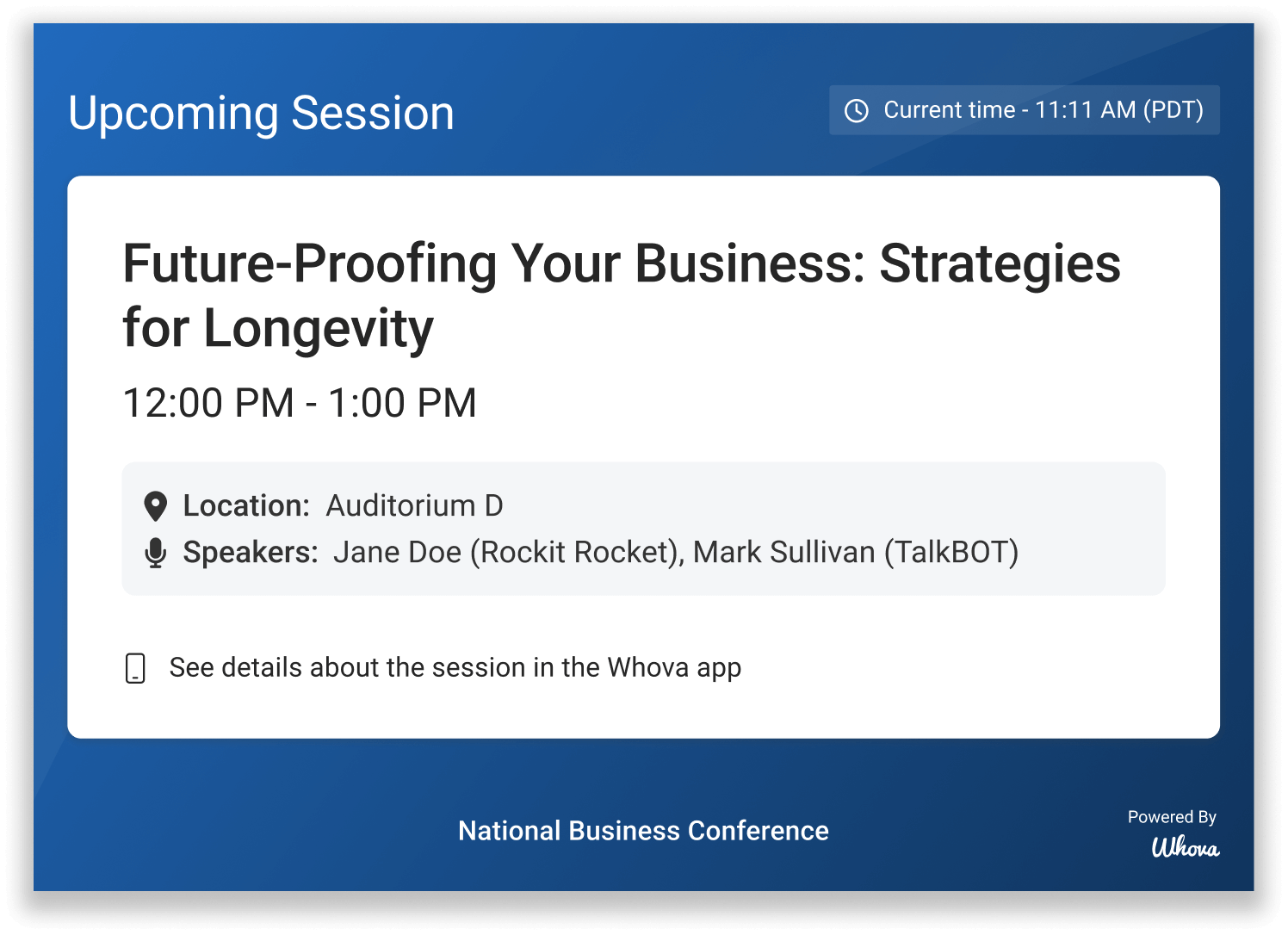
Showcase important event information on site with Announcement Wall
Help Attendees Connect Beyond the Sessions
For plenty of attendees, the conversations between sessions matter as much as the sessions themselves. Networking tools in the event app empower them to send messages and schedule private meetings, so they can line up time with the people they came to meet.
The community board gives them space to organize their own meetups and gatherings around shared interests, too.
How Can Organizers Receive Live Feedback On the Spot?
Post-event surveys have their place, but once attendees head home, their inboxes fill up and the details of a mid-afternoon session fade. Collecting feedback during the event means attendees can share their thoughts while the experience is still with them.
Collect Feedback While the Session Is Fresh
Session feedback lets you attach a short set of questions to each session. The form opens as soon as it starts, and attendees can rate it and leave comments before they’ve even left the room.
Because every session gets its own form, you can see which talks were the best. For a broader view, you can opt for an event-wide survey in the app that covers the whole event and attendees can fill it out between sessions.
Keep Responses Coming In
The rush between sessions means feedback often gets skipped, even by attendees who meant to fill it in. Pop-up reminders help: one appears when they open the app prompting them to complete the event survey, and another shows up on a session page asking for their take on that talk.
You can also award leaderboard points for completed feedback, or add QR codes to your announcement wall so attendees can scan and respond from the hallway.
Every response shows up on your dashboard in real time. If response rates look low, send a reminder announcement, and when the event wraps, all your feedback is already collected and ready to go.
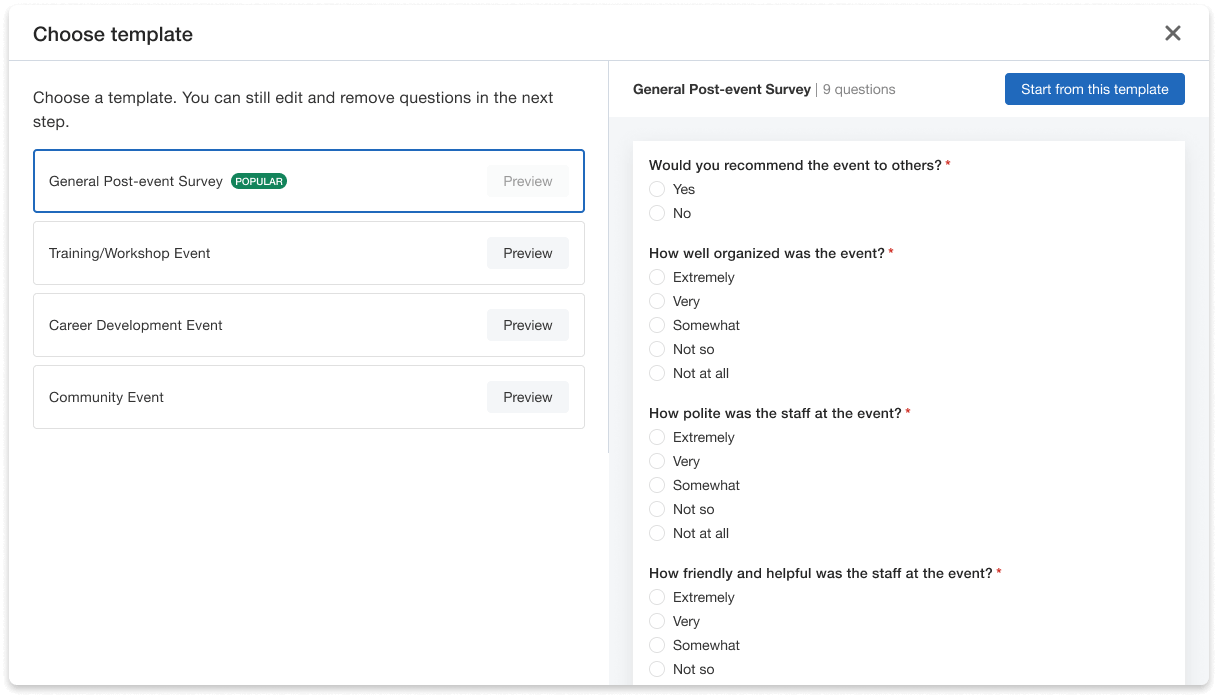
Easily create surveys from templates that attendees can access on their event app
How Do You Build an Onsite Wi-Fi Failure Contingency and Offline Data Sync Plan?
Venue Wi-Fi tends to slow to a crawl when a full hall of attendees connects at once. And if every part of your event tech depends on a live connection, a dropped signal can stall check-in and cut attendees off from the agenda right when they need it.
Choose an Event App that Works Offline
Web-based event apps load in a browser, so they need a live connection. With a native app like Whova, once attendees install from the App Store or Google Play, they download the key event information to their phones the first time they open the app on a connection.
They can then view the agenda, floor map, attendee list and exhibitor booths even when the venue Wi-Fi or cell service drops. Your attendees still know where to be and when from the start.
Protect Your Check-in Connection
Give your check-in stations their own dedicated hotspot so they aren’t competing with hundreds of attendees on the shared network. Test it at the registration desk before the doors open, since signal strength can vary across a venue.
Finally, ask attendees to download the event app and open it before they travel. That way, the schedule and floor map are already on their phones when they arrive, ready to use even if the venue Wi-Fi is slow to load.
What Key Factors Should You Evaluate When Choosing Onsite Event Software?
A platform can look great in a demo and still fall apart at the check-in desk. These four checks help you find software that holds up on event day.
Ease of Use for Non-Technical Staff
There’s a good chance the people at your check-in desk won’t be technical, so the software has to make sense to them straight away. Before you commit, hand the check-in screen to someone who has never used it and watch how quickly they get the hang of it.
Hardware You Already Own
Some platforms depend on proprietary kiosks or rented equipment, and that gets expensive. Look for software that works with smartphones, tablets and widely available badge printers, so you can reuse the same equipment from one event to the next.
One Platform, One Set of Data
When your check-in tool is separate from your registration platform and event app, your team ends up exporting spreadsheets to keep the data in sync. An all-in-one platform removes that step: a single scan at the door updates the app and your reports automatically.
Support During Your Event Hours
Ask vendors when their support team is available and how you reach them on the day, then check that those hours cover your full event schedule, including weekends and early-morning setups.
It’s also worth asking how you actually get through to someone when something goes wrong mid-event. Email support is fine for setup questions in the weeks before, but on the day you need a phone number or live chat.
How Organizers Execute Onsite Operations With Whova
Whova brings every onsite event technology solution in this guide together. Here’s how organizers from association meetings to large trade shows use it, from registration to the final report.
1. Set Up Registration and Attendee Data
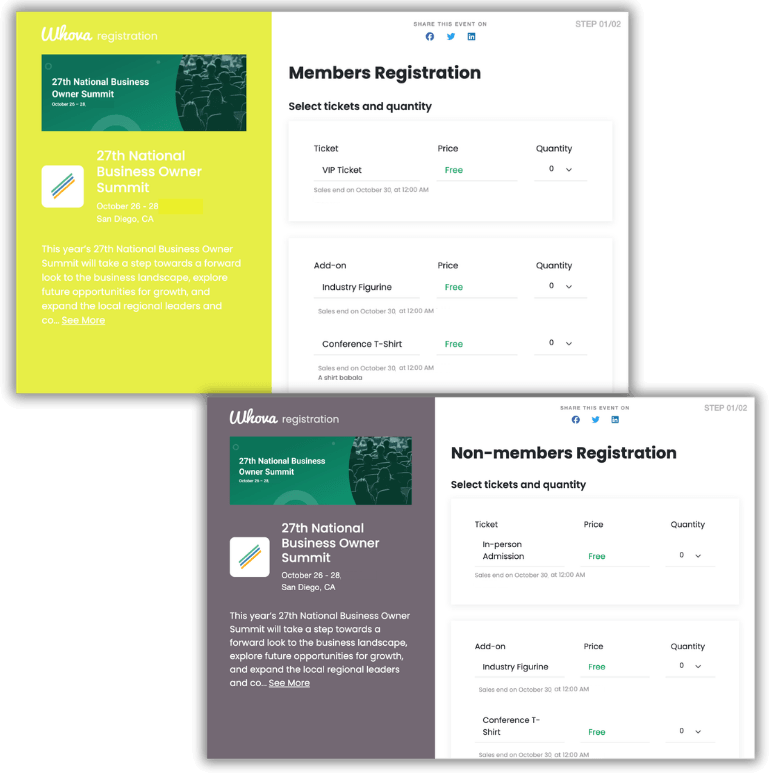
Build your registration form in Whova and attendee details sync automatically to the app, badges and check-in. Name, company, registration questions — it’s all there without any manual importing.
You can also sort attendees into groups called attendee categories, such as speakers or VIPs. Link a category to a ticket type and anyone who buys that ticket lands in the right group automatically. Those categories carry through to event day, controlling which badge design each attendee gets and which announcements reach them.
2. Check Attendees In and Print Badges on Demand
The Onsite Kiosk turns your iPads into self-service check-in stations, where attendees type in their registered email address and their badge prints right there at the kiosk. If your event needs signed waivers or media releases, you can make them a requirement for check-in.
3. Keep Attendees Engaged and Informed
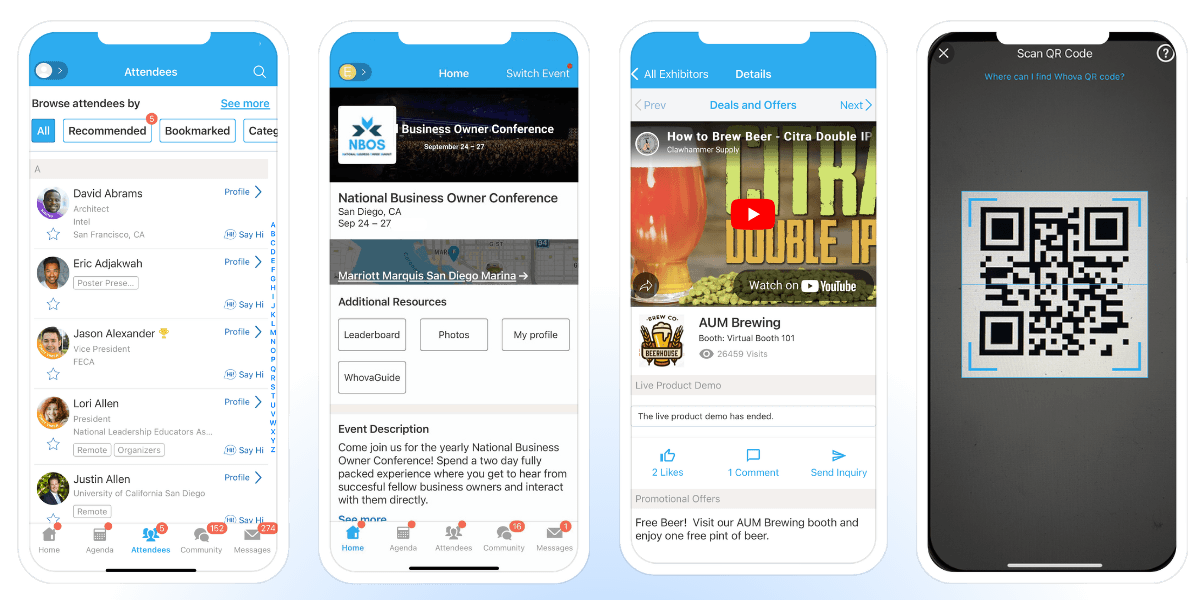
Attendees can check the live agenda or find a room on the floor map directly in the Whova app. During sessions, polls and live Q&A let them interact with the speaker. Between sessions, the messaging tools let them set up meetings with other attendees, and your announcements reach their phones as push notifications. On the screens around the venue, the Announcement Wall can display sponsor slides and live updates throughout the day.
4. Report on Your Event’s Success
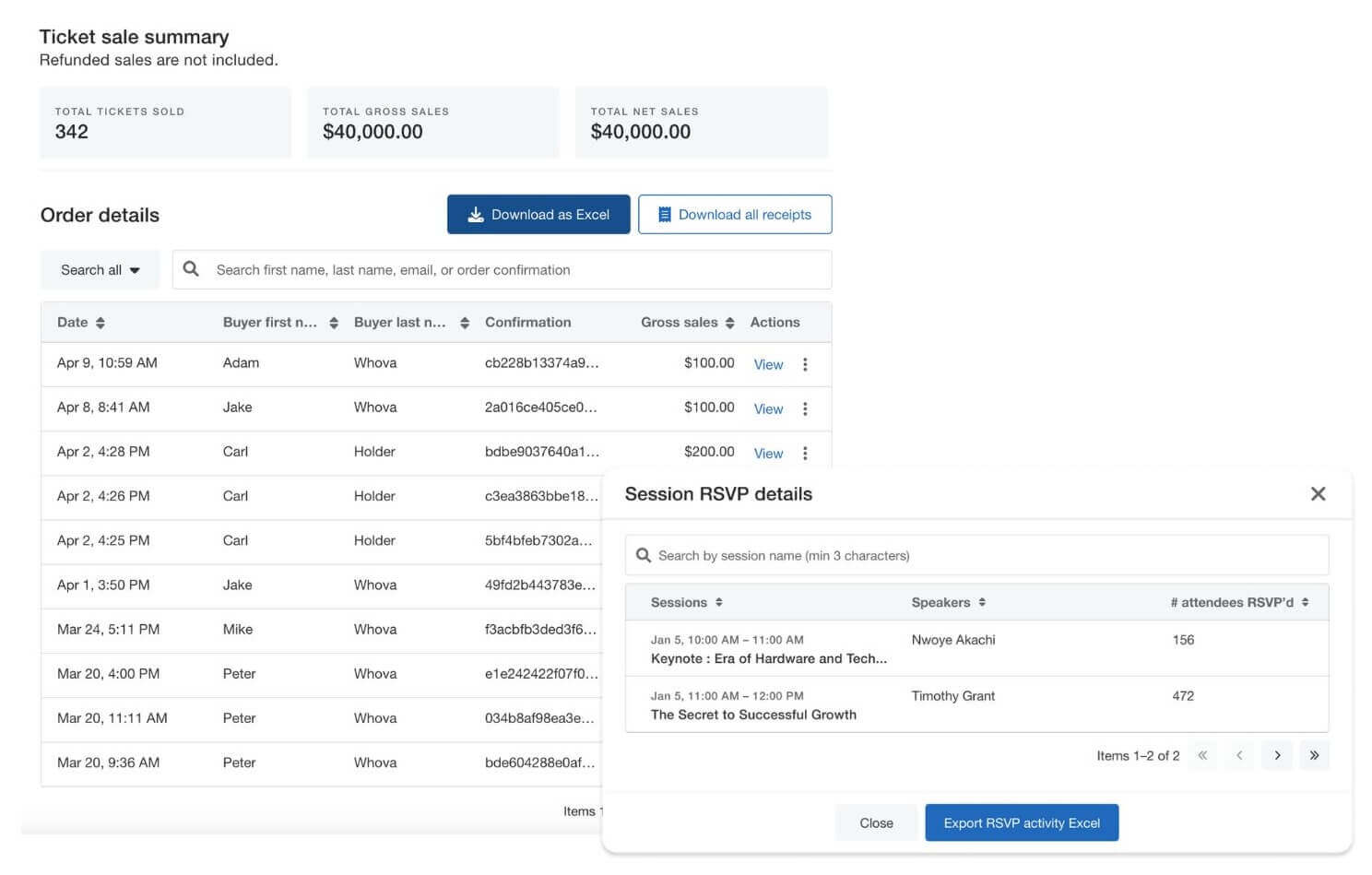
The platform dashboard collects check-ins, survey answers, session feedback and lead collection in one place. From there, you can track attendance as it builds throughout the day, and once the event ends, the same data becomes a post-event report, ready to send to your committee and exhibitors to demonstrate true ROI.
Put Onsite Event Technology to Work at Your Next Event
No two event days go exactly to plan. Attendees arrive in waves, sessions start late, and rooms change. The right onsite event technology solutions handle it without your team running around with clipboards and printed lists.
Whova brings registration, check-in, the event app, announcements, floor maps and session feedback onto one platform. Your staff can get up to speed without a long training session. What happens at the door shows up in your dashboard, and when the event wraps, your post-event report is already there.
Want to see how it works for your event? Request a live demo and we’ll walk you through it.
Frequently Asked Questions About Onsite Event Technology Solutions
What are onsite event technology solutions?
Onsite event technology solutions are the tools your team uses at the venue once the event starts. At the front desk, that means check-in kiosks and badge printers, and for attendees, it’s the event app on their phones.
Why should teams look for onsite event management solutions?
Event day asks a lot of a team, and paper lists and disconnected tools make it hard to keep up. Onsite solutions cut down the wait at check-in and keep attendees updated when plans change, and everything they capture ends up in a report you can share with stakeholders.
What should I look for in onsite event management software?
Look for software your check-in staff can pick up without technical training, and that works with standard tablets, smartphones and badge printers instead of rented equipment. An all-in-one platform also saves your team from exporting spreadsheets between tools, and it’s worth confirming the vendor offers support during your event hours.
How to handle and update last-minute changes during the event?
To handle last-minute changes such as directions or important room changes, attendees must be notified as soon as possible. Through announcements and a live-updated agenda, organizers can easily notify attendees and always show the most current version of their event through the event app.
What equipment do I need for an onsite self-service check-in kiosk?
For a standard self-service check-in station, you need a tablet (such as an iPad or Android tablet) loaded with your event check-in app, a tablet stand, and a compatible wireless badge printer. Attendees scan their QR code, confirm their details, and print their badge instantly.
Can onsite badge printing software work without an internet connection?
Yes, provided you select an event platform with built-in offline caching. The software allows tablets to process check-ins and send print commands to thermal printers over a local Wi-Fi or Bluetooth network, syncing data back to the cloud once connectivity resumes. Whova’s check-in does require connection so it’s best to always keep high connectivity particularly around your check-in station.
How do live polls and Q&A help during physical event sessions?
Live polls and Q&A allow attendees to submit questions and vote in real time using their smartphones without interrupting the speaker or waiting for a handheld microphone. This increases session interaction and gives presenters immediate audience feedback.
How are digital consent forms collected during onsite check-in?
Digital consent forms and liability waivers can be integrated directly into the attendee check-in workflow. Before attendees receive their printed name badge, the tablet prompts them to review and sign the required form on screen.
How can attendee communities be moderated through the event app?
Event apps such as Whova provide tools to moderate online communities and sessions. Organizers are able to delete posts and flag attendees from posting in the community board. Additionally, organizers can hide or pin questions to the top to keep sessions safe and engaging.
How do live polls and Q&A help during physical event sessions?
Live polls and Q&A let attendees take part in a session from their phones. They answer the speaker’s polls and send in questions as the session goes, and they vote on each other’s questions instead of waiting for a microphone to reach their row. Presenters get a live read on the room, and the session starts to feel like a conversation.
How are digital consent forms collected during onsite check-in?
Organizers can make signing a consent form or liability waiver a required step at check-in, and attendees can’t finish checking in and collect their name badge until they’ve signed. At a self-service kiosk, attendees confirm shorter notices with a quick “I agree” on screen, and they sign longer forms, like media releases, on the spot in the event app. Staff see in real time who still needs to sign.