
December 22, 2025
You’ve spent hours setting up your agenda, and everything looks perfect—until the real world kicks in. Session A is suddenly too full for its room, Session B’s speaker cannot attend the first day, and Session C’s subsession actually belongs under Session D… the list goes on.
Seasoned organizers know that agenda edits can get messy quickly. One fix can easily trigger another issue, and before you know it, you’re spending hours comparing time slots, dragging sessions around, and carefully copy-pasting information to avoid mistakes. It’s one of the most tedious, error-prone parts of event planning—especially when schedules change late in the process.
Over the past few releases, we’ve been focused on making agenda setup dramatically easier from the very beginning.
- Upload a full session list and assign sessions to time slots in just a few clicks – no more rebuilding your agenda from scratch via copy-pasting each field one by one.
- Import accepted submissions directly from academic review systems like HotCRP and others, allowing you to build out your program directly on Whova.
- Streamline accepted submissions direction from Whova’s built-in Abstract Management Software into the Agenda Center.
These tools already save organizers hours during the creation phase. Now we’re making the editing phase just as fast, flexible, and frustration-free.
Introducing Smart Shortcuts: Swap Sessions and Reorganize Sub-Sessions—new time-saving actions that remove the manual shuffling and drastically cut down the risk of misplacing or overwriting content.
With this enhancement, you can…
- Swap sessions in seconds. Instantly switch the time and room of two sessions—no copying, pasting, or tedious reconfiguring required. It is much less error-prone.
- Move sub-sessions between parent sessions. Easily restructure breakouts or workshops by moving a sub-session to another parent session in just a couple clicks.
- Convert sessions to sub-sessions. Turn any standalone session into a sub-session with zero manual rework—simply choose a parent session to put it under, and you’re done!
What used to take many steps—and could easily lead to errors—now takes just one or two clicks. Last-minute changes stay clean, intentional, and under control, so you can keep your agenda accurate without the stress.
When updates are smooth, quick, and mistake-free, you get to focus on what really matters: running an impressive, well-orchestrated event.
And we’re not stopping here. This release is part of our broader initiative to make agenda creation and editing dramatically easier for organizers, whether you’re building a complex academic program or a multi-track conference. More smart agenda editing tools are already in development, so stay tuned for even faster, smarter ways to customize and refine your schedule.
Ready to see how much easier agenda editing can be? Keep reading.
Swap Sessions In Seconds
You can now swap two sessions easily. Simply navigate to the Agenda Center in the Content tab and find Session Manager—your place for scheduling and viewing sessions.
For each session you’ve scheduled, you will see an option to Swap.
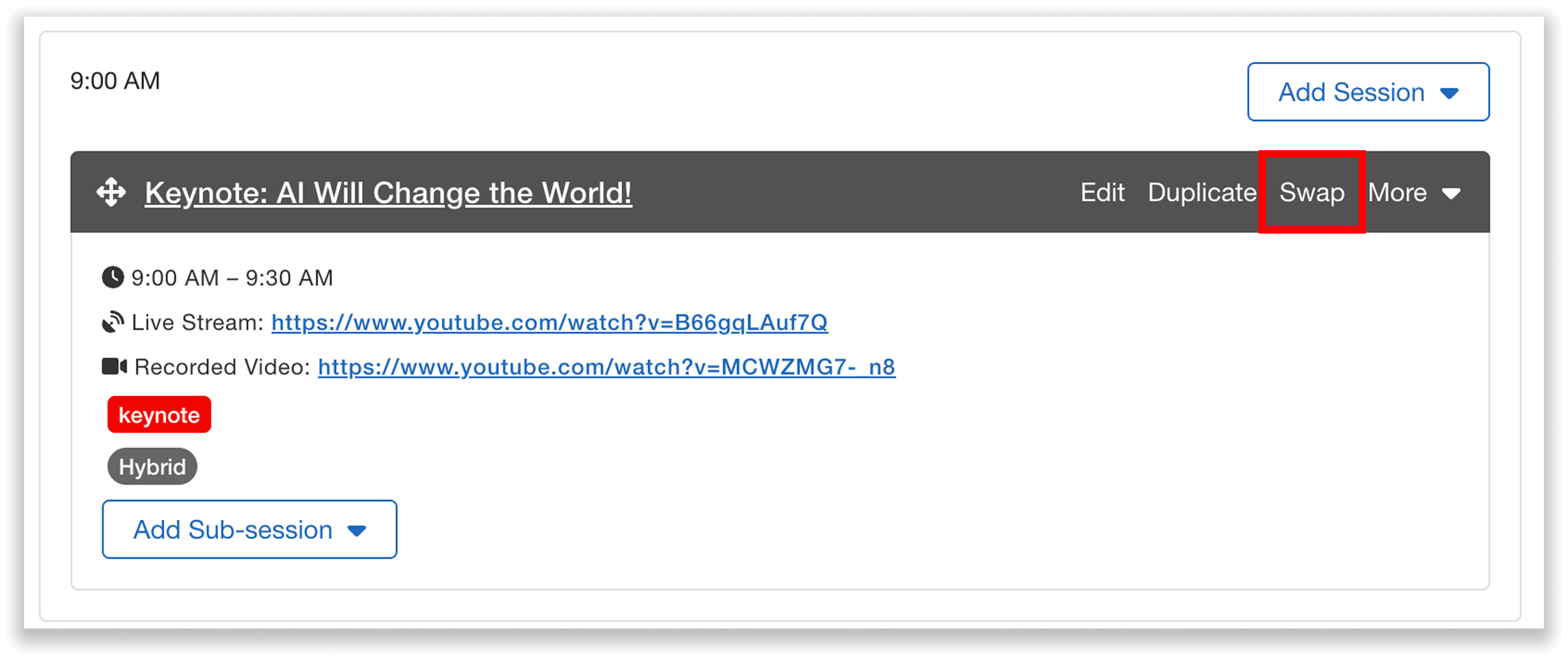
Swapping sessions is simple in Whova’s Session Manager.
Click that option, and you can choose another session to swap it with. For example, if you have a paper presentation scheduled at 10:30 AM in the Ballroom, and a panel discussion scheduled at 1:30 PM in the Auditorium, you can easily switch them.
Before swapping, you can preview key details such as the date, time, and room of both sessions.
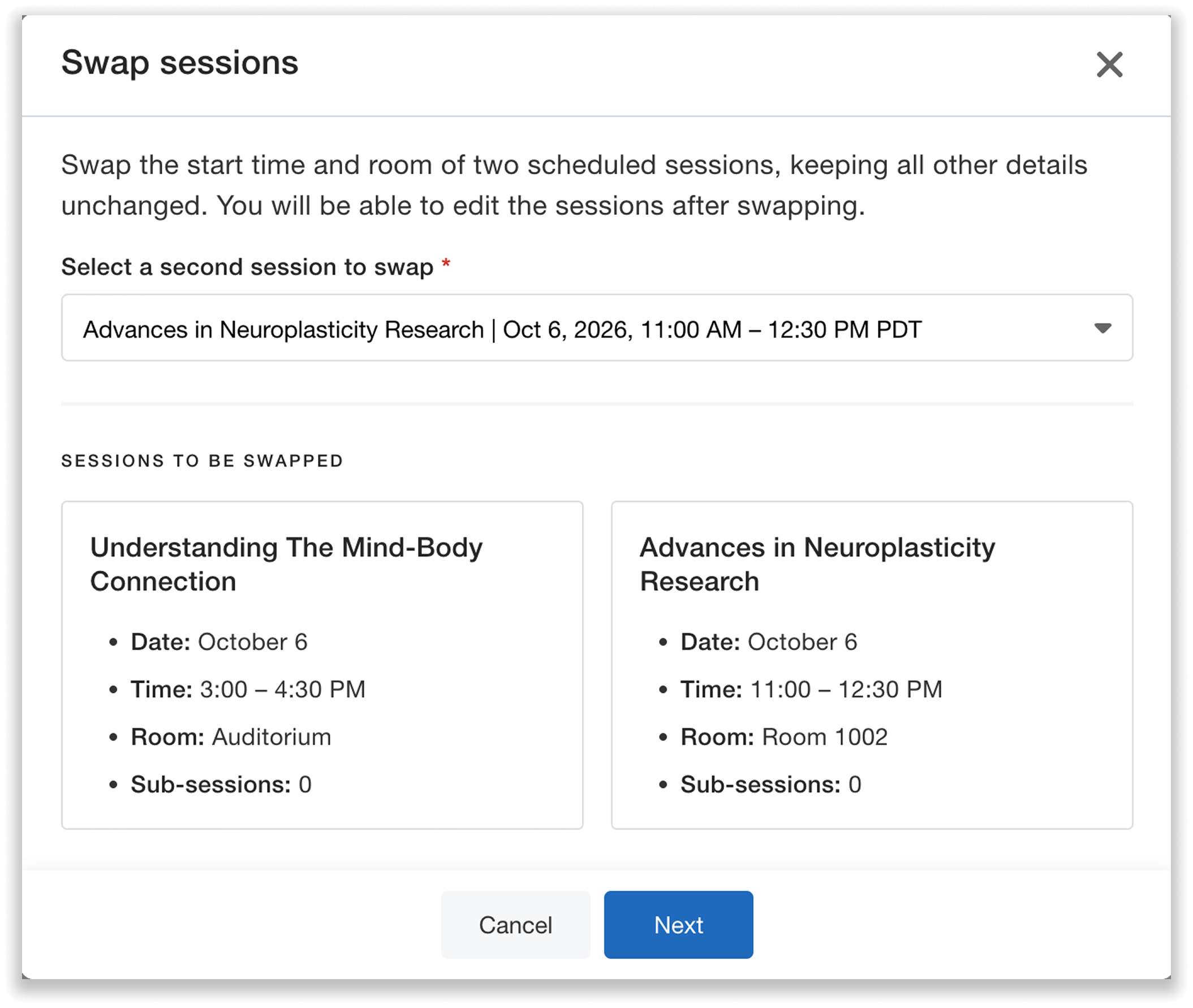
Preview key details before swapping sessions.
It’s important to note that swapping a parent session will move any sub-sessions it has along with it, so keep that in mind when making changes. And if the sessions you are swapping have different durations, make sure the change doesn’t create any scheduling conflicts. Whova will detect and notify you if they do have different durations, and remind you if they have sub-sessions—making it easy to keep your schedule on track.
You can also use the Swap button to swap sub-sessions with other sub-sessions!
Easily Move Sub-Sessions Between Parent Sessions
In the Session Manager, you can also now move sub-sessions between parent sessions without any manual reconfiguration.
Simply click on the “More” dropdown of any given sub-session, and choose the option to “Move to another parent session.”

Move any sub-session to another parent session in just a couple clicks.
You can then select a new session to move this sub-session to. For example, let’s say you have a sub-session entitled “AI in Product Management” slated under the parent session “All About AI,” and you decide it would be a better fit for the parent session “Product Management Tips.” Use this enhancement to move it in a matter of seconds.
After previewing the new parent’s time and room, you can proceed to move the sub-session. This will change its time and room information to match the new parent.
It will be automatically placed at the start time of the new parent session—make sure to adjust its time as needed based on your schedule. You can also make any other edits you’d like.
For example, if you move a sub-session to a parent session that spans from 12:00 PM to 3:00 PM, the sub-session will be automatically placed at 12:00. If you’d like the sub-session to go from 1:00 to 2:00 instead, remember to shift its start time later.
Convert Sessions To Sub-Sessions
Whova now makes it easy to convert sessions to sub-sessions in the Session Manager as well.
Similarly, you can click on the “More” dropdown of any session, and select the option to “Convert to sub-session.”
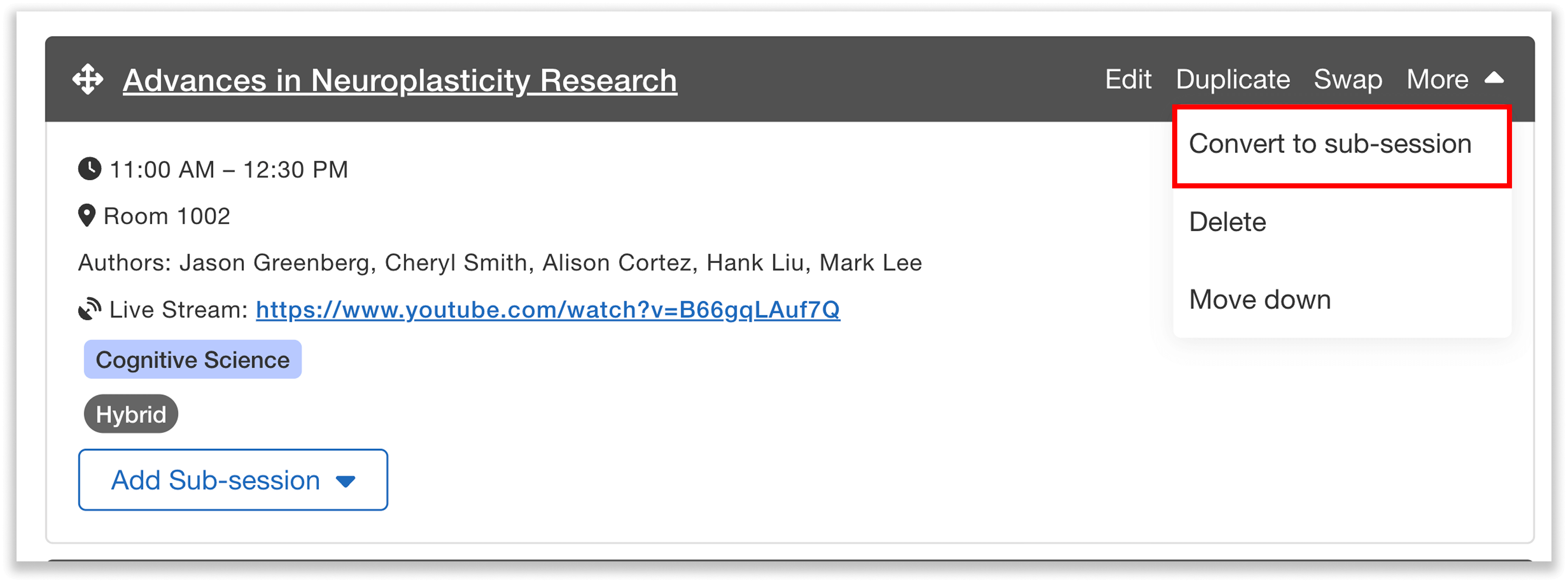
Easy convert a session to a sub-session in Whova’s Session Manager.
You can then choose any session to place the new sub-session under. For example, if you have a workshop scheduled on “Strategic Website Building,” and want to turn it into a sub-session of “Digital Marketing Deep Dive,” you can do so easily with this update.
After reviewing details like the room and timeslot of the new parent session, you can proceed.
Once your session has been converted to a sub-session, it will be automatically placed at the start time of the new parent session.
You can make any edits you’d like after it’s been converted—adjust its time based on your schedule, and tweak any other details if needed.
Agenda Editing Just Got Dramatically Faster
Changing up your agenda shouldn’t mean late nights, tedious reconfiguring, or constant double-checking. With these new Smart Shortcuts, it’s easier than ever to handle schedule changes quickly and efficiently—without disrupting the rest of your program.
We’re here to help you keep your agenda polished, adaptable, and stress-free, no matter how often plans change. To see these agenda editing tools in action or learn how they can simplify your next event, request a demo or reach out to your Whova representative.