
December 17, 2025
Every academic and research conference needs a clear, compelling program. From poster sessions to paper presentations, it’s important to keep everything organized, and spotlight the work of each contributor.
With Whova, building a professional conference agenda is already simple—whether you’re using our all-in-one Abstract Management (Call for Speaker) Software to collect submissions, streamline talks or posters into the Agenda Center or Poster Center, or importing your own session list exported from other platforms.
Many conference organizers also leverage popular Whova features like our Agenda Conflict Checker, which instantly spots overlaps and double-bookings, and session tags and speaker labels, which let you easily sort sessions into categories like “Hybrid” and “In-Person,” and distinguish speaker roles like “Panelist” and “Moderator,” to manage complex agendas.
But in research or academic conferences, not everyone involved in a session is a speaker. Papers and posters often have multiple authors, and listing them as speakers is not sufficient—only one may be presenting, but the rest contributed to the research itself.
To support academic and research conferences even better, Whova is introducing a new enhancement across both the event app and agenda webpages: Dedicated Author Fields for every session or subsession. You can now add each author individually—along with affiliations, contact details, and other metadata as separate fields from speakers.
This enhancement gives your conference a more professional and accurate agenda, while making it easier for attendees to follow the research they care about. With author information displayed clearly and made fully searchable, participants can browse the schedule by author name or institution, and quickly locate posters or papers from specific research groups.
By adding the authors to each session, organizers can effortlessly:
- Give full, accurate credit to all contributors—not just presenters.
- Improve discoverability: attendees can search sessions by author name or affiliation.
- Keep setup consistent across posters, papers, and other sessions.
- Maintain organized, exportable records of contributor information for post-conference reporting.
- Align Whova-powered agendas with academic norms, making your conference more appealing to scholars.
- Improve attendee experience by helping them identify collaborators, peers, and research groups more easily.
Whova makes it easy to highlight every scholar’s work—so attendees can explore your program with clarity, depth, and confidence. Keep reading to see how to add authors to your sessions and elevate your academic agenda.
2 Ways to Add Authors to Your Sessions
Organizers can now easily manage session authors in Whova, whether adding them one by one or importing multiple authors at once.
1. Add Authors to Individual Sessions
Organizers can now add authors directly within the Session Manager in the Agenda Center, found under the Content tab. When creating or editing a session, the new author field appears under the Advanced Settings section. Simply select “Add new author” and enter their name, along with optional affiliation and email details.
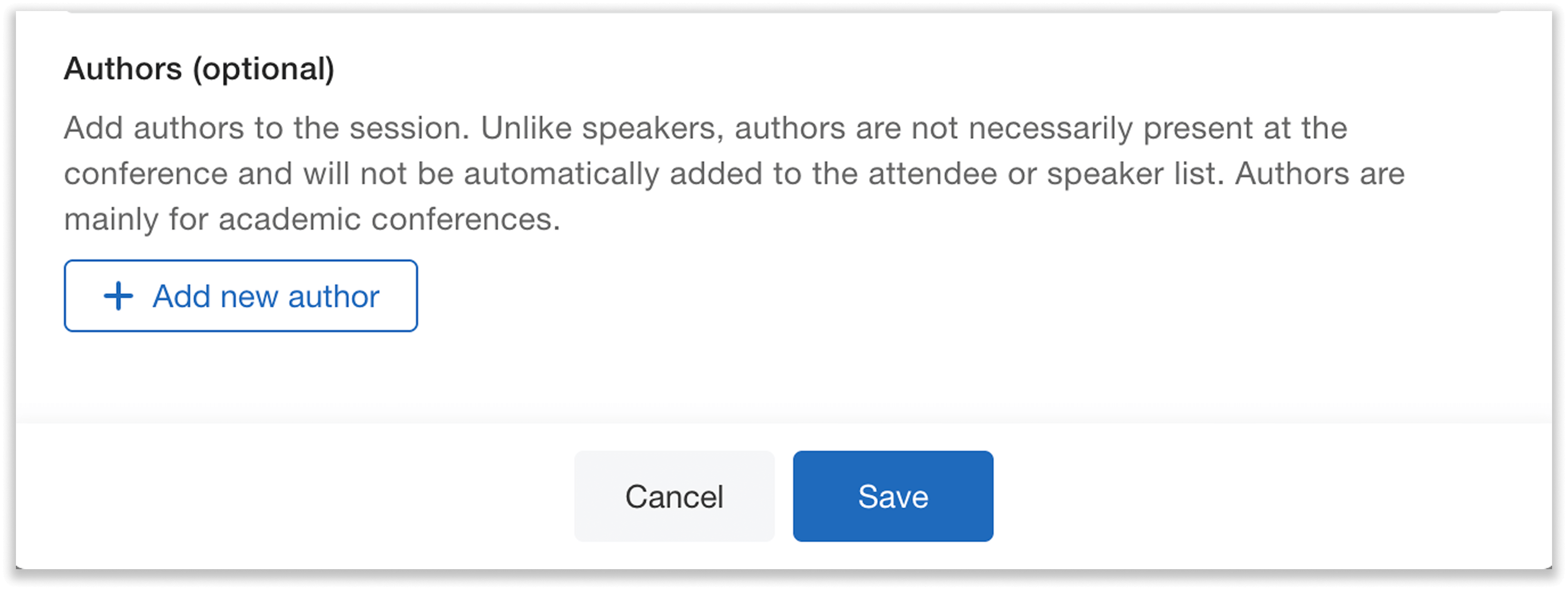
In Whova’s Session Manager, add authors in the Advanced Settings of each session.
Because authors and speakers play different roles, Whova treats them separately. Authors are not necessarily present at the conference—therefore, they will not be automatically added to the attendee or speaker list. They will not gain access to the Whova app unless added through registration or manually by the organizer.
2. Bulk-Add Authors Through Import Templates
For conferences with many authors, you can save time by importing them in bulk. Whova’s updated Agenda Import Templates and Session List Template now both include a column specifically for authors. When filling out the templates, organizers can list multiple authors for each session, and even include their affiliations and emails if desired.

Fill out authors in the Session List Template or Agenda Templates for Bulk Import.
Each session’s authors can be updated as needed, with changes syncing to the agenda on both the mobile app and event website.
Attendees View and Search by Authors Easily on the App
With this update, attendees can see authors displayed within each session’s details on both the mobile and web app. They can view the authors’ names and affiliations, providing clear insight into the research and contributors behind each conference.

Authors can easily be displayed on both the web and mobile app.
Attendees can also search the agenda by author and affiliation. This makes it easy to find a colleague’s work or follow a specific research area or institution—increasing the visibility of paper presentations and poster sessions.
Authors on Agenda Webpages Embedded in Event Websites
Many organizers embed Whova-generated agenda webpages directly onto their event websites. With this update, these webpages now automatically display each session’s authors, just as they do speakers, tracks, and other session information.
The search bar makes it simple to search for authors here as well.

Authors can also be displayed—and searched for—on agenda webpages.
Both General-Purpose and Special-Purpose Agenda Webpage options support the new author display. Organizers can find these templates in the Marketing tab under “Agenda Webpage.”
Make Authors Easy to Find
Whova’s new Authors Field strengthens one of the most impactful areas of our platform: the agenda. Academic events can easily keep their agendas clear and accurate with this enhancement—and attendees can discover work from exactly who they’re interested in.
If you’re ready to start adding authors to your sessions, simply visit your Agenda Center to begin, or request a demo to learn more.