
February 10, 2026
When reviewing speaker proposals or abstracts, organizing committees often have extensive internal discussions before making final decisions—flagging missing materials, suggesting different session formats, noting follow-up questions, and capturing the reasoning behind acceptances, waitlists, or declinations. To align speakers with the right sessions and build a strong agenda, teams need a clear, centralized way to track all of this context during the review process.
Whova’s Call for Speakers/Abstracts already helps you coordinate speaker proposals/abstracts from submission to decision notifications, streamlining review and decisions with our all-in-one dashboard. You can finalize your lineup with an email to accepted speakers, follow up on incomplete submissions, and more. Plus, accepted submissions flow seamlessly to the Agenda Center and Poster Center, so you can start scheduling right away.
But, organizers still need a place to leave clear, actionable notes on some submissions to help the team take follow-up actions or reach final decisions.
We’ve already released custom tags, which let you add labels to submissions, like “Needs Follow-Up,” “Great for Poster,” or “Missing Info.” This helps you sort proposals, filter by specific tags, and even send targeted emails.
Now, we’re taking things even further with Call for Speakers: Admin Notes. With Admin Notes, organizers can add detailed, internal notes directly to each submission, visible only to admins and never shared with reviewers or submitters. Notes live alongside the submission itself, giving your entire decision committee a shared, centralized source of truth.
Admin Notes support a wide range of real-world speaker/abstract selection workflows, including:
- Elaborate on tags—provide detailed explanations in the same intuitive location. For example:
- A tag could say “Follow up needed,” while a note could say “Emailed speaker about formatting issues on Thurs, Feb 15th.”
- A tag could say “Different session type,” while a note could say “Better suited for Poster Session, not Oral Presentation.”
- Explain decision rationale. Record why a submission was accepted, waitlisted, or declined—helpful for aligning committee members, handling follow-ups, or revisiting decisions later.
- Coordinate follow-ups and special cases. Track extension requests, invited speakers, conditional acceptances, or need to hold on decisions—all without leaving Whova.
- Flag risks or opportunities. Note potential conflicts, overlaps with other sessions, standout speakers, or topics that may need extra coordination.
- Maintain continuity across busy teams. When responsibilities are shared—or when team members change—Admin Notes preserve institutional knowledge so nothing gets lost, especially if your event welcomes resubmission from last year’s event.
Instead of digging through scattered emails or spreadsheets, your team can now collaborate with full visibility into the context behind every speaker or abstract submission—right where decisions are made.
Keep reading to learn more!
Add Admin Notes to Submissions with Whova’s Call for Speakers
Once you’ve set up your call and have submissions rolling in, adding Admin Notes is simple and intuitive.
Navigate to “Call for Speakers/Abstracts” in the Content tab and open the dashboard for your call. From there, select “View submissions” to see each submission along with its status and other key details. Click “View” on any submission to open it.
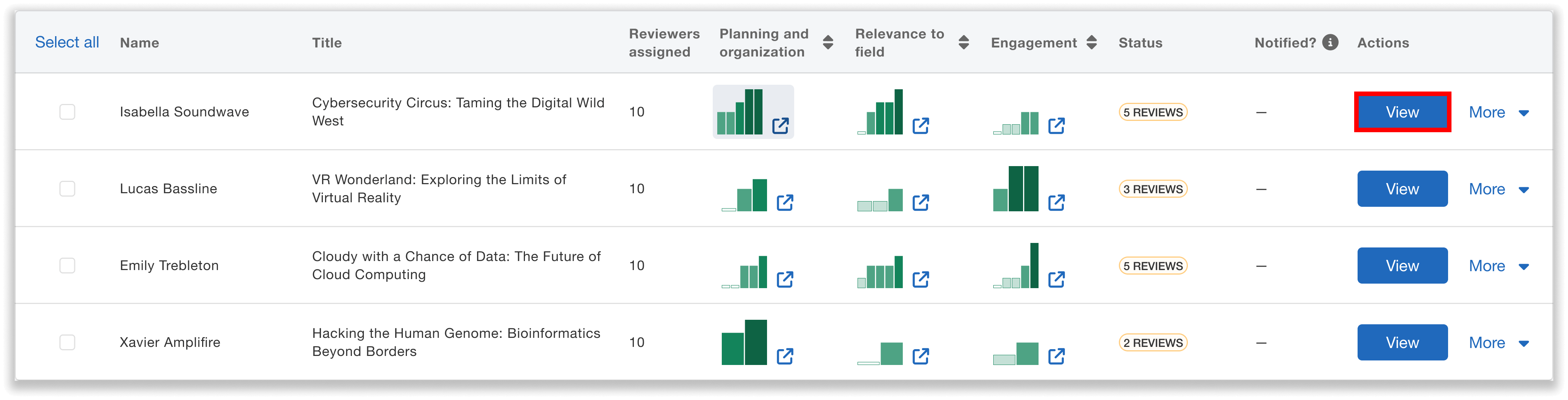
Open any submission to review its details and add internal context directly within Whova.
Below the option to add tags, you’ll see an option to add notes. These notes are only visible to other admins, and are not shared with submitters or external reviewers. Click “Add notes” and leave any comment you’d like, such as “Better suited for Poster Session, not Oral Presentation.” Then save your changes.
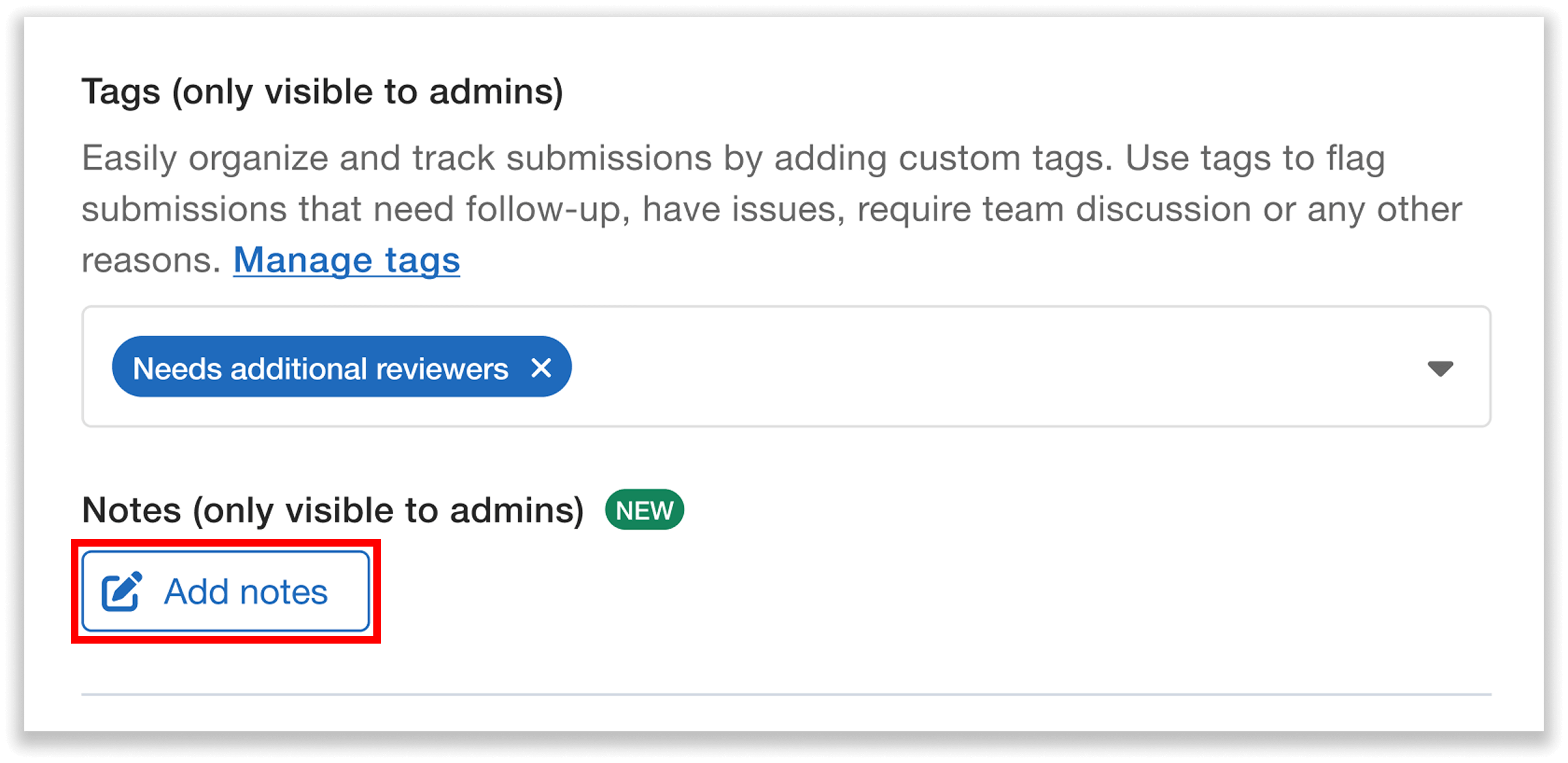
Add notes directly to each submission to share follow-up details, key decision context, and other coordination info.
Other admins can then view the notes, along with who last edited them and when. To make updates, any admin can simply click “Edit notes.” The “Last edited by” information will update automatically.
Note: While Admin Notes are designed for events with the Advanced tier or above, we’re offering Standard-tier events limited access (up to 20 notes) to try out more advanced review workflows.
Filter By Submissions with Notes, Export Notes Along with Submission Info
You can also filter your submissions to find those with notes, as well as export the notes along with other details—helping you stay on top of key context and ensure nothing slips through the cracks.
Filtering submissions by Admin Notes is easy:
- When viewing your submissions, click the “Filter by” button.
- Select “Submissions with notes.”
- Apply the filter to instantly see which submissions Admin Notes—perfect for tracking follow-up details.
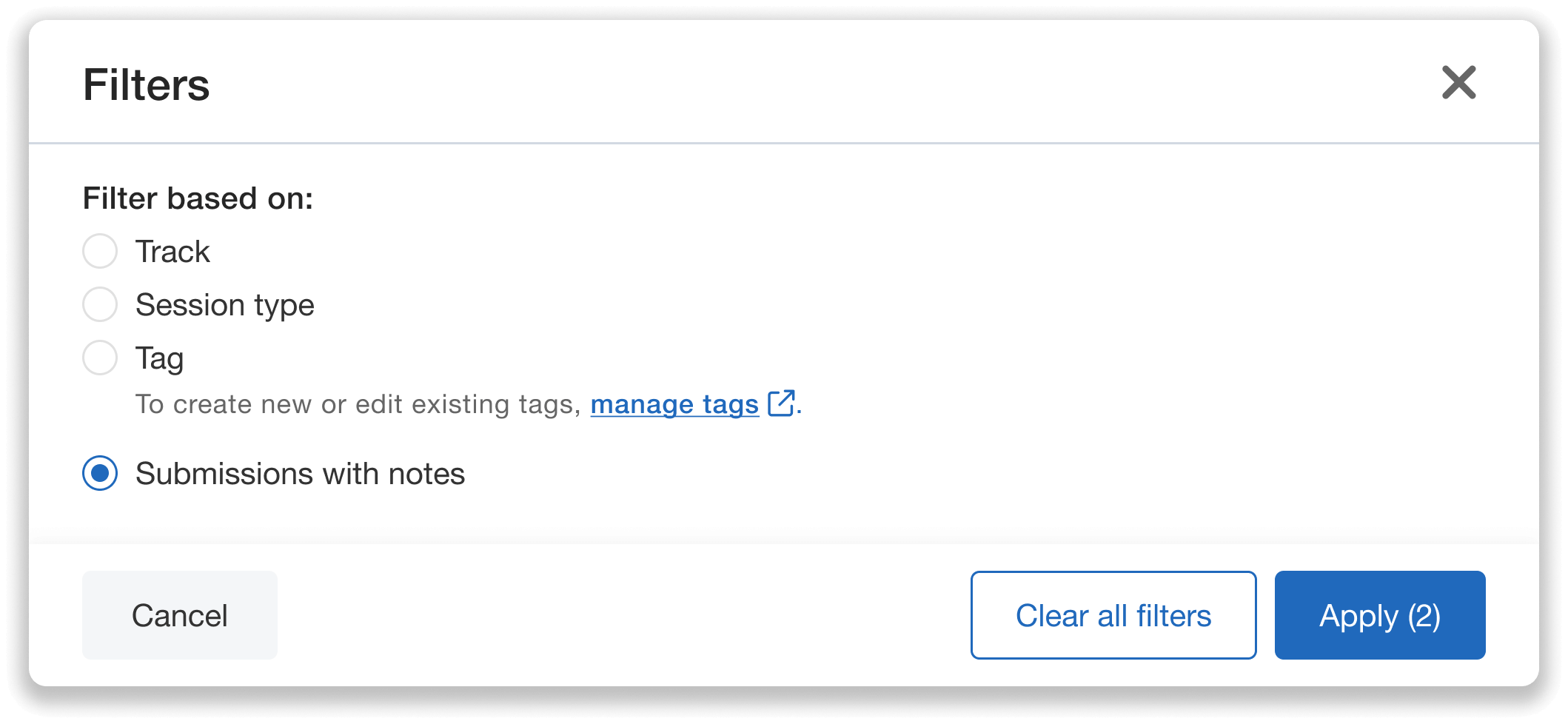
Filter submissions to find notes—quickly identify proposals that need follow-up or additional coordination.
You can also export Admin Notes along with the rest of your submission data:
- Click the “Download” dropdown from the submissions view.
- Choose either “All submissions,” “All submissions and PDFs,” or “Current filtered submissions.”
- Your export will include a dedicated column containing the notes for each submission.
This lets you carry over key context with your exports, making it easier to keep track of the full picture.
Keep Your Review Process Clear, Centralized, and Collaborative
With Admin Notes, your team no longer has to rely on side conversations, spreadsheets, or memory to manage complex submission reviews. Coordination details and decision context can now live directly alongside the submission they relate to, visible to just the right people.
If you’re ready to streamline your Call for Speakers/Abstracts workflow and keep your committee effortlessly aligned and organized, log in to Whova and try Admin Notes today. Or, request a demo to learn how these features can support your event’s review process from start to finish.