
June 29, 2026
When you’re managing registration for a large event, chances are you’re not selling just one ticket.
You may have separate options for members and non-members, students and professionals, speakers and exhibitors, VIPs, government employees and corporate attendees. Each audience often comes with its own pricing, eligibility requirements, and exclusive experiences.
Whova Registration is built to handle these complex scenarios with ease. Organizers can already create invite-only and member-only tickets using email lists, organization restrictions, organization types, AMS integrations, and even uploaded Member ID lists. We also recently introduced new ways to verify membership and protect exclusive pricing, giving organizers more flexibility regardless of which AMS they use.
But as registration structures grow, so does the setup work.
Imagine creating a dozen member-only tickets for a multi-day conference. You carefully configure the eligibility rules for one ticket—then find yourself rebuilding those exact same restrictions again and again for every related option. It’s repetitive, time-consuming, and increases the chance of accidental inconsistencies.
That’s why we’re introducing a faster way to manage exclusive tickets: organizers can now copy restrictions from one Member or Invite-Only Ticket to another.
No more manually rebuilding the same rules ticket by ticket. Whether you’re creating multiple member-only tickets, student passes, or options for other attendee groups, you can now apply similar restrictions much faster and more consistently.
Ticket Restriction Copying helps organizers:
- Save time configuring exclusive tickets: Instead of manually recreating the same restrictions for every ticket, simply copy the rules from an existing ticket and move on to the next task.
- Maintain consistent eligibility rules: Ensure that member-only, student-only, invite-only, or other restricted tickets all follow the same criteria—reducing the risk of configuration errors.
- Simplify complex registration structures: Manage large ticket inventories with confidence, even when different attendee groups require their own pricing and access rules.
- Scale exclusive ticketing with ease: As your event grows and ticket offerings expand, keep registration administration efficient without sacrificing control.
This update makes large-scale member and invite-only ticketing easier to manage, while helping organizers maintain consistency across complex registration setups.
Want to see how easy it is to copy restrictions across multiple tickets? Read on.
Copy Restrictions Across Invite-Only Tickets
After creating your tickets, navigate to Member & Invite-Only Ticketing in the Tickets tab. Here, you’ll find all of your ticket types listed.
To get started, create your desired ticket restriction. Open the Add restrictions dropdown for any ticket and choose whether you’d like to create a restriction from scratch or reuse a previous one.
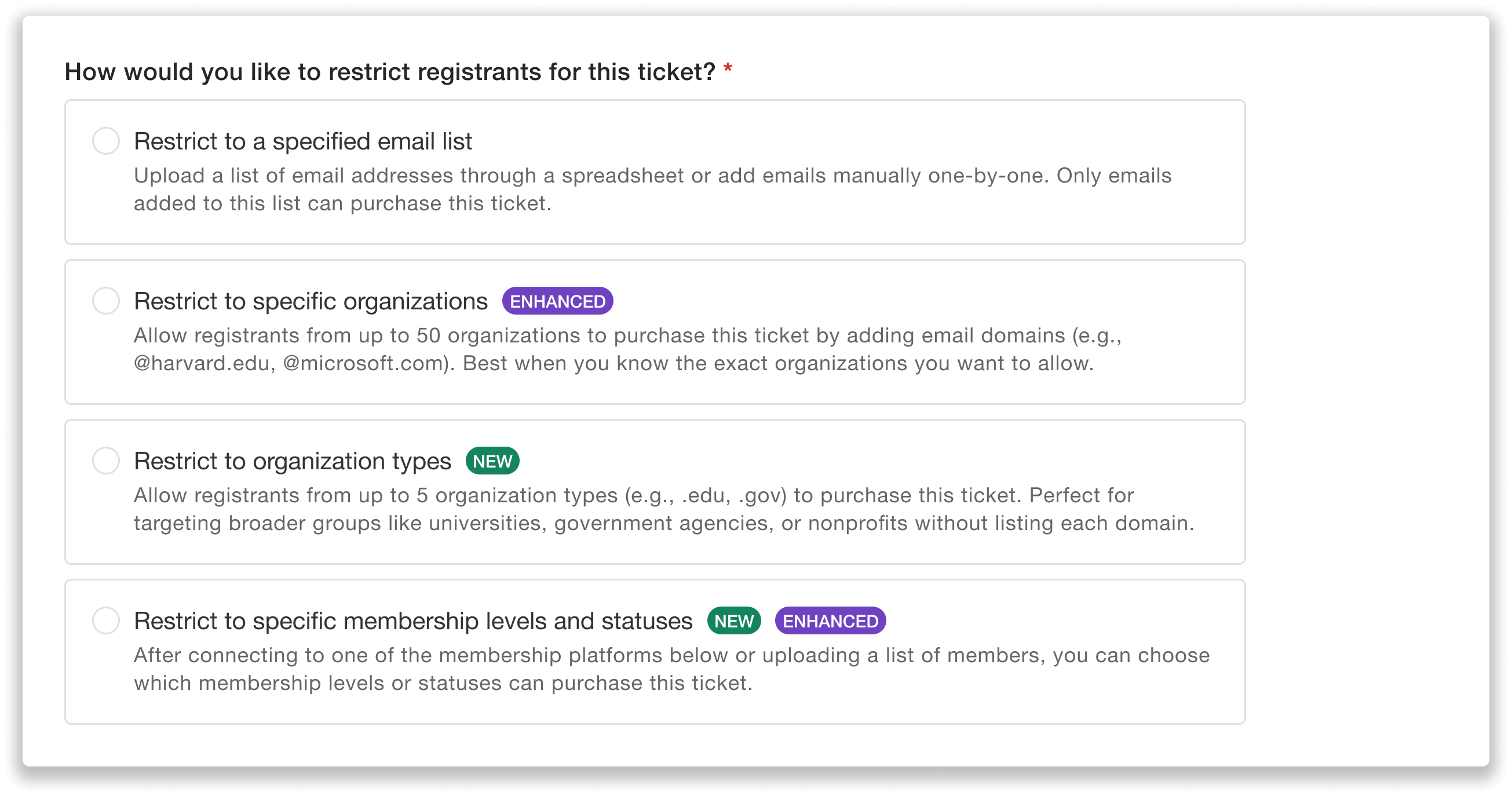
To create a ticket restriction from scratch, choose how you’d like to restrict registrants.
For example, if you’re offering a ticket exclusively for government employees, you could restrict access by organization type and only allow registrants with a .gov email suffix to purchase the ticket. Or, if you’re creating a presenter-only ticket, you could restrict access to a list of speaker email addresses.
Once you’ve configured your rules, click Create restriction.
Now, you can easily copy that restriction over to another ticket of your choosing. Find the next ticket you want to restrict, open the Add restrictions dropdown, and select the option to Copy from another ticket.
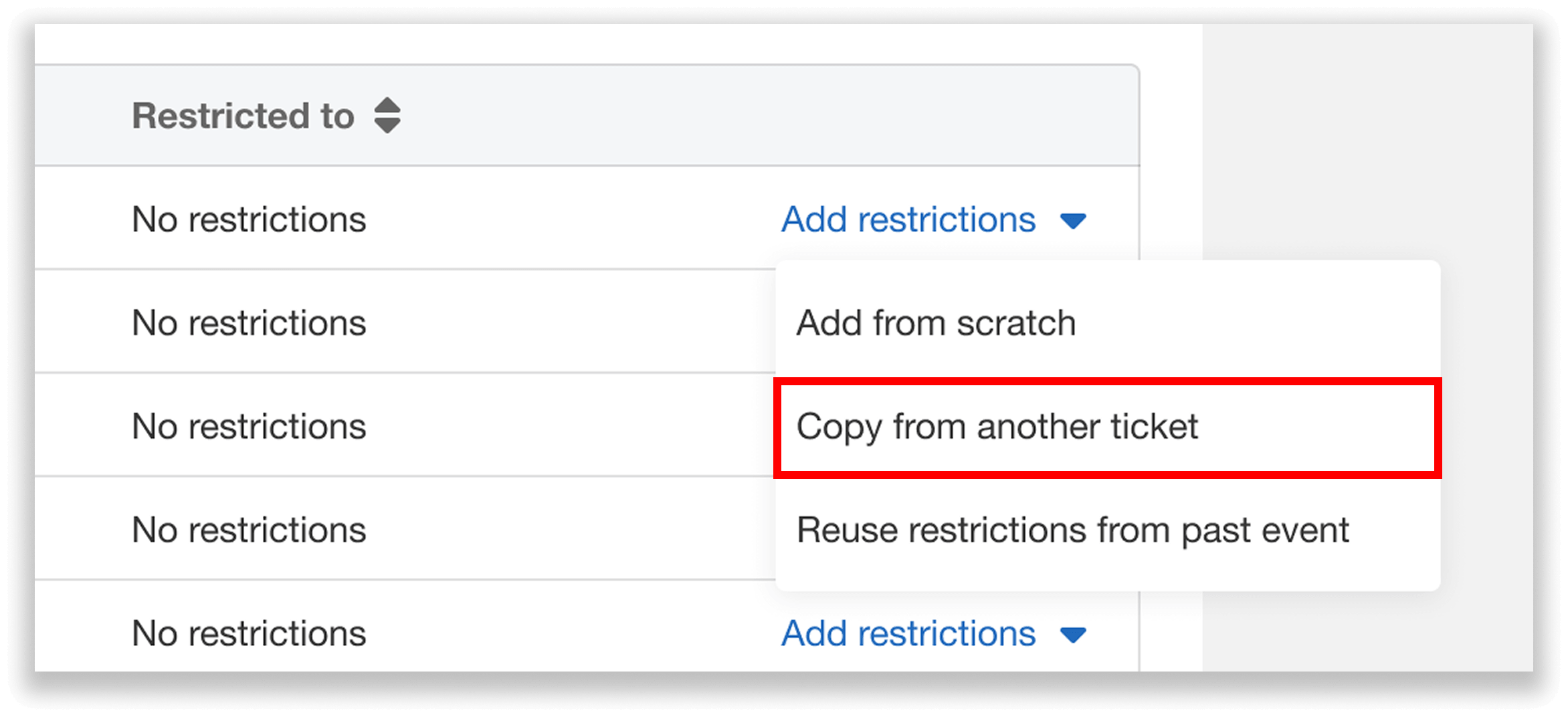
Copy from another ticket to carry over restrictions you’ve already created.
You can then choose an existing ticket to copy restrictions from. Before proceeding, you’ll see a preview of the restriction details, such as approved email addresses, organizations, organization types, or membership levels and statuses.
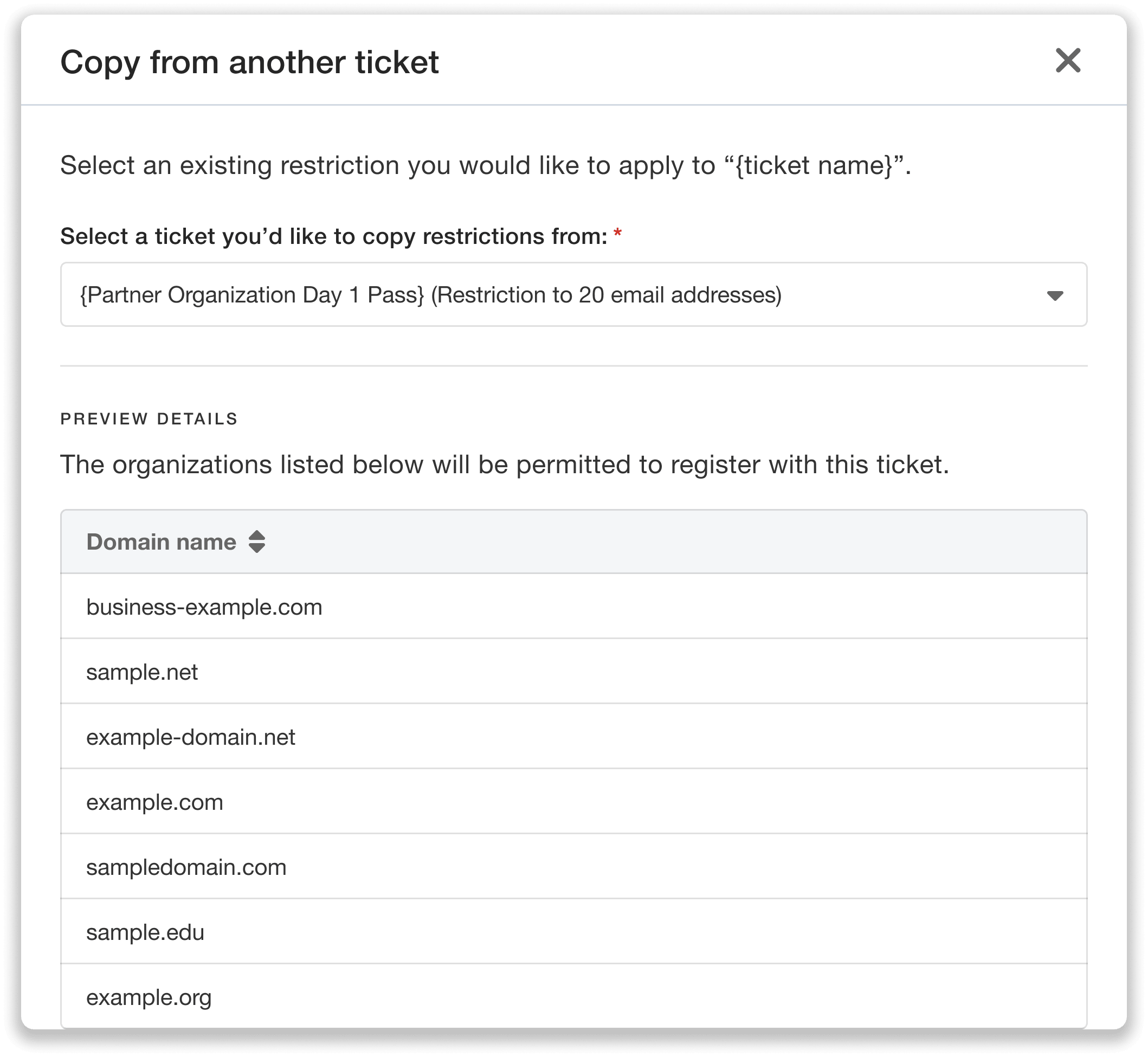
Select a ticket to copy restrictions from and preview details before proceeding.
After confirming the restriction details, click Copy restriction to apply them to the current ticket.
This helps you offer multiple ticket options to the same attendee group, such as association members, students, executives and leadership teams, speakers, and more.
Rather than creating the same restriction repeatedly, simply build it once and apply wherever needed.
Edit Restrictions As Needed For Each Ticket Type
After copying a ticket restriction, you still have full control over the current ticket’s eligibility rules. Simply edit the copied restriction and make any necessary adjustments. Changes made to the copied restriction will only apply to the current ticket—they will not impact the original ticket you copied the restriction from.
For example, if the restriction is by email domain, you could add an additional domain that can purchase a specific ticket. Or, if you copied over a membership-based restriction, you could expand eligibility to include another membership tier for the current ticket.
This flexibility helps you maintain consistency across similar ticket types while still tailoring requirements as needed.
Managing Complex Ticket Restrictions is Simple with Whova
Member and invite-only ticket management doesn’t have to involve repetitive setup work. With Whova’s Ticket Restriction Copying, organizers can quickly apply existing restrictions across multiple ticket types—saving valuable time, reducing manual effort, and keeping registration rules consistent with ease.
Ready to scale exclusive ticketing efficiently? Log in to Whova and start copying restrictions to simplify ticket management for your next event. Or, request a price quote to see how Whova can help streamline registration setup for your organization.