
February 16, 2026
Every organizer knows that building an agenda is no small feat. Even after gathering sessions, coordinating speakers, and finalizing your program content, you still face the intricate task of arranging everything in the right room at the right time.
Whova helps streamline this process from the beginning. Whether you use our all-in-one Call for Speakers/Abstracts system, upload a session list through our Excel template, or import a full agenda and check for conflicts in Whova, everything flows smoothly into the Agenda Center – your central hub for building and refining your schedule.
Once your sessions are ready, the same agenda automatically appears in Whova’s award-winning event app and can be embedded into your own event website using our Agenda Webpages, with seven professional-quality templates for both general and specialized purposes.
But the need for automated, streamlined workflows doesn’t stop there—as your agenda comes together, there’s still plenty of information to add. Rooms, tracks, and session tags need assigning, and you also need to add non-session items such as coffee or meal breaks, check-in, and exhibitor halls into your agenda too. Doing all of this one session at a time is slow and repetitive.
That’s why we’re introducing a major efficiency upgrade: Bulk Assign Rooms, Tracks and Tags—plus the ability to add Non-Session Items to your agenda. These enhancements give organizers more control, more flexibility, and a much faster path to a clean, accurate schedule.
With these updates, you can:
- Assign rooms, tracks, and tags to multiple sessions at once, instead of editing each one individually.
- Add non-session items—like registration periods, lunch breaks, coffee breaks, volunteer check-ins, expo hall hours, and more.
- Make these non-session items recurring across multiple days with just a couple clicks.
These capabilities open the door to major time savings and a more polished agenda:
- Build structure quickly: Apply rooms, tracks, and tags in bulk to keep your agenda organized and attendee-friendly.
- Handle last-minute changes with ease: Need to relocate 12 sessions to a different room or reassign tracks because of a conflict? You can do so in an instant.
- Create a complete, realistic schedule: Add your essential time blocks – check-ins, meals, breaks, general sessions, and exhibit hours – without repetitive manual entry.
- Keep multi-day events consistent: Recurring non-session items ensure every day of your conference follows a clear, reliable structure.
- Reduce errors and oversights: Bulk edits greatly cut down on missed tags, forgotten rooms, or inconsistent formatting.
Use these enhancements to structure and edit your agenda with confidence, control, and flexibility. No schedule change is too big, and every time block can be accurately and easily outlined!
Ready to manage your agenda like a pro with these upgrades? Read on.
Edit in Bulk: Assign Rooms, Tracks, or Tags to Multiple Sessions at Once
Assigning rooms, tracks, and tags is a key step in organizing your agenda. To save time, you can now make these updates in bulk directly from the Session Manager.
Simply click the “Bulk edit” button and choose whether you want to assign a room, track, or session tag.
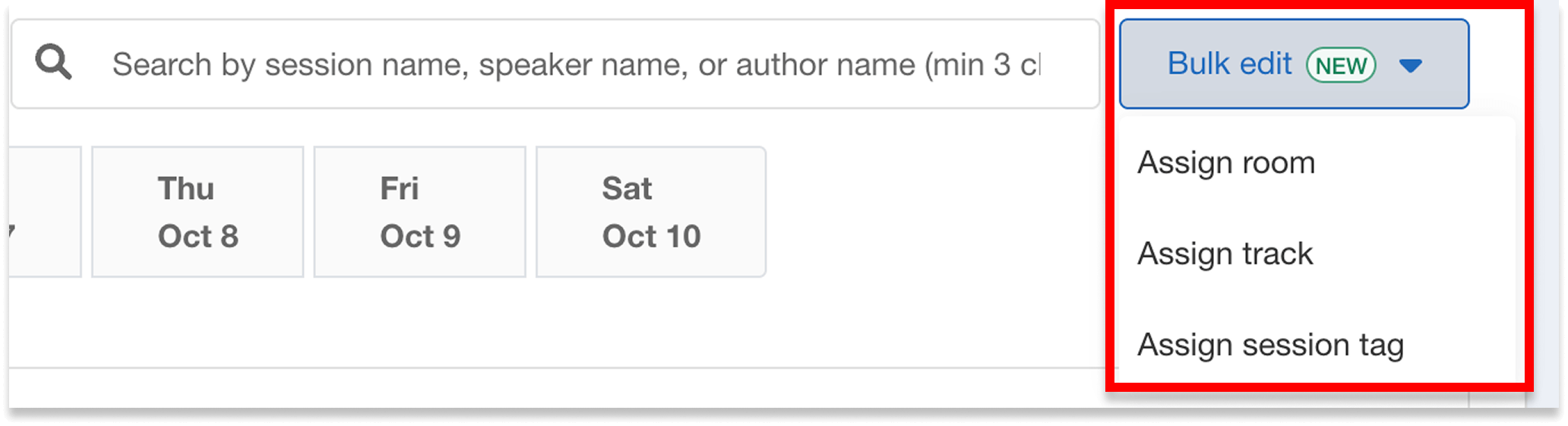
Open the “Bulk edit” dropdown and choose whether to assign rooms, tracks, or tags.
Next, select which specific room, track, or tag you’d like to apply. If needed, you can also create a new room, track, or tag at this stage. For example, you might select the “Hybrid” session tag to indicate that a session will be available to both in-person and virtual attendees.
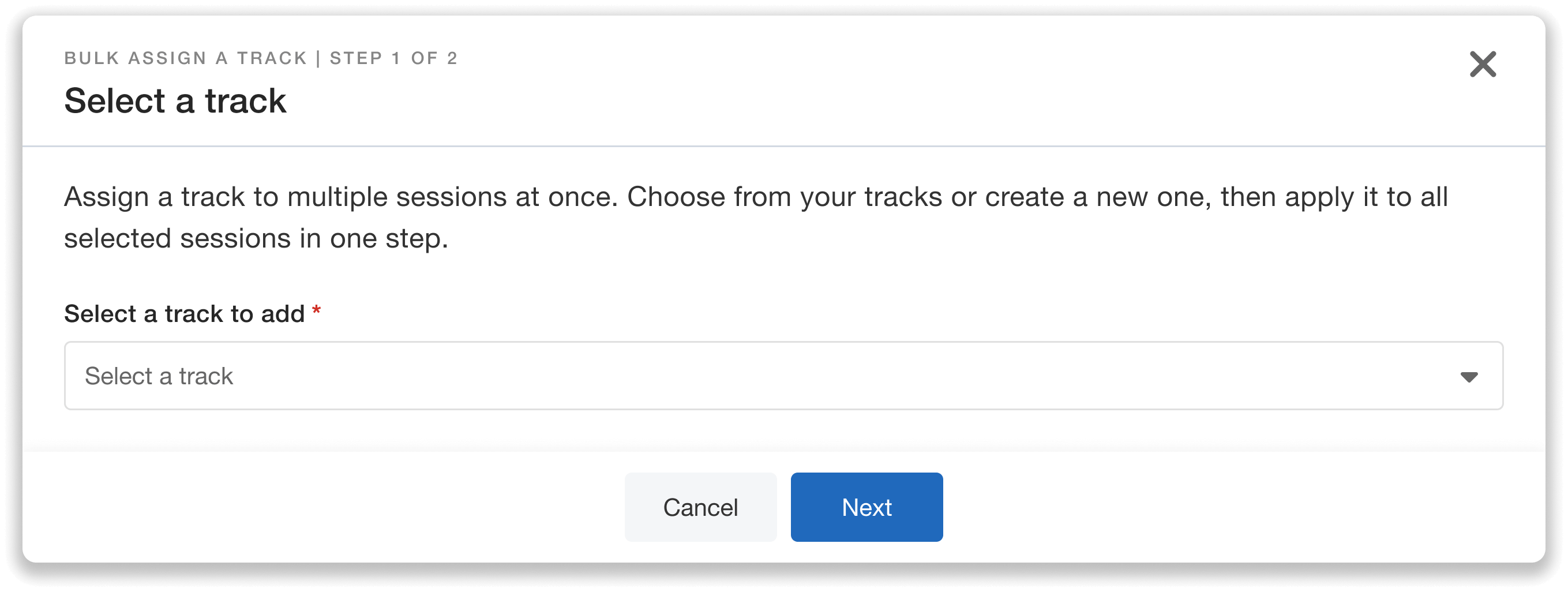
Select a track (or room or session tag) to quickly apply it across multiple sessions.
Now, it’s time to select which sessions you want to update. You’ll see a full list of your sessions, including their current dates, rooms, tracks, and tags (if already assigned). To make selection easier, you can search and filter sessions—for example, by sessions that already have or don’t have assigned rooms, tracks, or tags.
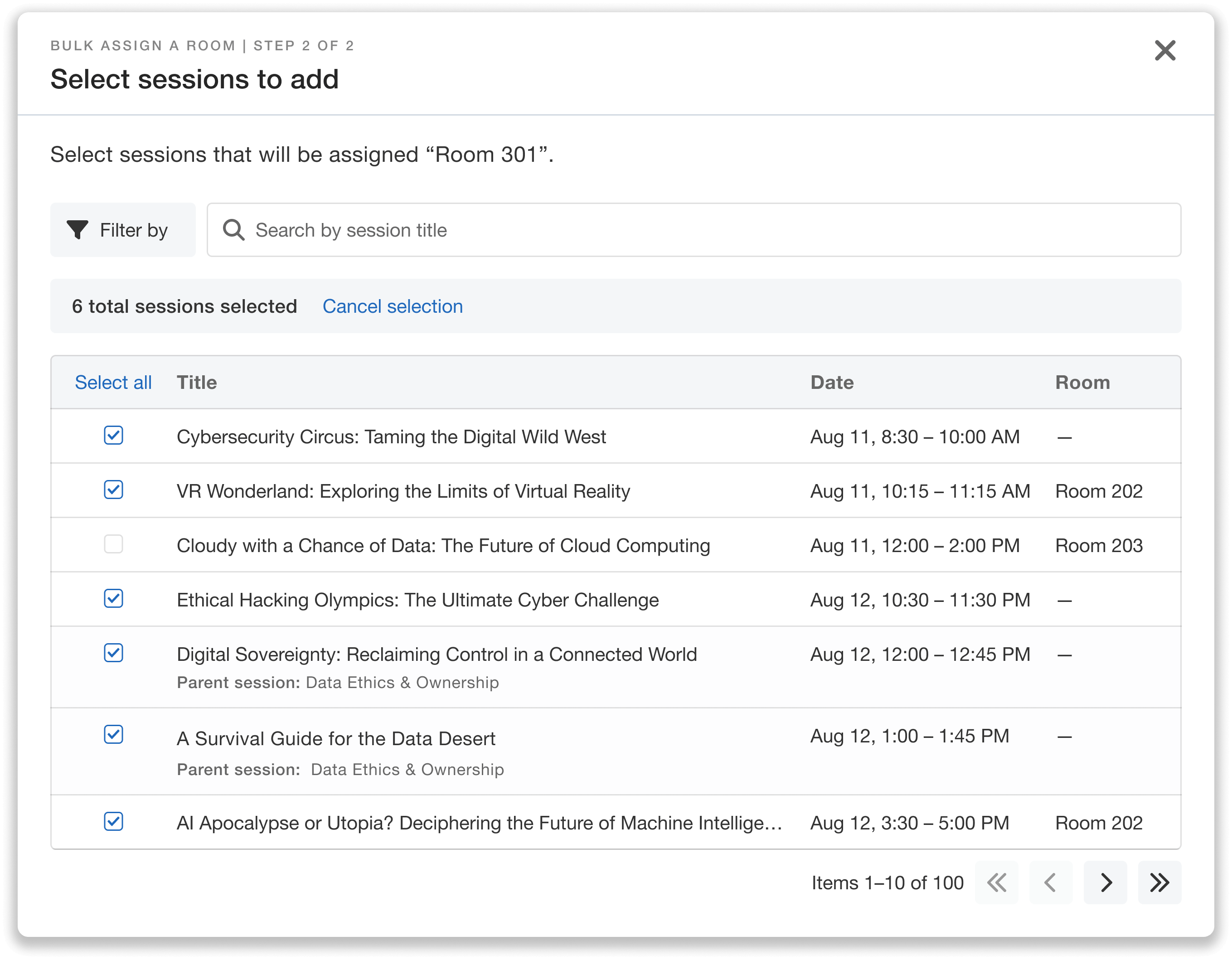
Instead of manually updating each session, save time by assigning info in bulk.
This makes it easy to add any session details you haven’t included yet, as well as handle routine updates. For example, if you have multiple sessions scheduled in the Main Hall and need to move them all to the Seminar Room, you can find and select those sessions in just a few clicks.
If a room assignment would result in a double booking, Whova will automatically flag the conflict so you can review before confirming.
Note: assigning a room through bulk editing will overwrite any existing room assignments for the selected sessions. You’ll also have a final review step to confirm exactly which sessions will receive the edit.
Go Beyond Sessions with Meal Breaks, Check-In Times, and More
Your agenda isn’t just made up of sessions. Registration periods, lunch breaks, networking time, and exhibitor hall hours are just as important for helping attendees navigate your event. You can now add non-session agenda items like these directly from Whova’s Session Manager.
Non-session items are simpler than sessions, and don’t require details like speakers or tracks. To add one, simply click “Add non-session items,” located right next to where you normally add sessions.
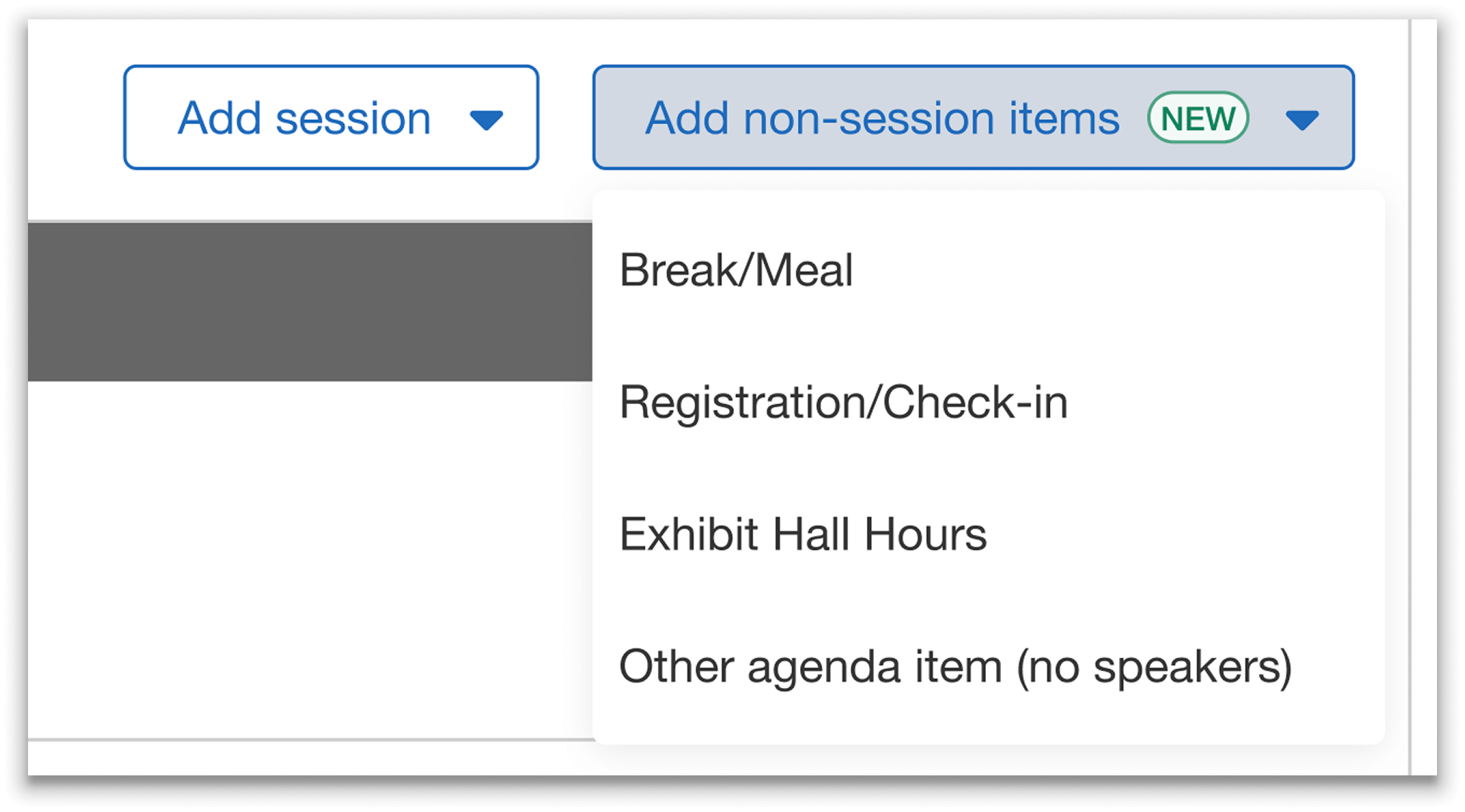
Customize your agenda for all parts of your event—designate time for breaks, meals, check-ins, exhibit halls, and more.
From there, you can choose to add a Break/Meal, Registration/Check-in, Exhibitor Hall Hours, or another agenda item without speakers (such as a networking event).
Next, enter the basic details, including title, date, and time. If needed, you can also add descriptions, rooms, and session sponsors.
Once saved, the non-session item will appear in your agenda just like a regular session. You can return at any time to edit details or make updates as your schedule evolves.
Save Time with Recurring Non-Session Agenda Items
You can also make non-session agenda items repeat across multiple days. When creating a non-session item, simply check “Repeat this on other days,” and select which days you want the item to appear on.
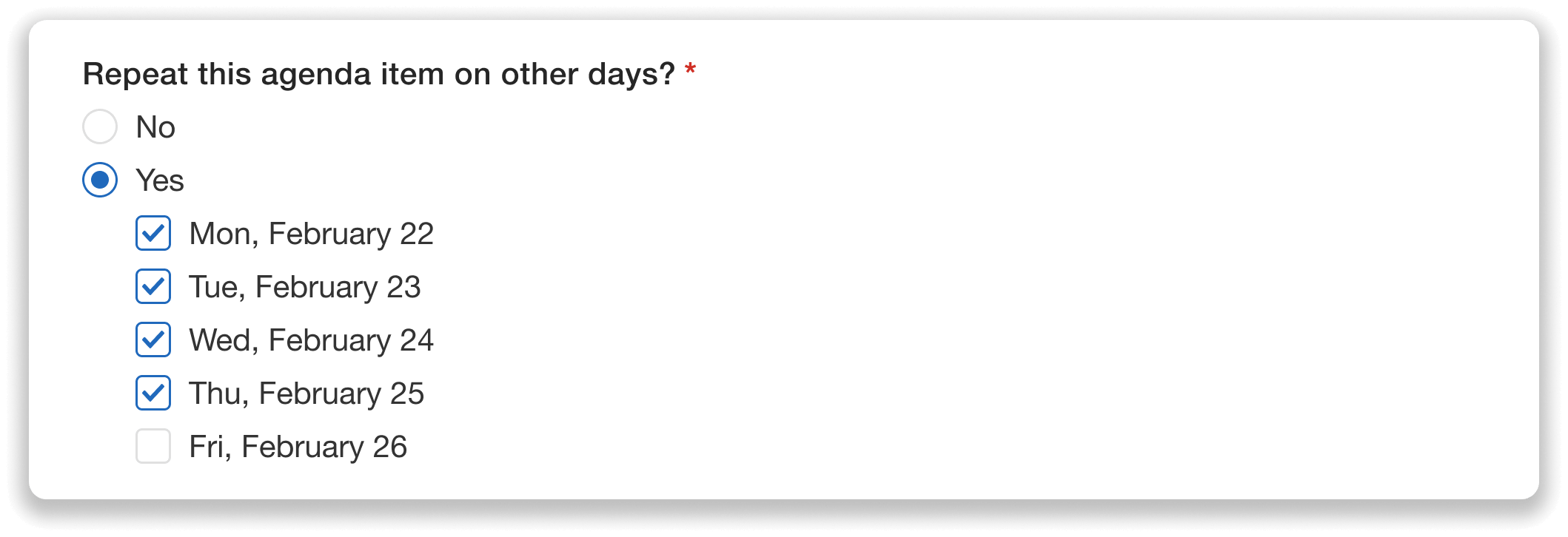
Keep agenda setup simple by automating repeat non-session items.
This is especially useful for common schedule blocks that happen more than once. For example, you might have a registration period at the same time every morning of your event, or a lunch break at noon on the first and last days of your conference. Instead of creating each item individually, you can schedule them all at once in just a few clicks. Just make sure to set up the repeat option before adding it to the agenda.
Once you’ve selected the applicable days, add the item to your agenda and it will automatically appear on each chosen date.
Build Smarter, Faster Agendas with Whova
With bulk room, track, and tag assignments, the ability to add non-session agenda items, and support for recurring schedule blocks, Whova helps organizers stay in control as schedules evolve. Whether you’re making large-scale updates, handling last-minute changes, or building out multi-day programs, these tools make it easier to create clear, consistent, and attendee-friendly agendas from start to finish.
Want to see how these features can support your event? Reach out to your Whova representative or schedule a demo today.