
July 06, 2026
When planning popular talks, panels, or workshops, one challenge always comes up: how do you manage high demand without overcrowding the room?
Whether you’re following fire code and venue occupancy limits, protecting the interactive feel of a hands-on workshop, or simply planning accurate catering and materials, setting session capacity is essential so everything runs as planned.
Whova already makes it easy to collect session headcounts with Session RSVP, and our Session Cap lets you control exactly how many attendees can reserve a spot. You can even enable waitlists and use Session Check-in to manage on-site access smoothly.
But we know many sessions share the same room—or follow the same format—so capacity limits are often identical. Instead of setting them one by one, you can now Bulk Add Session Caps by Room or Track, saving significant setup time. This lets you add the same limit to all sessions in a room or track, or select the exact sessions you want to cap in that room/track.
We’ve also made it easier to send messages directly to RSVP’d attendees from the Session Cap page—so if a room change or preparation is required, you can notify the exact audience instantly.
This enhancement helps you do the following in a fraction of the time:
- Align sessions with venue constraints: Apply the same capacity to all sessions in a room in seconds.
- Standardize workshop sizes: Set a consistent cap across a specific track (like hands-on training or CEU courses).
- Communicate with accuracy: You can now message RSVP’d attendees quickly and precisely.
Bulk Add Session Caps helps you finalize your schedule faster, keep sessions manageable, and ensure a smooth experience for both attendees and speakers.
Ready to simplify session capacity management? Let’s dive in.
Bulk Adding Session Capacity Limits By Room or Track
To get started, navigate to the Attendees tab and find “Session Cap.” Once you’ve enabled this add-on, you can begin setting capacities for your sessions—either individually or in bulk.
To set a cap for multiple sessions at once, open the “Bulk add” dropdown, where you can add sessions by room, by track, or select “Add all sessions” to apply one cap across all your sessions at once.
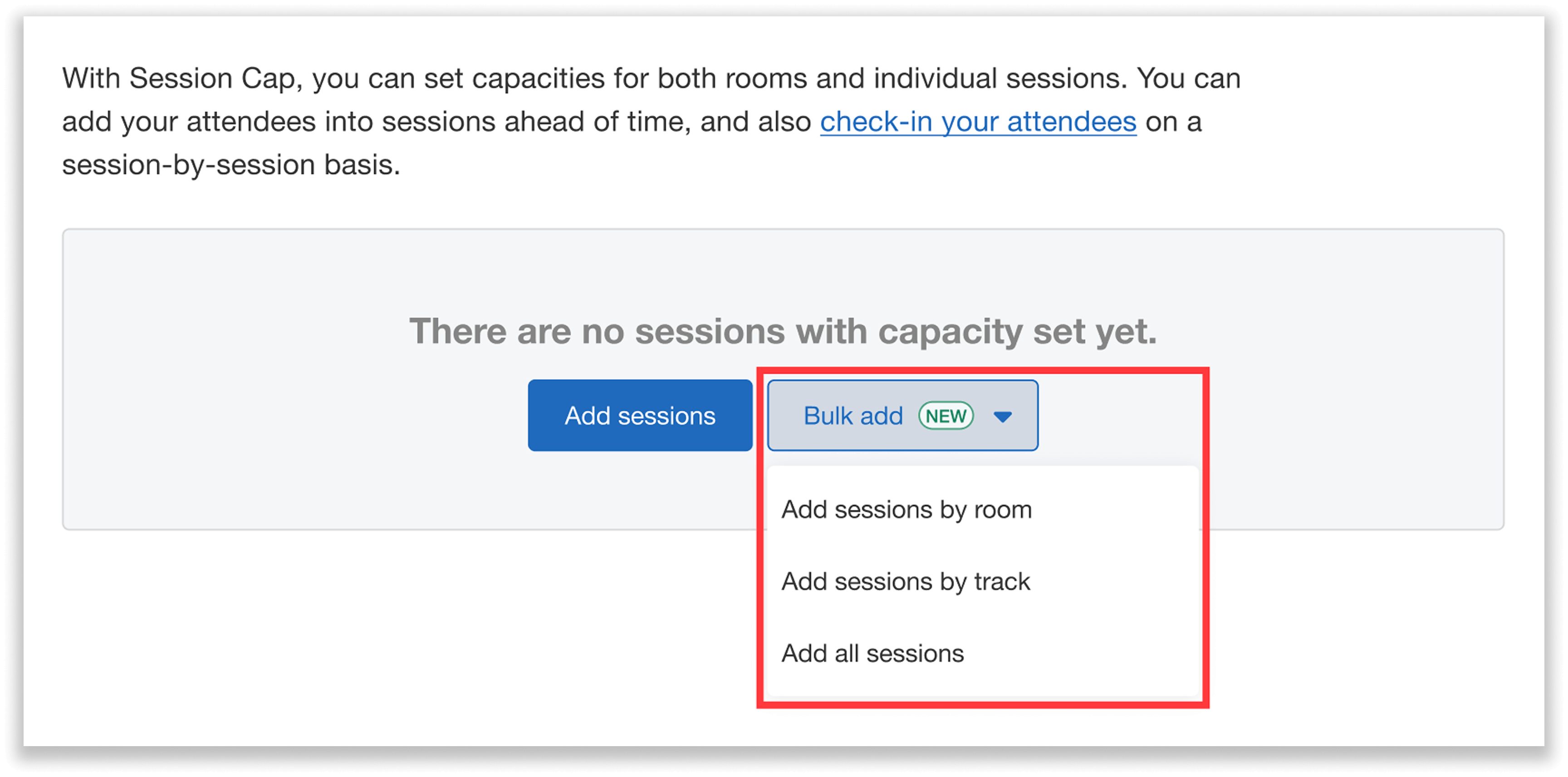
Set session caps by room, track, or for all sessions at once using the “Bulk add” dropdown.
To add sessions by room, you will first search for and select a room.
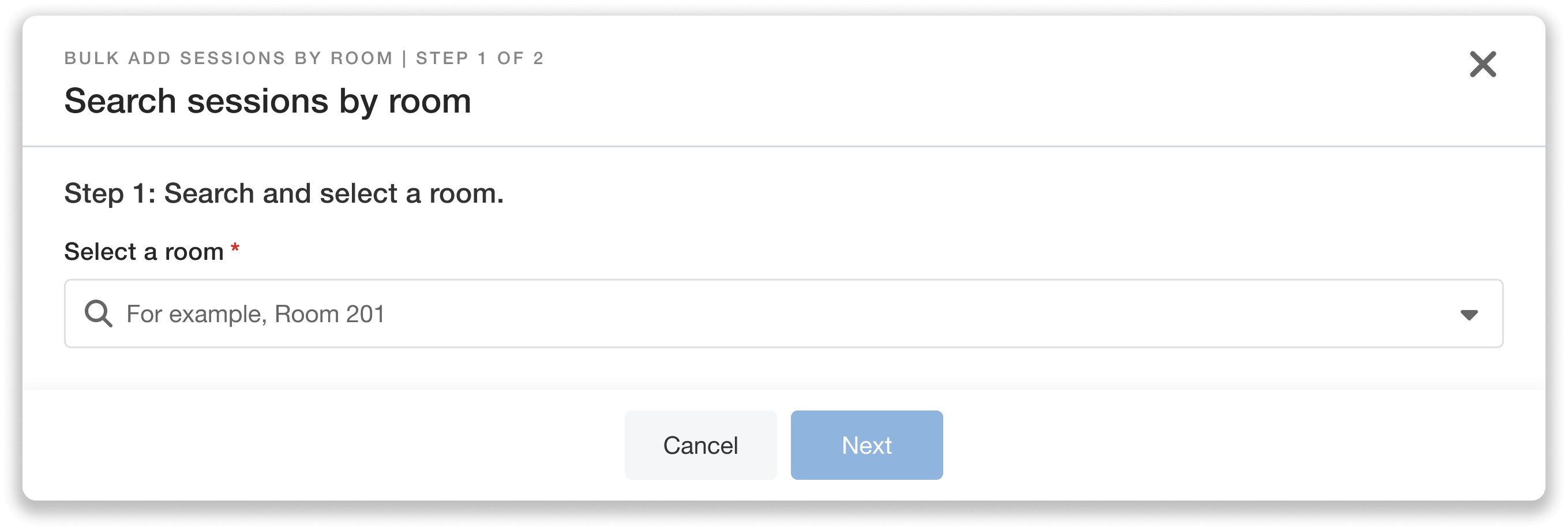
Select a room to pull up every session occurring in that room.
From there, you’ll see a list of all sessions taking place in that room. Select the ones you want to cap—or choose “select all” if the limit should apply to every session in that room.
Then, set your capacity limit. For example, you might set a cap of 30 for all sessions in Room 106.
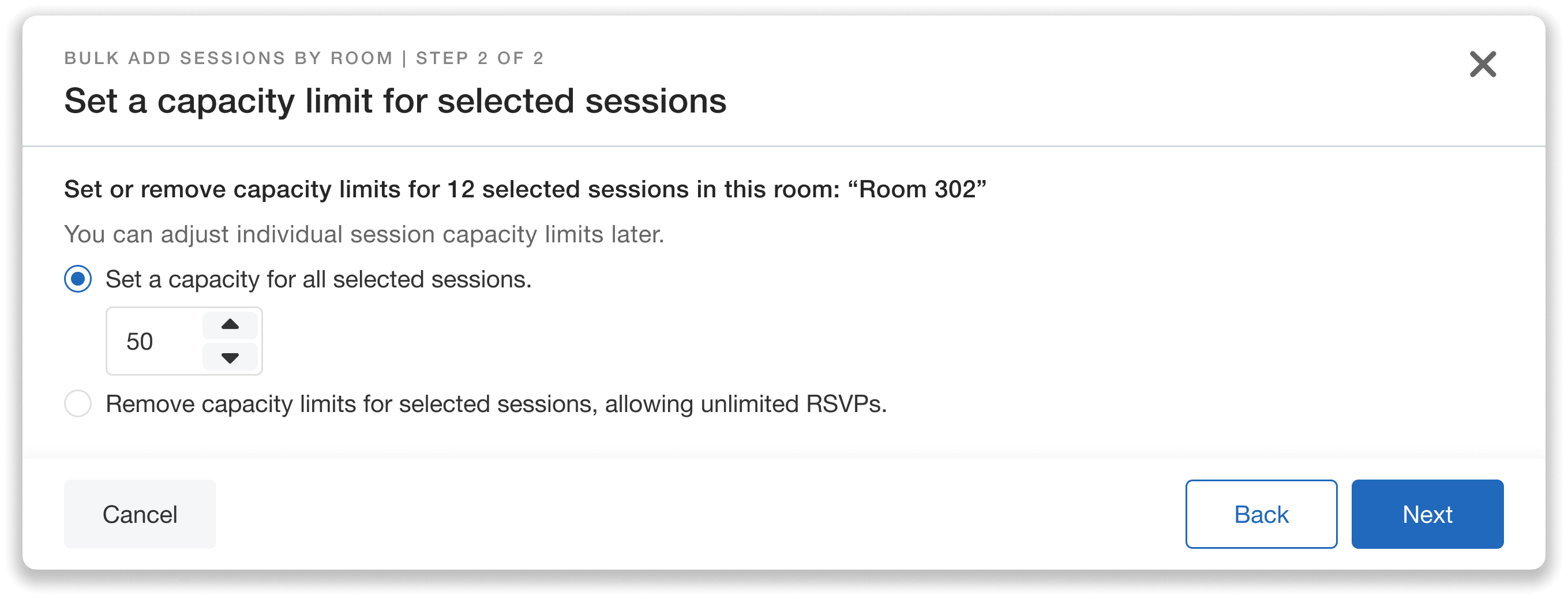
Set the same limit across multiple sessions in just a few clicks.
You can then review your selections before finalizing.
To add sessions by track, you’ll follow the same process: 1) search for and select a track, 2) choose the sessions you want to cap from that track, 3) set your limit, and 4) review before proceeding.
Send Targeted Messages to RSVP’d Attendees
In addition to sending targeted announcements from the Announcements page, you can also message everyone who is RSVP’d for a specific session directly from the Session Cap page. In the “Actions” dropdown of the session, select either “Add attendees” or “View RSVP.” Both will take you to a page with an announcement button at the top.
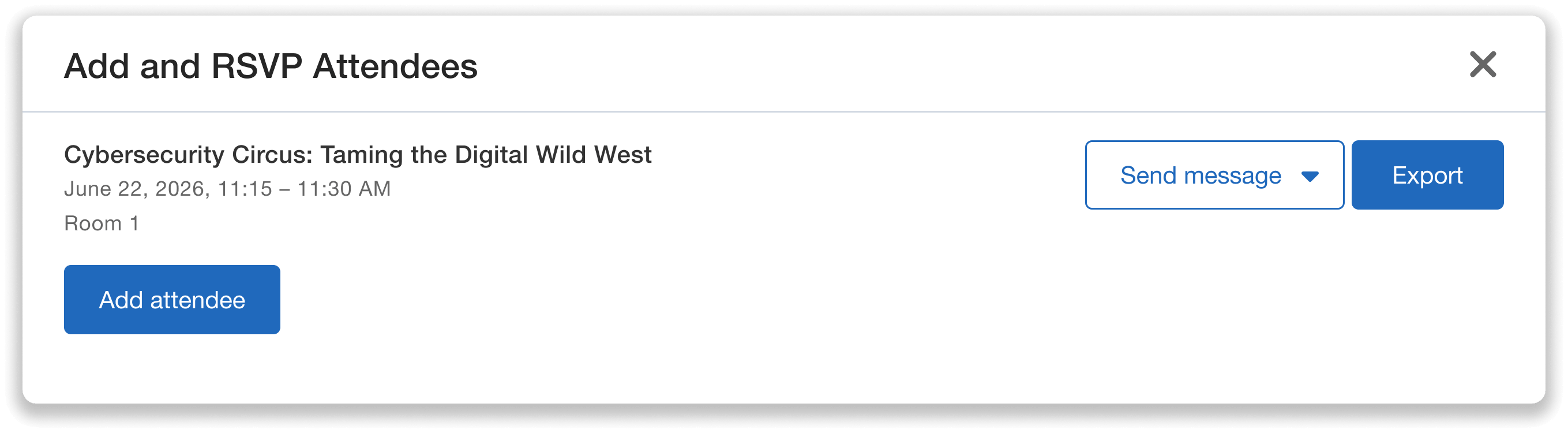
Click “Send message” to message your RSVP’d attendees.
From there, you can create a message from scratch or reuse a past one. For example, if a session has a last-minute room change, you can notify the exact RSVP list instantly.
Note: messages go only to RSVP’d attendees, not to waitlisted attendees.
View and Edit Capacity Limits From Your Dashboard
Once your capacity limits are set, you can manage them easily from the Session Caps page. Here you’ll find a list of all capped sessions, which you can search and filter to find exactly what you’re looking for. You can also view how many sessions in total have capacities specified—and how many do not—to get a clear overview. For each session, you’ll see:
- Name
- Room
- Set capacity
- Whether or not it has a waitlist
- Current RSVP and waitlist counts
You can toggle the waitlist on or off for any session directly from this page. When enabled, attendees can join a waitlist once a session reaches capacity, and they’ll be automatically enrolled and notified if a spot opens up.
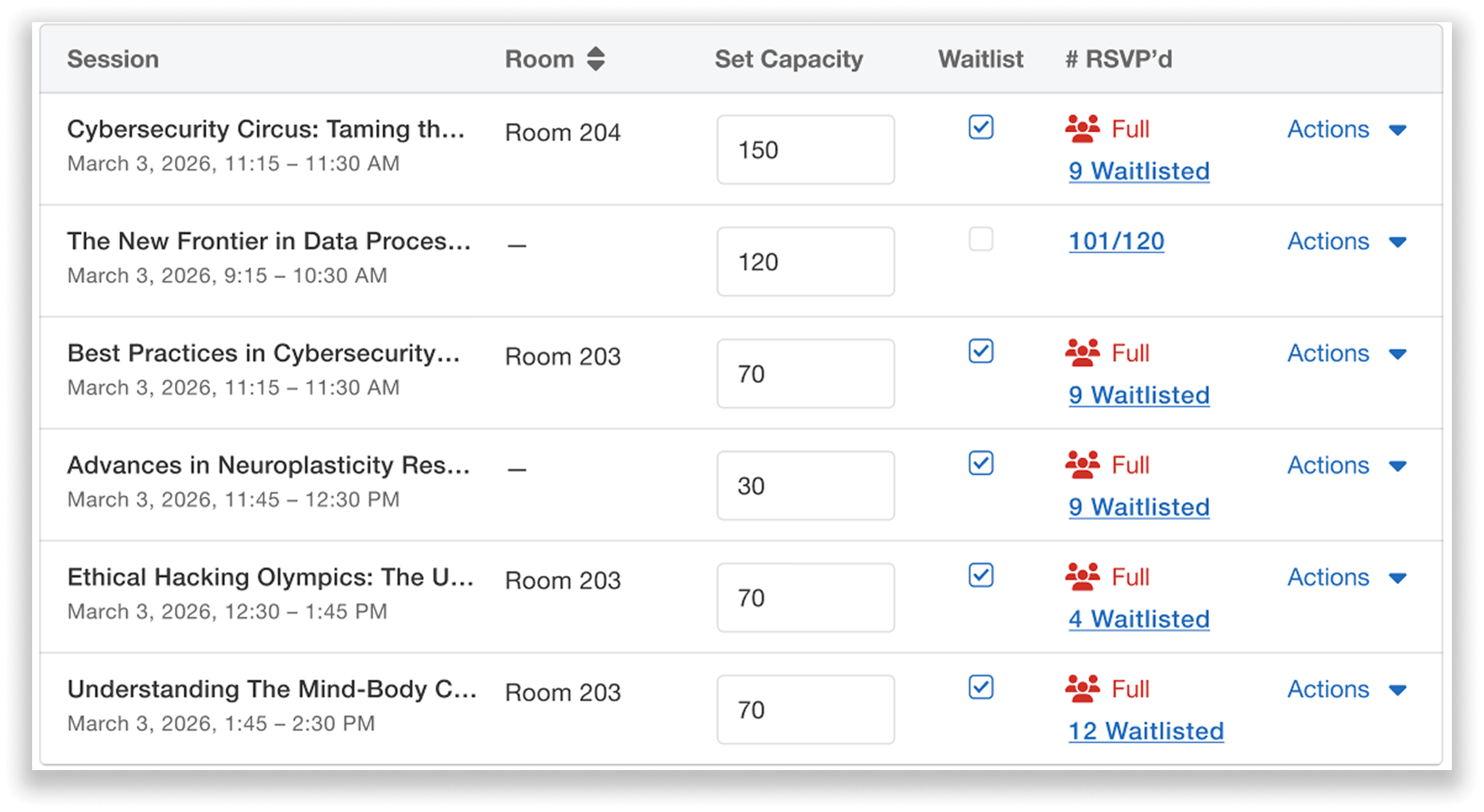
The dashboard shows a clear, centralized view of every capacity limit and its RSVP status.
You can also make bulk edits to session capacity by simply clicking the “Bulk add/edit” button and following the same steps discussed in the first section of this blog. When filtering sessions by room or track, Whova will also surface a shortcut that lets you quickly update or remove capacity limits for all filtered sessions.
From this page, you can also:
- View and export RSVP’d and waitlisted attendees, either individually per session or for all sessions. For example, you could export a list of RSVP’d attendees for a given workshop to share with the session’s leader.
- RSVP attendees to sessions manually, which is useful if a VIP requests to be added to a specific session.
- Un-RSVP attendees to sessions if needed.
- Remove a session cap at any time if it no longer applies.
Remove Capacity Limits in Bulk
You can also remove capacity limits in bulk. Whova offer two ways to do so:
- 1. Bulk edit: After clicking the “Bulk add/edit” button and choosing sessions by room or track, you can simply select the option to remove capacity limits for selected sessions.
- 2. Filter from the dashboard. Simply filter by track or room to capture the sessions whose capacity limits you want to remove. Whova will then surface an option for you to remove the cap for those sessions.
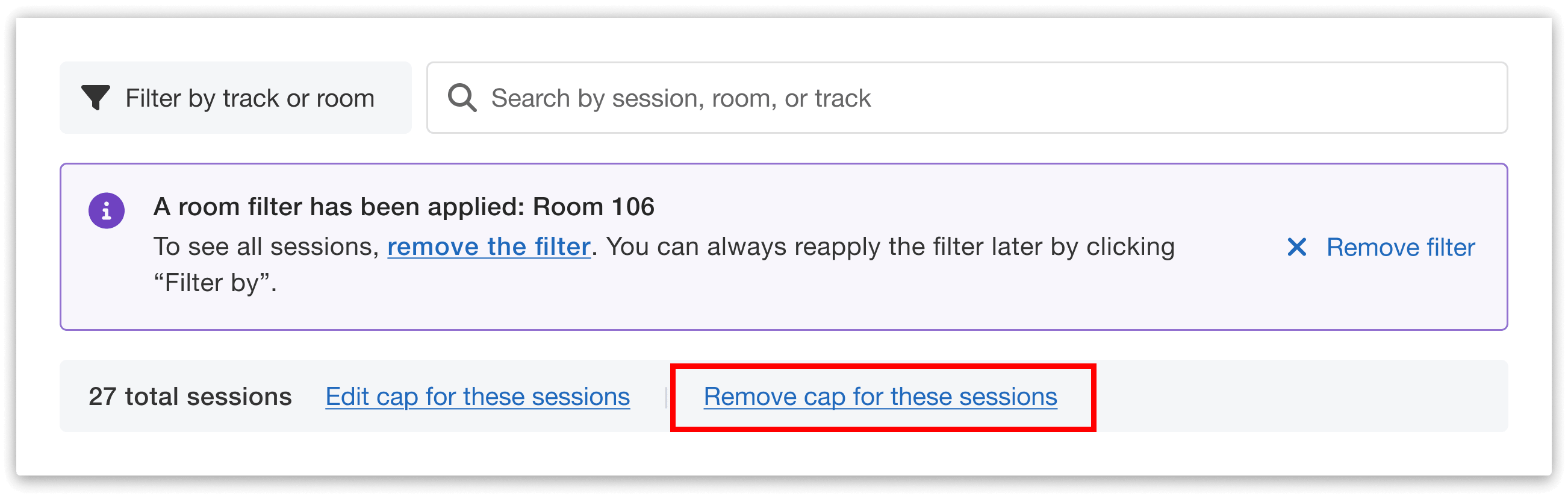
Filter from the dashboard by room or track and remove session capacity limits in bulk.
Cap Sessions More Efficiently with Bulk Add
Setting up session capacities no longer needs to entail working through each talk one by one. Apply the same cap to multiple sessions at once by room or track easily, and send announcements to RSVP’d attendees directly from the same page. This means less busywork, and more time to focus on the big-picture details that bring your event to life.
Want to see Bulk Add Session Caps in action? Request a demo today or reach out to your Whova account representative to learn more.