
April 28, 2026
At Whova, we know event documents are more than just files—they’re essential resources for your attendees. From session slide decks and academic papers to CEU handbooks and sponsor materials, these documents help attendees stay informed and get more value from your event. Whether attached to specific sessions or shared as general event resources, everything is easily accessible and downloadable in the event app.
In the past year alone, over 60% of our customers have shared files with their attendees using our Event Documents feature. With Whova, you can centralize these event resources by either importing files from your local computer, or syncing a Google Drive, SharePoint, or OneDrive account for direct upload. One organizer imported over 1,000 event documents!
While bulk upload has helped, organizing large volumes of files still requires time and manual effort. And here’s the reality: you’ve already organized your files. On your computer or cloud drive, your documents are neatly structured into folders. Why should you have to rebuild that structure again?
Introducing Documents: Folder Upload & Organization. With this enhancement, you can now upload entire folders at once from your desktop, SharePoint, or OneDrive and keep your existing folder structure intact.
Furthermore, we’re also making documents searchable based on file names or file descriptions, so both you and your attendees can locate the right files quickly.
This enhancement brings you…
- Faster, folder-based uploads: Speed up your setup by importing entire folders at once. Simply select a folder, and Whova will preserve that structure and all its files—no more tedious individual document selection.
- Clean, organized folders in the event app: We’ll mirror your organization in the attendee app. Instead of a long, flat list of files, attendees will see a clean and professional UI where they can quickly click into the specific folder they need, such as “CEU Instructions” or “Local Guides and Recommendations”
- Powerful document search: Documents are now searchable in both the organizer dashboard and attendee app based on file names and descriptions. Whether you’re quickly locating a file to update or an attendee is searching for a specific speaker’s handout, results appear in seconds.
With folder uploads, preserved file organization, and built-in search, managing content-heavy events has never been easier. Spend less time organizing documents—and more time delivering a great event experience.
Read on to learn more.
Upload Entire Folders To Whova’s Documents Center
To get started, head to the Content tab and find “Documents” under “Documents and Videos.”
Click “Upload docs and slides” and choose how you’d like to import your files. You can upload from your desktop, or from the cloud by connecting a SharePoint or OneDrive account.
Before uploading, you’ll choose whether you’re adding individual files or an entire folder.
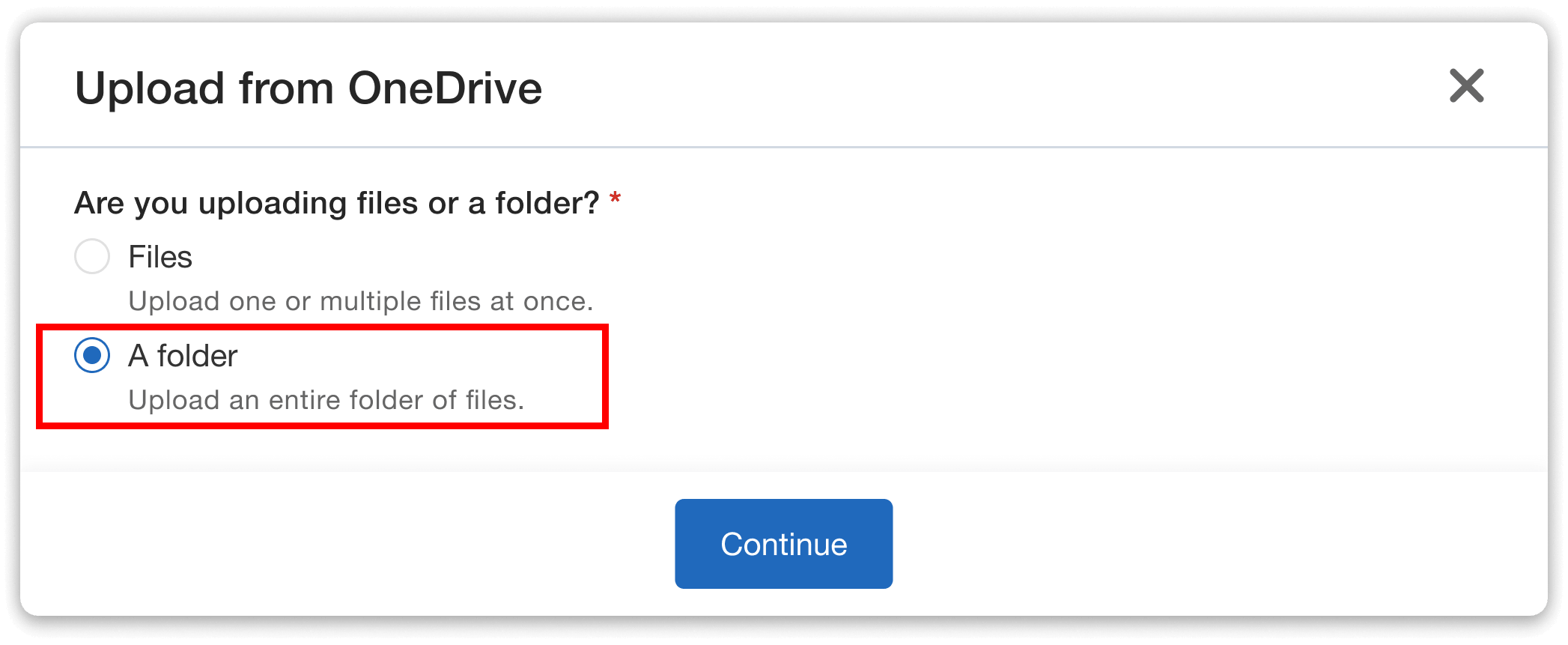
Choose to upload either files or an entire folder of documents.
After opting to upload a folder, you can easily select one from your preferred location. You’ll be able to review all included files before uploading to make sure everything looks right.
Then, you can edit the titles and descriptions of each file.
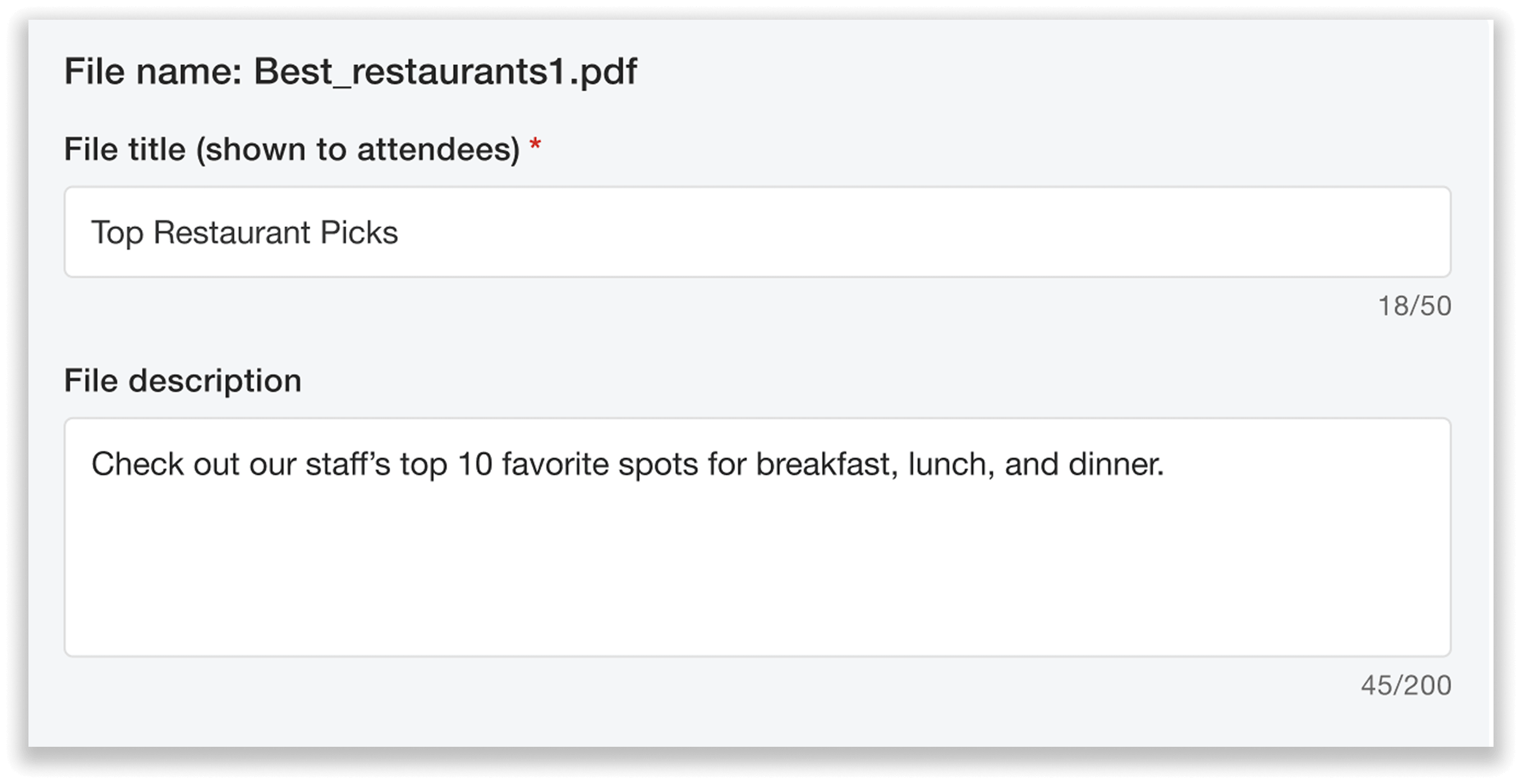
Add a title and description for each file in the folder.
You can also link a file to a specific session if desired (such as a handout meant for a specific talk). This will make the file a session document, moving it out of the folder—folders are reserved for general event documents only. Session documents show up in the agenda under their respective sessions.
Finally, you’ll add a title and description for the folder itself before completing the upload.
Manage Folders and Files Easily From the Dashboard
On the Documents page, you can view and manage all the files and folders you’ve uploaded. You’ll see the uploads organized into two sections:
- Event documents, which include folders and files not linked to specific sessions (such as CEU handbooks or other general event information).
- Session documents, which include files linked to sessions in your agenda (such as slide decks or session handouts).
Folders will appear under “Event documents.”
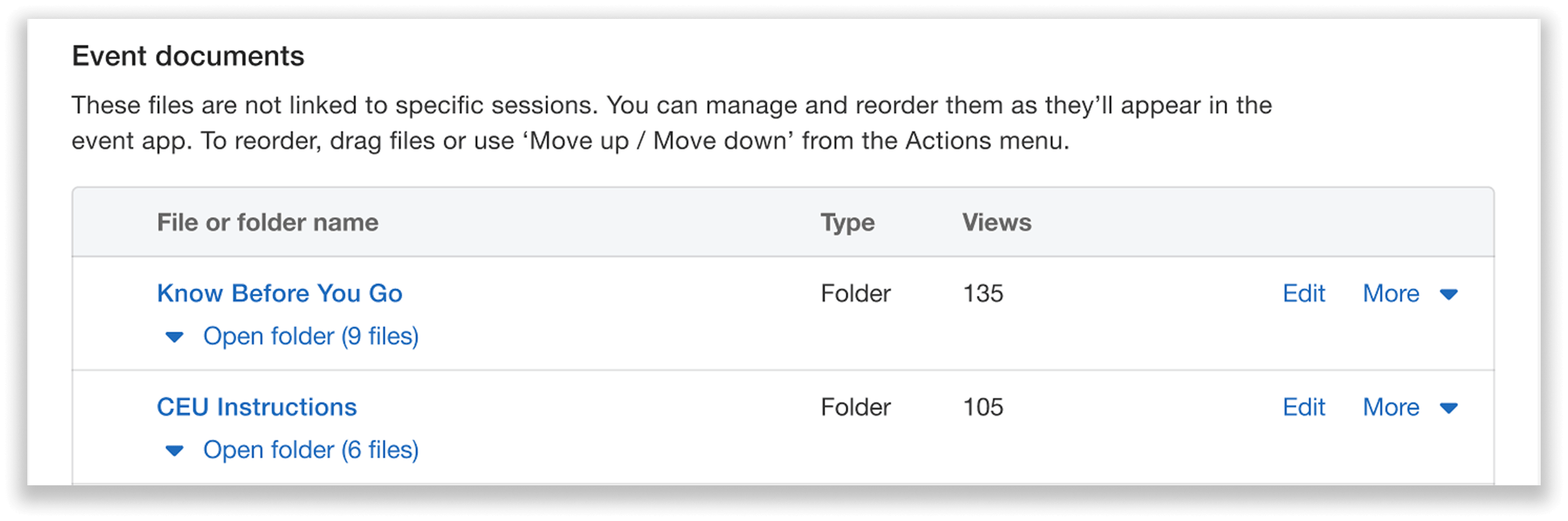
The folders you upload appear under “Event documents.”
From this section, you can edit a folder’s title or description, or delete it if needed.
Clicking into a folder lets you view all of its files. Here, you can adjust file titles and descriptions, reorder files, remove them, or link them to sessions. If you link a file to a session, it will automatically move out of the folder and into “Session documents.”
You can also search for documents directly in the dashboard, helping you quickly locate exactly the file or folder you’re looking for. You can search by file name, folder name, or session name. When viewing a specific folder, you can even search within that folder to find a particular file.
Assign Documents to Specific Sessions
If you want to assign a document in a folder to a specific session, you can link it accordingly. Once linked, it will become a session document and appear in the agenda under that session.
It’s important to remember that linking a file to a session will move it out of the folder. To keep the app experience clear and organized, folders contain only general event documents, not session-specific materials.
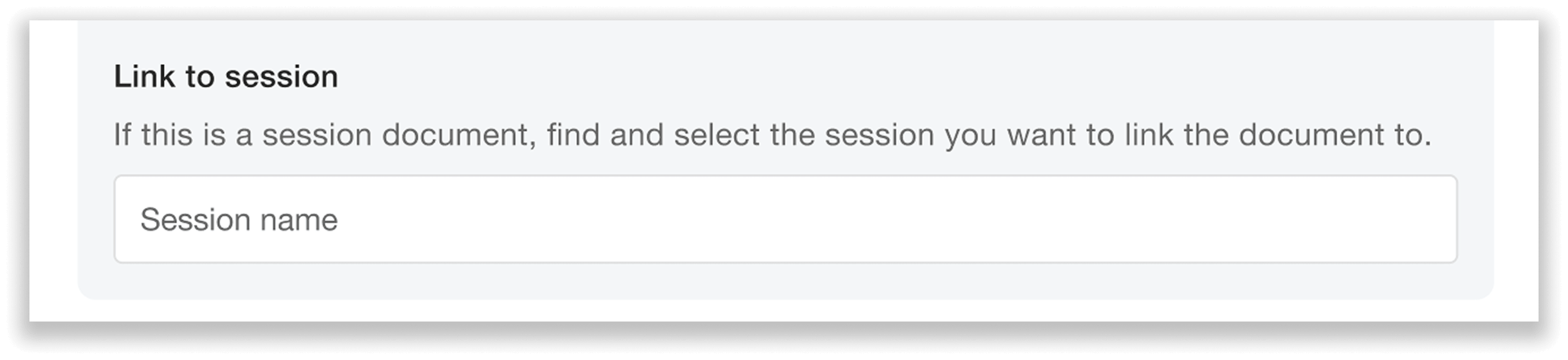
Easily link a file to a specific session—removing it from the folder and making it a session document.
Attendees Can Search Files and Folders In the App
Attendees can access both files and folders on the mobile app under “Additional Resources,” or on the web app under “Resources.” They can search documents by session name, file name, folder name, or description. When they click into a given folder, they can also search within that folder by file name or description.
This search functionality makes it much easier to locate specific materials. For example, if an attendee is looking for guidelines on earning CEU credits, they can simply search “CEU.” If that keyword appears in a file name or description, it will appear in the results.
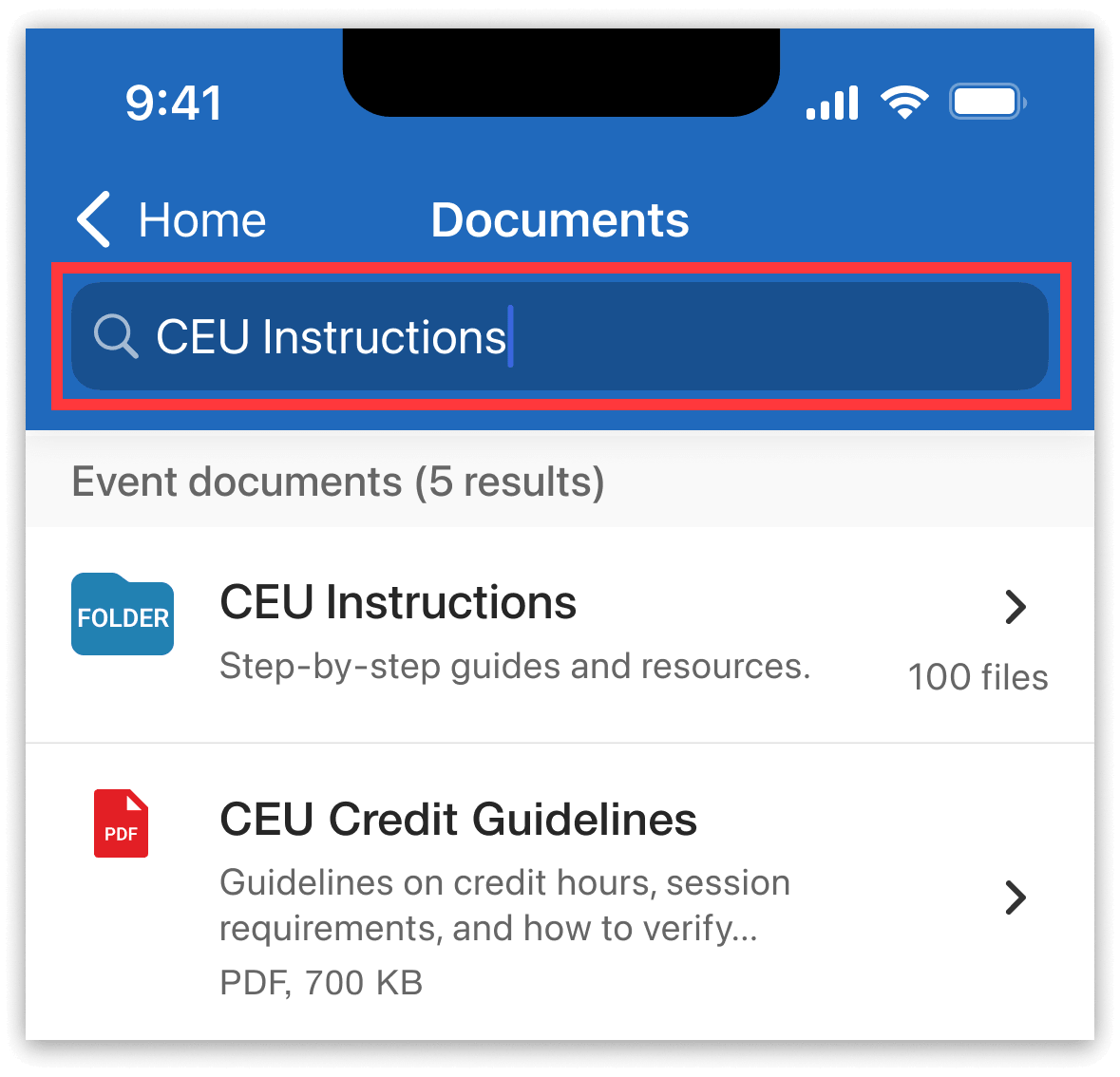
Attendees can search files and folders on the app to find exactly what they’re looking for.
Attendees can also export documents in several ways:
- By emailing themselves all files in a folder from the mobile app.
- By downloading an entire folder as a ZIP file from the web app.
- By exporting or downloading individual files.
An Efficient, Organized Document Experience for Your Next Event
With folder uploads and search functionality on both the Whova dashboard and app, you can upload your files swiftly and structure them clearly based on event information, helping attendees find exactly what they’re looking for in seconds.
Log into Whova to start uploading folders and create an organized document experience for your next event. Or, request a demo to see how Whova can help you manage event logistics and more with ease.