
February 27, 2026
The best event marketing doesn’t come from starting over every year—it comes from building on what already works. Your event website, agenda pages, and speaker pages represent hours of thoughtful design and planning. And while details may change from year to year, the foundation usually doesn’t. You shouldn’t have to rebuild everything from scratch just to launch your next conference.
Besides our award-winning event app, Whova also helps organizers quickly create professional event webpages—such as agenda, speaker, exhibitor, and sponsor pages—directly from the organizer dashboard. These webpages can be published on a Whova-hosted event website or embedded into your own site, and they stay automatically in sync whenever updates are made. No coding and design skills are needed.
For example, our Agenda Webpages, including special-purpose webpages, are especially popular, with 15,000+ events using them. They transform your event schedule into a polished, mobile-friendly webpage that’s ready to share with attendees and easy to keep up to date.
Organizers also love our professional Speaker Webpages. With 18+ modern, customizable templates, you can display speaker details on both Whova-generated websites and your own event website. Any updates made in the dashboard automatically flow to the event app and all related webpages, ensuring everything stays accurate with no extra effort.
We know many organizers rely on these webpages year after year. To make setup even easier, we’re introducing Webpage Customization Reuse—so you can build on what’s already working instead of starting from scratch. You can reuse settings for both general and special-purpose agenda webpages, your event website, and even reference last year’s speaker webpage setup to keep everything polished and consistent. No more flipping between old events to recreate layouts or styles—it’s all available right in your event dashboard.
- Save hours of setup time. Instantly carry over proven customizations like branding colors, page layouts, fonts, and custom sections. Import last year’s settings in just a few clicks and focus only on the updates that truly matter.
- Reduce errors and last-minute fixes. Reusing configurations that have already been tested and refined helps avoid missed sections, inconsistent branding, or formatting issues—especially when deadlines are tight.
- Empower new team members. When responsibilities shift, new teammates don’t have to guess how things were done before. They can start from established configurations and deliver professional results from day one by starting from your past event’s settings.
- Maintain brand consistency across events. Keep your event’s look and feel consistent year after year, reinforcing your brand identity and creating a familiar, trustworthy experience for returning attendees.
- Scale more easily as you run more events. Whether you manage multiple conferences, chapters, or annual programs, reuse makes it easy to replicate best practices across events without extra effort.
- Stay flexible without starting over. Even as formats, speakers, or schedules evolve, your core structure stays intact—making it easy to adapt while preserving what works.
With Webpage Customization Reuse, you can spend less time on repetitive setup and more time focusing on strategy, content, and attendee experience. Build on past success and deliver a polished, professional online presence—every time, with less effort.
Launch Your Agenda Webpage Faster by Building on Past Configurations
Reusing your previous agenda webpage setup makes it easy to share a polished schedule in minutes.
Start by navigating to the Marketing tab in your dashboard. Under “Agenda Webpage,” select either General-Purpose or Special-Purpose. Not sure which option to choose? Learn more about the difference between general- and special-purpose agendas here.
When selecting a template, you’ll see which ones were used in past events, making it easy to build on proven designs.
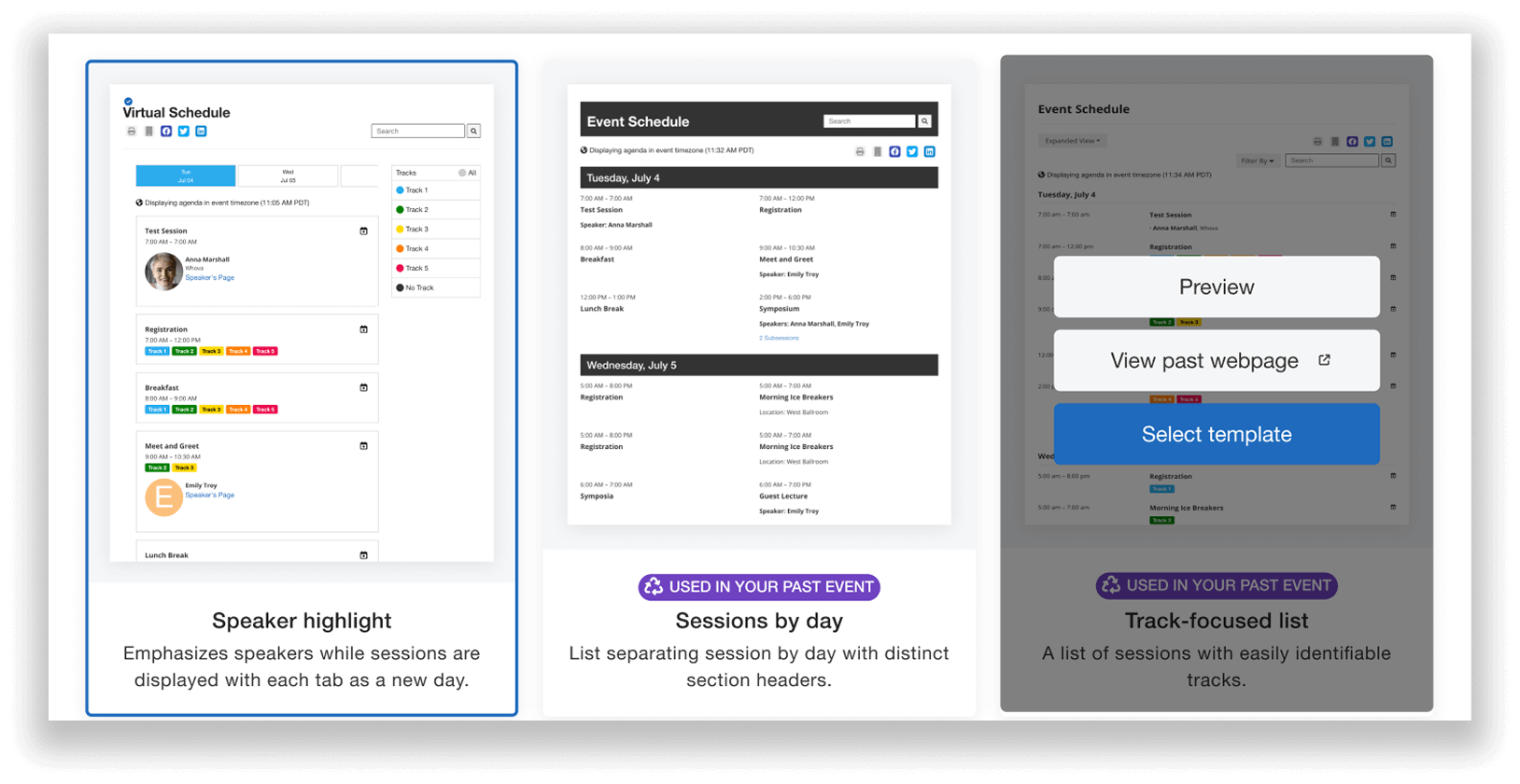
Preview how templates were used in past events before choosing one for your agenda.
After choosing a template, you can preview the previous event’s agenda webpage while customizing your current page. You’ll also see a banner at the top prompting you to reuse your settings to save even more time—click “Reuse your past webpage settings” to get started. Whova’s advanced detection will automatically pull customization details from your most similar or most recent event (whether past or shared) using your selected template.
Before importing, you can preview exactly what will be reused, such as:
- Session information display settings
- Social media sharing options
- Background and text color, size, and formatting
Once you’ve reviewed the details, proceed with the import and start tailoring the agenda for your current event.
Note: if you have any unsaved changes, importing past agenda webpage settings will overwrite your current settings.
By default, “All sessions” will be selected to display on the webpage, since session content changes from year to year. But you can also choose to display sessions only from specific days, tracks, or tags. For reference, Whova will show you exactly how the past event customized the sessions displayed. For example, if the webpage you’re reusing had only displayed sessions with the tags “Virtual” and “Hybrid,” you can view that info when making your own selection.
You’ll also see any sessions that were previously excluded, helping you make informed customizations to your current webpage.
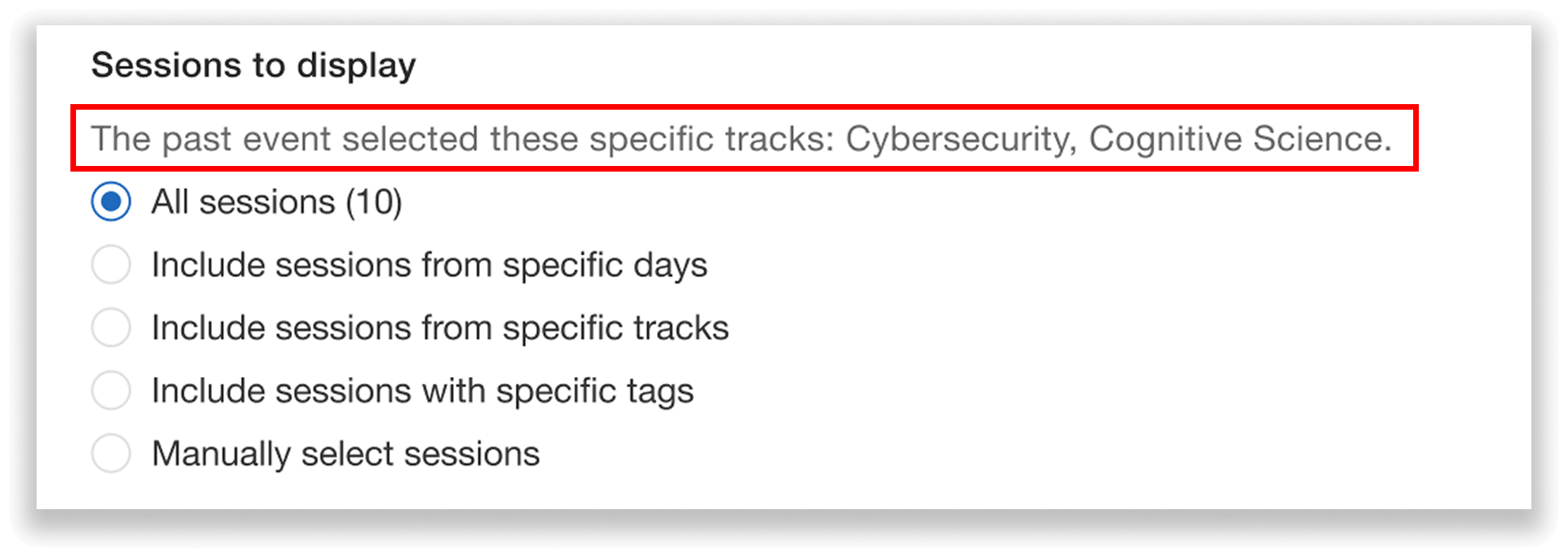
Reference how sessions were displayed in past events to inform and guide your current webpage setup.
You can make any additional edits you like here, such as adjusting background colors or enabling social media sharing buttons.
When everything looks correct, just save your changes and your agenda webpage is ready to go!
Build Better Speaker Webpages by Referencing Past Events
Because speaker details change from year to year, it’s often more helpful to use past webpages as a visual reference rather than directly reusing the content.
With Whova, you can now easily preview previous speaker webpages to recreate successful layouts, maintain brand consistency, and streamline your setup—without copying information that no longer applies.
Just navigate to the Marketing tab and select “Speaker Webpage” from the menu. When choosing a template, you’ll see which ones were used in past events, helping you start with designs that have already proven effective.
When selecting a template, you can preview past speaker webpages to see how they were structured and styled. When you choose a template to customize, you can continue viewing your previous setup for reference as you build your current webpage.
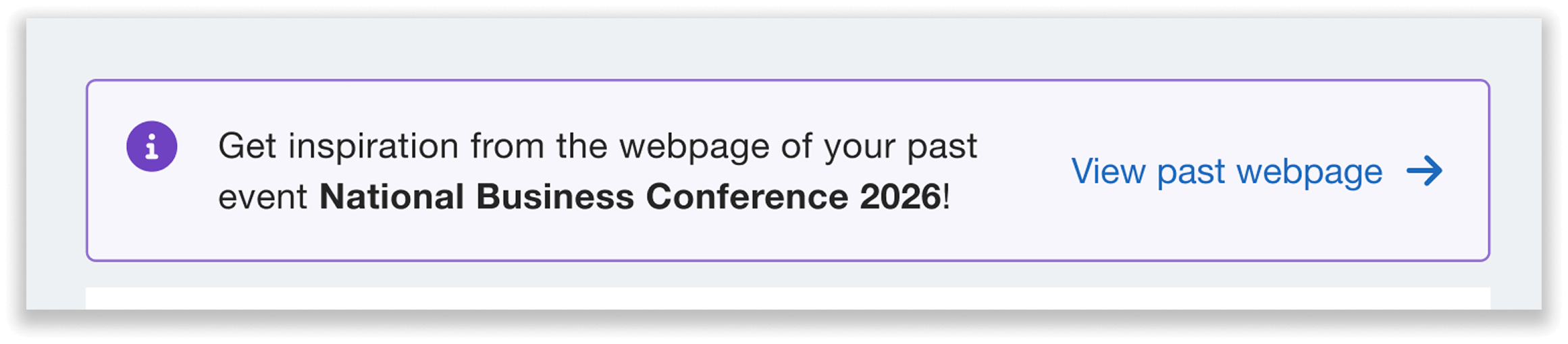
View past speaker webpage designs while customizing your current template.
With past designs available for reference, you can easily replicate successful layouts, maintain visual consistency, and update content with confidence. This approach gives you inspiration and structure, making it easier to build a professional speaker webpage.
Streamline Website Setup by Reusing Past Settings
Reusing your past event website setup helps you launch a professional, on-brand website faster—without rebuilding pages, layouts, and sections from scratch.
To get started, navigate to the Marketing tab and select “Event Website.” When choosing a template, you’ll be able to see which ones were used in previous events, making it easy to continue with a familiar and effective design.
After selecting a template, you can preview your previous website setup alongside your current customization screen. You’ll also see a banner at the top prompting you to reuse your past website settings. Click to import proven configurations and save valuable setup time.
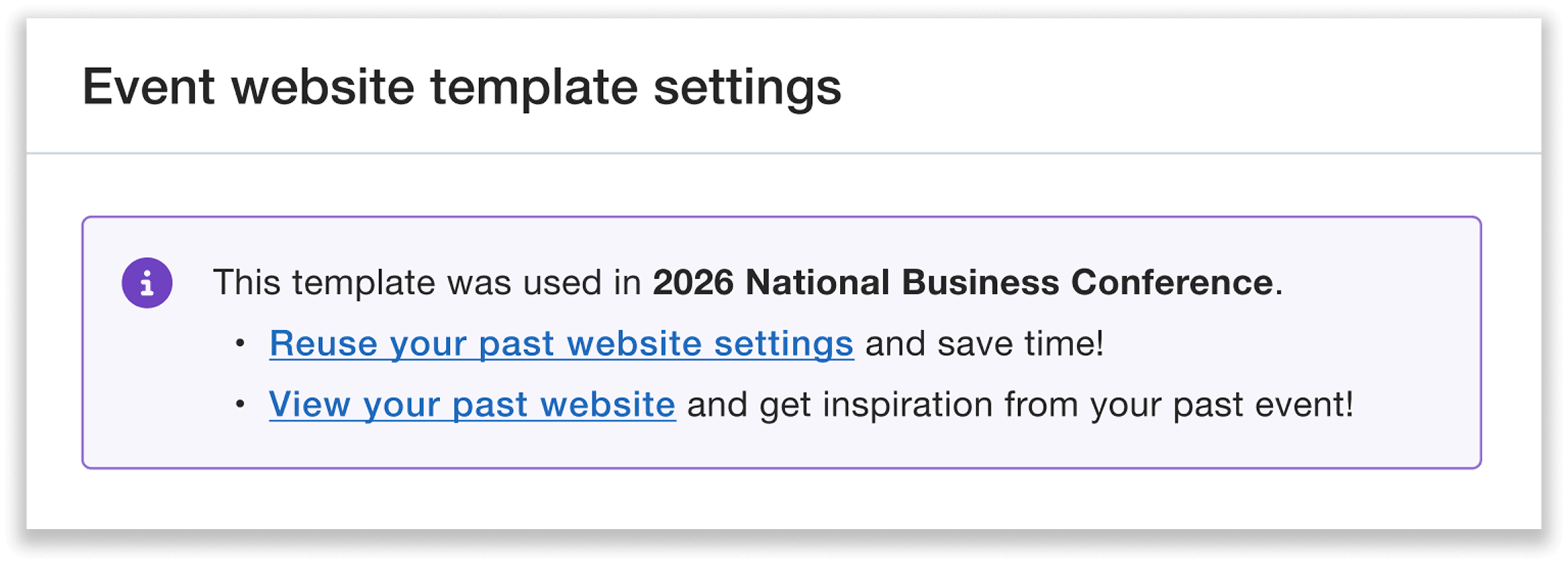
Quickly launch your event website by importing previous settings.
Whova will then pull customization details from your most similar or most recent event using the selected template. Before importing, you can preview exactly what will be reused, including branding colors, which website sections (e.g., speakers, sponsors) are shown, custom sections, and other settings. You can also preview the full past website for additional context.
Note: if you have any unsaved changes, importing past event website settings will overwrite your current settings here as well.
After importing the past website, you can tailor it to your current event. Please note that registration button destinations are event-specific, and will need to be selected manually.
Make sure to review any custom sections and refresh them as needed. For example, if your website has an FAQ page, you might update it with additional questions that came up last year.
Once finished refining the content, adding any new sections, or expanding existing pages, you can simply save your changes.
Reuse Webpage Customizations For Consistent Event Marketing
With Webpage Customization Reuse, you can build on past successes to launch professional, consistent event webpages faster than ever.
Alongside webpage reuse, Whova also supports reuse for gamification, sponsor and exhibitor registration setups, logistics planning, speaker forms, and more—so you can apply proven processes and configurations across every part of your event. Whether you’re managing a single annual conference or a growing array of events, reuse helps you scale with confidence and focus on what matters most: delivering exceptional attendee experiences.
Ready to see how Webpage Customization Reuse can simplify your next event launch? Request a demo today or reach out to your Whova account representative to learn more.