
March 20, 2026
If you’ve ever built a conference agenda, you know the schedule rarely stays the same from the first draft to the final program. A keynote speaker might request a different time, a popular workshop may need a larger room, or your venue might suddenly require a room change for an entire time block.
For example, you might have scheduled six breakout sessions from 9:00-11:00 AM, but later realize they need to move to 2:00-4:00 PM to avoid a conflict with a keynote. Or, your venue might ask you to shift an entire afternoon session block to the next day due to room availability. These kinds of changes happen all the time, and manually editing each session one by one can quickly become tedious and error-prone.
To make agenda management easier, Whova has been rolling out several Agenda Center enhancements this year to save organizer time. These features have been used by hundreds of organizers within 2-3 months post-release. In case you missed them, organizers can now schedule Back-to-Back Sessions in Bulk, use Smart Agenda Editing Shortcuts to swap sessions in seconds, move sub-sessions between parent sessions, and more. We also added a way to Bulk Assign Rooms, Tags, and Tracks to multiple sessions at once.
But scheduling challenges don’t stop there. Sometimes you don’t just need to change the rooms or tracks—you need to shift the time of an entire block of sessions.
That’s why we’re introducing Bulk Move Sessions. With this powerful enhancement, organizers can move an entire block of sessions to a new time or day in just a few clicks—while keeping the session order and spacing intact. You can select back-to-back sessions anywhere in the program, or first filter by a specific track or room and then select the relevant sessions. Simply choose the first and last sessions in the sequence, and Whova will shift the entire block automatically.
This is especially useful when you need to move a full breakout block in one track, shift all sessions scheduled in a particular room due to a venue change, or adjust a series of workshops that run back-to-back without editing each session individually.
Bulk Move offers:
- Significant time savings: Move an entire block of back-to-back sessions at once instead of editing each session individually—turning large agenda updates from a tedious task into a quick adjustment.
- Maximum flexibility: Quickly shift groups of sessions to a different time or day when schedules change, without rebuilding your carefully planned session structure.
- Intuitive workflow: Select the first and last sessions in a sequence to move the entire block together, making it easy to adjust related sessions in the same track or room.
- Reduced scheduling errors: Moving sessions as a unified block preserves their order and spacing automatically, helping prevent overlaps, gaps, or accidental omissions.
- Better control over complex agendas: Easily manage large schedules with multiple tracks, rooms, or workshop series by adjusting entire session blocks while keeping the overall program structure intact.
Bulk Move helps make agenda edits seamless, so you can spend less time on busy work and more time on what matters: curating top-notch content and ensuring a high-impact experience for your attendees.
Move Multiple Sessions At Once With Whova’s Agenda Center
To move multiple sessions at once, navigate to the Session Manager in the Agenda Center and click the “Bulk edit” button. From the dropdown menu that appears, select “Move multiple sessions.” You will then follow a simple step-by-step workflow to shift a block of back-to-back sessions together.
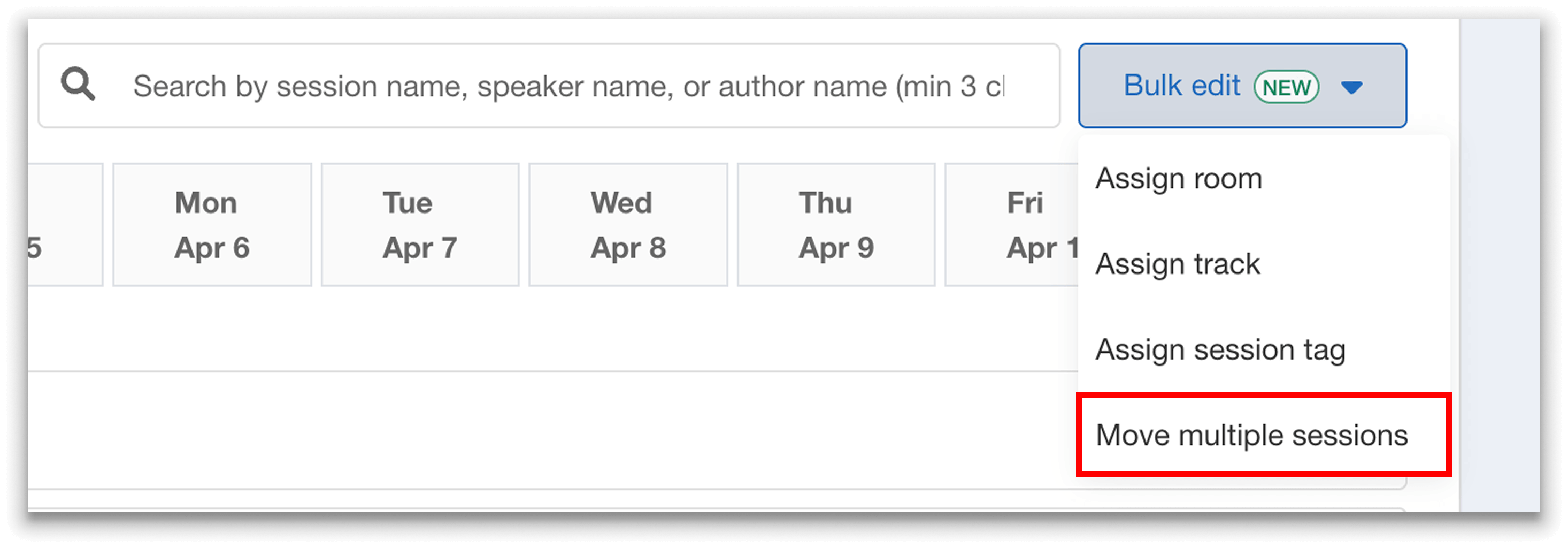
Easily move multiple back-to-back sessions using the “Bulk edit” dropdown.
1. To start, you’ll select the first session in the block of sessions you want to move.
At this step, you also have the option to limit your selection to only sessions that share the same track or room as the session you selected. This optional filter helps narrow down the sessions you want to move, making it easier to identify related workshops that need to be rescheduled together.
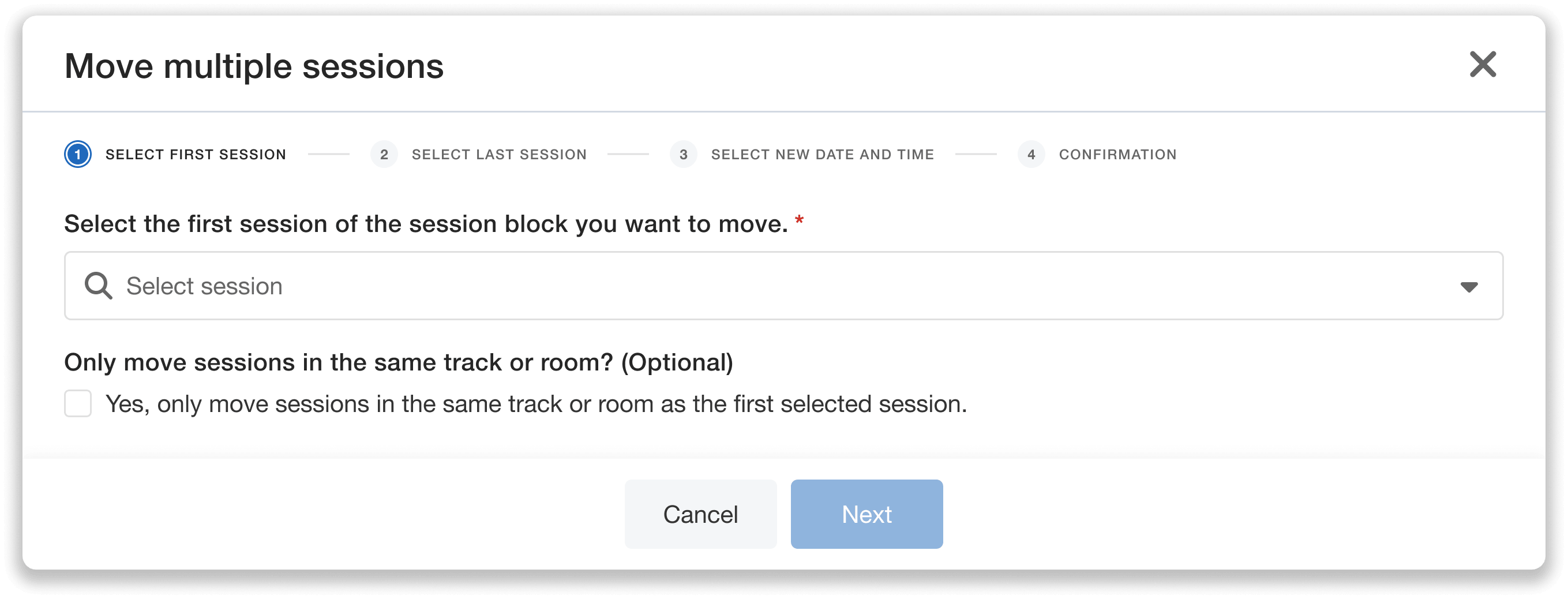
Choose the first session in the block of sessions you want to move.
2. Then, select the last session in the block. Once selected, all back-to-back sessions between the first and last sessions will automatically be included in the move.
In this step, you’ll see only sessions that are scheduled within 30 minutes of one another starting from the first session you selected. If you chose to filter by track or room in the previous step, the table will display only those relevant sessions.
If any of the selected sessions contain sub-sessions, those sub-sessions will automatically be moved along with their parent session. When selecting sessions, you can see how many sub-sessions each session has to ensure everything moves as expected.
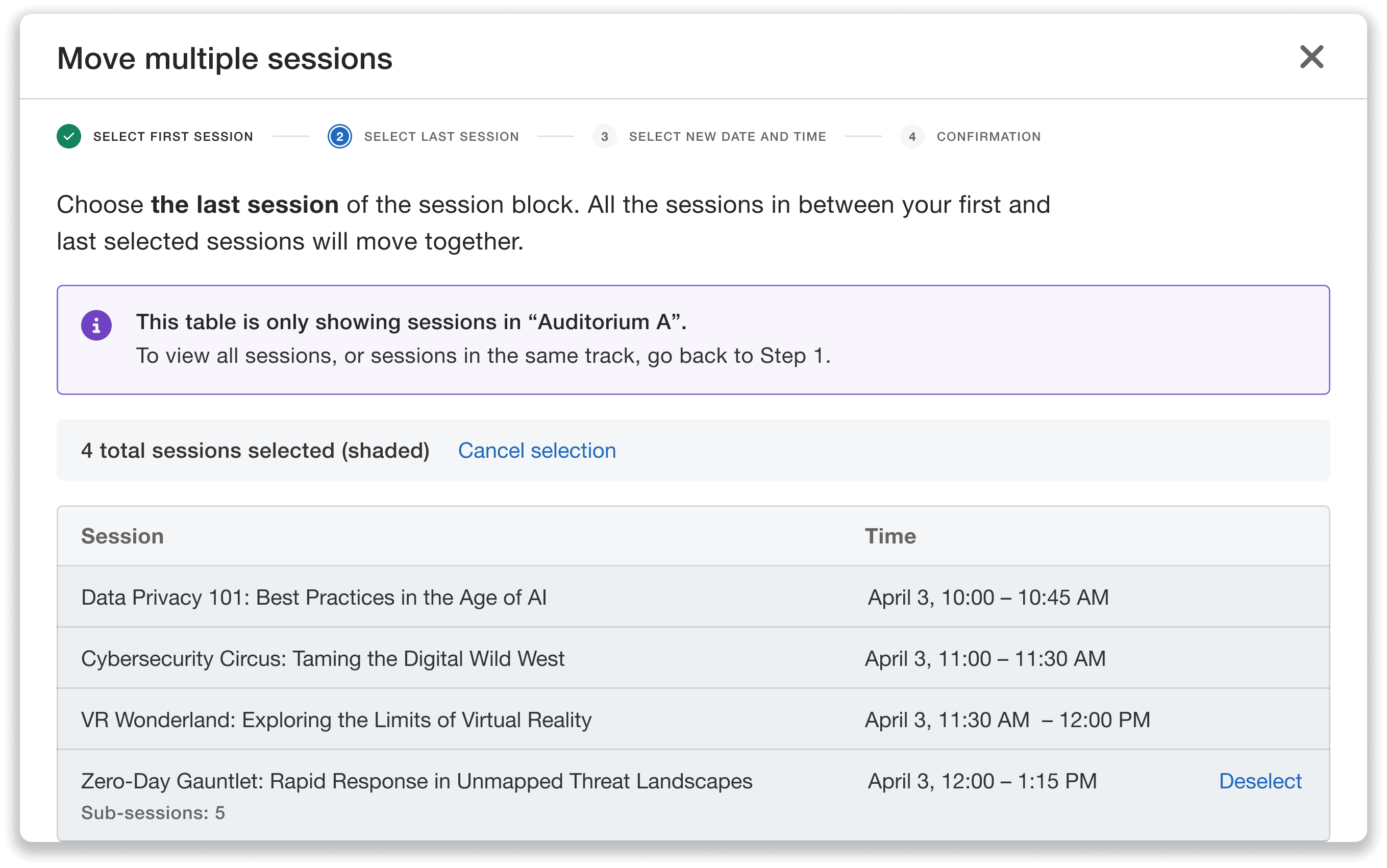
Choose the last session in the block, selecting all back-to-back sessions in between the first and last.
3. Next, it’s time to choose a new date and start time for the first session in the block.
Whova will automatically move all selected sessions together, preserving their existing order as well as the time gaps between them to keep the structure intact.
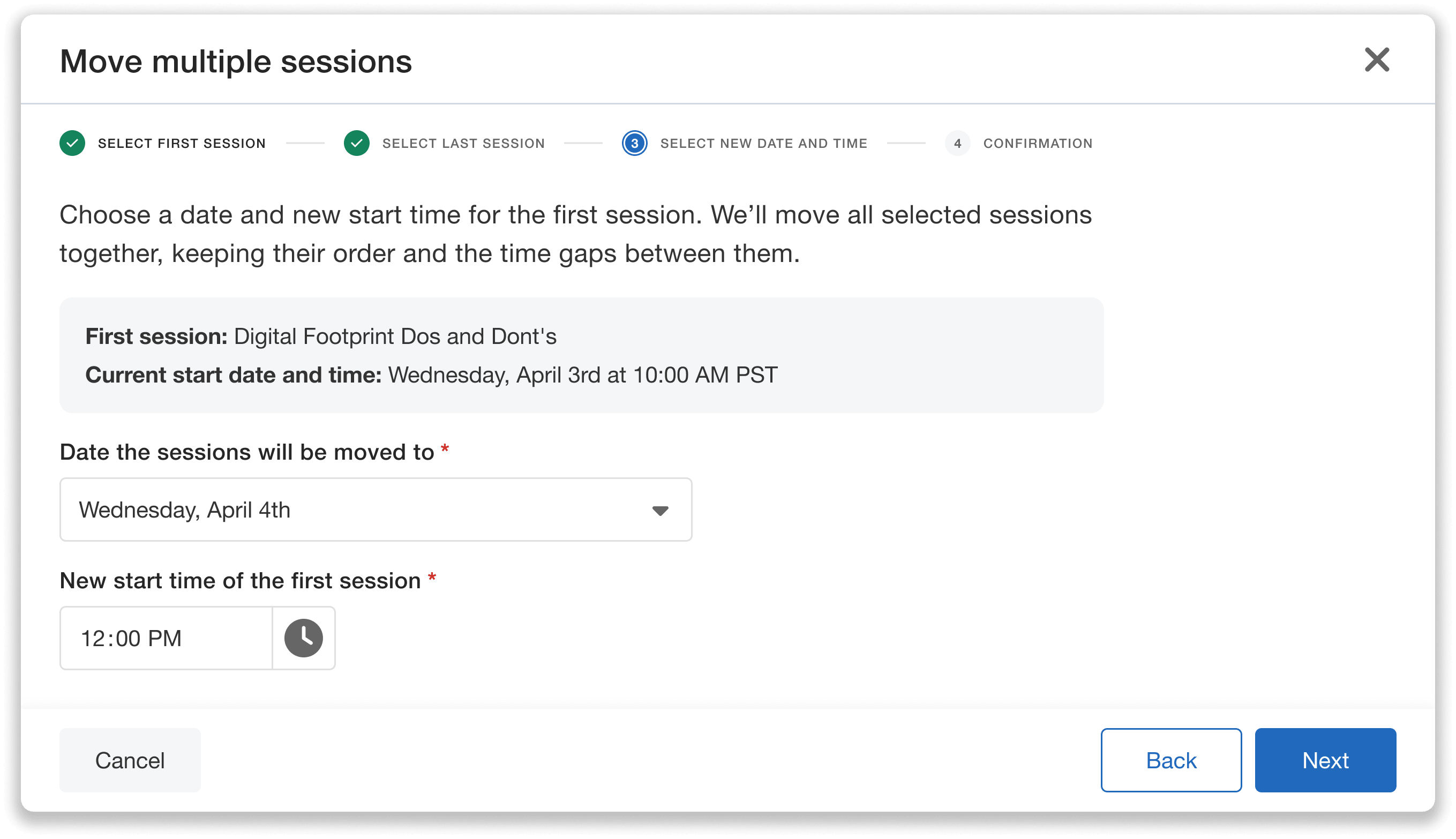
Choose the new date and start time for the selected session block.
4. Finally, you’ll review and confirm the sessions before moving them. When you proceed, the agenda will update immediately.
If you need to make any additional adjustments afterward, you can easily edit sessions in the Session Manager. As always, any updates—including bulk edits—will automatically sync to the event app and agenda webpage, even after they’ve been published.
Select Back-to-Back Sessions in the Same Track or Room
If you need to move only sessions that belong to the same track or room, Whova makes it easy to select exactly those.
When choosing the first session in the block you want to move, you can optionally enable a setting that limits the following selection to only sessions that share a track or room with that initial session. This helps you precisely find the related breakouts that need shifting.

Optionally move sessions only in the same track or room.
Once you proceed to the next step to select the last back-to-back session in the sequence, you’ll find only sessions that match the track or room filter you selected.
For example, if you need to reschedule a series of workshops in the Social Media Marketing track, you can choose to move only sessions within that track. This allows you to easily locate and shift the relevant workshops together, while leaving sessions in other tracks unchanged.
Simplify Agenda Updates With Bulk Move
Agenda changes are inevitable when organizing an event, but making those changes shouldn’t require hours of tedious editing. Combined with other recent Agenda Center enhancements, Bulk Move makes scheduling faster, more flexible, and easier to control—even for complex, multi-track programs.
Ready to streamline your agenda updates? Try the Bulk Move Sessions feature in Whova’s Agenda Center today and see how quickly you can adapt your schedule when plans change.