
February 24, 2026
Not every attendee registers for themselves. In fact, for many events, one person often purchases tickets for an entire team. While these group orders are great for ticket sales, for driving ticket sales, they can quickly get complicated, especially when those orders include add-ons like workshops, mixers, special dinners, or even merchandise.
Without clear visibility into who each add-on belongs to, organizers are left sorting things out at check-in, managing exceptions on the fly, or risking that the wrong person gets access to a premium experience.
Whova helps organizers keep registration clear from the very beginning, even when attendee data becomes complex. Our registration features are designed to capture the right details during sign-up, automatically organize registrants behind the scenes, and protect access to your event’s most valuable perks. Organizers can use a dedicated question form for ticket add-ons— such as meal preferences, workshop selections, or merchandise sizes. Automatic attendee segments can group registrants automatically for precise outreach based on question responses and add-on purchases. AMS Integrations can automatically sync with your Association Management Software to protect member-only perks. We currently integrate with WildApricot, MemberClicks, iMIS, YourMembership, GlueUp, and Novi—more are on the way!
Now, we’re making group registrations even more organized with Add-On Assignments for Group Registrants. When a registration includes multiple ticket holders, purchasers are required to specify exactly which attendee each add-on is for. Whether it’s a seat in a limited-capacity training session, access to a special dinner, or a specific T-shirt size, every add-on is clearly tied to the right person before the event even begins—eliminating guesswork and reducing on-site friction.
This enhancement helps organizers…
- Confirm add-on eligibility instantly at check-in: See exactly which add-ons each attendee is assigned to in the Whova app and admin dashboard—so staff can confidently grant access or distribute items without delays or guesswork.
- Maintain clear records: View assigned ticket holders for each add-on directly in the dashboard and ticket order reports, making on-site coordination and post-event reporting much easier.
- Send more precise communications: Use Attendee Segments to message only the attendees attending a specific workshop, training, or dinner—ensuring the right people get the right updates at the right time.
- Protect limited-capacity and paid experiences: Prevent over-admission and ensure valuable add-ons are reserved for the attendees who actually purchased them.
- Support safety and accountability: Maintain accurate attendee rosters for off-site activities and special sessions, making it easier to account for every participant if an issue arises.
When add-ons are assigned correctly from day one—even for group registrations—you can eliminate last-minute confusion, keep session rosters accurate, and run a smoother, more professional event from start to finish.
Want to learn more? Keep reading.
How Registrants with Multiple Ticket Holders Assign Add-Ons to Attendees
If an attendee is purchasing add-on(s) in an order where there are multiple ticket holders, they will now be prompted to select which attendee each add-on is for in the “Add-on information” section at registration.
For each add-on, there will be a dropdown where they can select the correct attendee. The field will appear above any other additional questions (such as meal preferences or merchandise selections).
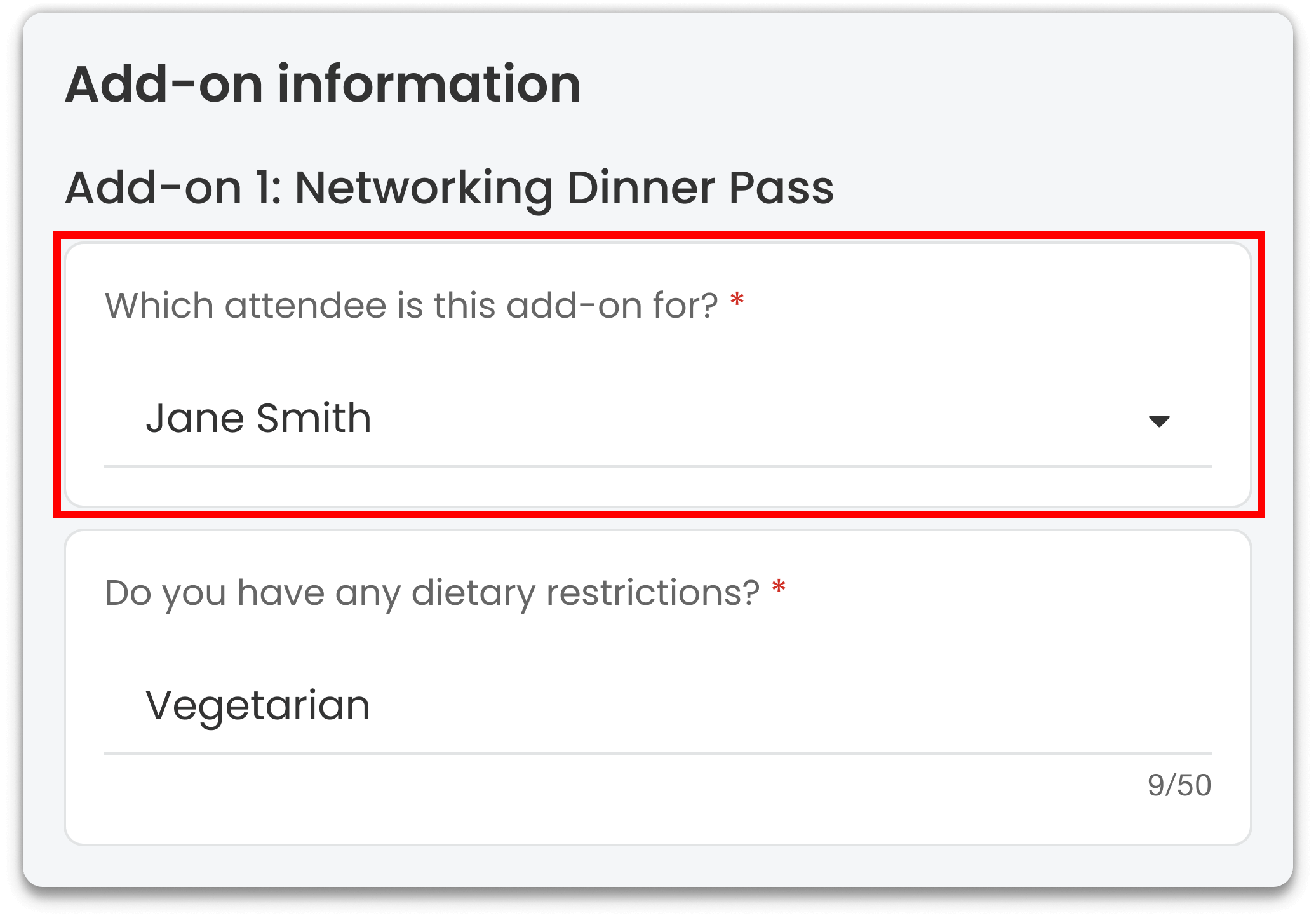
Registrants must specify which attendee the add-on is for in the “Add-on information” section.
This is a required field; the buyer can’t proceed until they assign an attendee to each add-on, eliminating confusion for the organizer later. If there is just one ticket holder in the order, the add-on(s) will automatically be assigned to that attendee.
After registering, attendees can view who each add-on is assigned to in the confirmation page and email, as well as in the Registration Portal.
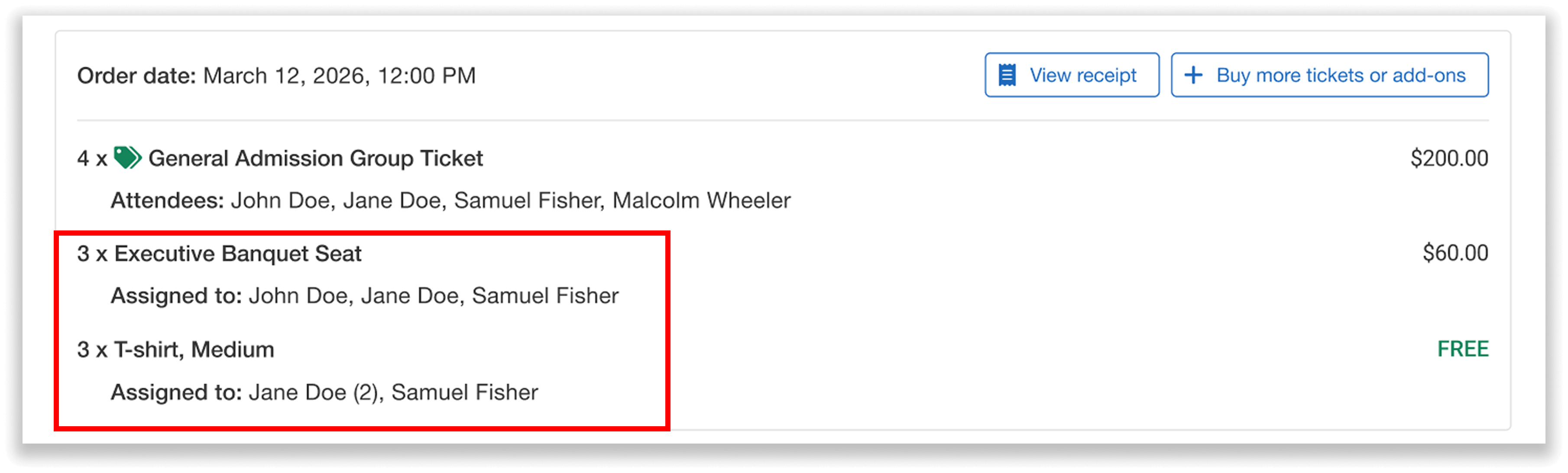
Attendees can view add-on assignments clearly in the Registration Portal.
Clearly Track Who Each Add-On Is Assigned To At Check-In
On the organizer side, add-on tracking is straightforward.
When checking attendees in on the Whova app and admin dashboard, you can now easily view which add-on(s) are assigned to each attendee—no more time spent determining who a specific session seat or swag bag is intended for in orders with multiple ticket holders.
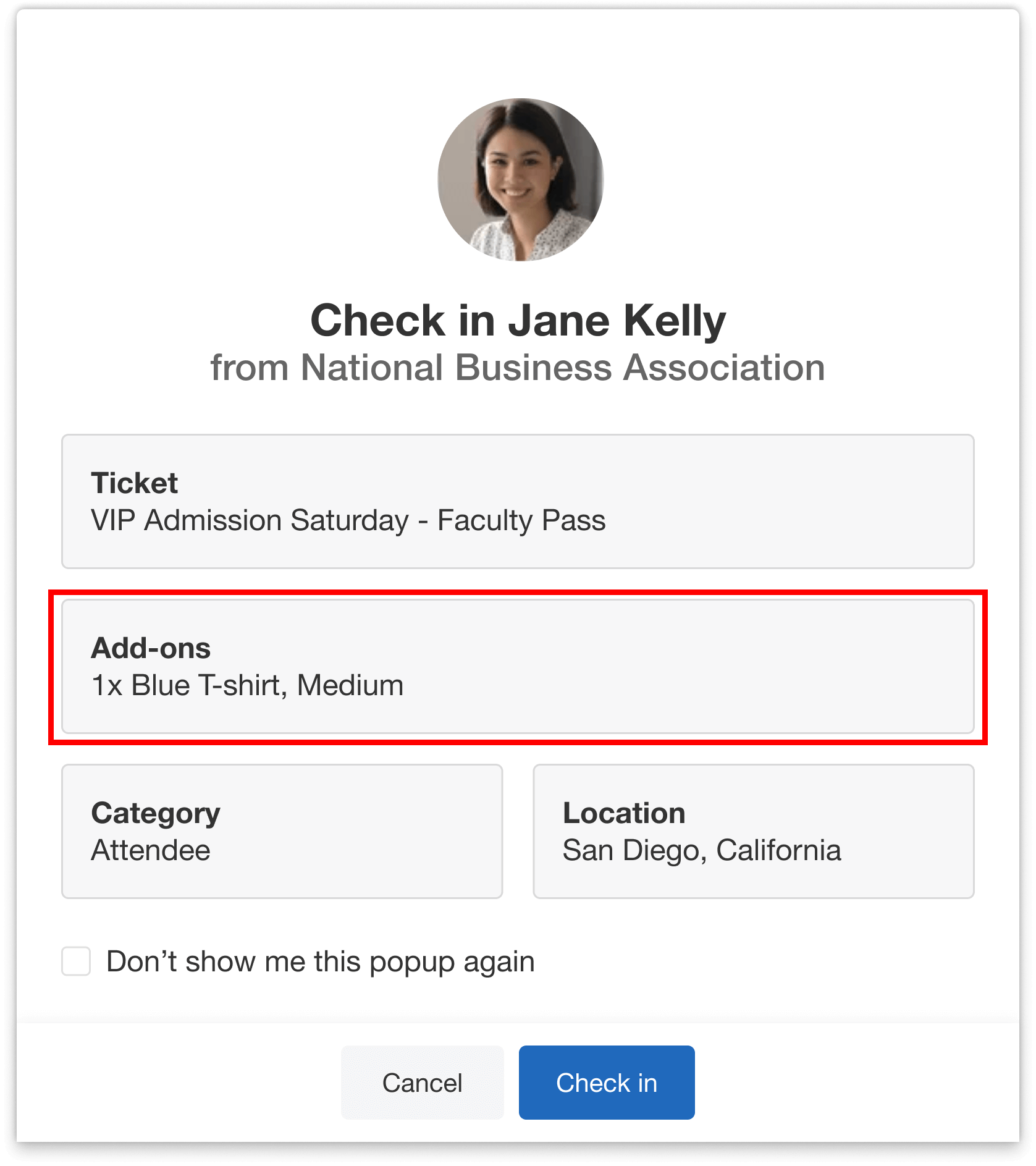
Identify exactly which add-ons go to which attendee—even in group orders.
For example, if you’re offering a paid pre-event networking session, you can confirm exactly which attendees are registered to attend. Or, if someone purchases two T-shirts in an order with four ticket holders, you’ll know exactly who should receive what size.
Attendee Add-On Segments Precisely Capture Assignments
Add-on assignments in orders with multiple registrants also sync with Whova’s Attendee Segments feature, found in the Attendees tab. Segments for add-ons now only include the ticket holders assigned to the add-on, rather than everyone in the order. This helps you target announcements more efficiently, keep workshop check-in simple (you can use segments to customize name badges based on add-on purchase), and export accurate attendee lists.
For example, if a group order includes four ticket holders and two networking session add-ons were purchased, only the two assigned attendees will:
- Appear in the add-on segment
- Receive targeted communication about the add-on
- Be included in exports for that segment
This keeps attendee communication and data effortlessly organized.
View and Export Add-On Assignments
Organizers can view and export add-on assignment details directly from the dashboard.
In the Tickets tab under Orders and Transaction, click Attendee Orders. In the “Order details” section, you can press “View” for any given order to see its details—which will now include which attendees are assigned to each add-on for group orders.
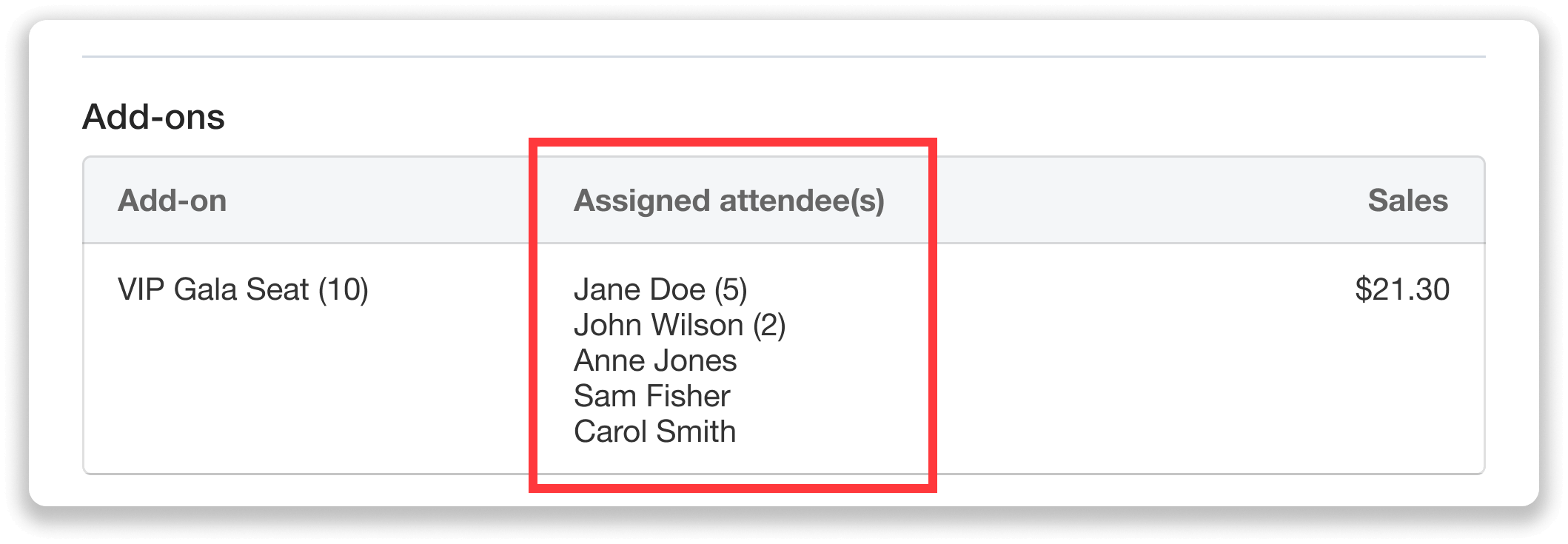
View add-on assignments in the “Attendee Orders” page.
When refunding orders with multiple ticket holders, you can also view add-on assignments, making it easier to accurately issue add-on refunds.
You can even export add-on assignment details from the Attendee Orders page. Under “Order details,” simply click Download as Excel.

Easily download order details, which include attendee add-on assignments.
The export includes registration details complete with orders, tickets, and add-ons. Each individual add-on page in the spreadsheet has two new columns titled “Assigned ticket holder” and “Assigned ticket holder email.” These appear alongside existing columns such as “Buyer” and “Buyer email.”
You can also export add-on assignment details in the “Ticket Add-ons” section of the Tickets tab by clicking “Export all add-on question responses.” Each add-on page in this spreadsheet will include the same new columns (“Assigned ticket holder” and “Assigned ticket holder email”).
Customize Event Registration Precisely With Whova
By requiring attendees to assign add-ons to specific ticket holders during registration, Whova eliminates confusion at the check-in desk, strengthens record-keeping accuracy, and improves targeted communication. If your event offers special sessions, merchandise, or other add-ons, this update ensures every purchase is tied to the right person—without requiring extra manual work from you.
Check out this feature in your Whova dashboard today and simplify add-on management for your next event. Or, request a demo to get started with Whova!