
May 21, 2026
For too long, attendee information has been siloed between two places. Your contacts live in your Customer Relationship Management (CRM) or Association Management System (AMS) database, but attendee information lives in your event platform. The result is typically tedious manual work to bridge the gap and keep your contact records accurate.
At Whova, we’ve been working to close this gap from multiple angles. For example, you can already bring data into Whova seamlessly with direct integrations to AMS platforms like MemberClicks, iMIS, WildApricot, YourMembership, GlueUp, Novi, and Neon. We also recently released an option to Upload a Member ID List, giving all associations a way to keep tickets exclusive, even if your platform is not one we integrate yet.
On the outbound side, many organizers already export attendee data to marketing tools like Mailchimp or Constant Contact, or connect other platforms through Zapier.
Now, we’re taking this one step further to make your workflow even more direct and effortless—especially for organizers who use HubSpot as their contact management or marketing platform.
Introducing: Sync Attendee Information Back to HubSpot. This new release allows you to connect HubSpot and automatically sync attendee registration data from Whova—no spreadsheets, no manual updates, and no complex workarounds.
With this integration, you can:
- Keep contact records effortlessly up to date: Sync the latest attendee details—like job titles, locations, and email addresses—directly to HubSpot in minutes.
- Turn registrants into new leads automatically: Create new contact records for attendees who aren’t yet in your CRM.
- Stay in control of your data: Choose exactly which fields to update and which to leave unchanged, so nothing gets overwritten unintentionally.
- Power smarter follow-up and future events: Track event participation in HubSpot and build targeted lists for targeted campaigns and future outreach.
- Reduce manual errors: Automate updates with confidence and keep your database clean and reliable.
If you use a different CRM or if you use an AMS, we want to hear from you. When selecting a platform, just click “Let us know.” Your feedback directly shapes what integrations we build next.
Ready to simplify your HubSpot contact updating workflow? Read on.
Connect Your HubSpot Account To Start Syncing
To connect your CRM, start by navigating to the Tickets tab and selecting “Export to AMS/CRM.”
You’ll see two setup options here—choose “Get started” under the first option, “Native Direct Integration.” Then, select HubSpot as your platform.
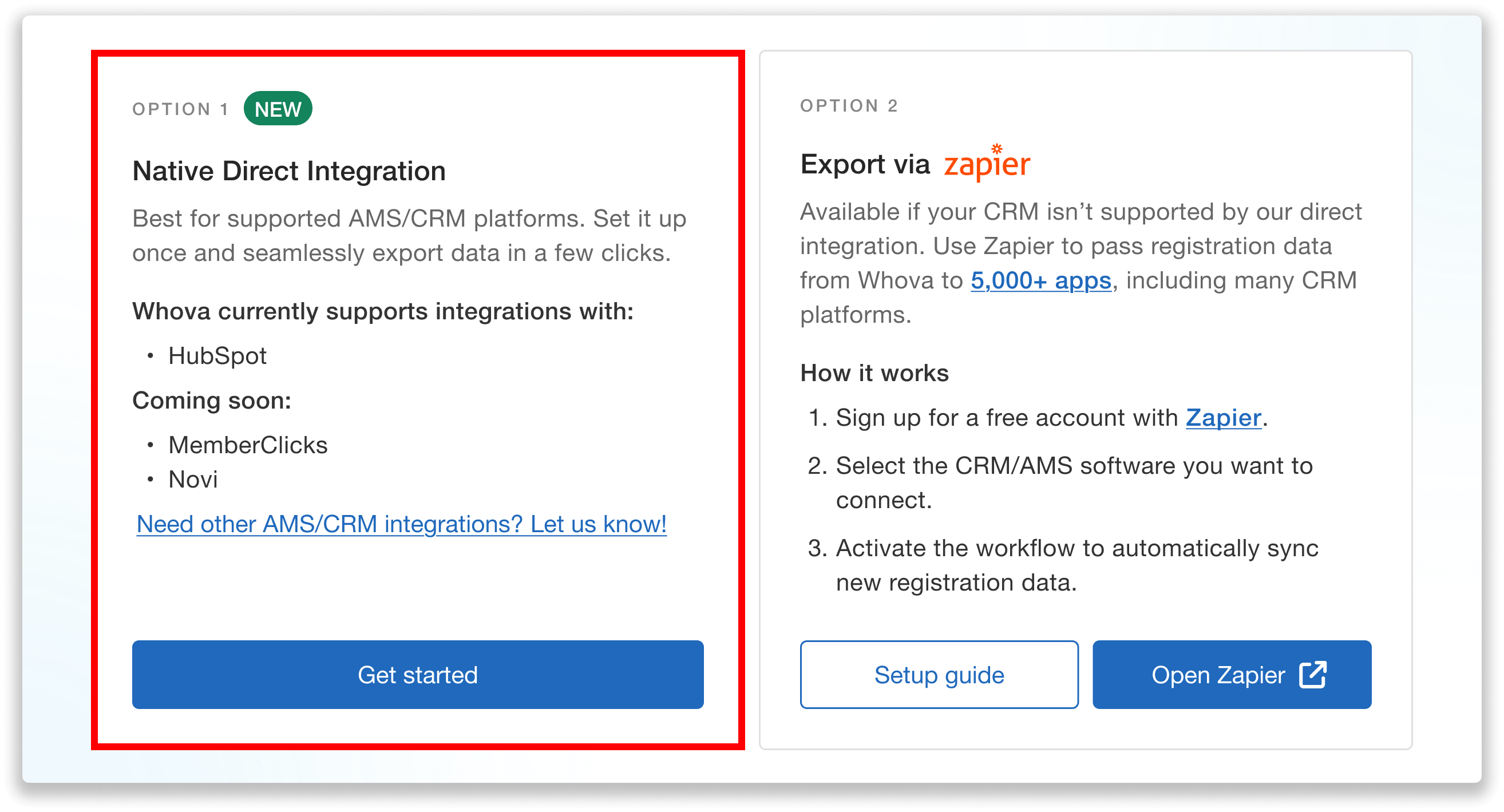
Choose Native Direct Integration to connect Whova with HubSpot.
From there, we’ll redirect you to HubSpot to sign in. You’ll then be prompted to connect Whova to your HubSpot account—no set-up on your side involved!
Customize Your Data Sync Before Exporting
Once your account is connected and attendees have completed their registration forms, it’s time to export your data to HubSpot.
Before the export begins, you’ll map each Whova registration field to a corresponding one in HubSpot. This is where you decide exactly how your data is handled—whether each field should update existing records, be added as a note, or be skipped entirely.
The fields available will depend on what questions you’ve included in your registration forms, but typically cover contact details like name, job title, company, location, and phone numbers, along with Attendee Segments, which include industry, job function, organization size, dietary restrictions, or transportation needs.
For example, you might choose to overwrite the cell phone field in HubSpot with the phone number collected during registration, ensuring your records stay current.
If you’d rather not modify existing data, you can instead add information—like your event’s name and date—as a note on each contact. This is especially useful for tracking event participation without changing your core CRM fields.
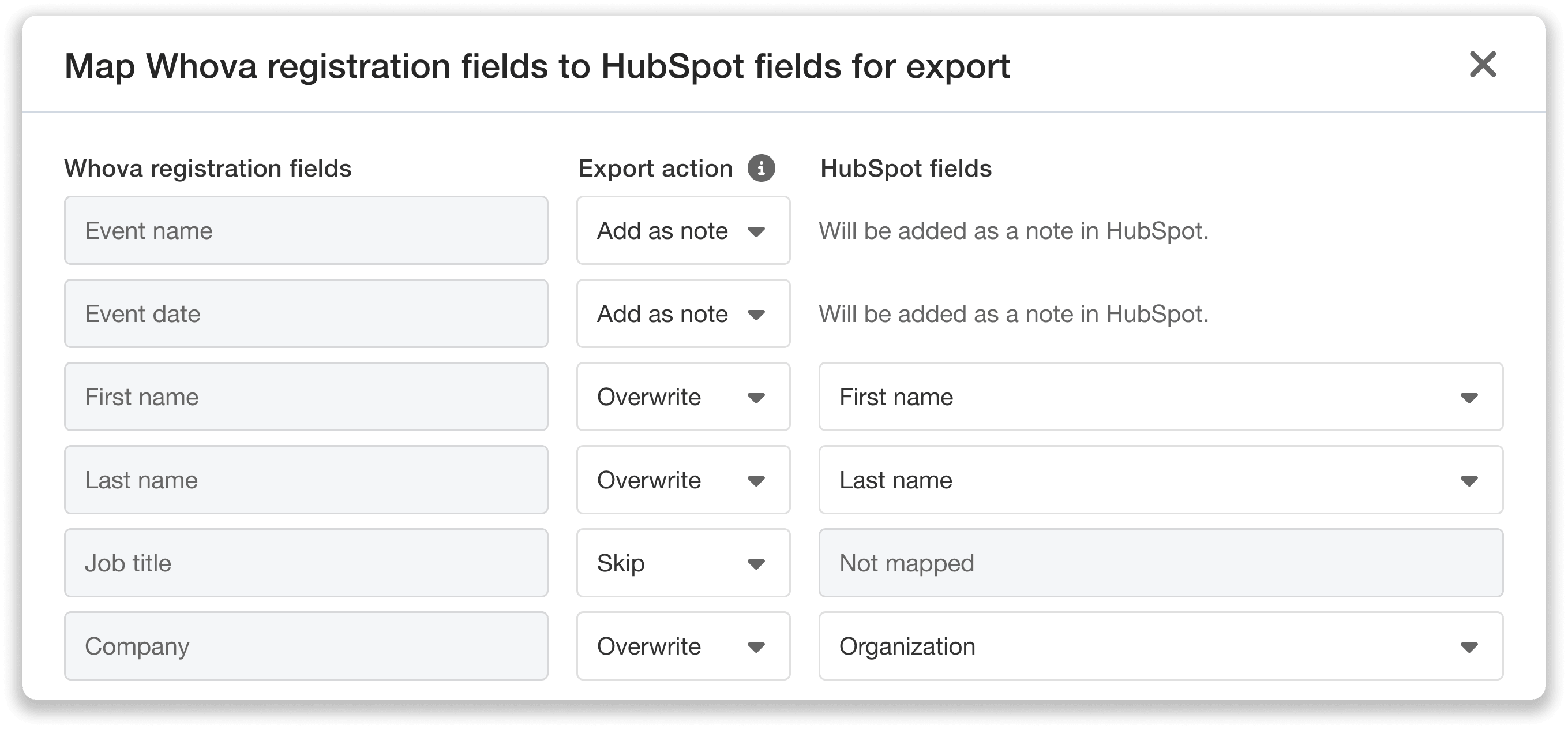
Control exactly how your data syncs by mapping fields before exporting.
Note: If you choose to overwrite a field, any existing data in that field will be replaced. You’ll be asked to confirm this before proceeding.
Once your mappings are set, simply click “Export” to send the data to HubSpot.
If your event registration is still ongoing, keep in mind that any new registration responses after the export won’t be included. To capture those changes, you’ll need to run another export. Re-exports will only update new contacts—previously exported contacts will remain unchanged.
Add Whova Fields as Contact Notes
Not every piece of registration data needs to be stored in a dedicated HubSpot field.
If there’s no existing field you want to map to, you can add that information as a note on each contact instead. This allows you to capture important context without modifying any existing data in your CRM.
For example, adding the event name and date as a note makes it easy to see which contacts registered for a specific event. This can be especially helpful when planning future outreach, like promoting next year’s event to past attendees.
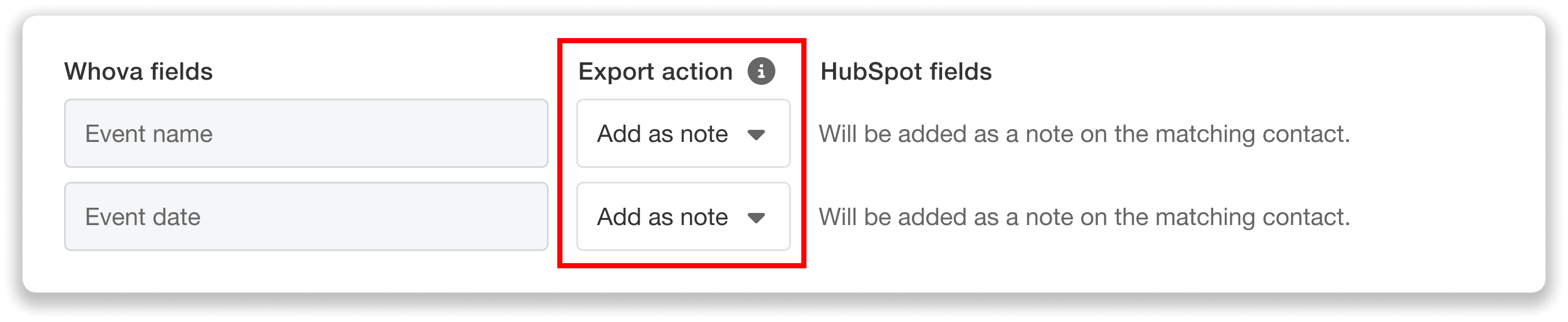
Add any registration field as a note to record details in HubSpot without changing existing fields.
It’s a simple way to keep your records both up to date and flexible—without the risk of overwriting anything important.
Expand Your Contact Database Without Manual Entry
You can also decide how to handle attendees who don’t already exist in your HubSpot database.
During export, you’ll have the option to create new contacts for these attendees automatically. This makes it easy to capture new leads without needing to manually enter their information later.

Automatically turn attendees into new contacts—or limit exports to existing records only.
Note: Whova matches attendees to HubSpot contacts based on their email address, so it’s important that attendees register using the same email associated with their existing contact record in HubSpot. When a match is found, the existing contact will be updated based on your field mappings.
You decide what happens if no matching email is found. With new contact creation enabled, a new record will be added in HubSpot. If it’s disabled, those attendees simply won’t be exported.
In cases where contacts aren’t exported, Whova will clearly show how many weren’t exported and why. You can also download their details as a spreadsheet, making it easy to review or add them manually if needed.
Update Your Data Anytime with Quick Re-Exports
If new attendees register after your export, you can easily export again to keep your HubSpot records current. Whova will automatically notify you when there are new attendees since your last export, so you always know when it’s time to sync.

Not sure if new attendees have registered since your last export? We’ll keep you updated.
To run another export, simply click the export button again. Your previous field mappings will already be saved, so you can confirm and export right away without starting from scratch. If needed, you can easily adjust the mappings before proceeding.
This makes it easy to keep your CRM aligned with the latest registration data throughout your event lifecycle.
When you’re done exporting, you can disconnect your HubSpot account at any time from the top right of the page. If you don’t disconnect manually, we’ll do so automatically for you one month after the event ends.
Review Every Export in One Place
After each export, you can view a detailed export list directly from the dashboard.
You’ll get a clear snapshot of what happened during every export, including how many attendees were successfully exported and any that were not. If some attendees weren’t included—such as if no matching email was found and you did not enable creating new contacts—you’ll see exactly how many and why.
You’ll also be able to track when each export was run and which admin initiated it, making it easy to stay organized across your team.
With everything in one place, you can quickly confirm that your data was synced as expected or identify anything that may need follow-up.
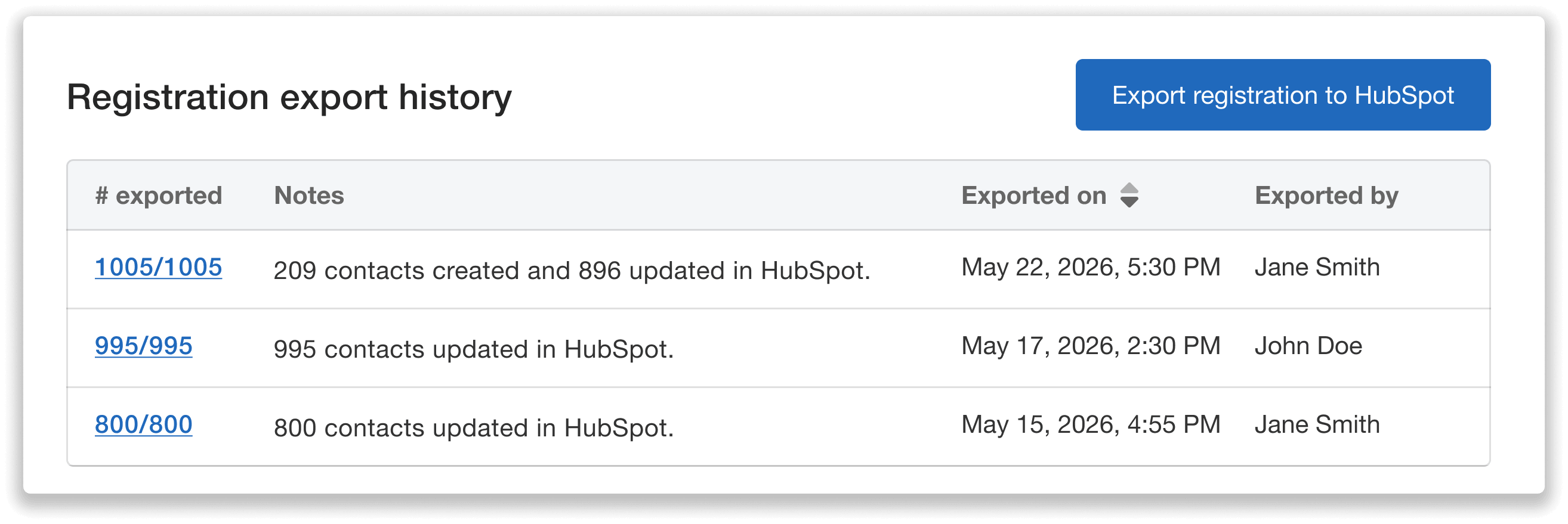
View your event’s full export history directly from the dashboard.
Easily Access and Export Your Attendee Data
In addition to tracking your exports, you can view and download attendee data directly from the dashboard at any time.
To access this data, simply click the hyperlinked number of exported or unexported contacts in your export history. This will open a detailed view where you can review each attendee’s name and email, search for specific individuals, and see whether they were included in the export.
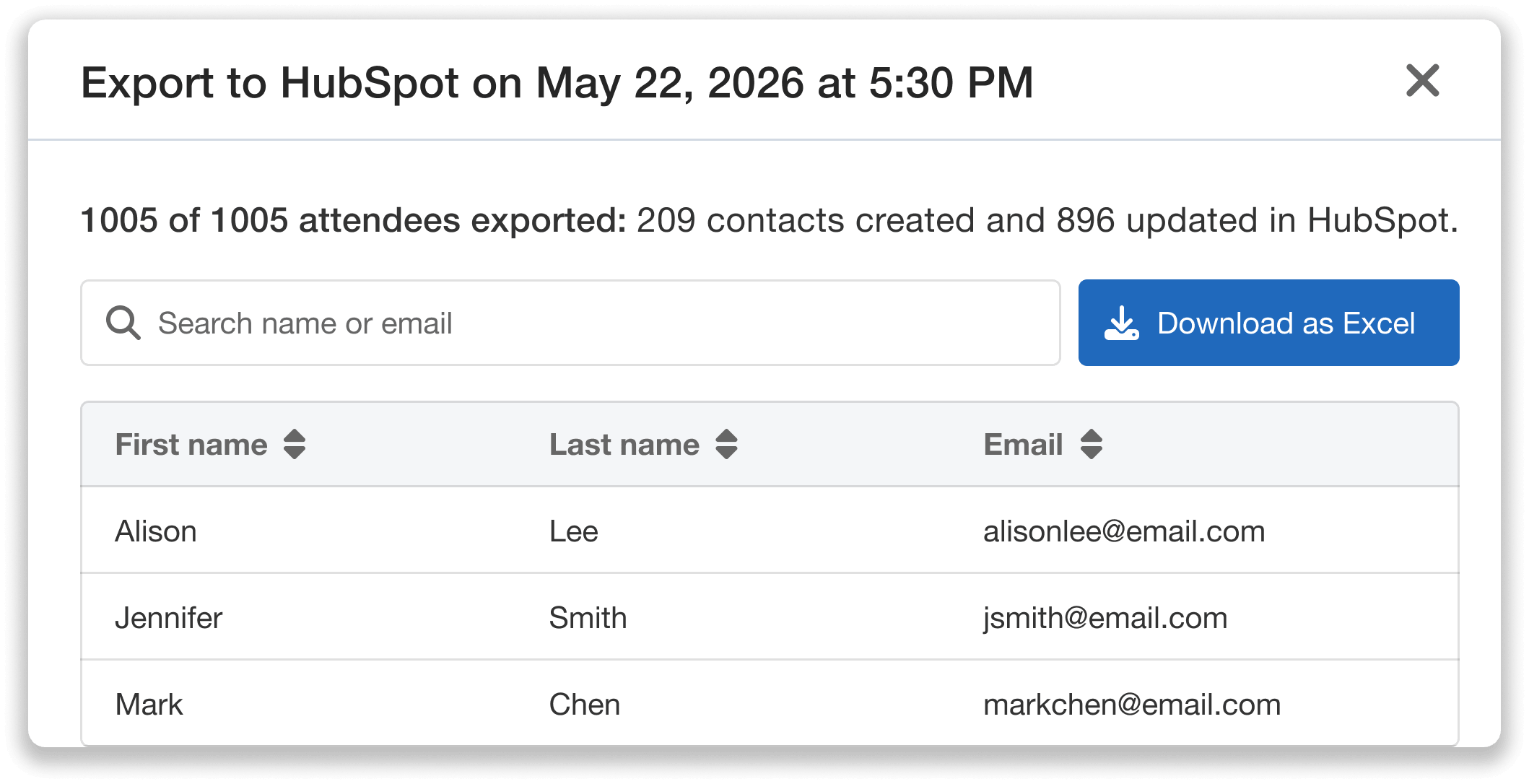
View attendee details, search for specific attendees, and download data as an Excel file if needed.
When you’re ready, click “Download as Excel” to export the full dataset. This file includes all attendees and their registration information, with a dedicated column indicating whether each was successfully exported—giving you a complete and flexible record to work from. For example, if you chose not to create new contacts, you can easily identify unmatched attendees and add them to HubSpot manually if needed.
A Smarter Way to Sync Event and CRM Data
With seamless field mapping and direct data exports, this integration gives you a straightforward way to manage attendee information without extra overhead. It removes the need for manual updates or workarounds, so your team can rely on a more consistent, streamlined process.
By keeping your HubSpot records aligned with real-time registration data, you can spend less time on admin work and more time on meaningful outreach.
Interested in getting started? Request a demo or contact your Whova representative for more details.