
December 8, 2025
Whova’s powerful registration system already offers several advanced ways to categorize attendees, with features like Attendee Segments, which lets you create groups based on registration information and easily send targeted communication, and Invite-only ticketing, which gives organizers multiple ways to create restricted tickets—by email, organization, and even organization type. It’s innovations like these that earned us a spot on the shortlist for Best Ticketing Technology at the Event Technology Awards!
To keep member-only tickets exclusive at sign-up, we already integrate with three Association Management Systems (AMS): WildApricot, MemberClicks, and iMIS, allowing associations to sync their AMS with our platform to automatically verify registrants’ membership, and even member tier, for exclusive tickets.
These integrations have been a huge success with our association customers, and we’re excited to keep the momentum going. Today, we’re introducing the newest additions to our AMS integration initiative: YourMembership and Glue Up! Associations using these systems can now verify membership directly in Whova—no spreadsheets, no manual cross-checks, no extra tools.
With all your ticket types managed in one place, from member-only to general admission, you can deliver a smoother, more intuitive registration experience while saving countless hours of administrative work.
With these integrations, you can…
- Automatically verify members for discounted or exclusive tickets. No more cross-checking against membership lists—only current members can access tickets reserved for them.
- Easily manage tiered member tickets. Offer different ticket types for different member levels, such as Students, Associate Members, or Full Members, all verified automatically through YourMembership or Glue Up.
- Protect member-only perks like sessions and workshops. With ticket session mapping, you can control exactly which sessions each registrant can attend based on their ticket type, ensuring that premium experiences remain exclusive to members.
- Manage member and non-member tickets together. With Whova, you don’t need separate systems for different audiences. Organizers can sell both member-only and non-member tickets in the same platform, keeping setup simple and attendee registration effortless.
We’re continuing to expand our AMS support. If your association uses a different system, let us know through the feedback form on our Invite-Only Ticketing page—it may be the next one we integrate!
Connect with YourMembership or Glue Up For Verified Member-Only Tickets
Whether you use YourMembership or Glue Up, you can connect with either AMS and create exclusive member-only tickets in just 4 steps.
1. After creating ticket(s), go to “Member & Invite-Only Ticketing”. You can select “Add restrictions” for the ticket that you want to restrict.
2. Select the option “Restrict to specific membership levels and statuses”.
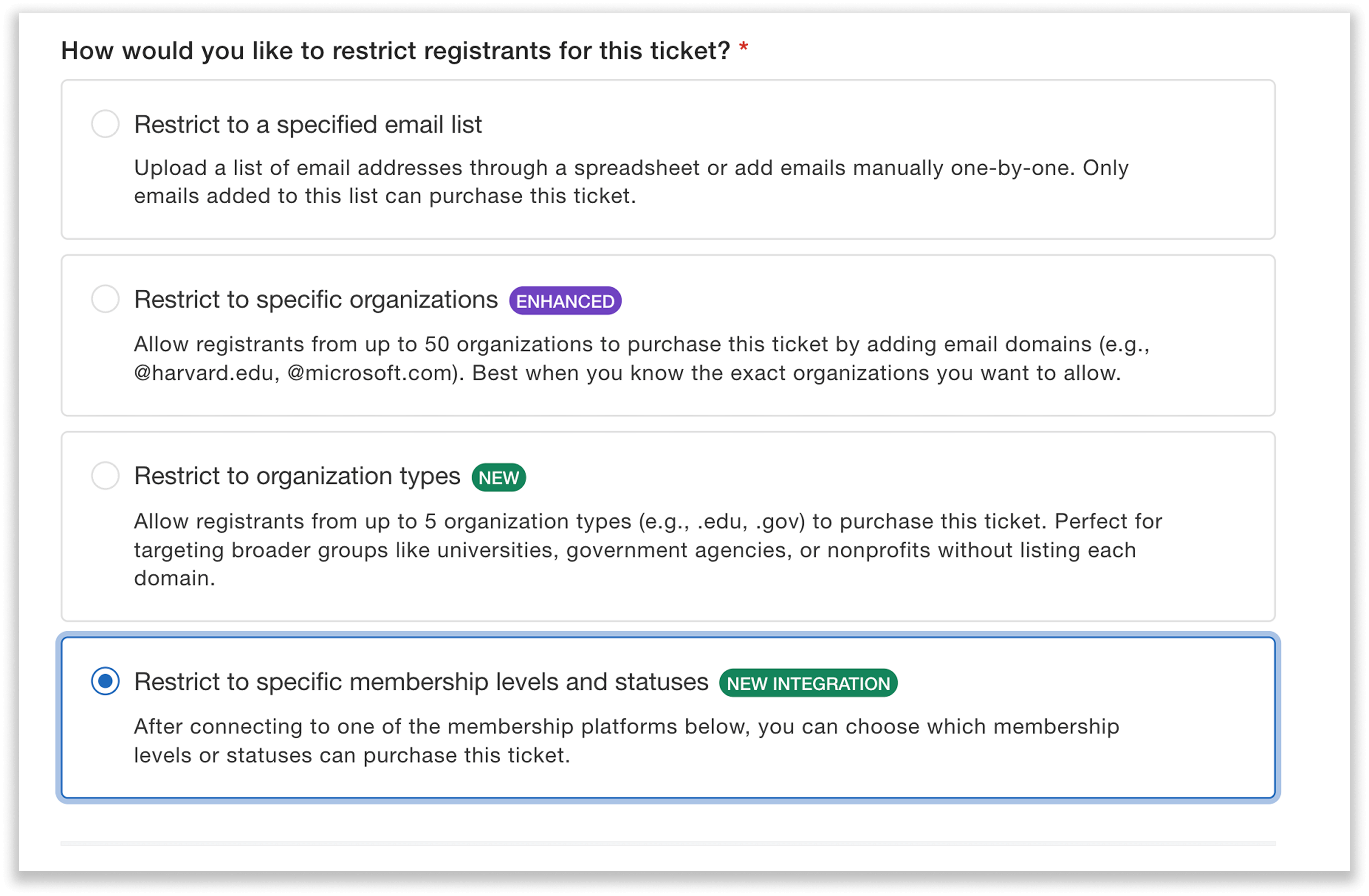
Easily restrict tickets to members by integrating with your AMS.
3. Then, select YourMembership or Glue Up and connect to your account. This syncs your membership data, so that Whova can verify attendees’ membership when they go to register for a given ticket, based on their Member ID.
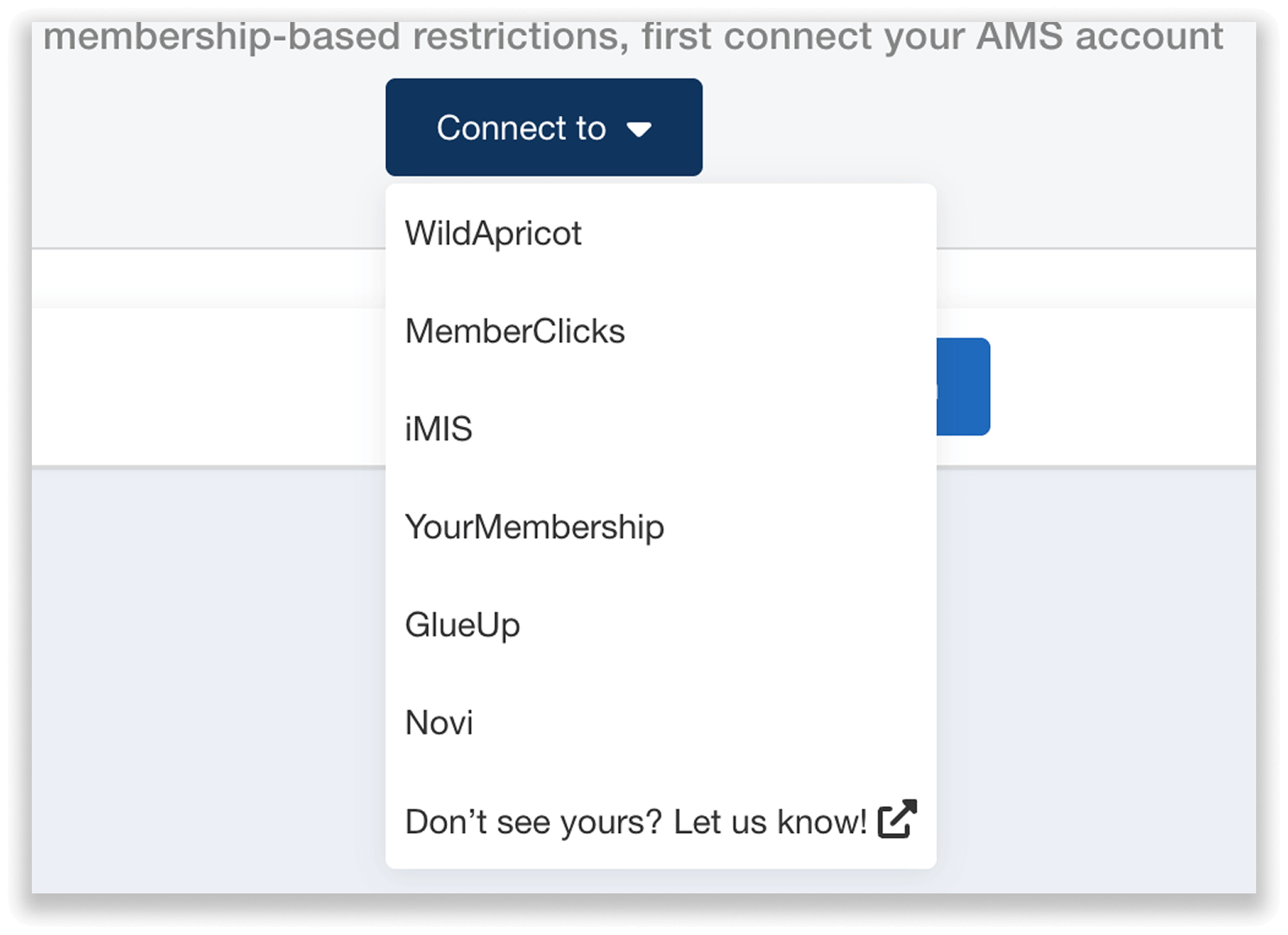
Select your AMS in the dropdown and connect to your account.
To connect with YourMembership, you will be asked to input the following credentials:
- Client ID
- Username API key
- Password API key
For detailed instructions on how to connect your account, view the guide provided at this step in the Whova dashboard. The steps are as follows:
A. First, you’ll need a REST API license to support this integration—your YourMembership account representative can help with this.
B. In the “Admin Accounts” section of your YourMembership account, you can create an API account, which will give you an API username and password. It’s important to note that these are not the username and password for your YourMembership account, but instead for the API account you’ve created.
C. You can find your Client ID in the “General Settings” of your YourMembership account.
To connect with Glue Up, you can input the following:
- Public Key
- Private Key
- Organization ID
Similarly, you can view the information and resources provided in the Whova dashboard for detailed instruction on connecting. The steps are as follows:
A. You will need two Glue Up add-ons to support the integration: a Dedicated Subdomain Add-on, and an API Access Add-on. To get these add-ons, reach out to your Customer Success Manager (CSM).
B. You should then have a Public Key and Private Key generated for you.
C. You can find your Organization ID under “Plan and Allowances” in your Glue Up account settings, where you will see the ID in parentheses. The ID consists of the numbers after the “#.”
4. Finally, customize the ticket’s restrictions. You can decide which membership levels can buy the ticket. So for example, if you offer an Associate Membership, Full Membership, and Premium Membership, you can choose to restrict your ticket to Premium members only.
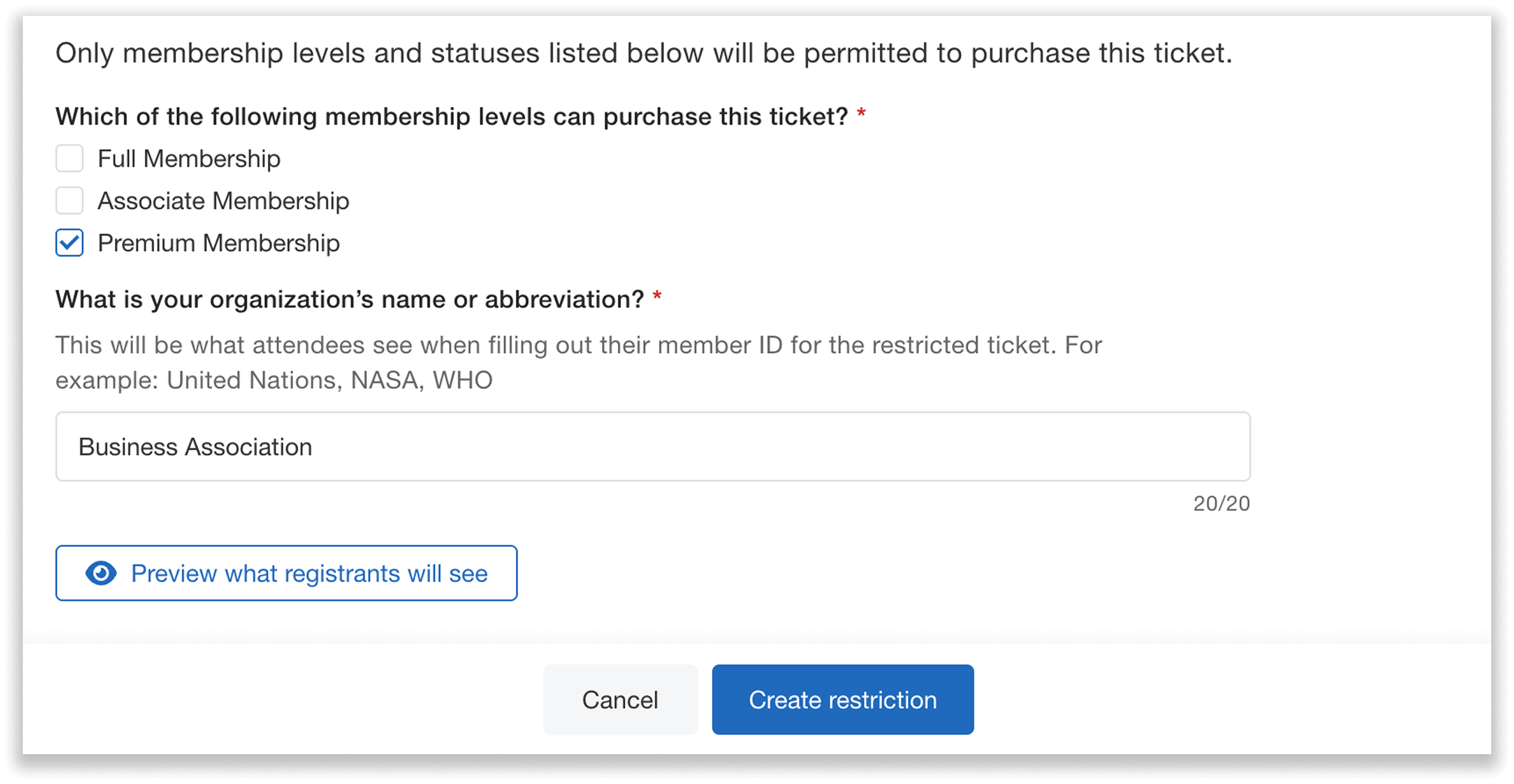
Easily customize which membership levels can purchase your restricted ticket.
You can easily set up restrictions for multiple different ticket types using this integration. For example, if you have three separate member tickets, Student, Standard, and Premium, you can create customized restrictions for each one through your Glue Up or YourMembership account right in Whova—no manual cross checking needed.
How Attendees Register For Member Tickets
It’s simple for your members to purchase these exclusive tickets—they’ll follow the same easy registration process, but with one extra step.
When an attendee selects a member-only ticket on your event registration page, they’ll be asked to enter their member ID before purchase.
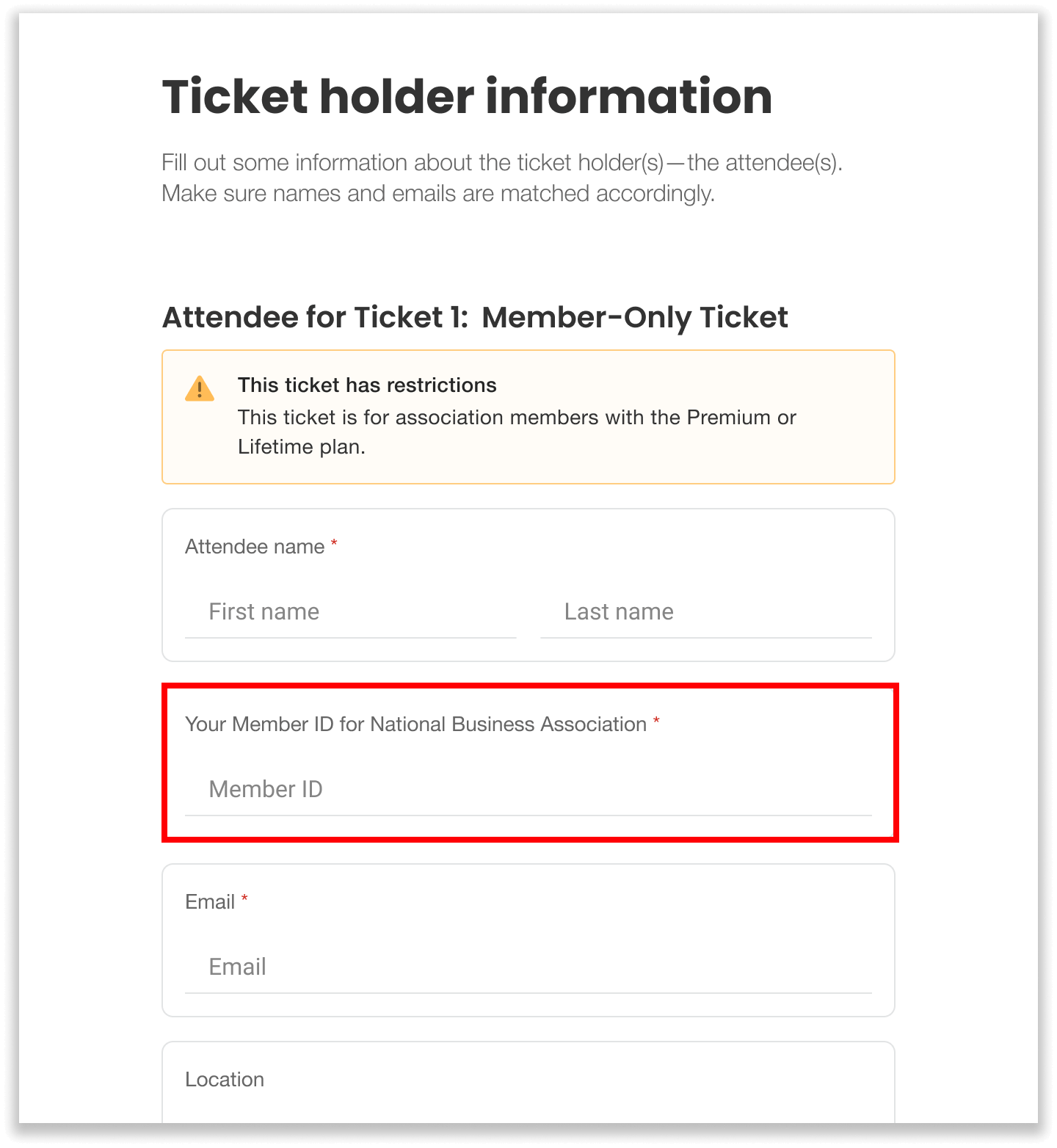
Registrants are prompted to enter their Member ID when purchasing a member-only ticket.
Whova will automatically check their membership and level with your Glue Up or YourMembership database, to guarantee that only verified members who meet your criteria can purchase the ticket.
Note: Attendees must use a unique member ID for each member-only ticket they purchase. So, if they want to buy more than one Member ticket, they’ll need to enter a separate member ID for each one. This makes sure every ticket is tied to an individual verified member—keeping your exclusive perks secure and protected.
Offer Member Tickets and General Admission All in One Platform
Whova makes your ticketing as simple as possible without compromising on security. Our new integrations let you combine exclusive member-only perks and general admission tickets all in one intuitive, advanced platform—so you can say goodbye to juggling multiple systems and manually checking membership.
Request a live demo today to learn how Whova makes it easy to verify membership, and even member tier, right at registration.