
April 02, 2026
Managing a complex event involves far more than just selling tickets. Organizers are often carefully balancing different levels of access to paid workshops, galas, and special excursions on top of the main event. When attendees purchase these extra sessions, you need a surefire way to keep them exclusive, without adding manual checks or creating last-minute confusion for your team.
Whova already helps organizers keep event access exclusive with Ticket Session Mapping. This feature allows you to dictate exactly which sessions each ticket type can access, such as restricting a “Day One Pass” to only the first day’s schedule. For more than 50% of events that use Whova Registration, we’ve even made member verification easier for associations by integrating with AMS platforms like WildApricot, MemberClicks, iMIS, YourMembership, GlueUp, and Novi for a seamless way to protect member-only tickets.
Organizers also frequently use ticket add-ons to sell special experiences during registration. Whether it’s a hands-on workshop, an awards banquet, or a networking mixer, add-ons make it easy for attendees to customize their event experience based on their schedule and budgets.
But until now, controlling on-site access to those add-on-based sessions or activities required extra coordination.
Introducing Add-On Session Mapping.
(Available exclusively for events using Whova Registration.)
With Add-On Session Mapping, you can now directly map specific add-ons to agenda sessions/activities. This ensures that only attendees who purchased the required add-on can check in to the corresponding session or activity.
You can use Add-On Session Mapping to secure:
- Networking mixers
- Workshops and tutorials
- Banquets, dinners, and galas
- Sponsor-only or VIP events
- Offsite excursions
- And more!
In addition, Ticket Session Mapping now supports excluding specific ticket types from sessions, making it easy to restrict sponsor dinners, exhibitor meetups, or private gatherings to only the intended audience.
New: Easily Test Your Mapping Before the Event
With Add-On Session Mapping, access rules can become more advanced—but verifying them is now easier than ever. In this release, we’ve also added a built-in testing tool that allows organizers to quickly check their setup before event day by:
- Entering an attendee’s email to instantly see which sessions or activities they can access based on their ticket and add-ons, or
- Selecting a ticket type and add-on combination to preview what sessions or activities that configuration allows.
This built-in testing tool helps you validate your rules, avoid surprises at check-in, and launch registration with confidence.
At check-in, Whova will automatically verify whether an attendee has the correct ticket type or required add-on. If not, your staff is instantly notified—eliminating guesswork and manual verification.
Even better, mapped sessions (whether by ticket type or add-on) can automatically populate attendees’ personal agendas. Their paid sessions and activities appear clearly in the event app, helping prevent missed workshops and reducing confusion, especially for large or multi-track events.
This enhancement simplifies one of the most complex aspects of event logistics: enforcing access rules across multiple revenue tiers. By tightly connecting registration selections with session access control, Whova removes manual tracking and ensures that exclusive sessions remain truly exclusive.
If your event uses Whova Registration, you can now manage advanced access control with just a few clicks.
Want to see how Ticket Type and Add-On Session Mapping work together? Read on.
Control Session Access with Add-Ons
To restrict session access by add-on, start by navigating to the Attendees tab and selecting Ticket Session Mapping. At the top of the page, click “Restrict by add-ons.”
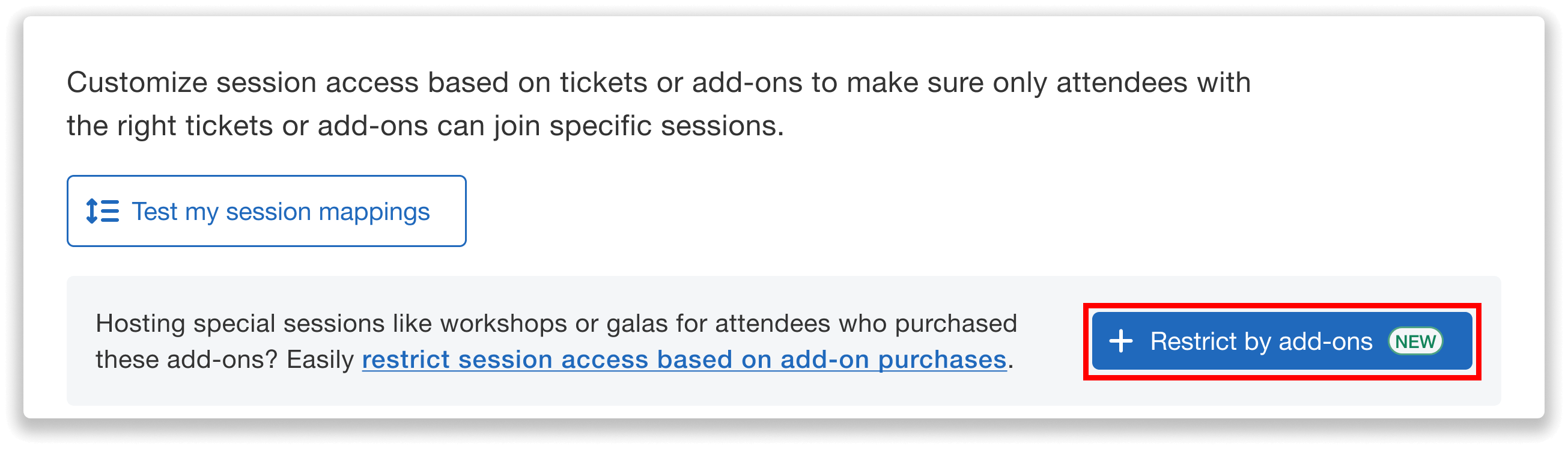
Start mapping add-ons to sessions directly from the Ticket Session Mapping dashboard.
You’ll first choose the add-on you’d like to configure. After selecting the add-on, click “Add session” to choose the session(s) that will require this purchase. Any session you select will become exclusive to attendees who purchased that specific add-on.
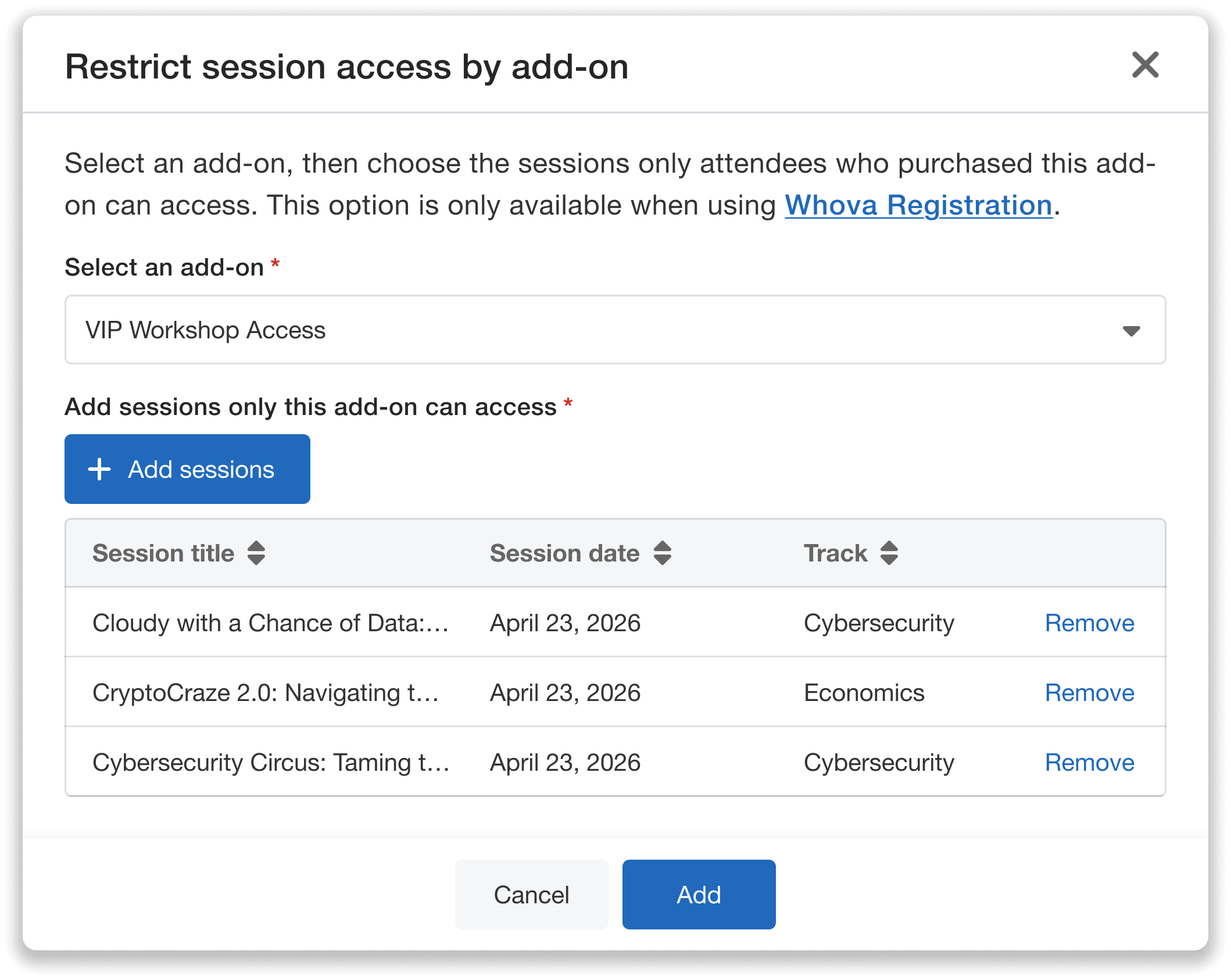
Choose which sessions only attendees who purchase a given add-on can access.
For example, if you’re offering hands-on resume-building and LinkedIn workshops, you can map those sessions to a “Career Building Bootcamp” add-on. Only attendees who purchase that add-on will be able to check in to those workshops.
Once the mapping is added, the Whova system automatically enforces the rule during check-in. If someone attempts to check into a session without the required add-on, a notification will appear in the Whova app or dashboard. This ensures that paid experiences such as workshops, banquets, or galas remain exclusive without requiring manual verification at the door.
You can review all configured mappings directly within the Ticket Session Mapping dashboard. If changes are needed, simply click “Edit” to adjust a rule or “Remove” to delete it entirely.
Simplify Ticket-Based Session Restrictions
In addition to mapping ticket types to specific sessions, you can now quickly give a ticket type access to all sessions except certain ones. Instead of manually selecting every session a ticket holder can attend, use a shortcut: grant access to all sessions and simply exclude the few they can’t.
For example, if you are hosting a VIP dinner that General Admission attendees should not attend, you can simply exclude that dinner session from the General Admission ticket.
To use this option, open Ticket Session Mapping, find the ticket type you want to configure, and choose “All sessions except certain sessions.” You can then search for and select the session(s) that should be excluded from that ticket type’s access.
After adding these mappings, the exclusions will appear in the Ticket Session Mapping dashboard. From there, you can review the session restrictions at any time and click “Remove” if you need to lift the exclusion or adjust your setup.
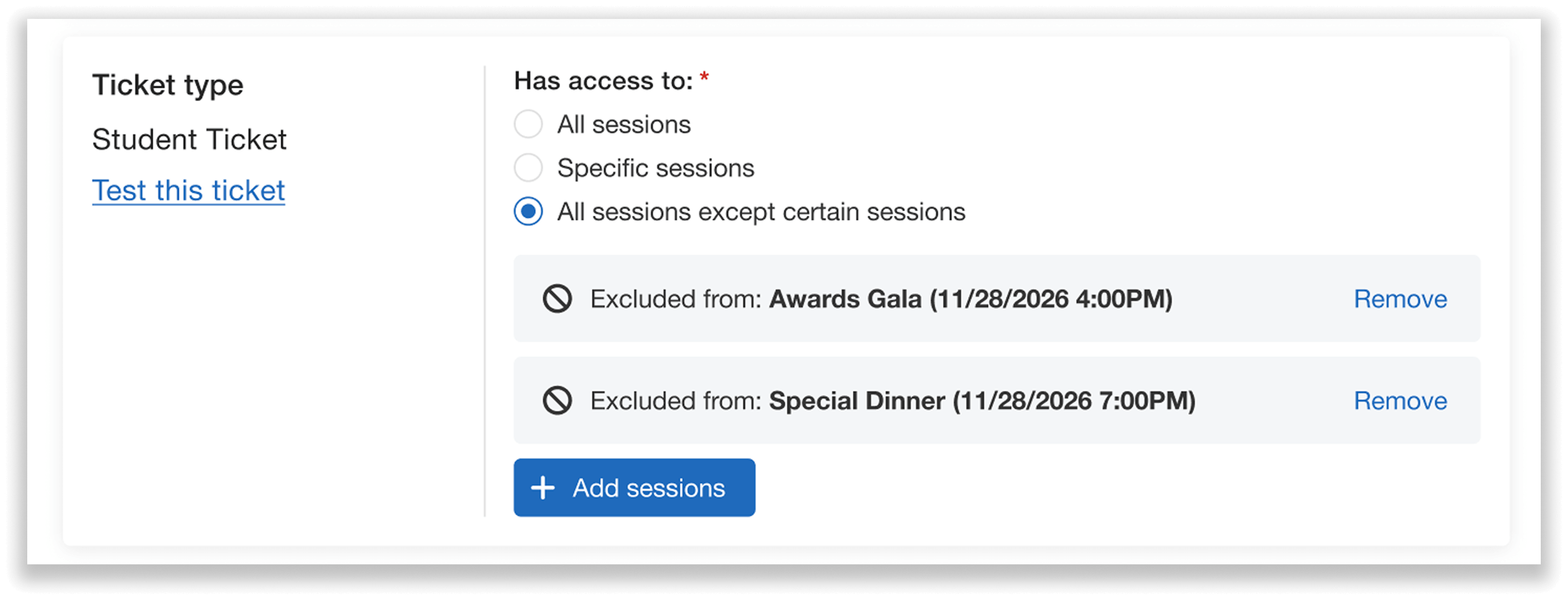
Quickly exclude a ticket type from certain sessions without manually selecting every allowed session.
Test Ticket Restrictions to Ensure Accurate Mapping
After configuring your ticket and add-on mappings, you can now verify these restrictions directly from the dashboard. At the top of the Ticket Session Mapping page, click the “Test my ticket session mappings” button to preview exactly how your access rules will apply.
The testing tool gives you two ways to confirm your mappings. First, you can test by ticket type or add-on, selecting a specific ticket and optionally pairing it with an add-on to see which sessions that combination can attend. This helps you confirm that certain ticket types or add-ons purchases will grant access to the correct sessions.
You can also test by attendee email. Enter an attendee’s email address to instantly preview which sessions they can check into based on their registration purchases. This allows you to confirm real-world scenarios before attendees arrive onsite.
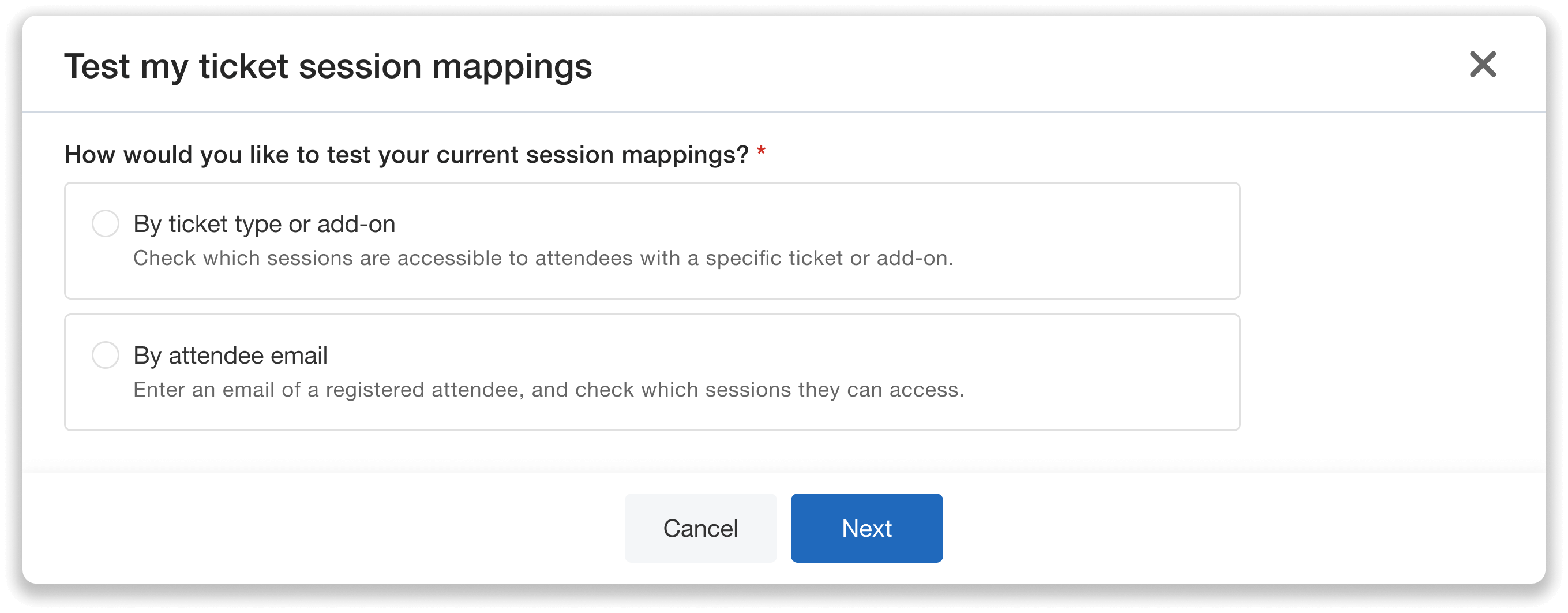
Test session access by ticket type/add-on or by attendee email to confirm your restrictions before event day.
If anything needs adjusting, you can return to the Ticket Session Mapping dashboard and click “Edit” or “Remove” to update your rules. Testing first helps you ensure accurate access control and move into event day with confidence.
Make Session Access Seamless and Secure
With Add-On Session Mapping plus enhanced ticket-based restrictions and testing, Whova makes it easier than ever to connect what attendees purchase during registration with what they can access onsite. Protect paid experiences and streamline session check-in without complicated spreadsheets, manual verification, or last-minute confusion.
Want to explore advanced session access control for your next event? Reach out to your Whova representative or request a demo to see how Ticket Session Mapping can support your setup.