
September 30, 2026
Registration collects much more than names and email addresses. Attendees provide updated job titles, phone numbers, locations, organizations, and other valuable information. For associations, this data can help keep member records current, identify new prospective members, support future outreach, and better understand their audience.
For associations, much of this information also belongs in their Association Management System (AMS). Being able to send registration data directly from Whova to your AMS means you can keep member records up to date without manually transferring data or setting up a third-party tool.
At Whova, we’ve been steadily making it easier for associations to connect their membership systems with event registration. Whova already makes it easy to bring member data into Whova with direct integrations with AMS platforms like MemberClicks, iMIS, WildApricot, YourMembership, GlueUp, Novi, and Neon to keep your member-only tickets exclusive. We also added an option to Upload a Member ID List for associations using a platform we don’t currently integrate with.
But what about sending information the other way?
Once attendees register through Whova, organizers may want to use the newly collected information in the other systems they rely on. Whova already makes it easy to export attendee data to Mailchimp or Constant Contact, connect with other platforms through Zapier, and sync registration data directly to HubSpot.
We’re excited to introduce Sync Registration Data Back to MemberClicks, allowing organizers to send attendee information collected through Whova Registration directly to MemberClicks.
With this integration, you can:
- Eliminate manual data entry: Transfer registration data directly between Whova and MemberClicks without manually entering attendee details or configuring a third-party integration.
- Keep MemberClicks records up to date: Keep your member records current with details collected during registration, including job titles, phone numbers, locations, and more.
- Control what information gets updated: Map Whova fields to the exact MemberClicks fields you want to update. Choose whether to sync each field, giving you precise control over whether data is transferred or left unchanged.
- Capture new profiles: Choose to create new MemberClicks profiles for attendees who register through Whova but aren’t already in your AMS, turning registrants into new leads right away.
Together with our existing MemberClicks integration, information can now flow both ways: bring membership data from MemberClicks into Whova to support registration, and send newly collected registration data from Whova back to MemberClicks to keep your records current.
That means less manual work and more up-to-date member data, while giving you control over exactly what information gets updated.
And MemberClicks is just the beginning. If you use another AMS or CRM, we want to hear from you! When selecting a platform, click “Let us know” to tell us which integration you’d like to see next.
Ready to simplify your MemberClicks profile updates? Keep reading to see how it works.
Connect Whova to MemberClicks with a Direct Integration
Getting started is simple. Whova’s native integration lets you connect directly to MemberClicks without relying on a third-party tool.
To connect your account, open the Tickets page in your Whova event dashboard and select Export to AMS/CRM.
Under Native Direct Integration, click Get started and choose MemberClicks as your platform.
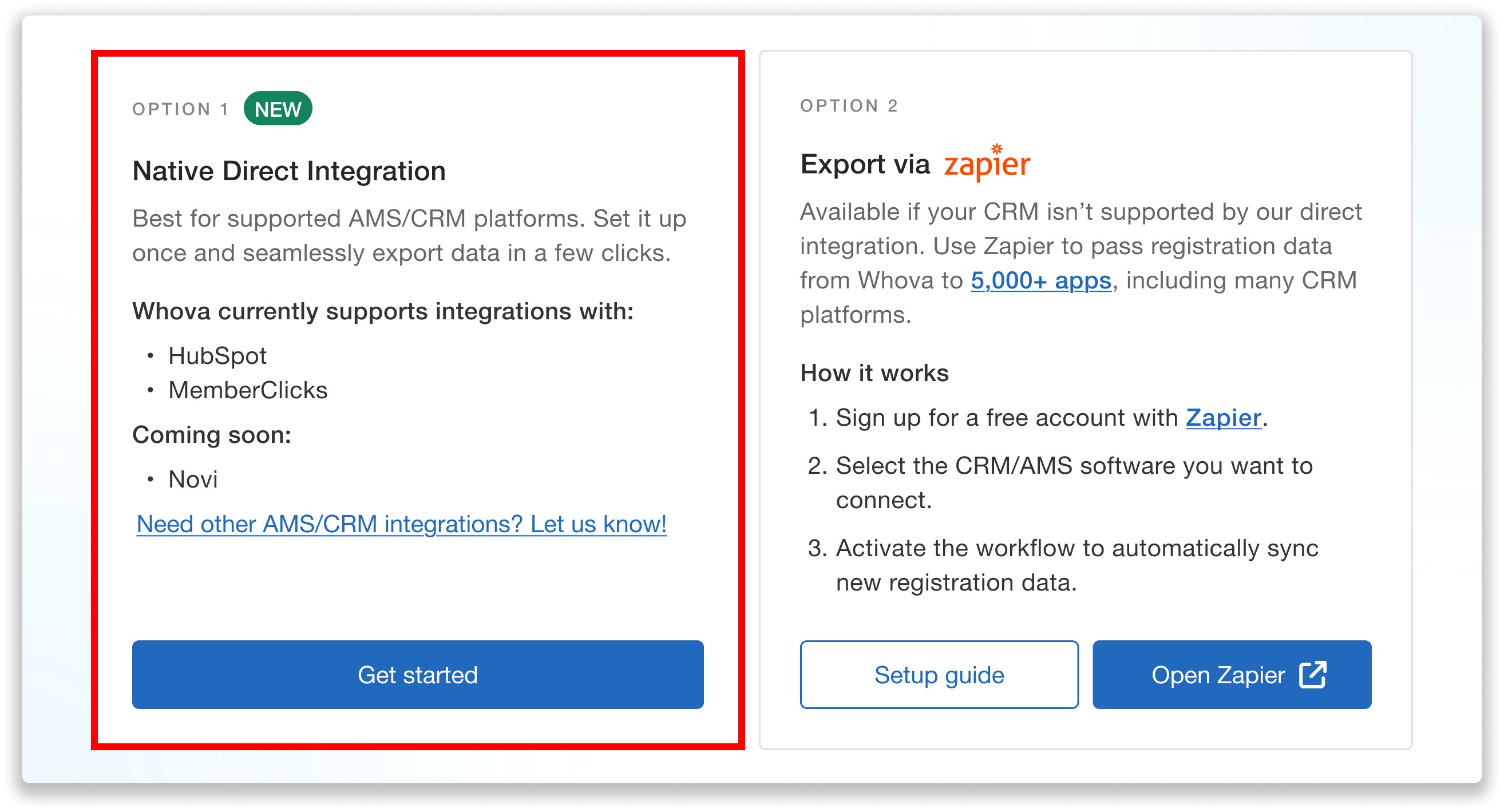 Choose the Native Direct Integration option to connect Whova to MemberClicks.
Enter the necessary credentials to connect your account. These include:
- Client ID
- Client Secret
- Organization ID
To find your Client ID and Client Secret, visit “Settings” in your MemberClicks account and create a new API client. Configure the necessary settings to allow Whova to connect. Once the API client has been created, you’ll find your Client ID and Client Secret under “API Client Information.”
Your Organization ID can be found at the top of your browser page by viewing your MemberClicks web address. The text that appears before .memberclicks.net is your Organization ID.
Want a more detailed explanation on where to find this information? Follow the guide provided in Whova!
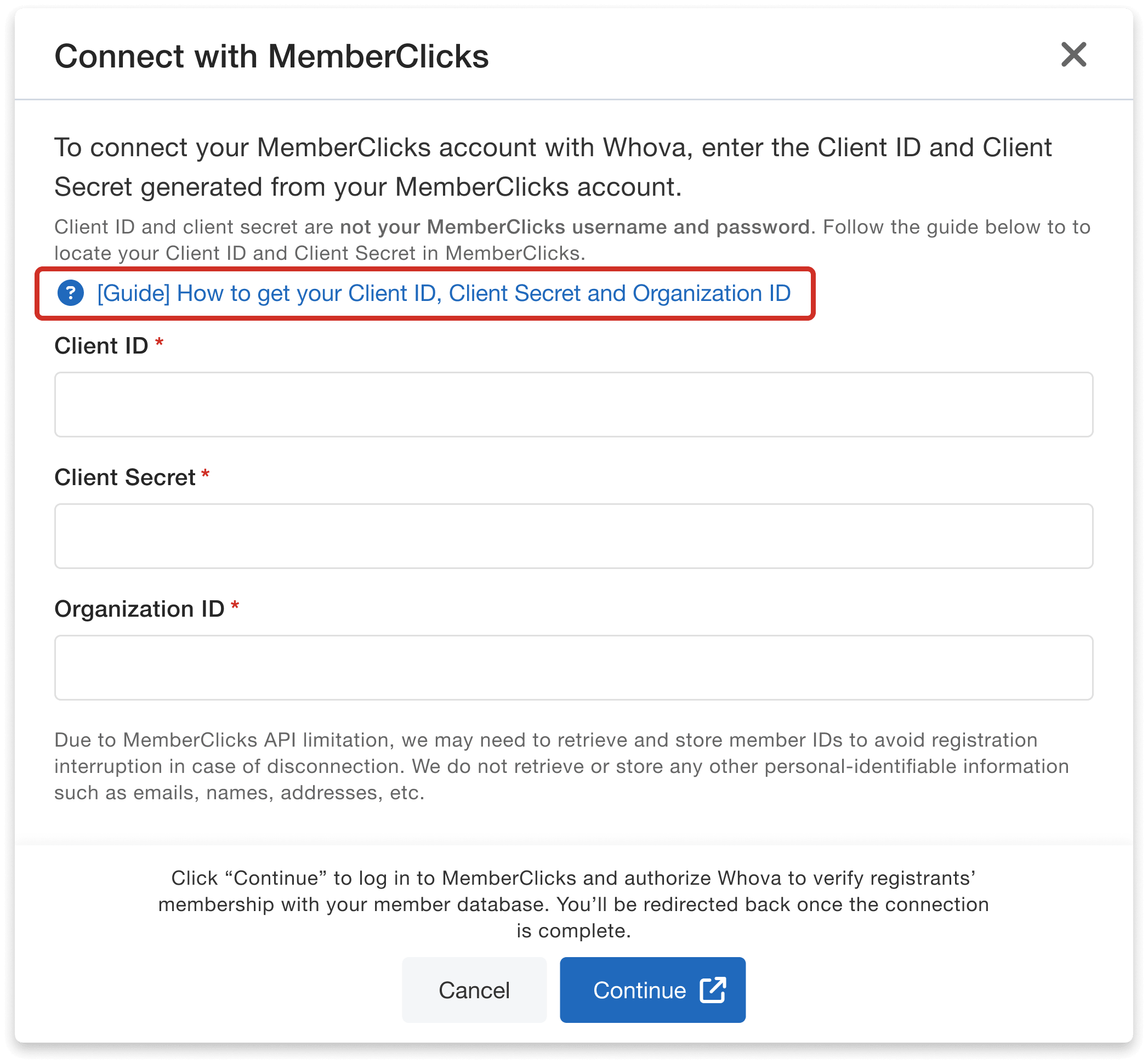 Use the provided guide to find your Client ID, Client Secret, and Organization ID.
Once you’ve connected your MemberClicks account, Whova will take you back to the export dashboard, where you can decide exactly how your registration data should be handled.
Choose How Your Data Is Updated in MemberClicks
Once your account is connected, you have full control over which registration information is sent to MemberClicks and how your data should be updated.
From the dashboard, click Export registration data to MemberClicks to begin mapping your registration fields.
You’ll then see the Whova registration fields ready to be synced back. Depending on the information you collect through your registration forms, these may include:
- First and last name
- Location
- Job title
- Cell/work phone
- Default Attendee Segments (e.g., dietary restrictions, transportation needs, organization size, job function, industry)
Under the MemberClicks fields column, you can choose how each Whova registration field should be handled:
- Overwrite: Replace the existing information in the specified MemberClicks field with the corresponding Whova registration data. Click Select a field and choose the MemberClicks field you’d like to overwrite.
- Leave unmapped: Skip that registration field during the data sync if there is no relevant field in MemberClicks or to preserve the current information in your records.
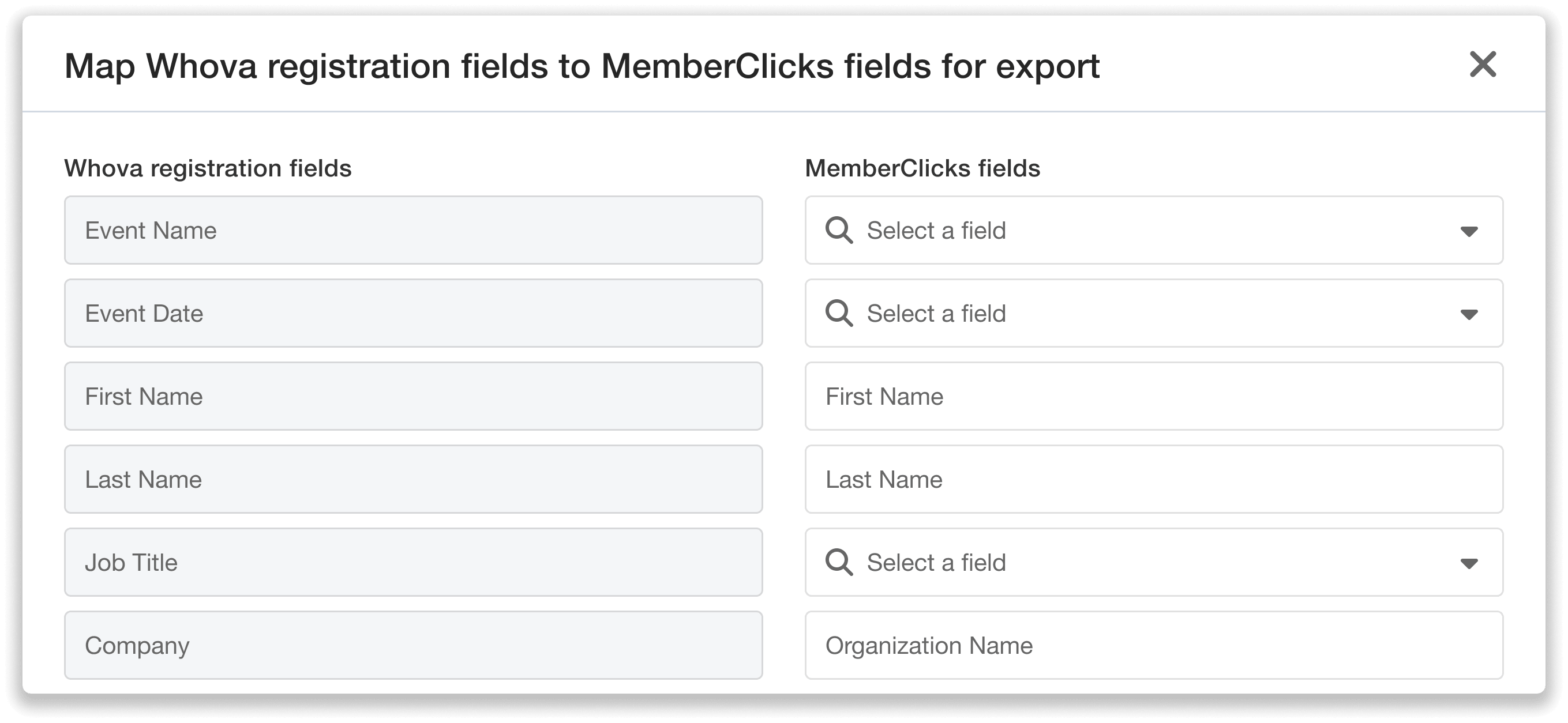 Choose which Whova fields will be carried over to your MemberClicks records.
Important: Choosing to overwrite data means that any existing information in the selected MemberClicks field will be replaced with the Whova registration information.
This gives you control over exactly what gets updated or left unchanged.
Once you’ve configured your field mappings, click Export at the bottom of the page to sync your registration data directly to MemberClicks.
Keep in mind that if your event hasn’t ended yet, new registrations submitted after an export won’t be updated in MemberClicks. Simply run another export later to include the latest information in your records.
Add New Contacts in MemberClicks for New Attendees
Your Whova registrants may include people who don’t have an existing profile in your MemberClicks database. Instead of manually adding those contacts, you can allow Whova to create new MemberClicks profiles automatically.
After mapping your registration fields, complete the Add new attendees into MemberClicks? question before clicking export. From there, choose between:
- Yes, create new MemberClicks profiles for new attendees
- No, don’t create new profiles
 Automatically create new MemberClicks profiles for new attendees.
If you select Yes and Whova doesn’t find a matching email address for an attendee in MemberClicks, Whova will create a new MemberClicks profile using their registration information.
If you select No, attendees without a matching email address in MemberClicks won’t be included in the export.
But even if you choose not to export new profiles, their information isn’t lost. After each export, Whova will specify how many profiles weren’t exported. You can download their details in a spreadsheet, so you can review or add them manually later if needed.
Important: Whova uses the attendee’s email address to match registration records with existing MemberClicks profiles. To help prevent duplicate profiles, make sure attendees register with the same email address stored in your MemberClicks database.
Export Multiple Times to Keep Information Current
You can easily export multiple times throughout your registration period to keep MemberClicks updated with the latest information. If you export before your event ends, Whova will notify you when new attendees have registered since your previous export, so you’ll always know when it’s time to sync.
 Quickly view how many new attendees have registered and haven’t been exported.
To run another export, simply click the export button again. Your previous field mappings will already be saved, so you can quickly export using the same configuration. You can also adjust your mappings if needed before completing the newest export.
When you’re done exporting, you can disconnect your MemberClicks account at any time from the top right of the page.
After your event ends, you’ll have an additional 30 days to export and sync your registration data to MemberClicks. If you don’t disconnect manually, we’ll do so automatically for you at the end of this period.
Keep Track of All Your Export History in One Place
It is helpful to have a clear record of what data was previously synced. Whova’s Registration Export History dashboard gives you one place to keep track of all your past exports.
For each export, you can see information such as:
- How many attendees were exported (e.g., 2000/2000)
- Number of profiles updated
- Number of profiles created (If you did not enable creating new profiles, we’ll show how many attendees had no matching email and therefore were not exported.)
- Date and time of the export
- Admin who initiated the export
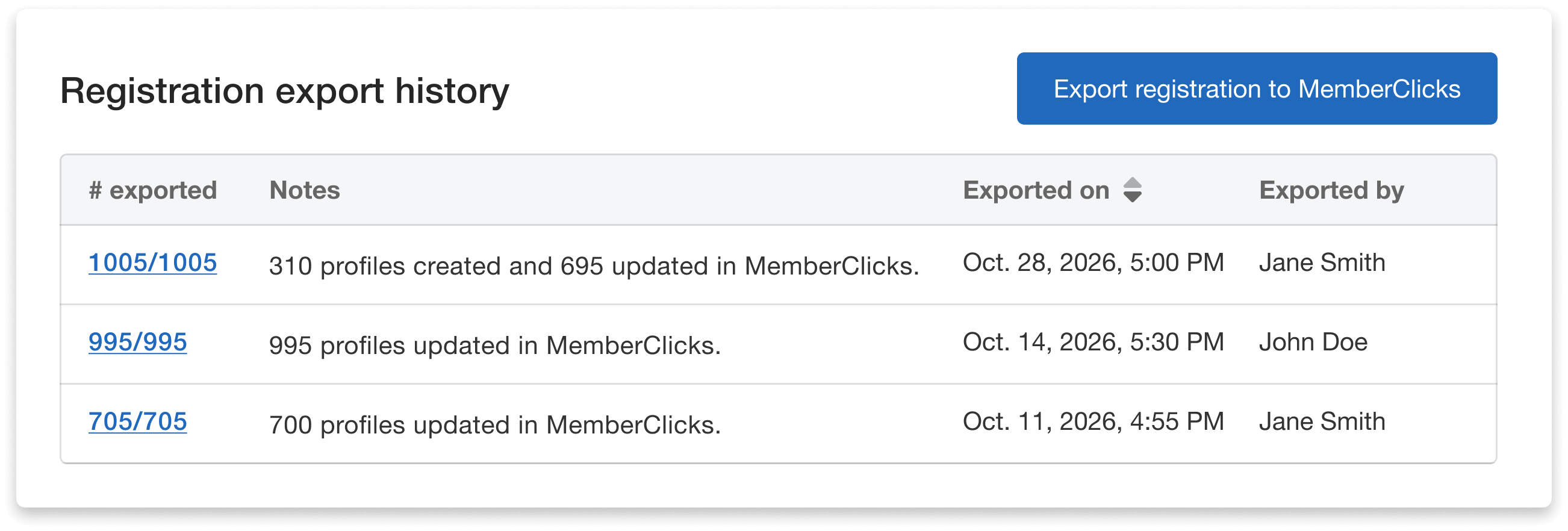 Access your export history data in one central dashboard.
This gives organizers a way to easily confirm that registration data was exported successfully and keep track of past syncs—all from one place.
Easily Review Exported and Unexported Data
Need to take a closer look at your export? You can view and download attendee data directly from the Registration Export History dashboard.
Click the hyperlinked number of exported profiles to open a detailed view. From there, you can review each attendee’s name and email, search for specific individuals, and see whether they were included in the export.
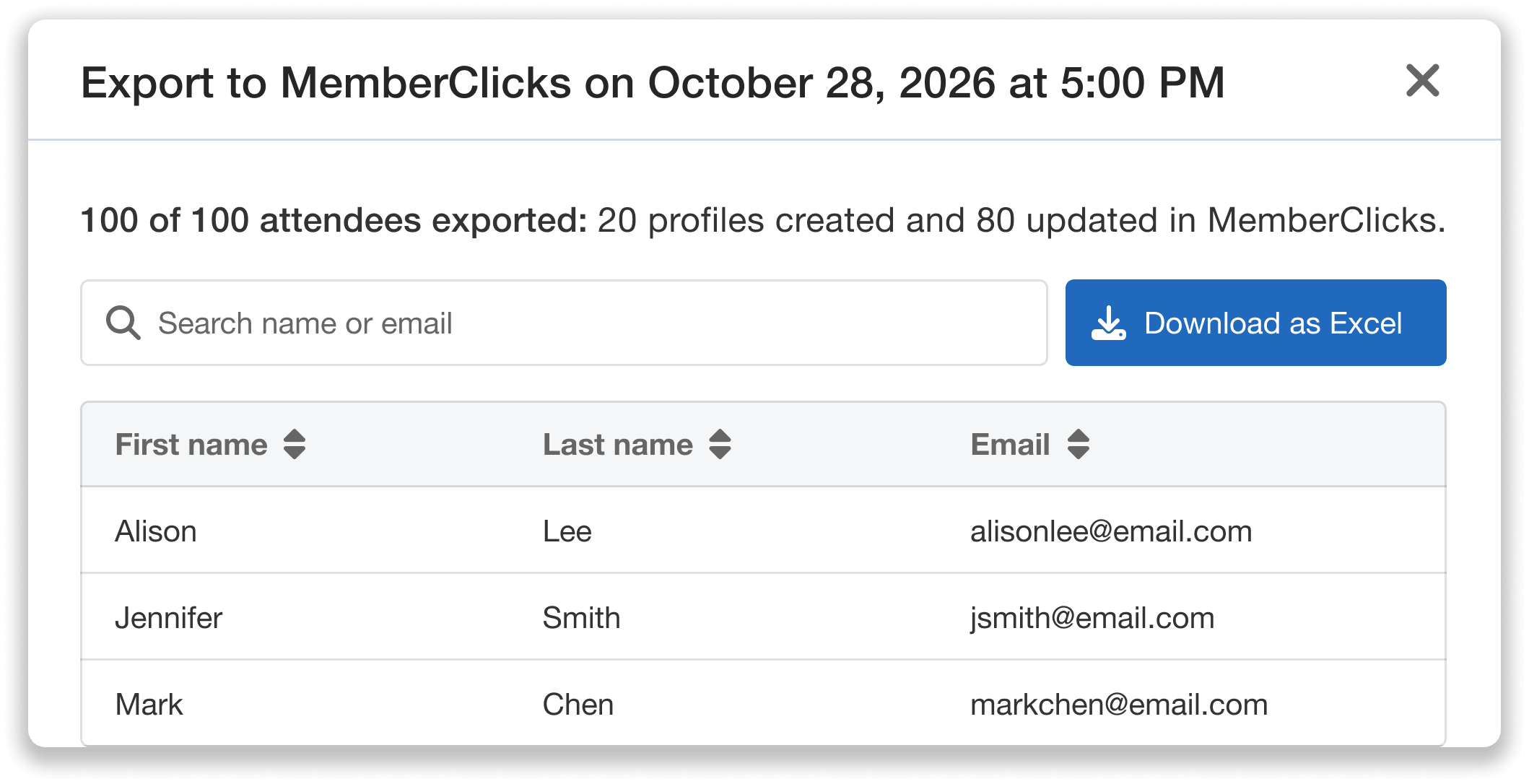 View and download attendee data directly from the Registration Export History dashboard.
You can also click Download as Excel to save the details for further review.
The downloaded file includes all attendees and their registration information, along with a dedicated column showing whether each attendee was successfully exported.
For example, if you chose not to create new MemberClicks profiles, you can quickly identify attendees who didn’t have a matching email address and weren’t exported. You can then use the spreadsheet to review those contacts and add them to MemberClicks manually if needed.
Keep Your Member Data in Sync With Whova
Your registration data can be one of the most valuable sources of up-to-date information about your attendees and members. With Whova’s direct integration with MemberClicks, you can move that data between systems without the manual effort of transferring records.
From flexible field mapping and new profile creation to repeat exports and a detailed export history, you can customize how and when your registration data is sent to MemberClicks.
Ready to simplify your registration data management? Connect Whova with MemberClicks and start syncing your attendee information today.