
January 8, 2026
Organizers often need to communicate with many different groups: speakers, exhibitors, sponsors, VIPs, volunteers, workshop attendees, panelists, poster presenters, banquet ticket holders, people with dietary restrictions, and more. Traditionally, that means creating and maintaining countless special mailing lists, often in spreadsheets or external tools, that are only useful for 3-6 months of the event planning and shortly after the event ends.
Whova eliminates this hassle by automatically organizing all these groups for you, based on real event data. The right lists are always ready, up to date, and available exactly when you need them. Instead of rebuilding temporary mailing lists, organizers can simply select a group and send messages directly, saving time, reducing errors, and making event communication far more efficient.
From event announcements to speaker messages, organizers rave about how Whova keeps communication simple and seamless. We make it easy to send out updates and session reminders with one of our top 5 most loved features: Announcements, complete with ready-made templates and schedule send capability. You can send announcements to all attendees, or to targeted categories or ticket types. Additionally, organizers use Message Exhibitors, Sponsors, or Poster Presenters to share key details in minutes. We’re constantly refining these features with updates like additional messaging templates almost every year.
Similarly, Message Speakers helps organizers directly communicate with speakers, from sending media release forms and sharing session details or key logistics to following up about presentation materials and profile details. You can send targeted messages to certain speaker groups, like by session or track or event day (in case of last minute changes, e.g. room changes).
Whova also makes it easy to collect speaker profile details with comprehensive forms, including custom fields for questions about AV needs, hotel requirements, and more. To stay organized, you can filter your speaker list for the speakers with no info uploaded, and quickly send them a targeted reminder to fill out the form.
We’re continuously making each feature—even the most loved ones—easier to use. That’s why we’re adding two new ways to send targeted communication with Message Speakers: Message By Role or Message by Missing Form Info! No more manually parsing through speaker roles or checking everyone’s profile info to compile a simple email list, or sending out mass email blasts overflowing with info.
You can now communicate directly with…
- Moderators: Send guidelines on managing session time, audience Q&A, and other key logistics.
- Panelists: Share question lists, coordinate speaking order, and review technical details.
- Speakers with incomplete profiles: Remind speakers to upload headshots or complete missing bio, affiliation, or job title information—make sure your marketing materials and event website are ready on time.
Why this matters:
- Send relevant, personalized communication. Share specific details about speaker responsibilities or reminders about form info with exactly who needs to hear them.
- Reduce stress and simplify your workflow. No more manual busywork chasing down each speaker for headshots, or sorting through speaker roles yourself. It’s all automated!
- Minimize errors. With automatic sorting, there’s no more worry about messaging the wrong speakers—or accidentally omitting the right speakers.
- Finalize details quickly. Targeted, personalized reminders help speakers submit necessary info in time, so your event materials are ready ASAP!
When speaker communication is a breeze, sessions run smoothly and your event stays on track. Read on to learn more.
Message Speakers of Specific Roles
Organizers can now deliver role-specific guidance, such as moderator instructions or panelist talking points, to the right group.
First, navigate to the Speaker Center in the Content tab and select Message Speakers.
From here, you can start from a template, create an email from scratch, or even reuse from a past or shared event. Whichever way you choose to begin, you’ll have an option to select the email’s recipients when composing the message. The default is “All speakers,” but you can easily switch to “Speakers of specific roles.”
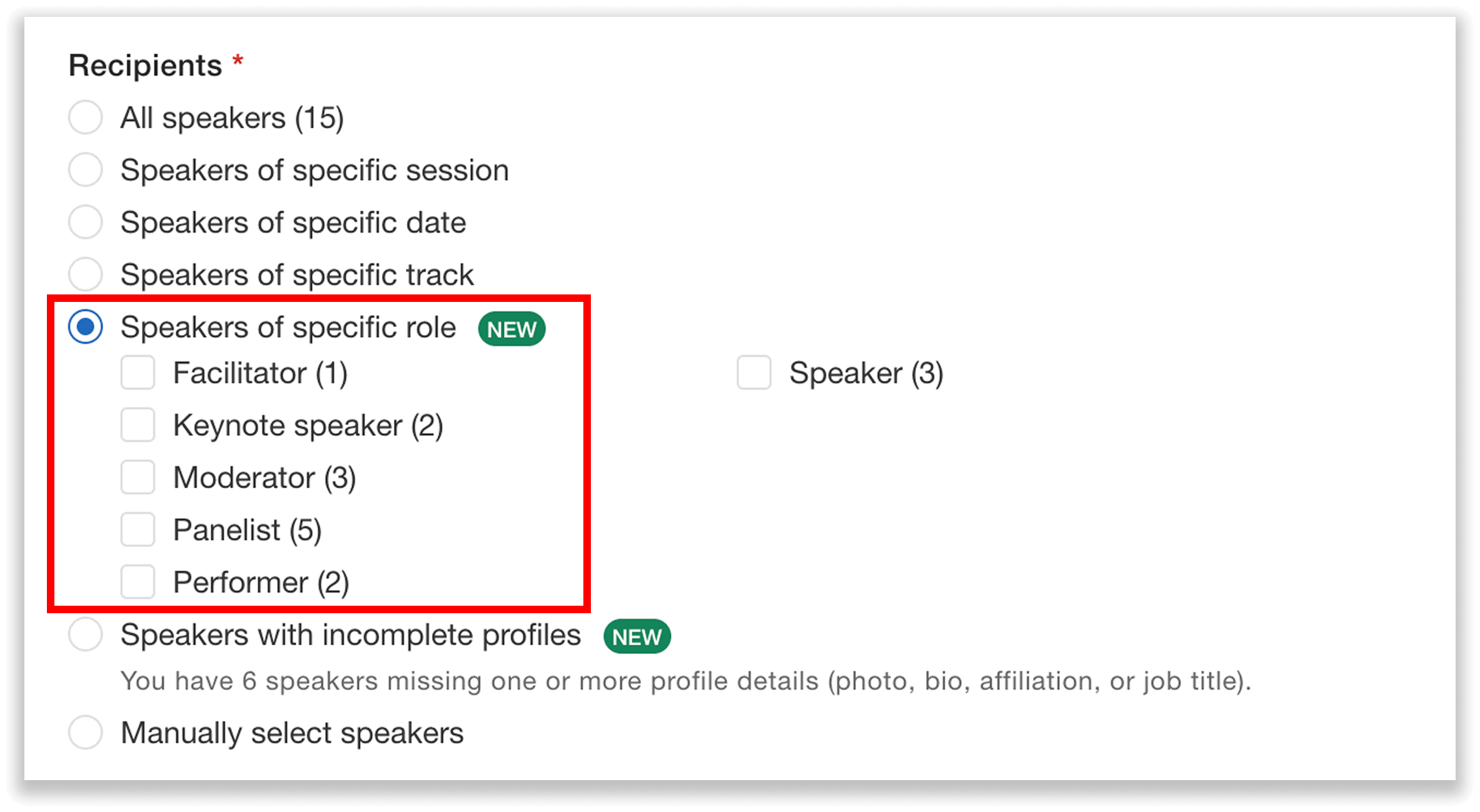
Send a targeted message to speakers of a specific role.
After selecting this option, you’ll see a list of speaker roles that are pulled directly from the roles you’ve assigned in the Session Manager. Choose any roles you want to message, such as:
- Moderator
- Panelist
- Keynote speaker
- Any other custom roles you’ve created
For example, if you want to send all moderators a set of guidelines about managing session timing and how audience Q&A will be handled, simply select the Moderator role. Only those speakers will receive the message.
Not sure how to assign roles? Here’s how:
- Go to the Session Manager in the Agenda Center.
- Add speakers to a session.
- Select “Change Role” next to the relevant speaker.
- Type in the appropriate role (Moderator, Panelist, Facilitator, etc.).
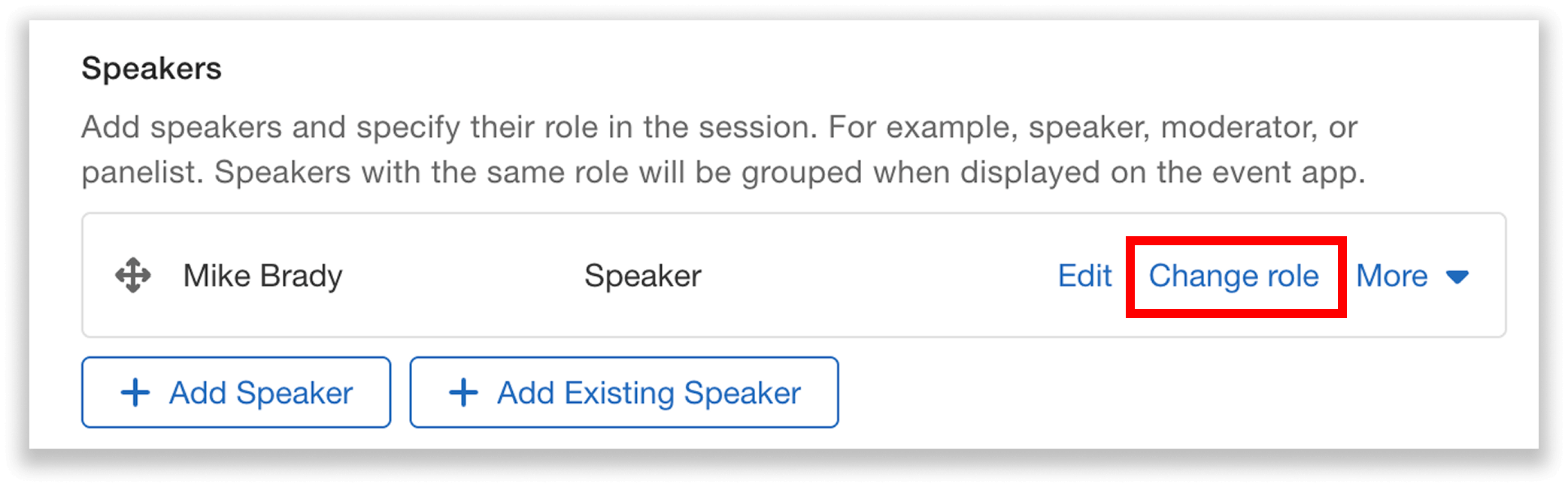
Change speaker roles in the Session Manager.
Message Speakers with Incomplete Profiles
You can also use targeted messaging to follow up with speakers who haven’t filled out parts of their speaker form—helping you collect critical materials early and reduce back-and-forth communication.
In the Message Speakers tab of the Speaker Center, you can get started by selecting a template, creating an email from scratch, or reusing a past email. When choosing recipients, select “Speakers with incomplete profiles.” You can then choose from two options:
- Missing profile photo
- Missing bio, affiliation, or job title
For example, if five speakers have not yet uploaded a headshot and you need their photos to finalize the event website or printed program, choose “Missing profile photo.” Only those speakers will receive the reminder.
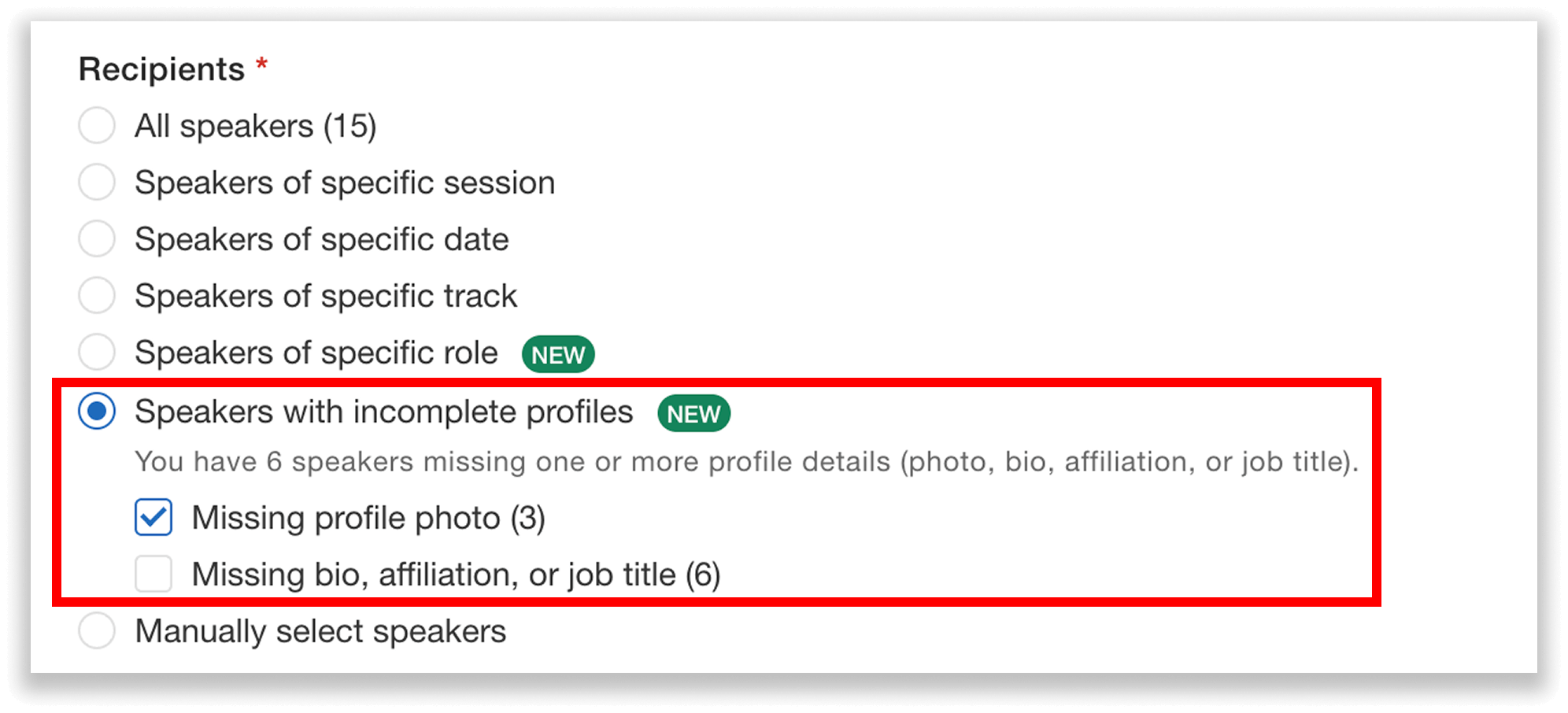
Send a targeted message to speakers with incomplete profiles.
Use these options to target exactly the speakers whose information you still need—finalizing event materials quickly and without the chaos.
Send Efficient, Targeted Messages
Precise speaker messaging gives organizers better control over communication, and makes it easier to provide relevant instructions and collect missing materials quickly—eliminating the need to manually build messaging lists. Whether you need moderators to review session guidelines or you’re chasing down last-minute bios, this update ensures your messages reach the right speakers every time.
Start using targeted messaging today by visiting the Speaker Center in your dashboard, or request a price quote to get started with Whova.