
April 27, 2026
Every association wants a smooth, reliable registration experience—from general admission to exclusive member-only tickets. But in practice, managing member pricing, ticket access, and session restrictions can quickly become complex and time-consuming.
That’s why organizers from 20,000+ events rely on Whova’s advanced registration tools. With features like Attendee Segments—built from registration responses and add-on selections—you can easily target the right groups with tailored communication and customized name badges. Invite-Only Ticketing adds another layer of control, allowing you to restrict access by email, organization, or organization type with ease.
For associations, protecting member benefits is especially important. To support this, Whova offers direct integrations with leading Association Management Systems (AMS) like MemberClicks, iMIS, WildApricot, YourMembership, GlueUp, Novi, and Neon CRM. These integrations allow associations to automatically verify membership status, and even member levels, in real-time.
But we understand our customers use dozens of different AMS platforms—many of them highly specialized or niche. While we’re continuously working to expand our direct integrations, we want to ensure every association has a secure way to protect their member-only tickets right now.
That’s why we’re introducing a new solution: Whova’s Upload Member ID List option for exclusive tickets. Even if we don’t currently integrate with your AMS, you can still use Whova Registration to protect your member-only tickets—simply upload a list of Member IDs and levels, and we’ll use that information to automatically verify membership before ticket purchase.
Importantly, this approach only requires minimal information (such as Member ID and level), so there’s no need to share full member records or sensitive data—helping you maintain privacy and stay in control.
Use Upload Member ID List to…
- Eliminate manual verification work: No more cross-referencing spreadsheets or checking membership status by hand—saving hours of administrative effort.
- Protect member-only pricing and perks: Automatically enforce access rules so exclusive discounts and benefits stay truly exclusive.
- Enable precise tier-based access: Easily differentiate between membership levels (e.g., Student, Associate, Premium) and assign the right tickets and pricing to each.
- Protect exclusive sessions: Use Ticket Session Mapping and Add-On Session Mapping to ensure high-value workshops are only accessible to verified member-only ticket holders.
- Stay flexible as data changes: Quickly update member records anytime by editing individuals or re-uploading your list in bulk.
- Centralize everything in one platform: Manage all ticket types, from general admission to member-only, add-ons, and sessions, without switching between tools.
This update ensures that no association is left behind. Whether you use a popular AMS or a niche platform, you can now enjoy the full power of Whova Registration while keeping your member benefits protected.
Want to learn more? Read on.
Upload a Member List For Your Member-Only Ticket Restriction
After creating your desired ticket types, you can find “Member & Invite-Only Ticketing” in the Tickets tab under Ticket Setup.
You’ll see a list of your tickets here. Find the ticket you want to restrict, and select “Add restrictions.”
You can then select the option to “Restrict to specific membership levels and statuses.”
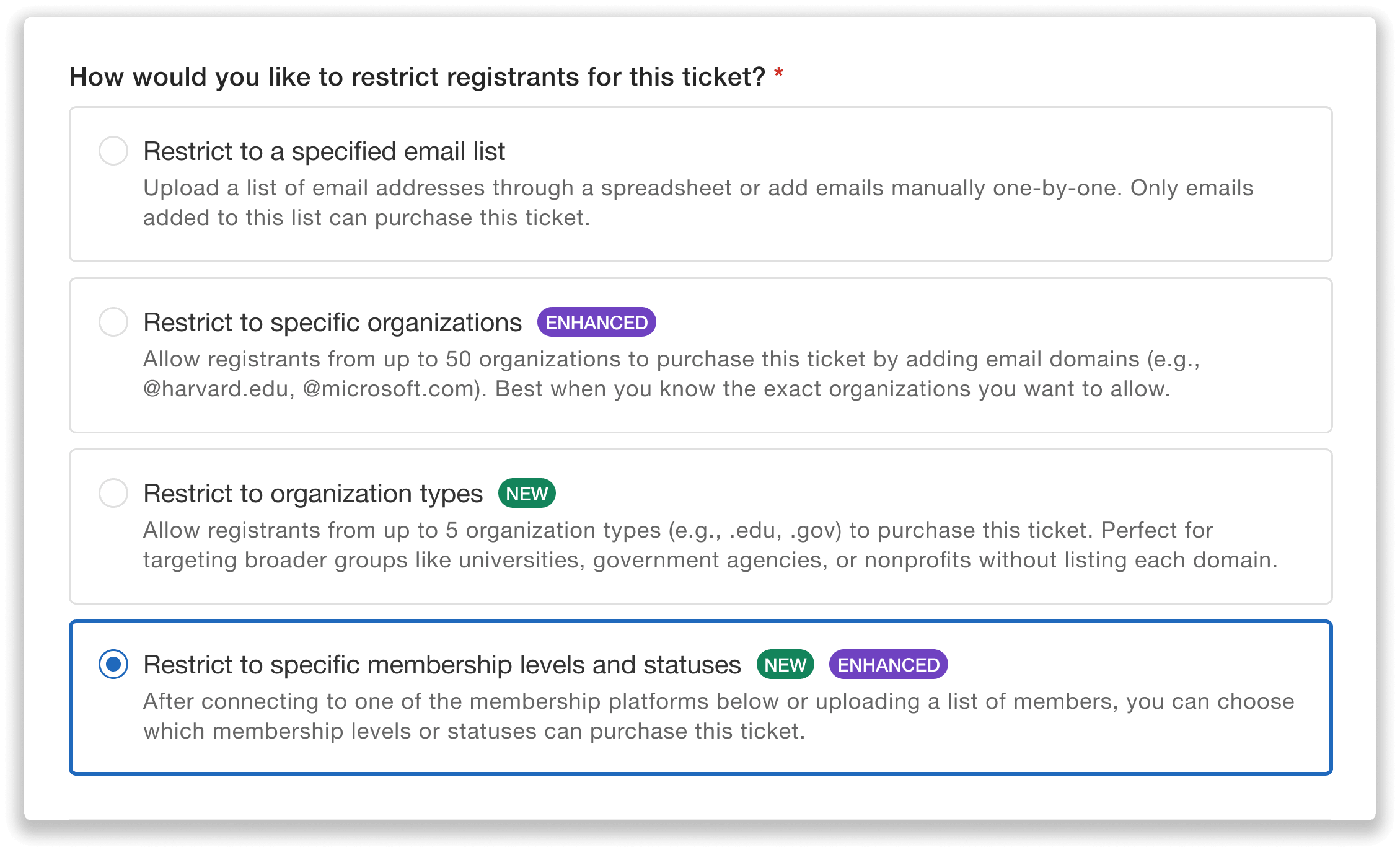
Select “Restrict to specific membership levels and statuses.”
You will then see an option to upload a list of members. The “Upload spreadsheet” button will take you to upload your member list using a Whova Template.
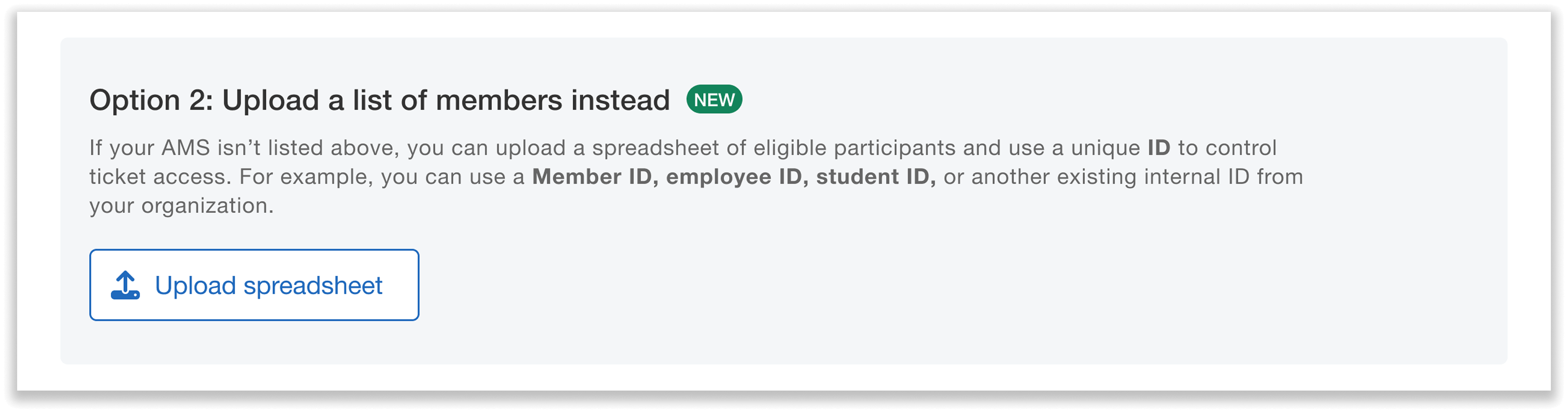
Upload a spreadsheet of unique IDs from your AMS to control ticket access.
Step 1: Download the Whova Template and fill in your member list.
Here, you’ll add each member’s ID and membership level, following the format shown in the template.
You can also optionally add members’ email addresses for additional verification. For members with an email listed, the Member ID and email they enter during registration must both match your uploaded list in order to purchase restricted tickets.
You can export this information from your AMS platform to fill out the template quickly instead of manually entering each line, helping you bring your existing membership database into Whova efficiently.
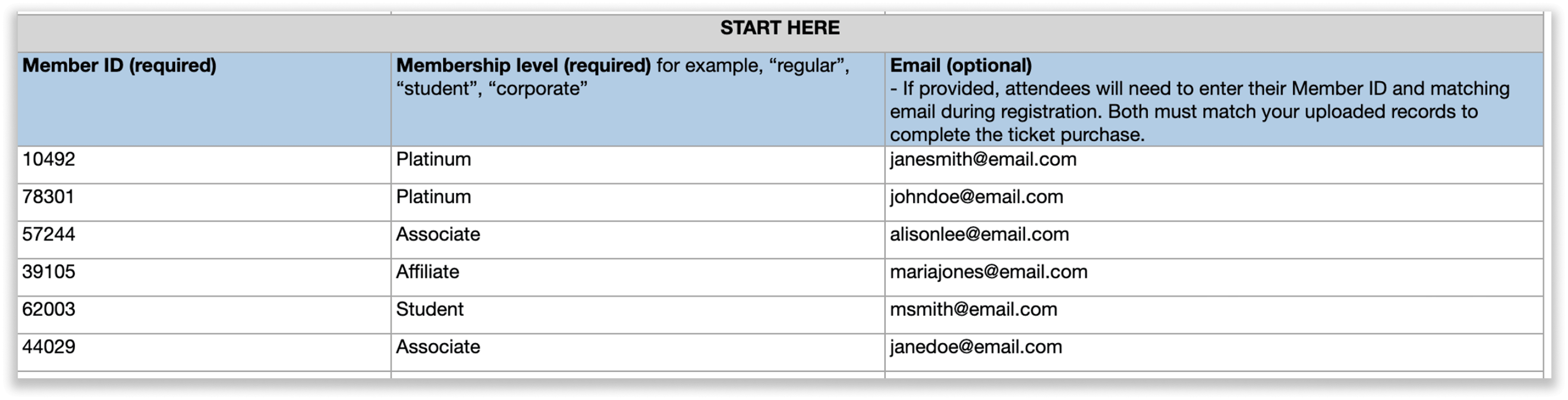
Fill in your list of member IDs and levels into the Whova Template.
Step 2: Upload the member list as an .xlsx file.
Next, you’ll save the completed spreadsheet as an .xlsx file and upload it into Whova. You can then review the list of members from your upload and can see each Member ID, membership level, and email (if uploaded).
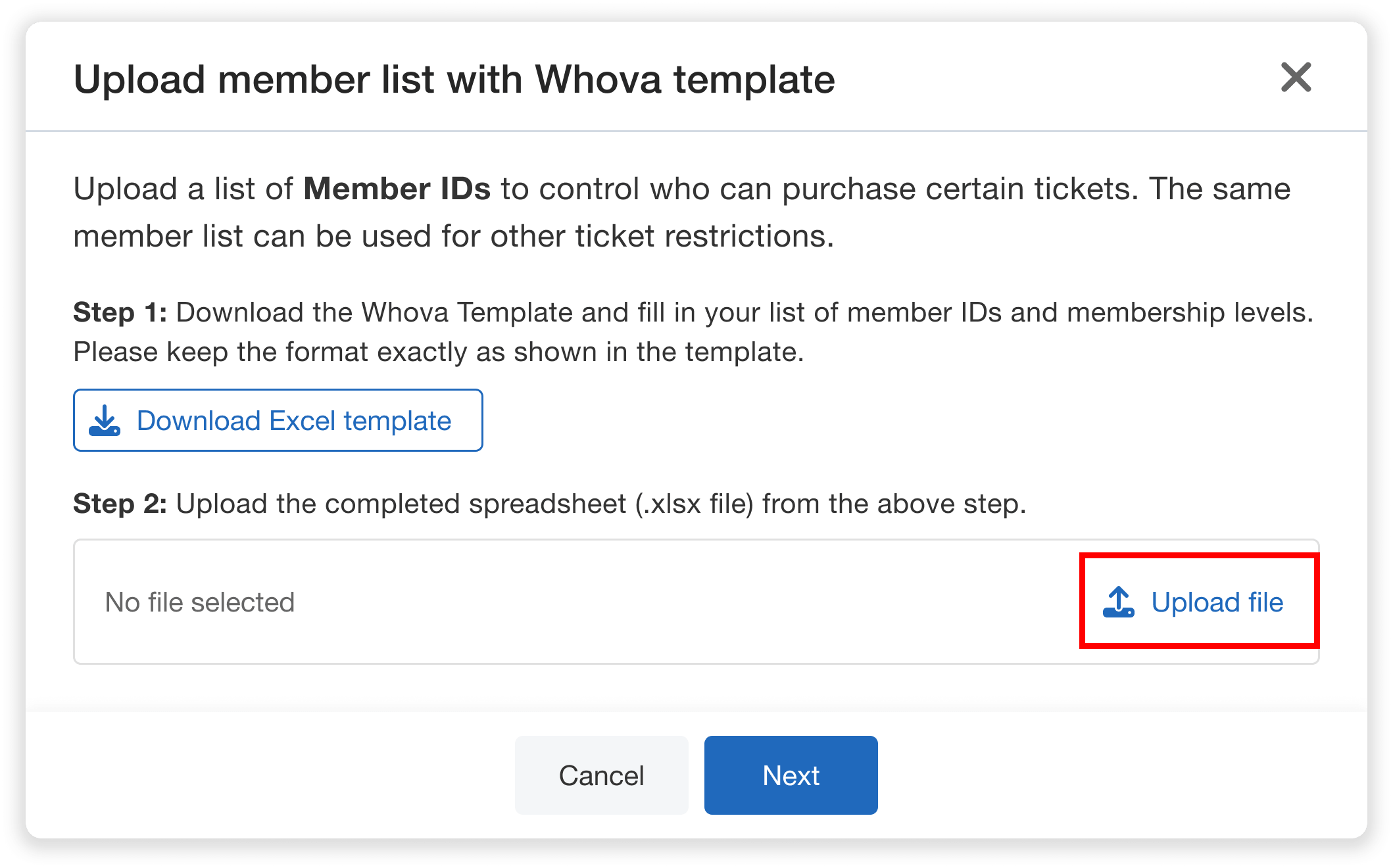
Simply upload your completed member list as an .xlsx file.
Note: Whova is SOC2 compliant, the industry gold standard for data security and privacy— meaning your membership information stays protected while member status is easily verified during registration.
When you’re ready to proceed, press “Finish” to import the list.
Set Your Ticket Restrictions
Now that you’ve uploaded your member ID list, it’s time to configure your membership restrictions.
First, you’ll choose which membership levels can purchase the ticket. For example, you could restrict a ticket so that Full and Associate members can purchase it, but Student and Affiliate members can’t.
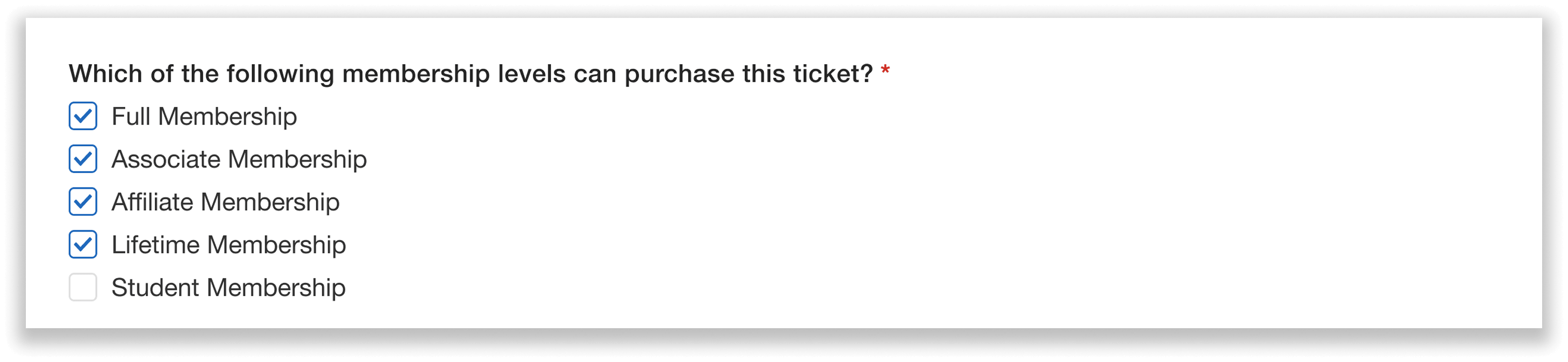
Easily restrict tickets based on membership level.
You’ll also provide your organization’s name or acronym for registrants to see when asked to enter their Member ID. You can even preview what the registration page will look like.
Once you’re done, press “Create restriction.”
The same member list you uploaded can also be used to create other ticket restrictions. For example, you could create both a regular member ticket and a student member ticket. This gives organizers precise control over ticket eligibility, with all types managed in one centralized registration system.
Easily Update Your Member List If Needed
We know your member list is always changing as new members join, membership levels change, and records need updating. To keep your member ID list in Whova current, you can make any edits needed after your initial upload.
Under “Set membership restrictions” for any given ticket, simply click “Edit list.”
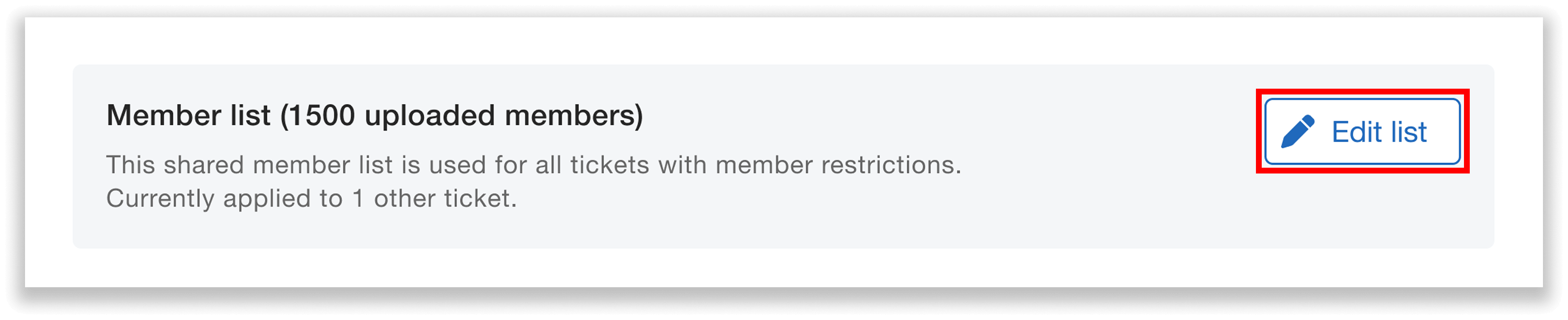
Easily edit your member list after uploading.
You will then be taken to a page where you can:
- Upload another spreadsheet: re-uploading will add new members and update existing ones in the member list.
- Manually add members: you can enter new members’ ID, membership level, and optionally their email address.
- Easily edit info: Edit the Member ID, membership level, or email address of any member.
- Remove members as needed.
This flexibility makes it easy to keep your data accurate without starting over every time your member information changes.
How Do Members Purchase Member-Only Tickets?
On your event registration page, when attendees select a ticket you’ve set member-only restrictions for, they’ll be asked to enter their Member ID before they can purchase it.
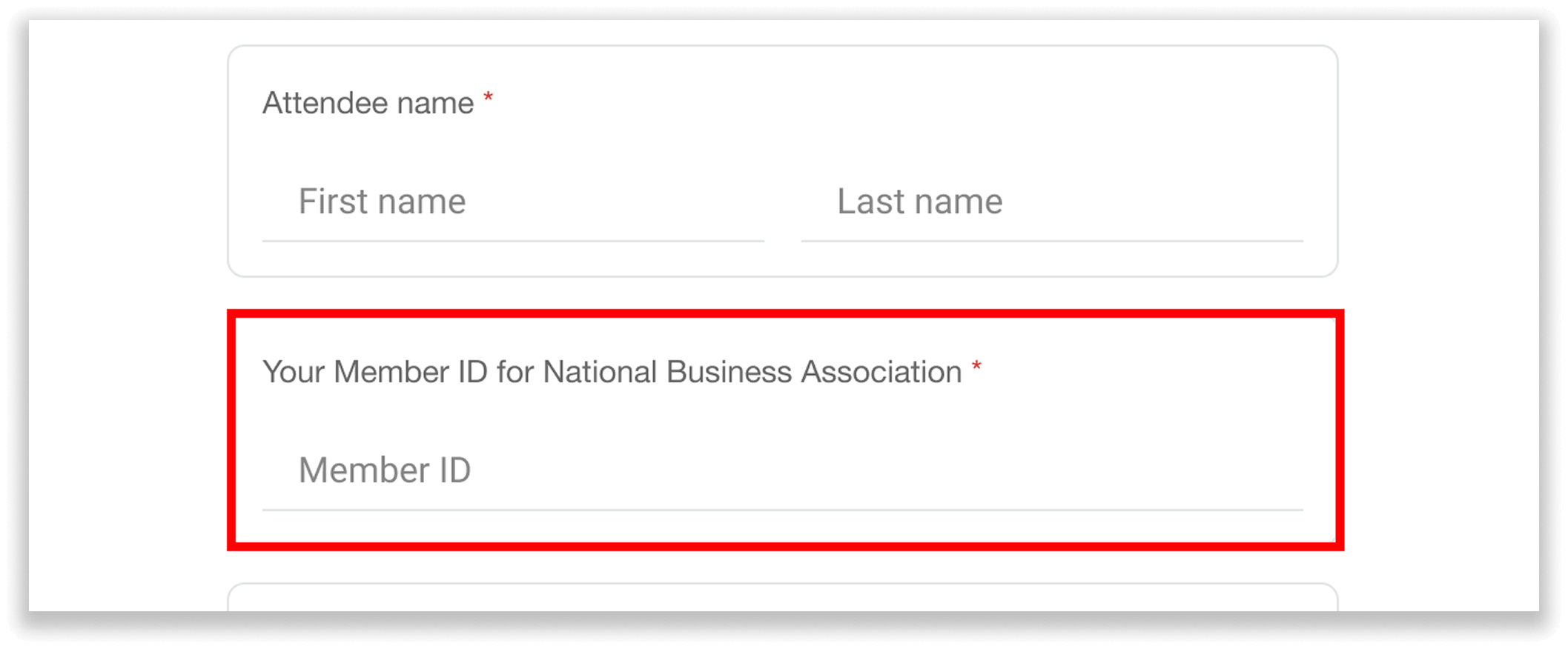
Members will need to provide their Member ID to purchase restricted tickets.
Whova will automatically check the ID against your uploaded list to ensure each registrant is a verified member, and that their membership level meets your requirements. This keeps your member-only tickets secure and exclusive.
For members with an email address included in the list, our system will also check that their entered email matches before purchase. If there’s a mismatch, the registrant will receive an error prompting them to correct the email before completing their purchase.
Note: each member ID (and email) can only be used to purchase one restricted ticket, ensuring that every ticket is tied to an individual verified member. Attendees purchasing multiple member-only tickets must use different IDs (and emails) for each ticket.
This instant verification upon registration means no more manually cross-referencing against external member databases—saving hours and reducing human error.
Verify Membership for Restricted Tickets Regardless of AMS
Whova’s new Member ID List Upload gives organizers a practical, secure way to verify membership right from our platform—even when direct AMS integrations aren’t possible.
Whether you need to protect member-only discounts, offer tiered pricing based on membership level, or restrict access to exclusive events, this new release gives you more control without adding more administrative work.
Ready to simplify membership verification for your next event? Try Whova’s new Member List Upload and make exclusive ticketing faster, easier, and more secure. Or, request a live demo to see how Whova has helped 50,000+ events with more than 10 million attendees.