
February 26, 2026
Attendees are busy moving between sessions, juggling conversations, and scanning for what to do next. If an update, reminder, or engagement opportunity doesn’t reach them at the right moment, it’s effectively invisible. Great events are more than well planned; they’re well communicated, in real time.
Most venues are already equipped to help with this. Lobby monitors, hallway screens, and large displays in common areas offer constant visibility throughout the day. Yet these screens are often underused. With everything else on their plate, organizers default to static logos or generic slides that never change—missing a powerful chance to guide, engage, and energize attendees on-site.
Whova was built to solve this exact problem. Organizers already rely on Whova Announcements—used by over 90% of events—to quickly push important updates to attendees’ phones, or schedule messages ahead of time. Beyond announcements, Whova automatically prompts attendees at the right moments, from reminding them to complete surveys, session feedback, and event polls. Our app’s Community Board further brings people together by powering attendee networking, discussions, meetups, and photo sharing—turning event communication into an ongoing, two-way conversation rather than one-way messaging.
But mobile communication alone isn’t always enough. On-site screens play a different role: they shape the atmosphere of the event, without requiring attendees to take out their phones, and reinforce what’s happening in the moment right here, right now.
That’s why we originally introduced the Social Wall: a simple way to sync content from the Whova dashboard and display announcements, reminders, sponsors, and activity on venue screens without manual setup. Despite its simplicity, over 1,000 events still use it every year, proving just how valuable on-site screens can be.
Now, we’re taking this idea much further with a complete, modern makeover.
Welcome to the Announcement Wall: a completely redesigned, modern experience that turns venue screens into live, dynamic storytelling tools for your event.
With refreshed visuals, deeper customization, focused sponsor highlights, and expanded content options, the Announcement Wall highlights key announcements and sessions, gives sponsors premium visibility, and showcases live engagement happening in the Whova app—all in a polished, professional display that updates automatically.
Organizers can use the Announcement Wall to:
- Share important announcements and time-sensitive reminders—ensure no important update, reminder, or opportunity to participate is missed.
- Boost sponsor visibility on the big screen—make this a tier-based perk or offer it as an à la carte opportunity!
- Highlight ongoing community engagement and boost participation in the Whova app, from meet-ups, polls, and discussion topics to games, contests, and Join the Crowd updates.
- Promote upcoming sessions and remind attendees to submit surveys and session feedback at the right time.
- Remind attendees about ongoing contests and gamification, such as Photo Contests, Leaderboard competitions, Passport Contests, Trivia, and icebreaker games—you’ve already put in the effort and prizes, now you can make sure more attendees join in.
- Create your own custom content, such as spotlighting keynote speakers, promoting your next event, showcasing your organization or program, and more.
The result? A cohesive, high-quality experience that makes the entire event feel more organized, engaging, and polished—without extra effort or cost from the organizers.
Your venue already has the screens. Now they can finally work for you.
Read on to see what you can build with Whova’s Announcement Wall.
Building an Engaging Announcement Wall
The Announcement Wall gives organizers a powerful way to showcase live engagement, share essential event information, and encourage participation across the Whova app, all from one dynamic display.
To get started, navigate to the Engagement tab in your dashboard, open “Announcement Wall,” and select “Announcement Wall Customization.” From there, you can build a rotating set of slides tailored to your event goals and audience.
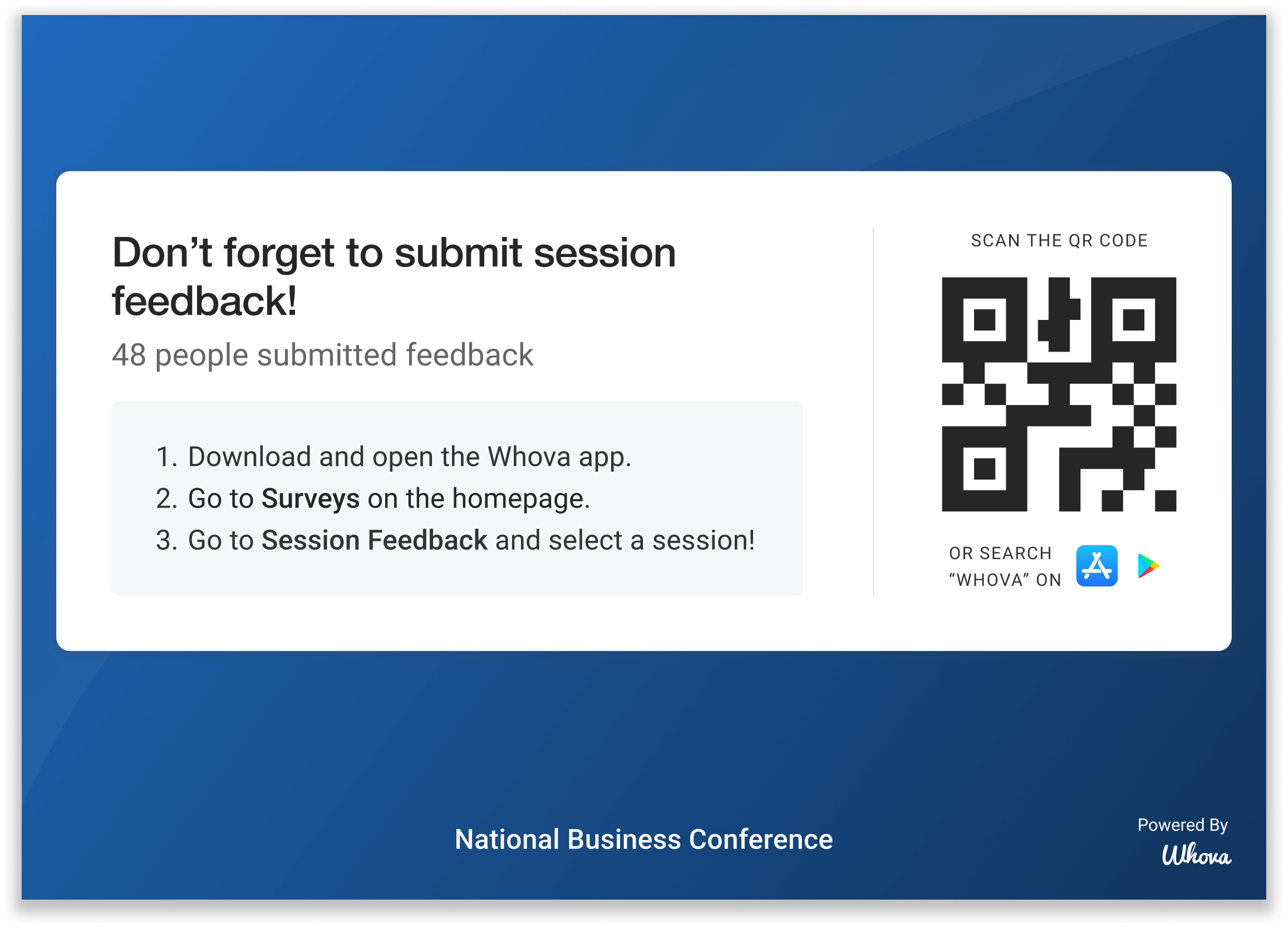
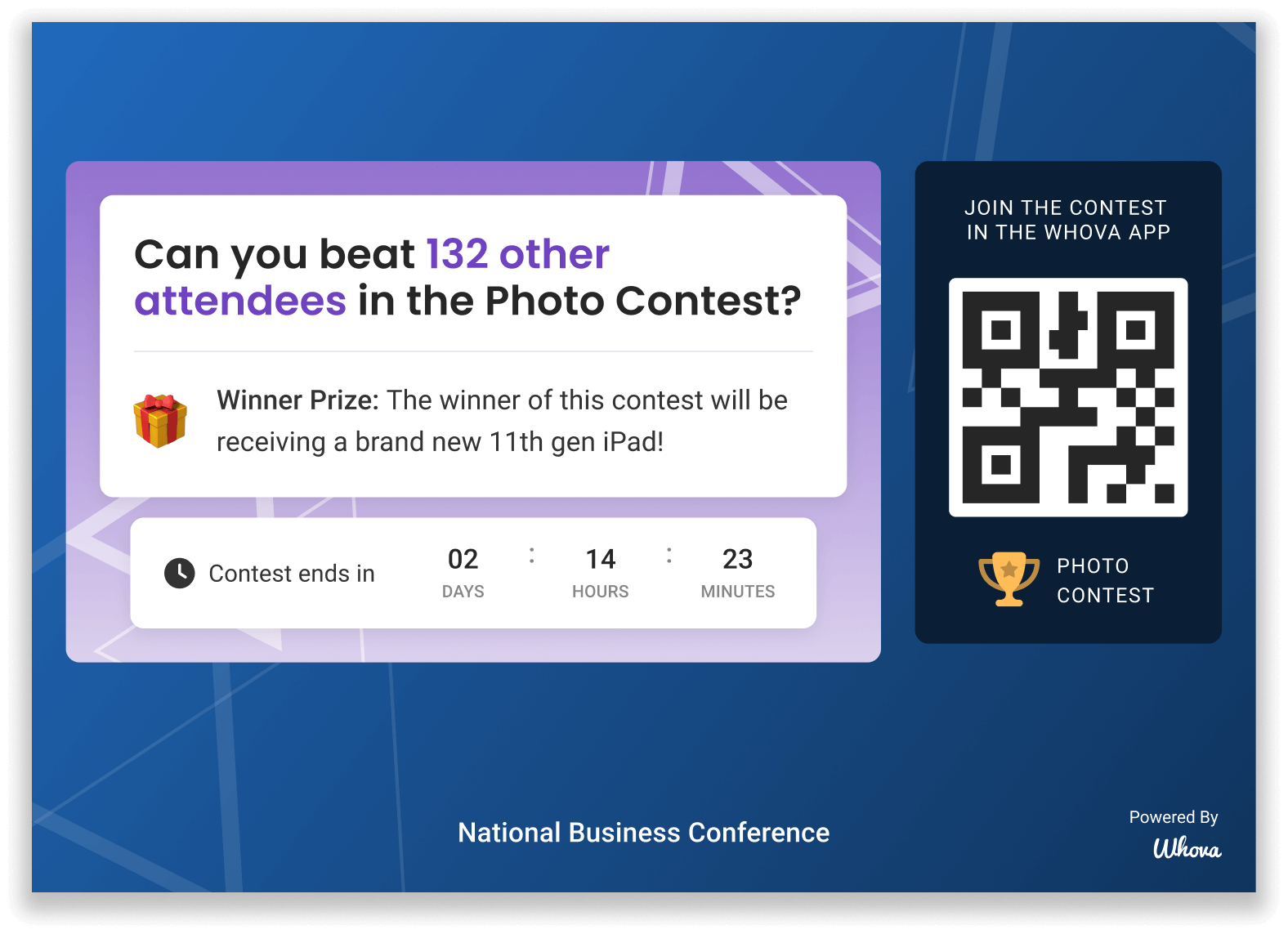
Bring key updates, engagement, and community activity to life with slides like these and more—all tailored to your event.
You will see the following content options, which you can either show and customize, or hide:
General Event Content
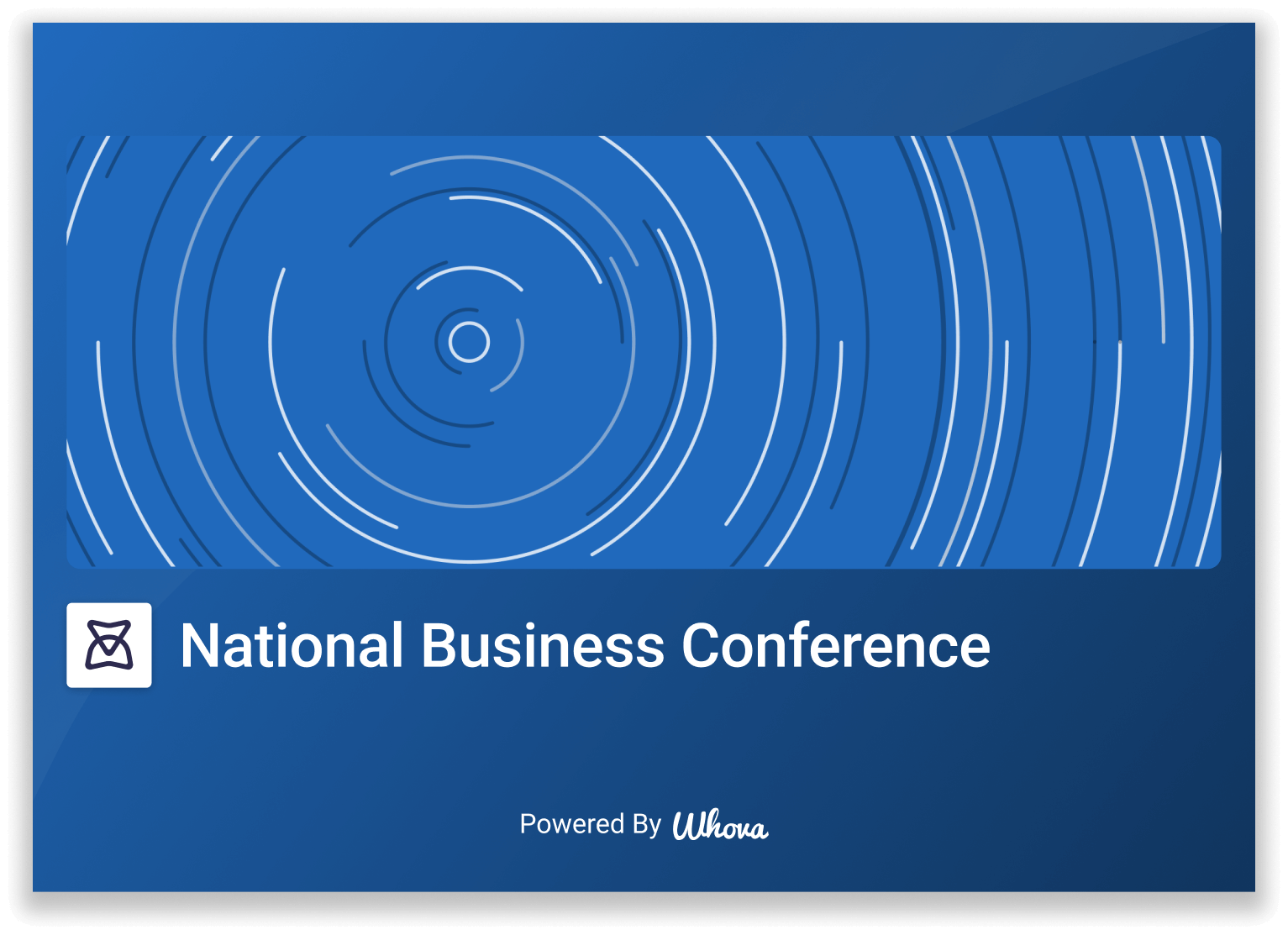
Reinforce your event branding through an event overview slide displaying your event’s name, logo, and banner image. This helps create a consistent visual identity throughout the venue. You can also include an app download slide highlighting app usage and featuring a QR code, so attendees can easily download Whova and join the conversation.
Event Details
Share key logistical information and keep attendees on track with slides that highlight upcoming sessions, sponsors, and announcements.
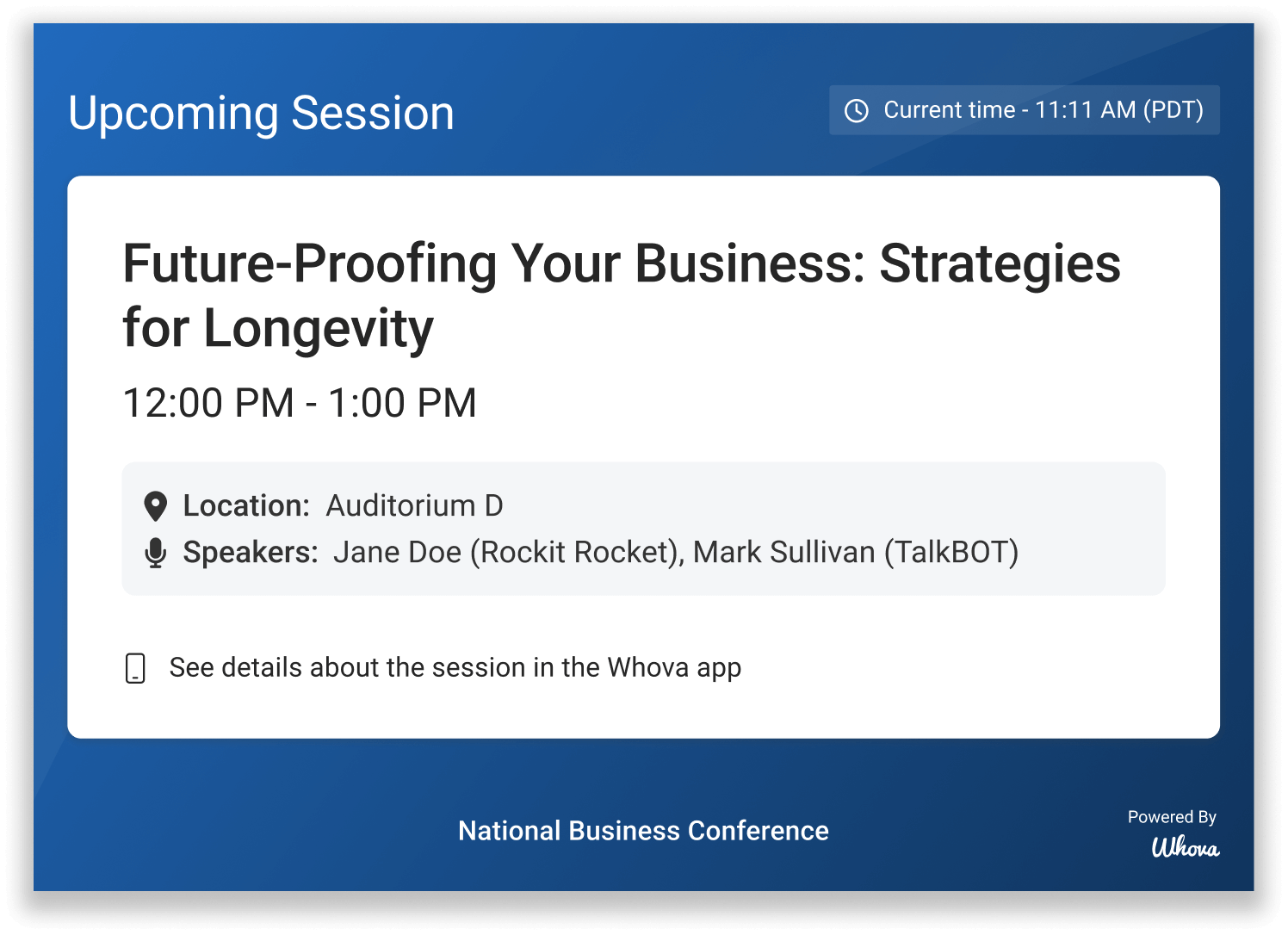
Upcoming session slides display session times, locations, and speakers, and can be scheduled to appear one or two hours before each session begins.
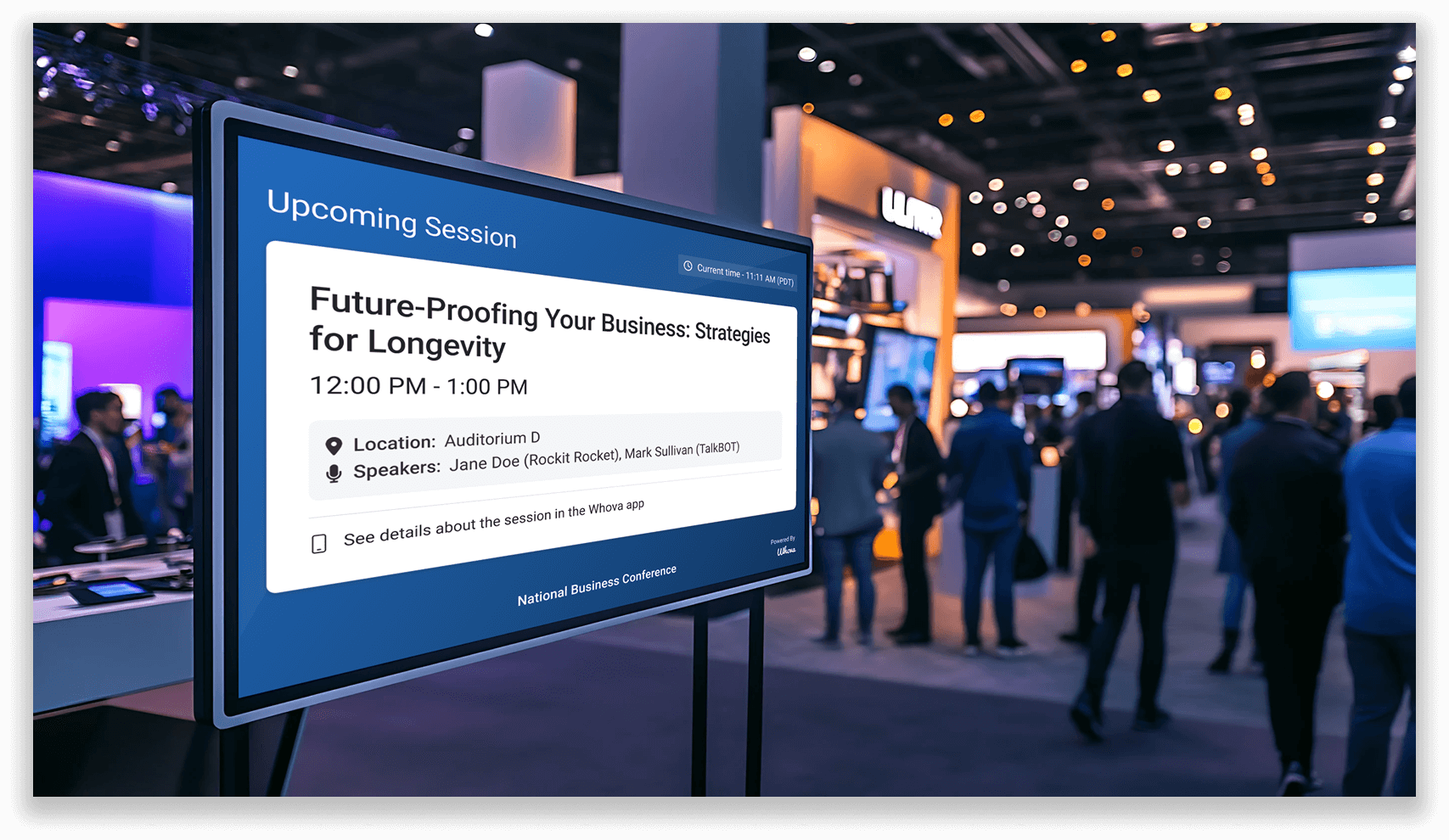
Display upcoming session details to keep attendees in the loop.
Sponsor slides boost visibility with flexible options, including displaying multiple or individual sponsors per slide, highlighting specific sponsor tiers, and adding custom headlines such as “Thank You to Our Sponsors.” These customizations make it easy to package on-screen placement as a perk for certain sponsor tiers or make them an à la carte upgrade.
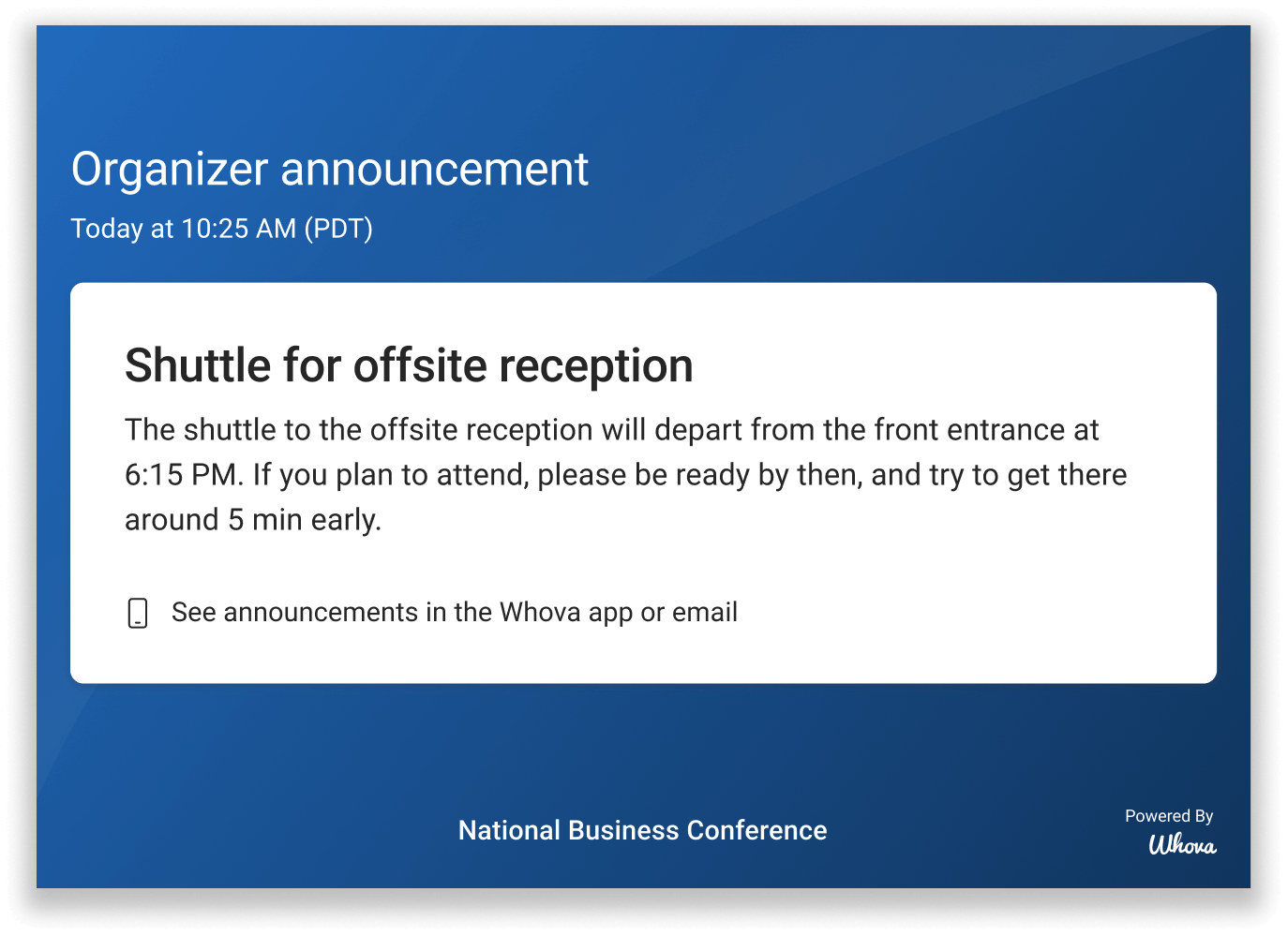
You can also display organizer announcements on large screens to ensure important updates reach attendees in real time.
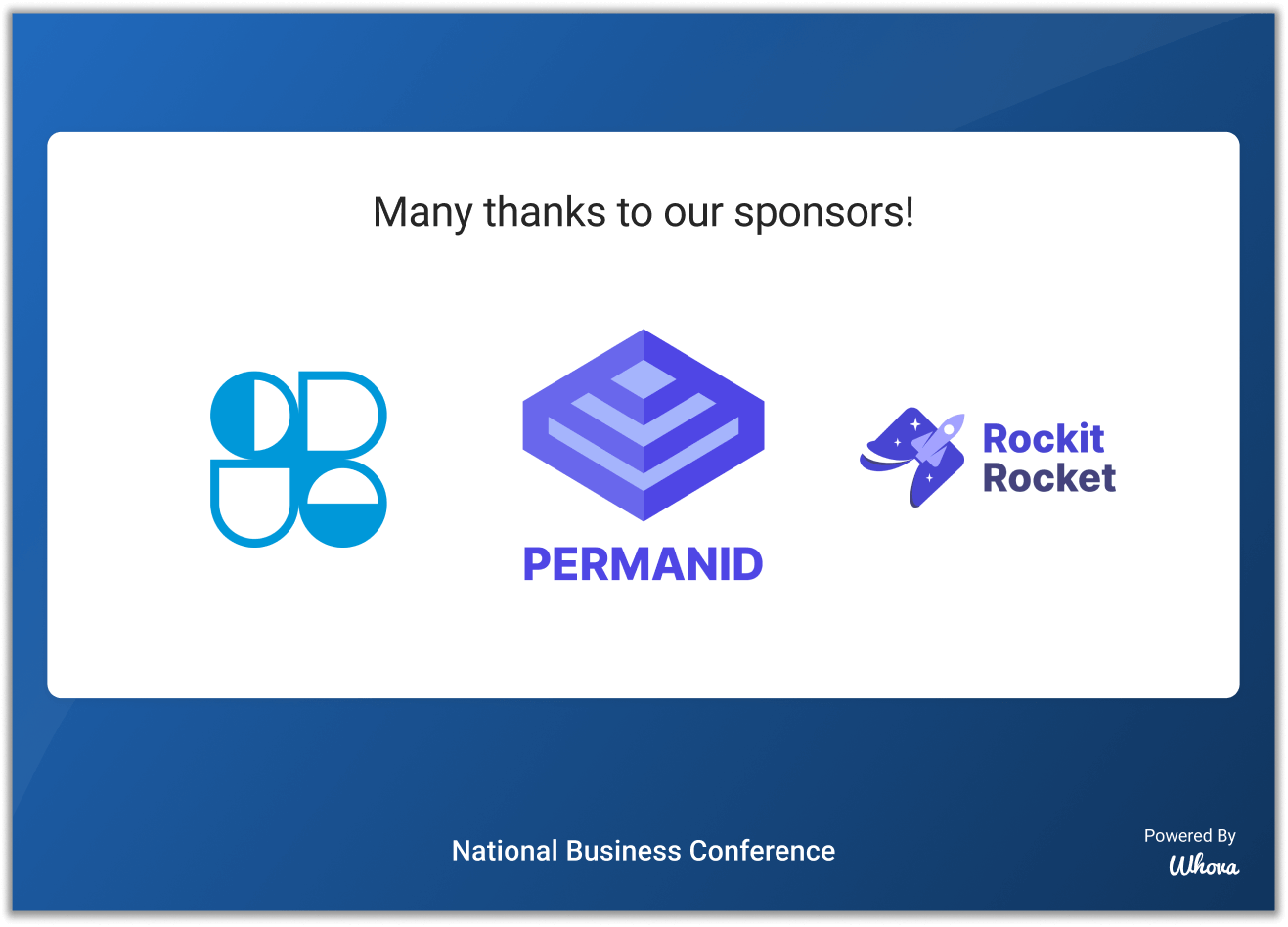
Give sponsors premium visibility by featuring dedicated, customizable slides on venue screens.
Gamification
Keep energy high and encourage attendee participation with slides dedicated to contests and interactive games. Each contest—like Photo Contest, Passport Contest, and Trivia—can have its own slide showcasing participant count, prize details, countdown timers, and a QR code to join. These slides help create excitement, drive engagement, and ensure attendees know exactly how to participate in real time.
Reminders
Use reminder slides to prompt timely actions like filling out live polls, surveys, and session feedback. Live poll slides display active polls with QR codes so attendees can vote instantly, while survey slides encourage completion of event evaluations. Session feedback slides provide clear instructions and QR codes, making it easy for attendees to submit feedback and helping organizers capture valuable insights.
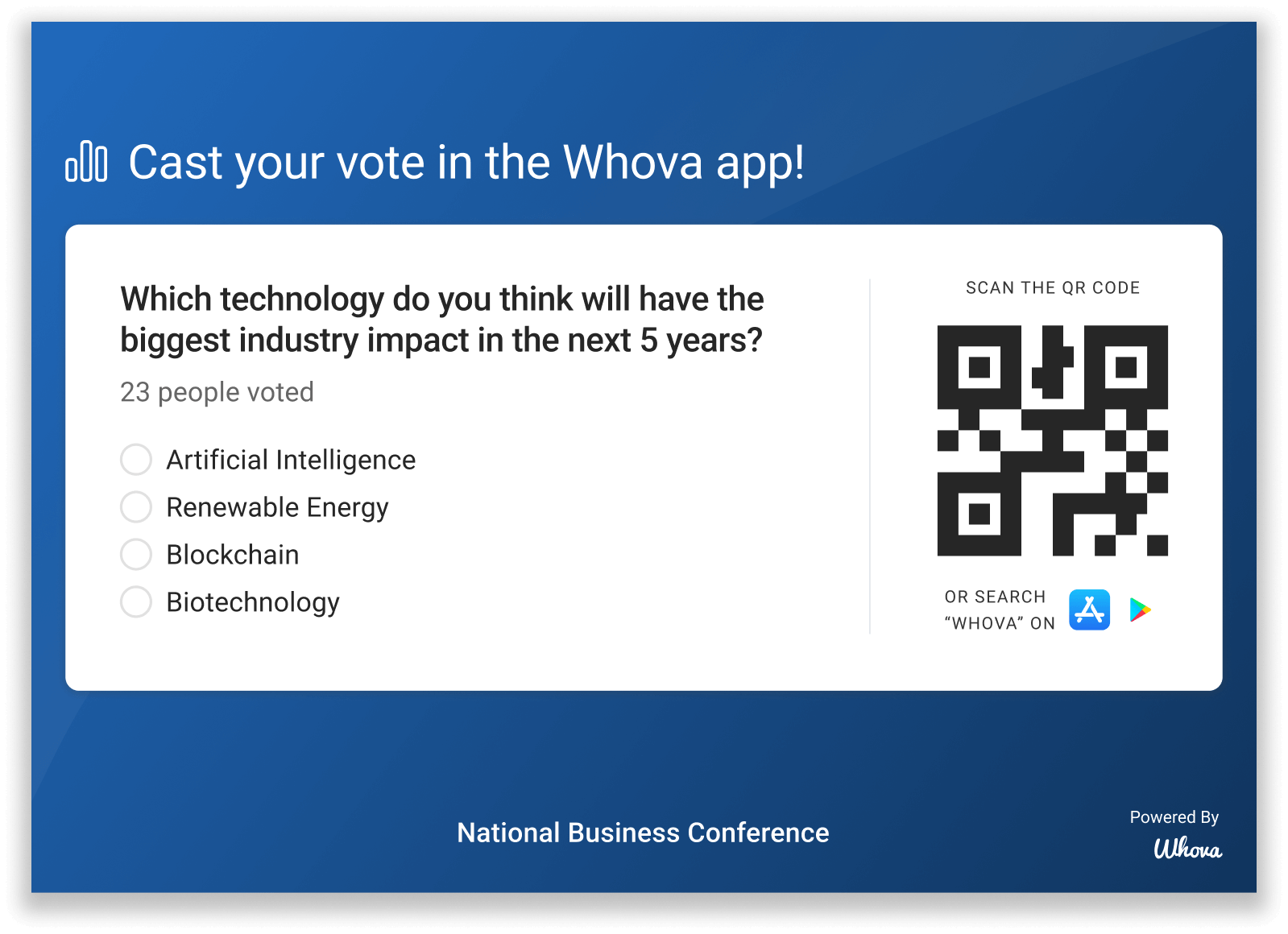
Remind attendees to fill out polls on the big screen—drive energy and engagement.
Community and Engagement
Community and Engagement slides give organizers a powerful way to spotlight what’s happening across the event community in real time. These slides can highlight networking and community activity with slides showcasing meetups, discussion topics, job postings, and community polls—making it easy for attendees to discover where conversations and connections are happening.
Join the Crowd slides take this one step further by showcasing real-time engagement signals across the Whova app, such as how many attendees are adding sessions into their personal agenda, messaging, networking, taking notes, or joining activities at that moment. By making participation visible, these slides show attendees how others are using the app and encourage broader engagement, helping maximize the value of the time and effort organizers have invested in the Whova Event app for attendees.
Photos
Photo slides allow organizers to curate and display images from the event’s Photo Gallery, turning attendee-captured moments into dynamic visual storytelling. Organizers have full control over which photos appear and how many are featured per slide, making it easy to highlight key moments, popular activities, or the overall atmosphere of the event.
Whether displayed on venue screens or your event webpage as activity feed, Photo slides help reinforce engagement, celebrate attendee contributions, and create a more immersive, lively event experience – without requiring extra effort from the organizing team.
Custom Content
You can even add your own slides by selecting “Add custom content,” giving you full flexibility to tailor the Wall to your event. Use custom slides to share WiFi credentials, spotlight keynote speakers or board members, promote upcoming events, display special announcements, and more. These slides let you address unique events needs and highlight what matters most to your attendees.
Together, these content types give you everything you need to build an Announcement Wall that keeps attendees informed, engaged, and connected throughout your event.
Customizing Your Announcement Wall
Once you’ve set up your slide content, it’s time to customize your Announcement Wall display settings.
By default, the slides’ background color is set to match your App Branding Header, but you can adjust this to any color you like.
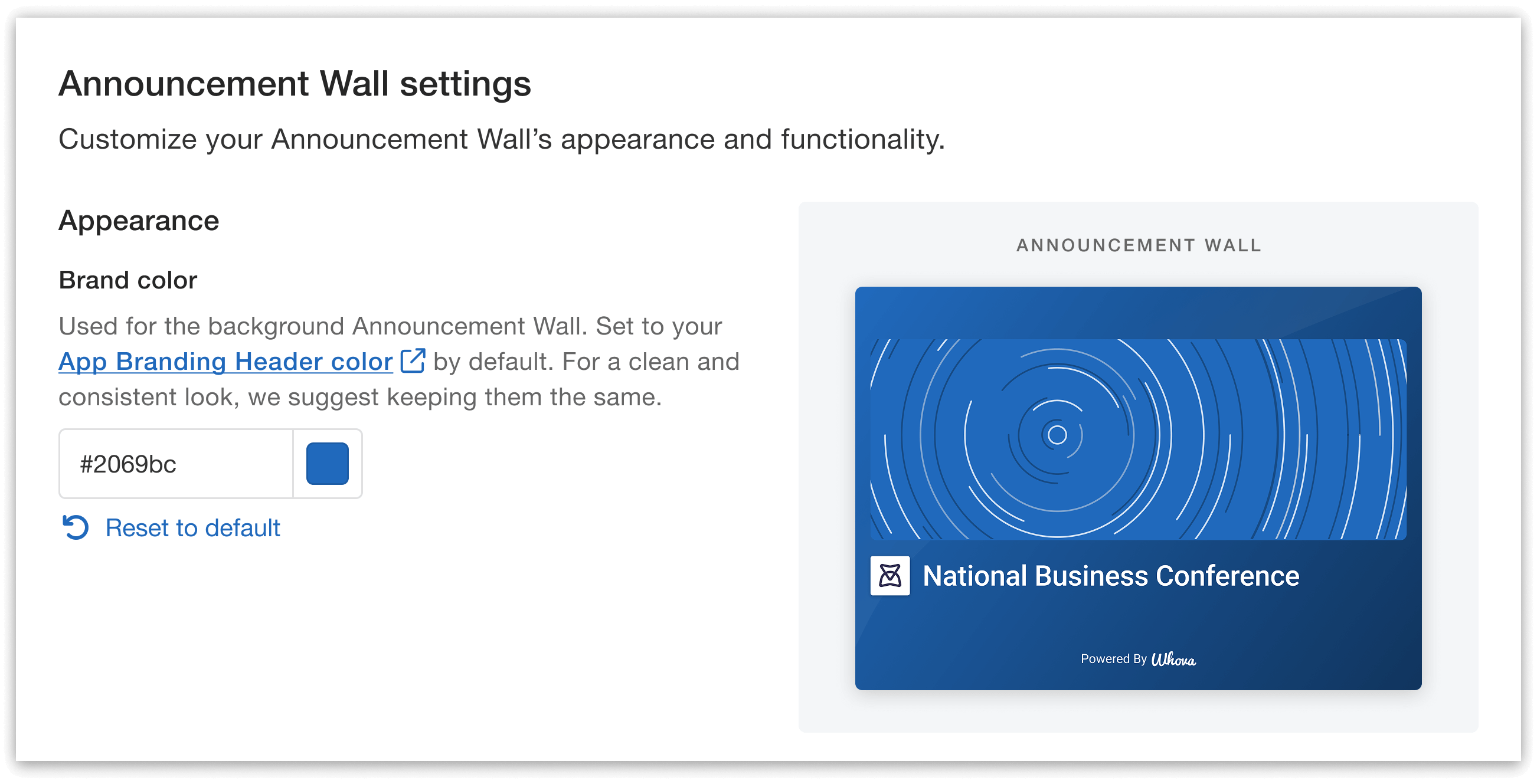
Create a cohesive, on-brand experience with customizable brand color, plus timing and layout options for your Announcement Wall.
You can also control how long each slide appears on screen. Default slides can be set to display for either 20 or 40 seconds, while photo and sponsor slides can be set to 10 or 20 seconds. Your slides will rotate automatically based on these settings, keeping the content fresh and dynamic throughout the event—no manual updates needed.
The order of slides is fully customizable. Instead of a randomized rotation, you can select “Custom order” to arrange the rotation order exactly as you like. For example, you might start with the App Download slide to encourage attendees to engage with Whova right away, and end with a custom slide that thanks attendees for coming while promoting your next event.
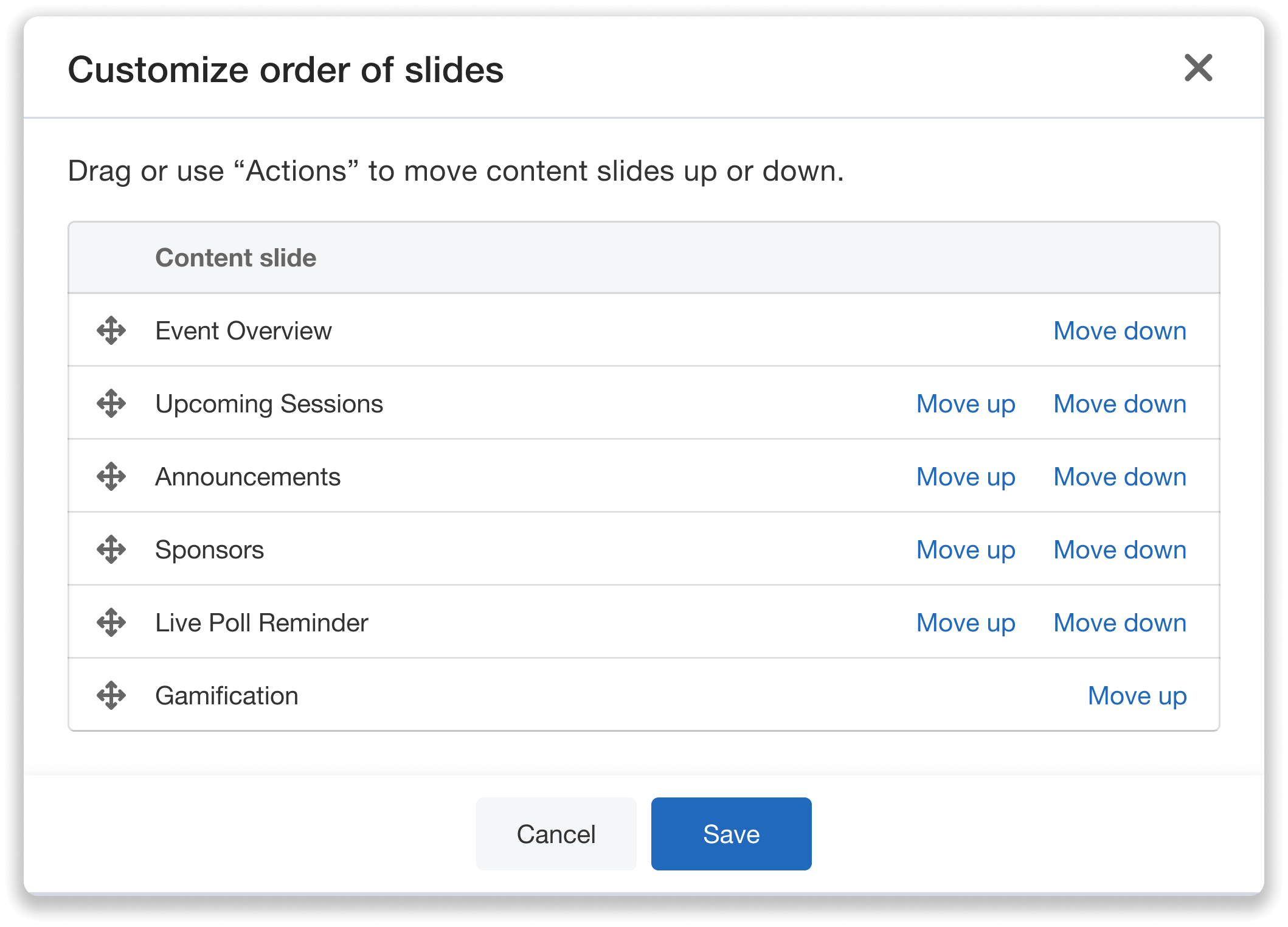
Easily arrange the Announcement Wall’s slides in the order you’d like them to rotate.
When your display settings are finalized, press “Save” to complete the setup. You can preview the Announcement Wall to see exactly how it will appear on screen, including a fullscreen option.
Even after setup, the Wall remains flexible. You can make adjustments to slide content or display settings at any time by clicking “Customize design” and selecting either “Customize content slides” or “Customize settings” from the dropdown. Once edits are made, save your changes, and the updates will appear live on your screens within minutes.
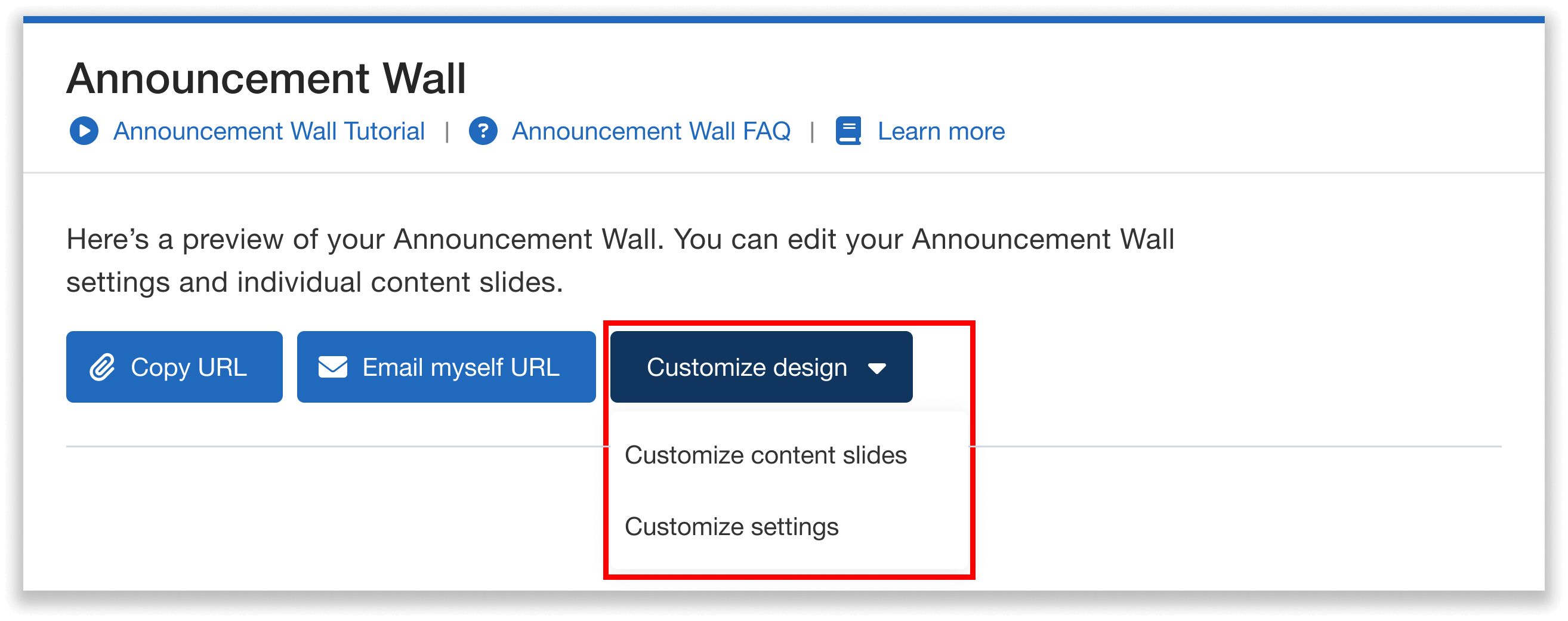
Edit the Announcement Wall’s content and display settings from a convenient dropdown menu.
Displaying the Announcement Wall On-Site
After your slide content and display settings are finalized, you can easily prepare your Announcement Wall for on-site use. Simply copy the Wall’s URL or email it to yourself from the dashboard, so you can quickly access it when it’s time to go live.
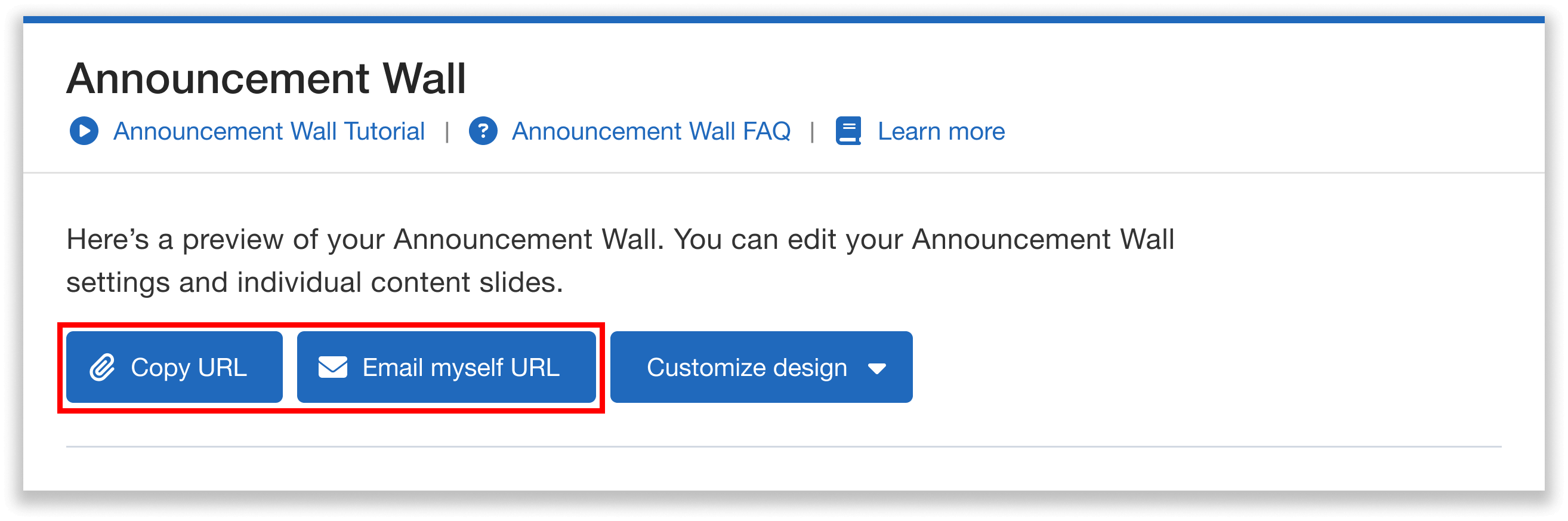
Quickly copy the Wall’s URL, or send it to yourself via email, with the click of a button.
To display the Wall at your venue, connect a computer or other compatible device to your monitors, projectors, or large screens using an HDMI cable or wireless connection. Open the Announcement Wall link, and your live content will be ready for attendees to see.
Throughout the event, you can continue making updates as needed. For example, if you want to add a last-minute custom slide, you can return to the dashboard, make your changes, and watch them appear on-screen in minutes. This flexibility allows you to adapt your messaging in real time and keep your on-site experience relevant and engaging.
Extend Engagement Beyond the Venue with an Activity Stream Webpage
After setting up your Announcement Wall, you can bring the same live content to your event website by creating an Activity Stream webpage. This widget displays a real-time feed of the same announcements, engagement, and updates as your Announcement Wall, helping you keep both on-site and remote audiences informed and connected.
To create your Activity Stream webpage, navigate to the Engagement tab, select “Announcement Wall,” and click “Activity Stream Webpage.” From there, you can choose between two layout options: a mini widget that fits neatly into your website’s sidebar, or a full-page layout that fills an entire webpage with live event content.
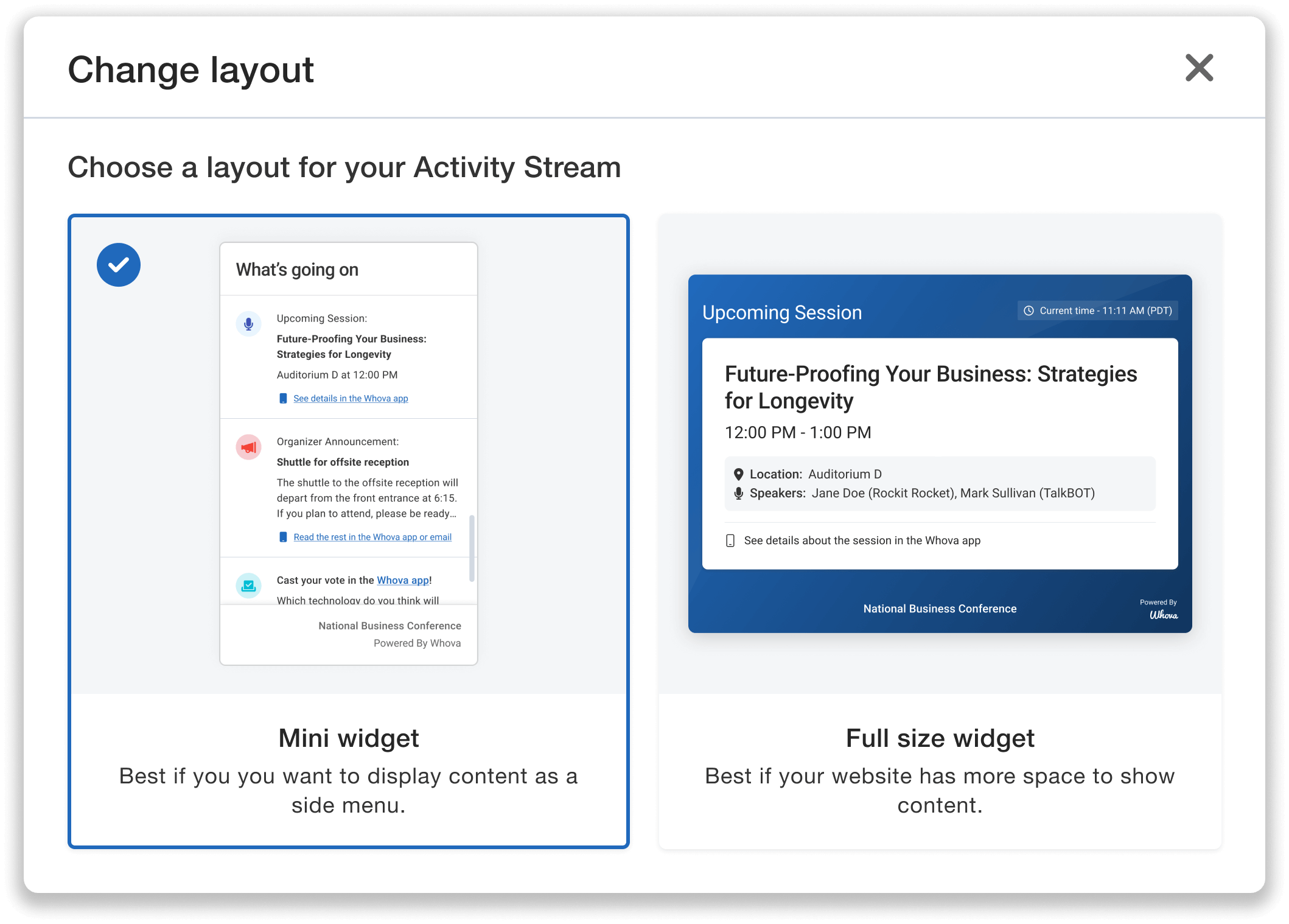
Keep your audience connected with a real-time Activity Stream on your event website—choose a mini widget or a full-size layout.
You can preview how the Activity Stream will appear directly from your dashboard before publishing. When you’re ready to embed it, simply copy the provided code and paste it into your website.
Make Your Event Come Alive with Whova’s Announcement Wall
With the Announcement Wall, your venue screens are more than just background noise—they’re powerful tools for communication, engagement, and brand reinforcement. By bringing together live updates, sponsor visibility, and community activity, you can create events that feel more organized and impactful for every attendee.
Ready to see how the Announcement Wall can elevate your next event? Request a demo or reach out to your Whova representative to learn more about using the Announcement Wall to create an engaging on-site experience.