
July 06, 2026
Registration is live—now what?
Once tickets go live, the next challenge is getting your event in front of the right people. Organizers need to build excitement, reach prospective attendees, and turn interest into registrations. The faster you start promoting, the more momentum you can build for your event.
That’s why Whova continues to invest in tools that help organizers not only manage registration, but also grow attendance. In addition to powerful registration features, we’ve introduced ways to expand your reach through Organizer Co-Promotion, motivate attendees with Referral Contests, and encourage speakers, sponsors, exhibitors, and attendees to spread the word on social media.
Email remains one of the most effective ways to drive registrations. With Whova’s built-in Email Campaigns, organizers can easily reach contacts, reconnect with attendees from previous events, and track campaign performance—all from the same dashboard.
Now, we’re making this process even simpler. As soon as registration is published, organizers will see recommended next steps that make it easy to launch email outreach immediately. Whether you’re inviting past attendees or promoting your event to your contact lists, you can start building registration momentum right away.
We’re also expanding reporting capabilities, so you can now see how many tickets and how much revenue your email campaigns generate directly in the Orders and Transactions Summary and Post-Event Report.
Use Email Campaigns to:
- Invite past attendees across multiple events: Select attendees from one or several previous Whova events without exporting lists or managing contacts in another platform. You can also automatically exclude certain attendee types—such as speakers, exhibitors, sponsors, or admins—to ensure each campaign reaches the right audience.
- Reach your own contact lists with ease: Upload your existing contact lists and start promoting your event right away. Whether you’re inviting prospects, members, customers, or subscribers, Whova makes it simple to bring your audience into one place and launch targeted outreach.
- Track results and measure impact: Monitor opens, clicks, registrations, tickets sold, and revenue generated directly from the campaign dashboard and reports, so you can understand what’s working and optimize future outreach—without relying on separate tracking tools.
With Email Campaigns now easier to access after publishing registration, organizers can start promoting their event and driving ticket sales right away.
Want to see how easy it is to reach contacts and past attendees? Read on.
Send Email Campaigns Right After Registration Launch
After publishing tickets, you’ll see three action items to help you continue promoting your event. One of these will recommend you to Invite past attendees and boost registrations.
Simply click the Email contacts or Invite past attendees button.
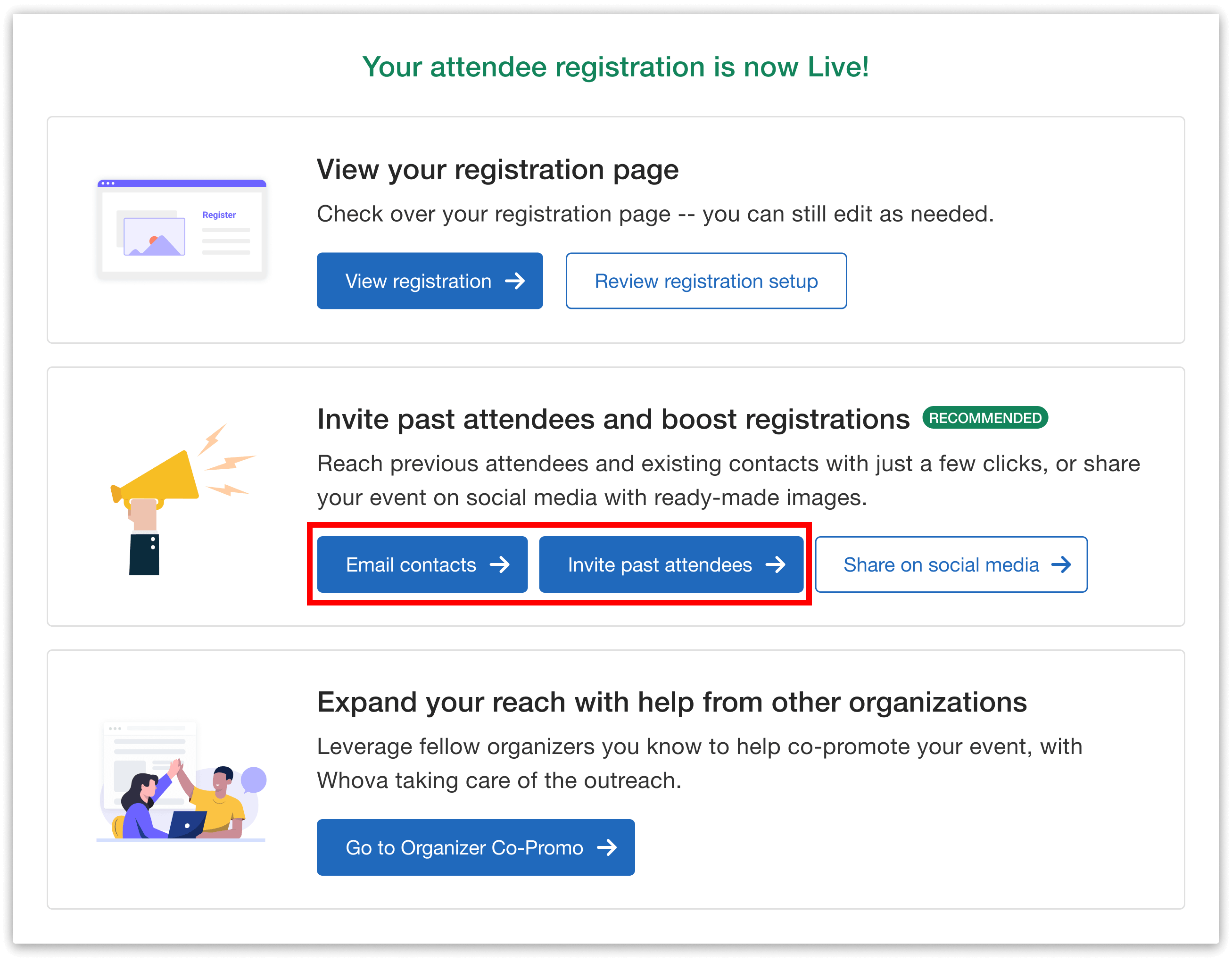
Send an email campaign to boost event signups immediately after registration launch.
Both buttons will take you directly to the Email Campaigns page, where you can start driving registrations by sending built-in email invitations to your contacts and past attendees.
If you’d like to access the feature later, you can also find the Email Campaigns page under Ticket Marketing in the Tickets tab.
Promote Your Event To Past Attendees Across Multiple Events
On the Campaign Management page, click Create Campaign and choose Past Event Attendees as your recipient source.
Instead of promoting your event one attendee list at a time, you can select attendees from multiple previous Whova events in a single campaign. Whether you’re organizing an annual conference series, recurring trainings, or several related events throughout the year, this makes it easy to reconnect with people who have already engaged with your organization—without having to export spreadsheets or manually combine lists.
Under Advanced options, you can also exclude specific attendee types from receiving your campaign, including:
- Admin
- Speakers
- Exhibitors
- Sponsors
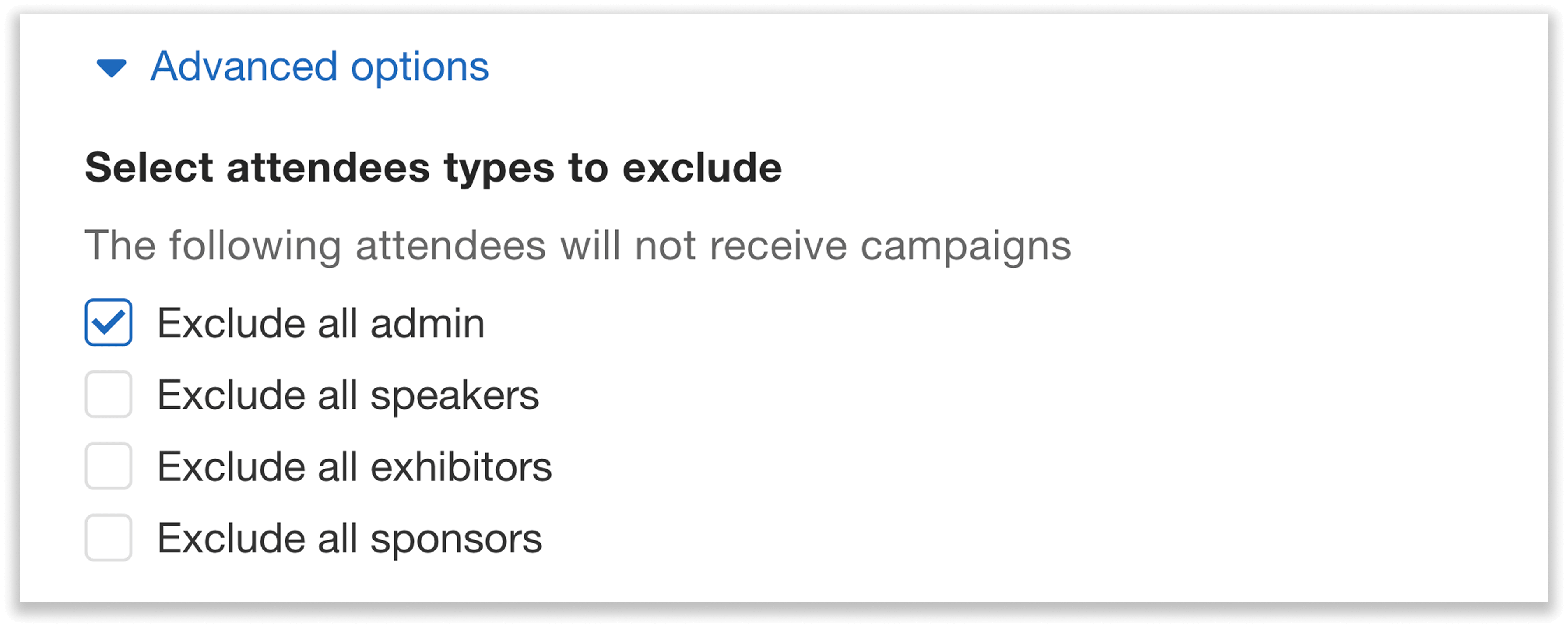
Choose which attendee types to exclude from your campaign.
Note: You can send up to two campaigns per event to past event attendees.
Next, it’s time to customize the email’s content. You’ll choose the sender’s name, reply-to email address, and email subject line.
Whova automatically generates an email body with your event description, and you can edit the email as needed. If you’d like to save even more time, you can reuse a previous email or generate content with our built-in AI Writing Assistant.
You can also choose where the registration button directs recipients, such as a general admission registration page, and optionally enable Campaign Link Tracking to measure registration button conversions.
Before sending, you can preview your email and even send a test email. You can also save your draft and come back to it later if needed. Once everything looks good, simply click Send.
Promote Your Event To Your Own Contact List
If you’d like to reach your own audience, select Contact Lists as your recipient source when creating the campaign.
You can then either:
- Create a new contact list by manually entering contacts or uploading an Excel file
- Use an existing contact list that you previously uploaded
- Reuse a past list by selecting a previous event and the contact list associated with it.
After choosing your recipients, you’ll follow the same simple workflow: customize the sender information and the email content, choose what page the registration button will take recipients to, optionally enable Campaign Link Tracking, preview your email, and send when you’re ready.
Track Email Campaigns From the Dashboard
You can easily monitor both draft and sent campaigns in the Campaign Management dashboard. For each campaign, you’ll view details such as sent date, email subject, and recipients.
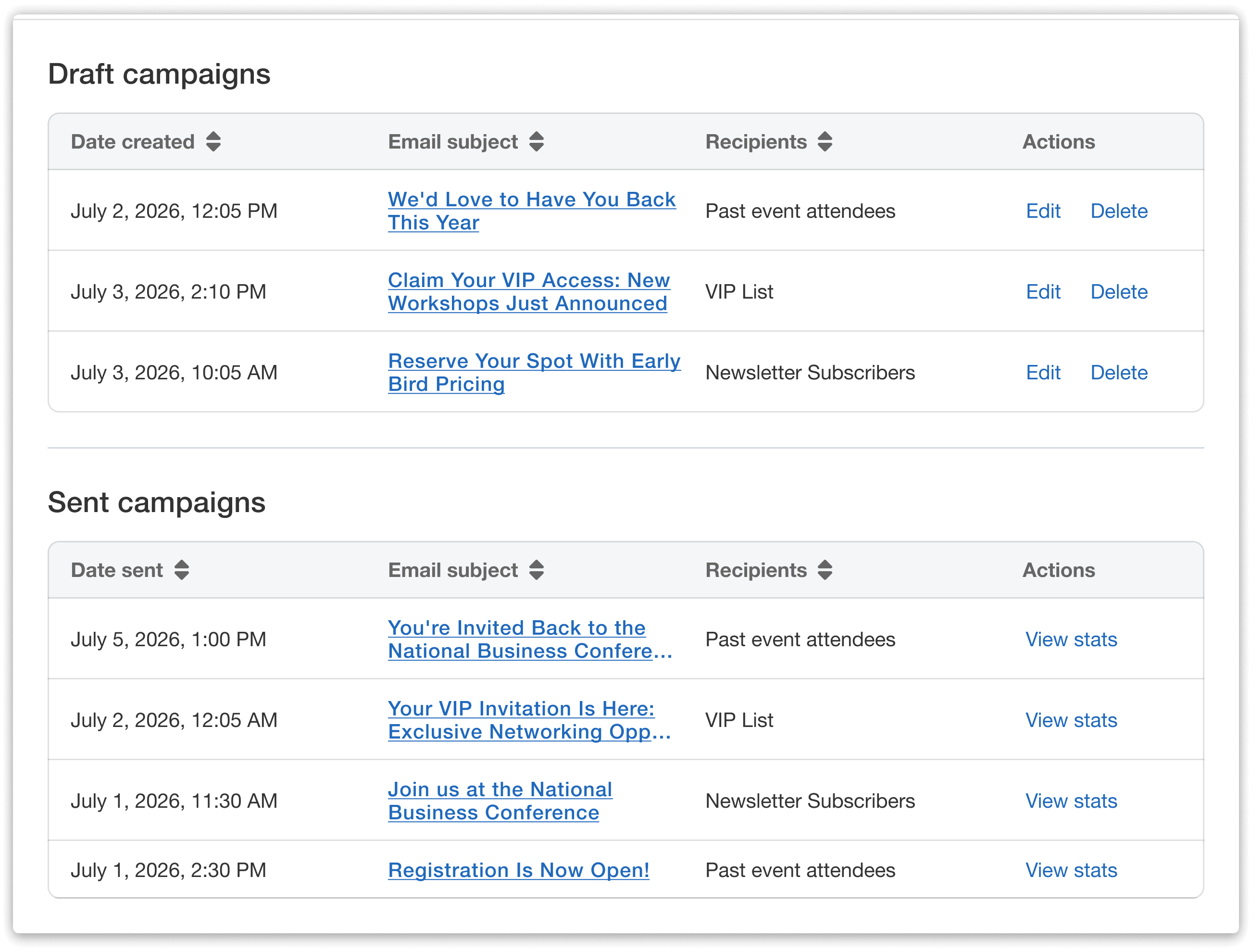
View both draft and sent email campaigns from one centralized dashboard.
For campaigns that have already been sent, click View stats to see detailed performance metrics, including:
- Each recipient and whether they’ve registered
- Number of contacts
- Number of invitations sent
- Number of emails opened
- Number of links clicked
- Number of contacts who registered
These insights make it easy to measure the impact of your outreach and make informed decisions about future campaigns.
View Email Campaign Results
You can now easily measure the success of your email campaigns in both the Orders and Transactions Summary and the Post-Event Report.
To access the Orders and Transactions Summary, go to the Tickets tab. Under Orders and Transactions, click Summary.
Within the Whova’s Contribution section, you’ll see how much revenue and how many ticket sales were generated using Whova features such as Abandoned Registration Retargeting, Referral Contest, and now Email Campaigns. The Email Campaign section displays both the revenue generated and tickets sold from your email campaigns.
You can also find these metrics in your Post-Event Report after your event ends. To request the report, click the Report button at the top of your dashboard, or navigate to the Tools tab and find the Report section.
Once your report is ready, you can view the total registrations and revenue from your email campaigns under Whova Contributed Registrations, which shows up in both the Event Overview Highlights section and the Event Registration section.
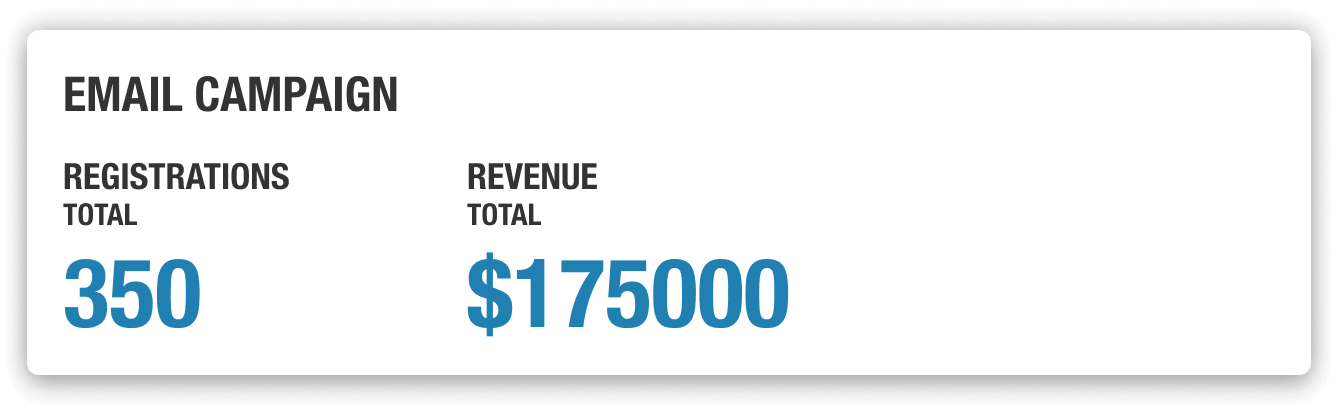
View total registrations and revenue from email campaigns in the Post-Event Report.
Level Up Your Event Marketing with Email Campaigns
There’s so much that goes into successful event marketing, from targeting the right audiences to tracking the impact of each campaign. With Whova’s built-in Email Campaigns, you can immediately start reaching previous attendees and existing contacts, helping you build registration momentum without relying on a separate email platform. Campaign performance and revenue tracking are built directly into Whova, bringing your event marketing and registration data together.
The next time you launch registration, take advantage of the Email Campaigns feature and start filling your event with just a few clicks. Not using Whova for your event management yet? Request a demo today!